Using FTP Adapter
This topic will show how to use FTP Adapter to read and write files to FTP server.
There are 5 tutorials in this training.
- BizTalk Training 1 – basic send/receive xml message
- BizTalk Training 2 – receive/send plain text
- BizTalk Training 3 – customize filename dynamically
- BizTalk Training 4 – using Functiods in Map
- BizTalk Training 5 – using FTP Adapter
Objective
- Learn how to use FTP adapter.
Prerequisites
- BizTalkTraining 4 project.
- Configuration on BizTalk Administration for BizTalkTraining application.
Topics
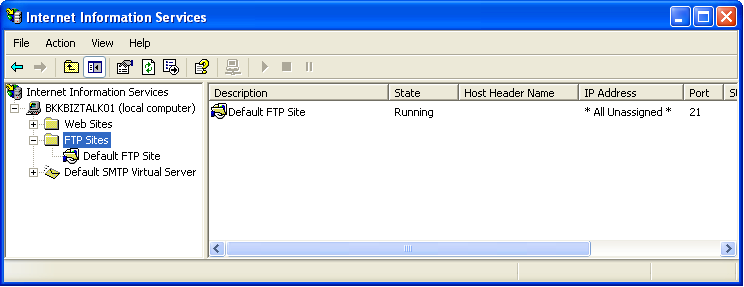
- Run FTP server using IIS.
- Configure to receive files from FTP server using FTP Adapter.
Step-by-step
- Run FTP server using IIS.
- Ensure that your FTP server is running.
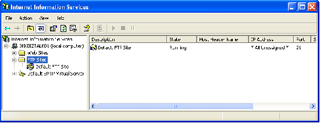
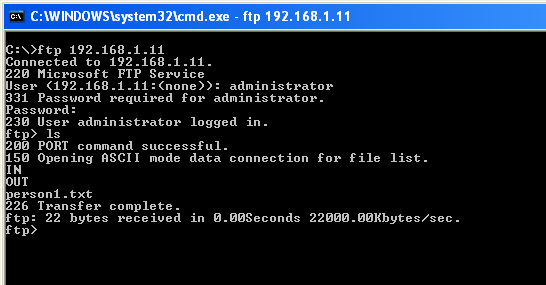
- Ensure that you have account to access FTP server with read/write permissions.
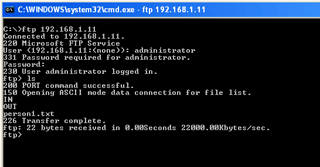
- Ensure that your FTP server is running.
- Configure to receive files from FTP server using FTP Adapter.
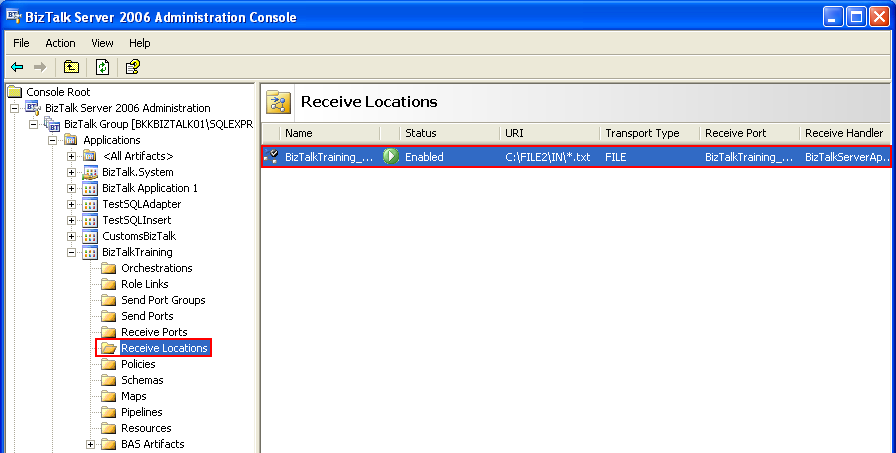
- Open BizTalk Administration and double click a port in Receive Locations.
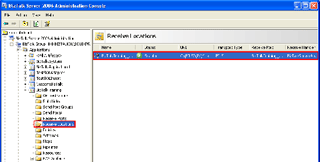
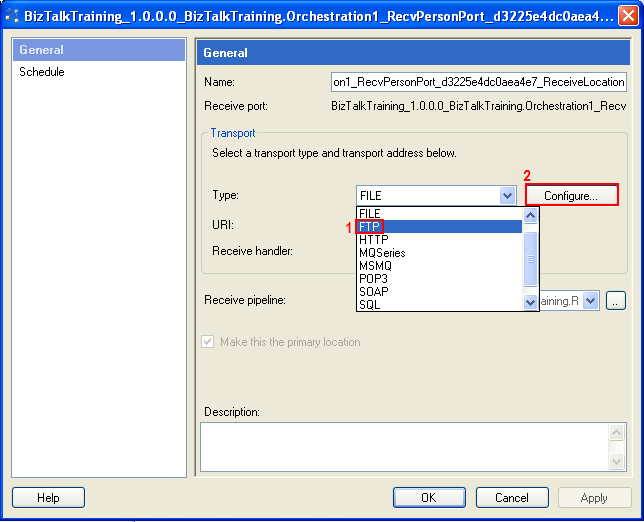
- Change Type to FTP and click Configure.
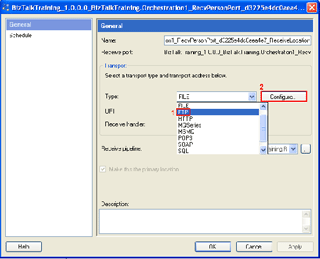
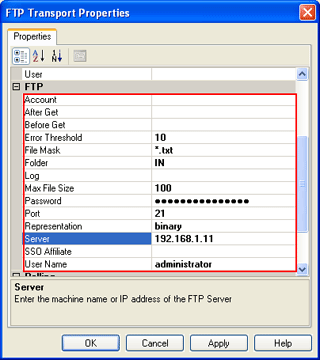
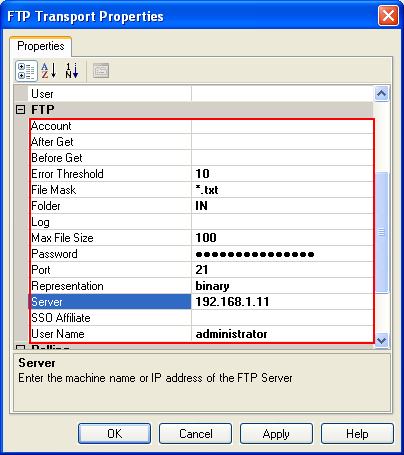
- Enter FTP information such as server name, account name and password, file mask, etc.
Note: The account must have permission to delete the file if it’s a receive port and write file if it’s a send port.
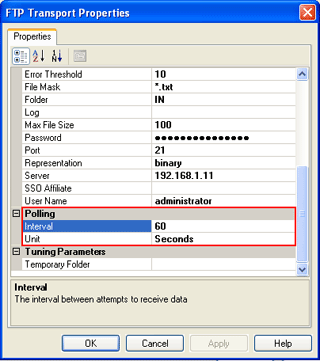
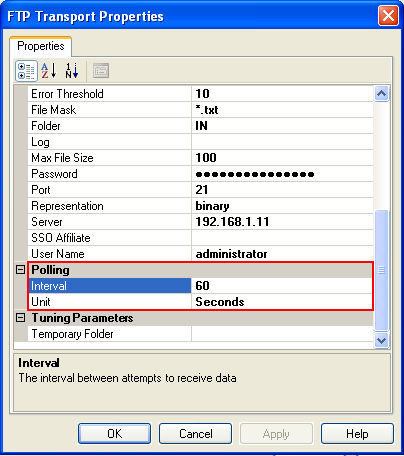
- You can also change the polling time in Polling section.
- Click OK. Click OK. Restart server host instance, refresh the application.
- Open BizTalk Administration and double click a port in Receive Locations.
Resources
You can download the configuration file (XML file) at here.
If you need source code of BizTalk project, you can download at the previous post on BizTalk Training 4.
Thanks.It is a very good and easy demonstration.
This tutorial was awesome.. very straightforward for beginners.
Really a great informative basic material. I found this source as very useful among all other sources. Any further materials on Biztalk are also appreciated.
It is mentioned there are 9 tutorials ..but i see only 5…
Hi, Sree
I planned to write more than this at first. But I haven’t much time to continue them yet.
Can I use Biztalk like in your example to FTP multiple files (100+) as batch (like an FTP ‘mget’) from send to receive location (receive location has Biztalk & both loacatons are windows platform)? Would the process be very slow, or should I purchase 3rd party FTP software? can this be achieved using SSIS?
looking forward for more tutorials…Thanks Linglom for knowledge sharing.
Hi,
Any tutorials on XML to EDI transactions.