- Automate Backup Database on SQL Server, Part 1: Create VB Script
- Automate Backup Database on SQL Server, Part 2: Create Scheduled Task
Last year, I wrote an article about backup and restore database on SQL Server with Microsoft SQL Server Management Studio. That article (How to backup and restore database on Microsoft SQL Server 2005) was simple and plain. But it will be inconvenience if you have to backup databases frequently. So I decide to write another article. This article, I show you how to backup databases automatically on scheduled time. Therefore, you don’t have to waste time to manually backup databases on SQL Server anymore. Let’s me explain what I’m going to do to automate the task that I’ve mentioned above. First, I’ll create a VB Script file that perform backup database on SQL Server. Then, I create a Scheduled Task to execute the script daily. That’s it, the script will be executed according to the scheduled time without any user interaction.
Create VB Script
- In the example below, I’m going to create a VB Script that backup a database Northwind on SQL Server 2005 (INSTANCE01). Then, I’ll create a Scheduled Task to execute the script at 1:00 AM daily. Sounds easy, isn’t it? Let’s see it in action.
- On SQL Server 2005 server, open Notepad and type the following code:
1
2
3
4
5
6
7
8
9
10
11
12
13
14
15
16
17
18
19
20
21
22
23
24
25
26
27
28
29
30
31
32
33
On Error Resume Next

strComputer = "."

'Set objWMIService = GetObject("winmgmts:" _
'    & "{impersonationLevel=impersonate}!\\" & strComputer & "\root\cimv2")

Dim sDBUser
Dim sDBPwd
Dim sDBServer
Dim sDBName

sDBUser = "sa"
sDBPwd = "password"
sDBServer = ".\INSTANCE01"
sDBName = "Northwind"
backupPath = "C:\Test\"

Set oSQLServer = CreateObject("SQLDMO.SQLServer")
Set oBackup = CreateObject("SQLDMO.Backup")

oSQLServer.LoginTimeout = 30
oSQLServer.LoginSecure = True
'oSQLServer.Connect sDBServer
oSQLServer.Connect sDBServer, sDBUser, sDBPwd

oBackUp.Initialize = "TRUE" ' Means overwrite existing .bak file.
oBackup.Database = sDBName
oBackup.Action = SQLDMOBackup_Database
oBackup.Files = backupPath & sDBName & ".bak"
oBackup.SQLBackup oSQLServer

oSQLServer.Close()
Code Explanation:
- Line 3: Specify server name. “.” means the local computer.
- Line 5-6 and 24: Connect to SQL Server with Windows Authentication mode (Using current user credential). If you don’t want to specify username and password in the script, uncomment these line and comment the line 25 instead.
- Line 8-11: Variables Declaration
- Line 13-17: Assign values to variables.
- Line 13: Username for connect to SQL Server
- Line 14: Password of the username
- Line 15: The SQL Server. For SQL Server Express Edition, the value should be “.\SQLEXPRESS”.
- Line 16: The Database name. In this example, it is Northwind.
- Line 17: Define location where you want to keep the backup file.
- Line 19-20: Create Objects to perform backup.
- Line 22-23: SQL Connection attributes.
- Line 24: Connect to SQL Server with Windows Authentication Mode (Doesn’t need username and password). See Line 5-6 and 24 for more detail.
- Line 25: Connect to SQL Server with SQL Authentication Mode (Specify username and password). The code above is set to connect by this method.
- Line 27: Set to True to overwrite the existing backup file.
- Line 28-29: Backup attributes,
- Line 30: Set location of the backup file.
- Line 31: Perform backup operation.
- Line 33: Close the connection to SQL Server.
- Customize the code as you desired. You should change the configurations on line 13-17 to match your environment. Then, save the file to .vbs format. In this example, I save to Northwind.vbs.
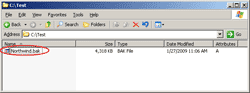
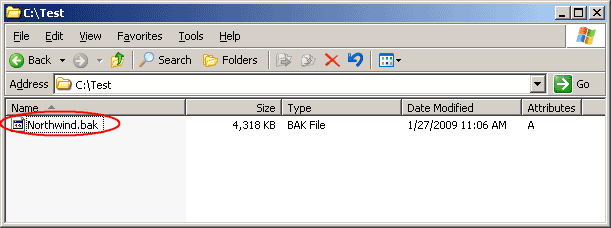
- Next, test the script by double-click the script to execute it. You should see the Northwind.bak file in the location where you have specified in the script.
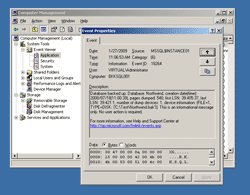
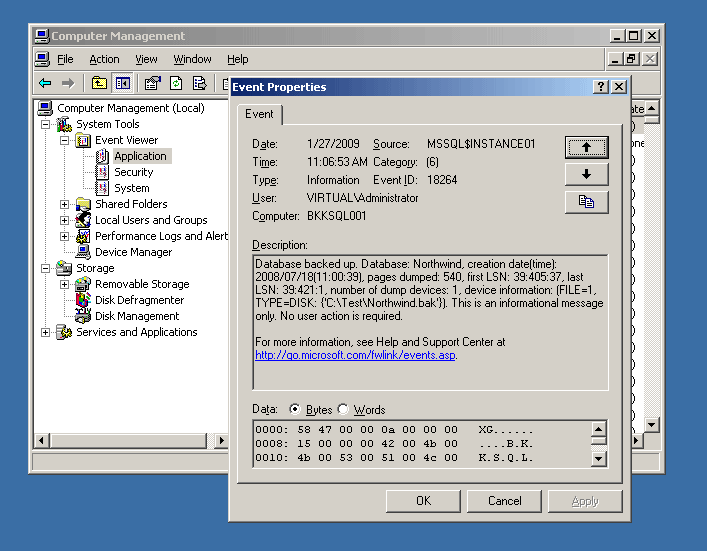
- If you didn’t see the Northwind.bak, check the Application event log to see if there is any error. The figure below is the success backup message.
- For create a schedule task, I’ll write it soon.
Hi!
Nice script!
Is it possible to backup up multiple databases without using multiple version of the script?
Greetings
Marco
Hi, Marco
You can slightly modify the code to do loop between line 22-31 and change the database on each loop.
hmm .. can you help us to give us some suggestion to how to backup in Visual basic , but we are using microsoft access as our database .. please please . . .
Hi, April
MS Access database is a file so the easiest way to backup is to copy .mdb file to your backup folder. See the example below.
Imports System.IO
…
File.Copy(“C:\Northwind.mdb”, “C:\backup\Northwind.mdb”)
…
The example above will copy file C:\Northwind.mdb to C:\backup\Northwind.mdb
your web is great please hlp me to enhance my skill in programming, i am now concentrating in VB and WebPage Developing.
hey how do u try this in network i mean for the remote server
i tried in this way but not getting
rspath = “\\Servername\SQLScripts\
rspath = “\\Servername\c$\SQLScripts\
rspath = “\\Servername\\SQLScripts\\
Hi, V
What if you try to backup to a local drive first? Is it work?
Hello Linglom,
I was wondering if you could help me with my issue. I am trying to setup a full backup that will overwrite the previous backup and save the past 30days worth of data. I don’t think your code included anything for saving the past 30days. Could you help me out? Thanks! Joe
Hi Linglom,
I tried to run the script on the server but I got the following runtime error:
“r6034
An application has made an attempt to load the C runtime library incorrectly. Please contact the application’s support team for more information”
Do you know why I got that error, I copied the script and made the appropriate changes.
Hi, Joe Hogan
The easiest way is to modify my code’s backup file name to include the current day. For example, dbName-17.bak, dbName-18.bak, etc. So when it comes to the day on next month, it will overwrite the old one.
It may not be the best solution but it will works.
Hi, Oliver
I think the problem is on the server itself. I want you to try on another server or PC to see if the script works or not.
Hi Linglom,
I want to backup all the DB’s (with prefix “Master_”), store it in a file, compress it and later on restore them. I know that compression is only supported by Sql Server 2008 Enterprise Edition. I am using Standard edition.
I am thinking to make a batch file, write the sql scripts, and execute.
Can you suggest me an easier way?
Any lead is appreciated.
Thanks
Hi,
I think create a script is the easiest way (for free). You only write script once and schedule it to run any time you want.
hi Linglom.
I have 2 separate MS SQL servers, one live and one backup. everyday i am creating a backup with a scheduled task from the live one and i am looking for a way to automate the restore to the backup server everyday. I have tried creating a job and scheduling it to run every day, but it is failing with the error “Exclusive access could not be obtained because the database is in use.”. Any ideas?
Thanks!
Hi, loupi
The error message indicates that someone is accessing the database that you are going to restore to. You can check if someone is accessing by using SQL Management Studio -> Connect to the SQL Server -> Activity Monitor.
To solve the problem, try one of these solutions:
ALTER DATABASE db_name SET SINGLE_USER WITH ROLLBACK IMMEDIATE
Hi Linglom!
Thanks for the reply. Tried the solutions you wrote. it turned out the error was that in the job i created, in the import step i had selected the actual db on which i tried to perform the restore. i selected master and it worked fine. I also added as a first step of the job the Alter db you wrote.
Thanks!
Hello Linglom,
I tried to change the name of backup by adding the NOW date time.
but the script showed error the.
Is there any limit on no:of characters in the .bak filename?
Because short names like u suggeted works great.
Also can the backup created by this script be restored on another PC with same database name but different local computername?
Thanks!
Hi, Nithn
The problem is that you are renaming to an unsupported file name. When you use function now() to get the current date time, it contains ‘/’ and ‘:’ which are the unsupported characters in file name. The solution is to replace those characters with space or other character instead.
For the second question, this backup script gives the same result as you back up manually by SQL Management Studio so you can restore it on any PC regardless computer name.
thanks
I willtry that soon
hi linglom ,
nice script you have here 🙂 it saves me loads of time thx m8.
am trying to add serveral db’s from several servers.. Can you help me ?
Hi, hcs
You can modify the script to accept parameters as server and database names so that you can run the script to backup different server and database names.
I have several questions about this.
1.How do you automate a restore to the SQL Server 2005 Express? Do you have a script for that?
2. ◦Line 3: Specify server name. “.†means the local computer.
Is this the computer name I am running this script on?
3. â– Line 15: The SQL Server. For SQL Server Express Edition, the value should be “.\SQLEXPRESSâ€.
My express servername is servername\SQLEXPRESS so how would I type this in?
Also I am backing up SQL production server and restoring to SQLEXPRESS so how would I type in the SQL production server name?
Hi, Marcus
1. I don’t have it. But I think this article may help you. See Database Restore.
2. Yes. But if you didn’t use line 5-6 (for windows authentication mode), you can ignore this line.
3. If you want to backup remote SQL Server database, you need to modify line 15 like this:
sDBServer = “your-SQL-server-name\INSTANCE01”
Thanks linglom,
I do have a question on the link you provided. The restore script on that site doesn’t seem to have a place where it picks up the backup. There is nothing in there that I see where the restore finds the path for the backup file. Am I missing something?
Also it has something about source devices. I don’t understand that. Is that something I will need?
Hi, Marcus
The restore script on that page is try to restore from a device (eg. the backup tape, etc.)
I think you can apply it with my backup script if you want to restore from a file.
Hi linglom
Actually I wrote this script on my pc and it run without any error. but took no any backup .my sql server is window authentication i have only one pc so what i modify in this code
Abhishek
Hi, Abhishek
If you run the script and it show no error neither a backup file, the script may error. To see the error, remove the first line “On Error Resume Next” on the script and execute again.
Hi, is it possible to use similar script to restore the DB? Thanks!
Well, did it anyway. Code is below:
oRestore.Files = “C:\Temp\dbname.bak”
oRestore.Database = sDBName
oRestore.Action = SQLDMORestore_Database
oRestore.ReplaceDatabase = True
oRestore.SQLRestore sql
Hi, I am trying to make this, but on remote machines and am getting errors:
Error: Unspecified error
Code: 80004005
Does anyone have any input on what can be wrong – it seems like SQLDMO is not used properly, but it is OK. Executed locally, there is no problem…
Hi, Ya S
Thanks for sharing.
Hi, JK
The error code 80004005 could be that access denied, insufficient rights, wrong permissions problems.
Hi,
the script is gr8….i was able to backup in SQL server 2005, but in sql server 2008, the script seems to be not working….
anything additonal i need to do ?
kindly advice me !
im not getting any error….. but nothing gets backed up…
this is what im using…
On Error Resume Next
Dim sDBUser
Dim sDBPwd
Dim sDBServer
Dim sDBName
Dim objGroup, objUser, i, k, objUsers, j
Const ForReading = 1
i=0
Set objFSO = CreateObject(“Scripting.FileSystemObject”)
Set objTextFile = objFSO.OpenTextFile(“C:\input.txt”, ForReading)
i = 0
sDBS = InputBox(“Enter the DB SERVER IP.”,”DB Server”)
on error resume next
Do Until objTextFile.AtEndOfStream
sDBName = Trim(objTextFile.Readline)
sDBServer = sDBS
sDBUser = inputbox(“Enter the user name”)
sDBPwd = inputbox(“Enter the password”)
‘sDBServer = “192.168.151.183”
‘sDBName = “TOMControlsAndParameters”
backupPath = “E:\db_bkp_test\”
Set oSQLServer = CreateObject(“SQLDMO.SQLServer”)
Set oBackup = CreateObject(“SQLDMO.Backup”)
oSQLServer.LoginTimeout = 30
oSQLServer.Connect sDBServer
objSQL.LoginSecure = True
oSQLServer.Connect sDBServer, sDBUser, sDBPwd
oBackUp.Initialize = “TRUE” ‘ Means overwrite existing .bak file.
oBackup.Database = sDBName
oBackup.Action = SQLDMOBackup_Database
oBackup.Files = backupPath & sDBName & “.bak”
oBackup.SQLBackup oSQLServer
oSQLServer.Close()
i =i +1
loop
wscript.echo “Backup Complete”
kindly let me know….whether im missing something…here…
any help is appreciated 🙂
Hi SU,
can you tell what are the logs regarding the sql process in the event log? normally this operation takes a while…
Ya S:
from morning i ran the script,, still i have not managed to get any sort of event log !
does it take too much time…shud i wait some more time…
hi,
i have not got any logs in the sql server or in the evetnviewer pertaining to this backup !
could anybody help me out please….
Hi SU,
You can try and execute the script locally on the machine – this way you may see the error. One of the possibilities is that the DB is in use and cannot be detached – make sure SQL Management Studio is not logged to the DB.
Hi, SU
You can try remove this line in the code:
Then, try to execute the script manually as ‘Ya S’ told to see if there is any error message.
im running the script locally only…
also as suggested by you, if i comment “on error resume next”, i get the following error Activex component can’t create object: ‘SQLDMO.SQLServer’wihtout commenting it, it just says backup complete…and i du not see anything in the backup folder.
also i created a new blank Db and then tried running this script. still the same thing happens…
please suggest…..
Hi, SU
I’ve just noticed that you are using SQL Server 2008. There is an issue about it. See [Solved] ActiveX component can’t create object: ‘SQLDMO.SQLServer’ on SQL Server 2008 for a solution.
GR8…it wors awsome…once i install the BC for SQL 2005 !
thanks a lot once again….
the script now works like a gem on SQL Server 2008
thanks a lot man…
thank a lot for such a good informative materials.
Best regards
jamil shah afridi
I’m using a remote server with a dedicated path to the database. How do I handle that…
Second: What’s INSTANCE01? Is that required for SQL Server 2005/2008 and can I just put the IP address.
Thanks,
Peter
Hi, Peter
You can backup to a remote folder by map drive or use UNC path (\\remote-server\share). But don’t forget to give appropriate permission to the remote folder.
For the second question, INSTANCE01 is an instance name of the SQL Server on the example. It is similar to SQL-Server\SQLEXPRESS where SQLEXPRESS is an instance name of the SQL Server.
Hi all,
Personally, i prefer a SQL script that backups all my DBs (or a selection), If wanted, you can use sqlcmd.exe to execute it automatically.
Note the first sql select; the WHERE clause you can use to filter what DBs you want to backup (or not backup).
[CODE]
DECLARE @DBName varchar(100)
DECLARE @BUPath varchar(100)
DECLARE @BUName varchar(100)
DECLARE MyCursor CURSOR
FORWARD_ONLY
FOR
SELECT Name FROM SYS.Databases WHERE Name NOT IN(‘DB1′,’DB2’)
OPEN MyCursor
FETCH NEXT FROM MyCursor INTO @DBName
WHILE @@FETCH_STATUS = 0
BEGIN
–Backup NOW!
SELECT @BUPath = ‘E:\Program Files\Microsoft SQL Server\MSSQL.1\MSSQL\Backup\’ + @DBName + ‘.bak’
SELECT @BUName = @DBName + ‘-Full Before Upgrade’
BACKUP DATABASE @DBName TO DISK = @BUPath WITH NOFORMAT, NOINIT, NAME = @BUName, SKIP, NOREWIND, NOUNLOAD, STATS = 10
–GO
FETCH NEXT FROM MyCursor INTO @DBName
END
CLOSE MyCursor
DEALLOCATE MyCursor
[/CODE]
Nice script!!!indeed
However what i want to do now is put some text box wherein i can simple put those servername or hostname as source database…then target destination something like repository folder or might other server hostname etc
Hi,
I am totally new to SQL2005… I am trying to use your vbs script to automatically back my server…
I don’t know where I can find the SQL2005 Notepad to open it… Could you please give some directions??? I am using SQL2005 Express Edition…
Create a VB Script
2. On SQL Server 2005 server, open Notepad and type the following code:
I am recieving an error at line 25; “Error:Invalid OLEVERB structure” “Code:80040000” What does this mean?