- Accessing MySQL on VB.NET using MySQL Connector/Net, Part 1: Introduction
- Accessing MySQL on VB.NET using MySQL Connector/Net, Part 2: Setup MySQL Server
- Accessing MySQL on VB.NET using MySQL Connector/Net, Part 3: Install Sample Database
- Accessing MySQL on VB.NET using MySQL Connector/Net, Part 4: Create & Grant MySQL User Account
- Accessing MySQL on VB.NET using MySQL Connector/Net, Part 5: Install MySQL Connector Net
- Accessing MySQL on VB.NET using MySQL Connector/Net, Part 6: Create Connection
- Accessing MySQL on VB.NET using MySQL Connector/Net, Part 7: Perform SQL Operations
- Accessing MySQL on VB.NET using MySQL Connector/Net, Part 8: Display Result on GUI
Display Result on GUI
Actually, I don’t prepare to write this post while I was writing the series. But there are some people want to know how to display a query data on Windows form rather than in console window which I wrote in the previous post. So this post, I’ll show how to display a query data on DataGridView on Windows form using MySqlDataAdapter.
Step-by-step
- I’ll continue from the previous post. You can download a project file from the previous post at here – SampleMySQL (zip format). The project was created on Microsoft Visual Studio 2005.
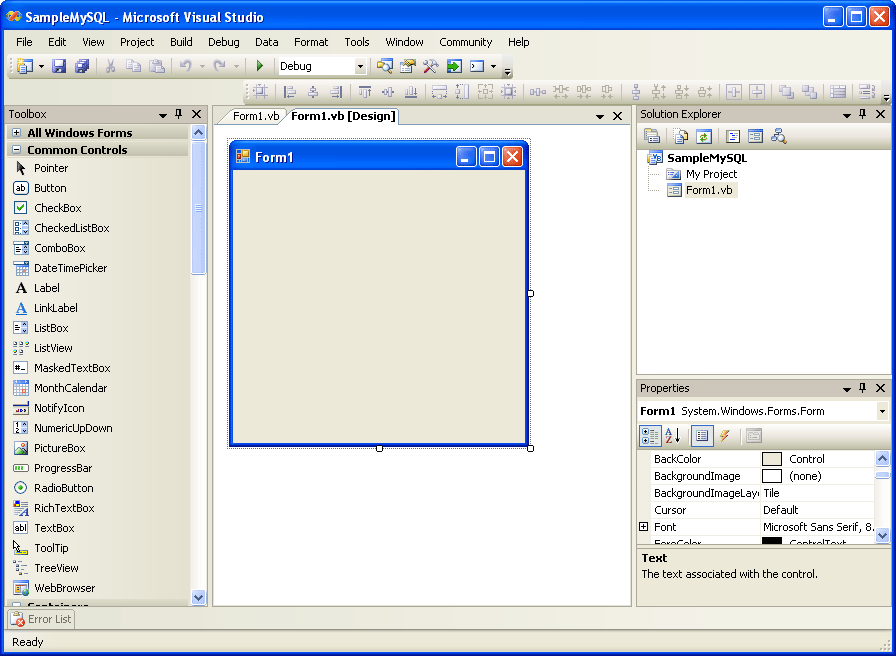
- Open the Design view of Form1.
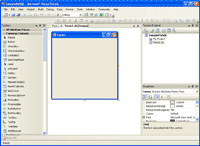
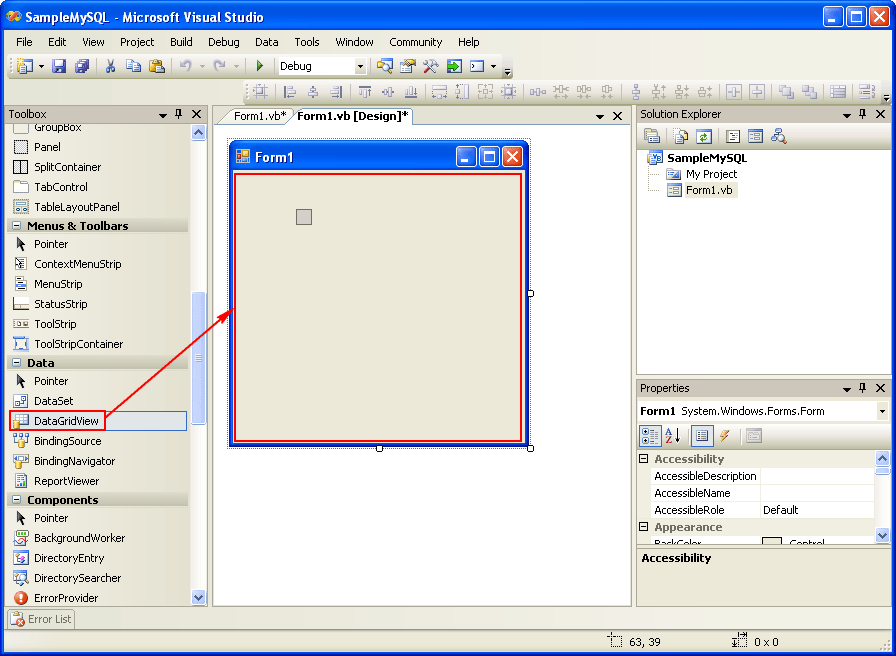
- Drag DataGridView tool from the Toolbox window to empty area on the form.
Note: If you can’t find Toolbox window, select View -> Toolbox.
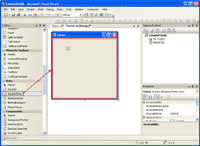
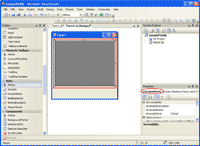
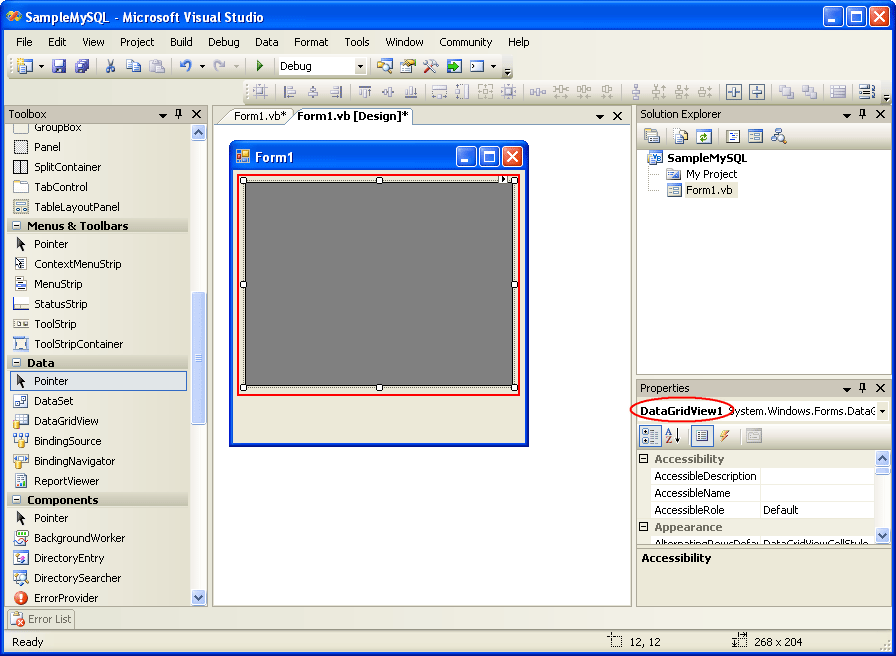
- The DataGridView is placed on the form. The dark background indicates the area of DataGridView’s object. On Properties window, you see the default name is DataGridView1.
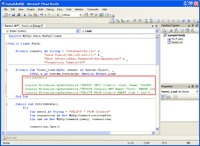
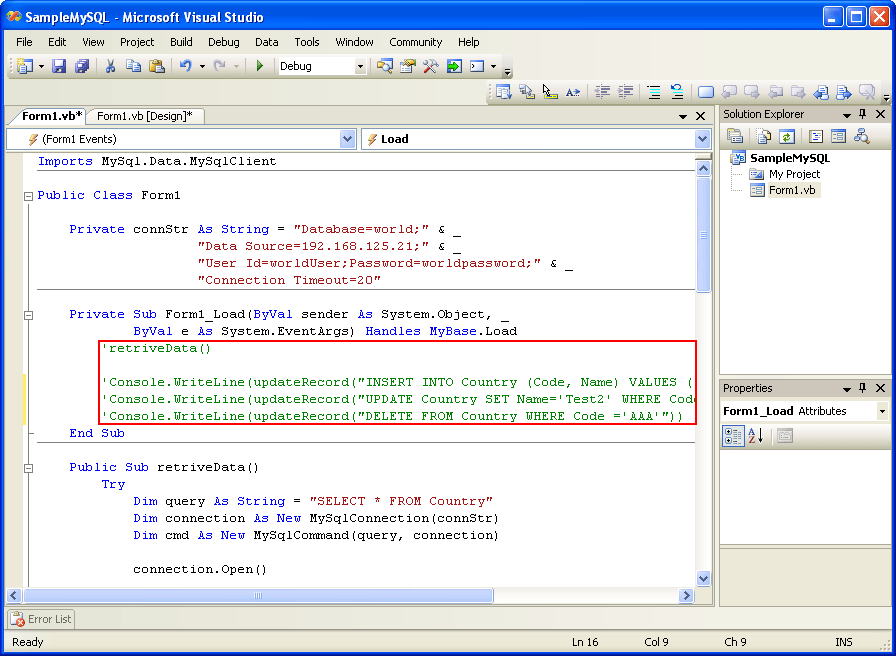
- Back to the Form’s code view. Comment all the lines in Form1_Load method. These are the code from the previous post which I don’t want it to be executed.
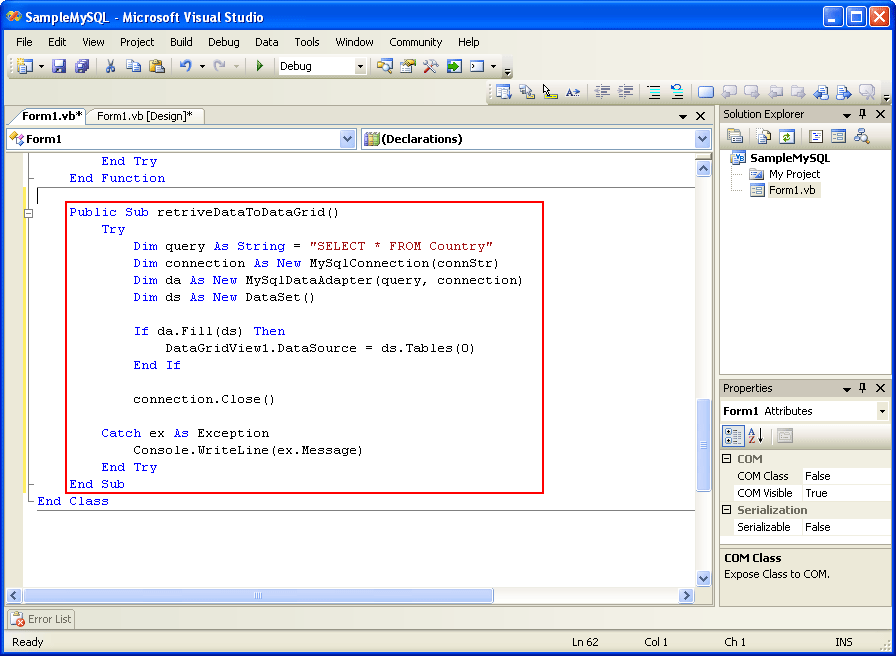
- Copy the code below to the form as a new method. Notice that this method is similar to retriveData() method except that it use MySqlDataAdapter rather than MySqlDataReader.
1
2
3
4
5
6
7
8
9
10
11
12
13
14
15
16
17
Public Sub retriveDataToDataGrid()
        Try
            Dim query As String = "SELECT * FROM Country"
            Dim connection As New MySqlConnection(connStr)
            Dim da As New MySqlDataAdapter(query, connection)
            Dim ds As New DataSet()

            If da.Fill(ds) Then
                DataGridView1.DataSource = ds.Tables(0)
            End If

            connection.Close()

        Catch ex As Exception
            Console.WriteLine(ex.Message)
        End Try
End Sub
Code Explanation:
- Line 3-5: Create New MySqlDataAdapter object with some parameters.
- Line 6: Create an empty data set.
- Line 8-10: Fills a data set and set data source of DataGridView1 to a table in the data set.
- Line 12: Close the connection.
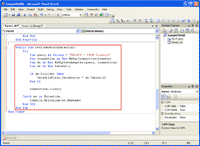
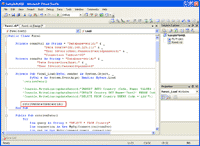
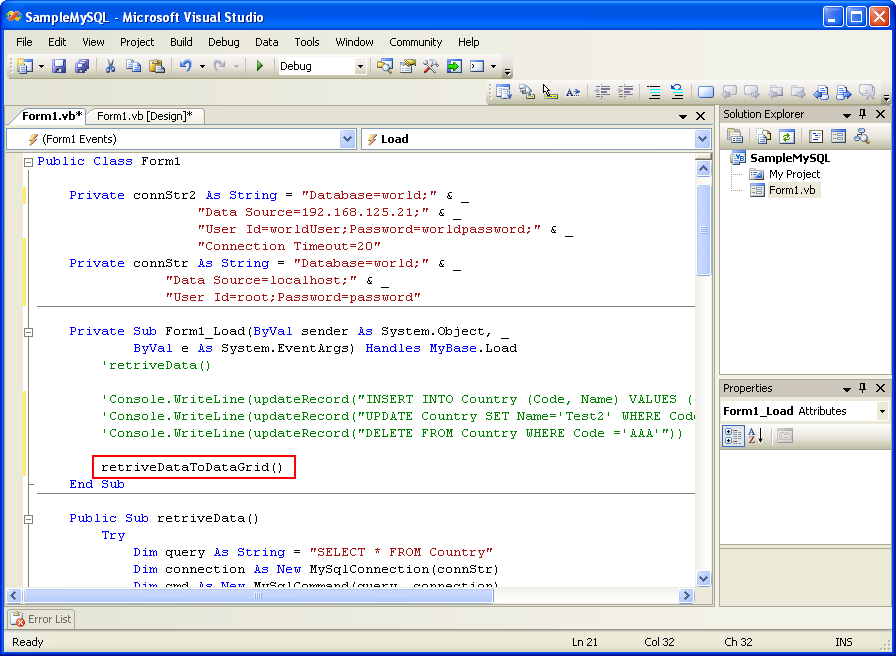
- Add code to the Form1_Load method to call retriveDataToDataGrid() when the form is loaded.
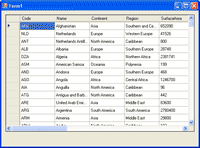
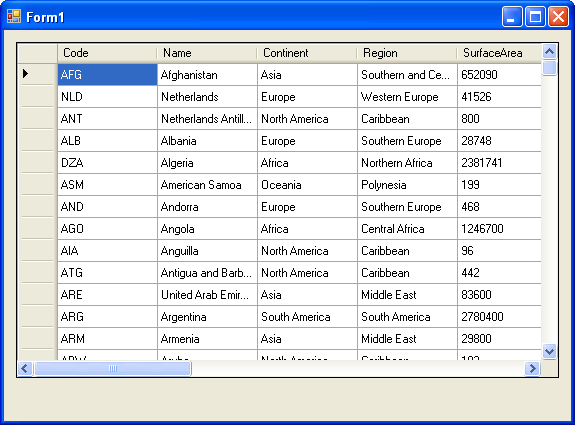
- Run the project. You’ll see the result on DataGridView on Windows form. You may adjust the size of DataGridView to suit your screen.
Download Code
You can download a complete project file at here – SampleMySQL2. The project was created on Microsoft Visual Studio 2005.
Summary
Now you have reach the end of the article. After 8 parts, you should be able to develop an simple application to access MySQL Server on your own. I think that the article is quite clear than other accessing database server articles that I wrote last year. If you have any question, feel free to leave a comment below.
Reference
- Using MySqlDataAdapter on dev.mysql.com
Thanks, it has helped a lot!
thanx a lot man
this helped me a lot
we are developing an stolen laptop tracking software “Techno Track” i can give you a copy upon project completion as reward if you are intrested mail me.
thanx
regards
Md Javed Akhtar
TechnocratOdisha
oh men!!! thanks for a very clear explanation about viewing database contents, using vb,., thnaks alot men,., and godbless
by the way,., i am doing my senior project right now,., and if you were interested about that,., just email me,.,
Thanks a lot yaar … it was very very clear and useful …
My heartfelt thanks ….
Hey…
Thank you so much. This is really a very good example.. I spent like 3 days and finally landed on this.. Thank you very much for your time….
Nice Tut. i have been looking a while for this.
The only thing that doesn’t work for me is how to show the querry’s. It will always give errors….
and yes the connection is good, since i can connect with the DB as tested under part 6.
The only thing is that i use VB Express 2008. en connector 6.22
WindowsApplication1.vshost.exe Error: 0 : Access denied for user ‘root’@’localhost’ (using password: YES)
A first chance exception of type ‘MySql.Data.MySqlClient.MySqlException’ occurred in MySql.Data.dll
Hi, Dirk
The error message stated that the user don’t have permission. You need to grant permission to a database for the user, see Accessing MySQL on VB.NET using MySQL Connector/Net, Part IV: Create & Grant MySQL User Account for an example.
Hi, linglom
Thanks for the tutorial but i seam to have a problem nothing happens even if i have the wrong password or user name i don’t seem to get any error.
i have downloaded your example as well i don’t know if i am over looking something here i believe i have everything setup correct. i am using,
VB 2008
MySQL Connector 5.2.5
and
MySQL 1.5.36 (installed by WAMP Server the only thing i can assume to be the problem)
any help would be much appreciated.
James.
Hi,
Any idea how to use the Chart forms and Mysql in VB .Net 2008-Express?
I’m referring to this library:
http://code.msdn.microsoft.com/mschart
I’m having trouble to bind the chart to my data, would be great if you can help
Thanks
Hi, James
If you follow my post on create the connection part, there should be a pop-up window show if the connection is valid or an error message. Have you see any pop-up windows when you run the application?
Hi, Nono
Can you show more detail about your problem?
Hi there,
I’m trying to fill a chart with data from an MySQL select query. The chart form is the: System.windows.forms.datavisualization.charting.chart (as per link above).
When runing my code i get no error message but the chart doesn’t change at all, ie the chart area stays blanck as if nothing had been done.
To be fair I have never used the Chart forms, so I’m not sure what I’m doing incorrectly, as well, ideally i’m would rather to use the DataBindCrossTable, which will be mroe usefull in my case.
Here is my code writen in the form containing the chart form:
————————————————
Imports MySql.Data.MySqlClient
Imports MySql.Data
Imports System.Data
Public Class frmIVvsRLZ
Private Sub cmdChart_Click(ByVal sender As System.Object, ByVal e As System.EventArgs) Handles cmdChart.Click
Dim rdr As MySqlDataReader
Dim conn As New MySqlConnection
Dim cmd As New MySqlCommand
Dim myAdapter As New MySqlDataAdapter
Dim SQL1 As String
conn.ConnectionString = My.Settings.connectionString
SQL1 = “SELECT CLOSINGDATE, HISTO10D FROM TBLHISTOVOLBBG WHERE EQUITY_ID=1845 ORDER BY CLOSINGDATE DESC”
Try
conn.Open()
Try
cmd.CommandText = SQL1
cmd.Connection = conn
rdr = cmd.ExecuteReader
chartHistoIVvsRLZ.DataSource = rdr
chartHistoIVvsRLZ.DataBind()
Catch myerror As MySqlException
MsgBox(“There was an error reading from the database: ” & myerror.Message)
End Try
Catch myerror As MySqlException
MessageBox.Show(“Error connecting to the database: ” & myerror.Message)
Finally
If conn.State ConnectionState.Closed Then conn.Close()
End Try
End Sub
End Class
I have tried this as well, which is more in your code fashion. Same problem, no error messages, no chart displaying eiather…
VB code – 2008 express
———————————————————-
Imports MySql.Data.MySqlClient
Imports MySql.Data
Imports System.Data
Public Class Form1
Private Sub Button1_Click(ByVal sender As System.Object, ByVal e As System.EventArgs) Handles Button1.Click
Try
Dim query As String = “SELECT CLOSINGDATE, HISTO10D FROM TBLHISTOVOLBBG WHERE EQUITY_ID=1845 ORDER BY CLOSINGDATE DESC”
Dim connection As New MySqlConnection(My.Settings.connectionString)
Dim da As New MySqlDataAdapter(query, connection)
Dim ds As New DataSet()
If da.Fill(ds) Then
Chart1.DataSource = ds.Tables(0)
Chart1.DataBind()
End If
connection.Close()
Catch ex As Exception
Console.WriteLine(ex.Message)
End Try
End Sub
End Class
Hi Linglom, thnx for all of your posts in VB.Net. Everythings seems great expect I m having one prob. in this article you have declared a method called retriveDataGrid(). But when I m trying to declare I m getting error message saying that its not a valid namespace. Even I tried to declare a new method name but i m still getting the same problem. I badly need your help regarding this matter buddy. I have tried all of your previous examples, and the did work for me great. But i m confused why I m getting this error ! Hope u’ll reply me ! Looking FWD for ur reply !
Hi, Nono
I have tried the chart library. It seems that you need to add at least a series on the chart component. Then, specify X,Y values.
Here is the example:
Hi, Haxorz
The error message should tells exactly which namespace is not valid. It could be MySQL.Data, have you add the reference?
That is great help, it does the trick,
I’ve added :
Chart1.Series.Clear()
in oder to get read of the “Series1” which was defaulting.
Thank very much for this, very usefull.
Thanks Man, Good work…..
Hi I tried this in vb2010 express and nothing pops up in datagridview any suggestions??
Thank you TEACHER.
Hi, Doug
If there is nothing shows on the datagrid, you should check if there is any exception show on the output console window.
Sir,
May I ask u that,
At 5th step u’ve declared,’Private connStr as string ….’ But at 7th step u’ve added another one ‘Private connStr2 as string …’, Why?
At 5th step you’ve made some ‘code’ to ‘comment’.Then what is the use of ‘Function …’ procedure?
I need your help.
HELLO SIR;
i am using mysql sever 5.1 and visual studio 2010 express edition n working on VB
i stucked to a problem at the stage of “Retrieve data from database”
i.e
Imports MySql.Data.MySqlClient
Public Class Form1
Private connStr As String = “Database=abc;” & _
“Data Source=169.254.248.27;” & _
“User Id=sd;Password=123;” & _
“Connection Timeout=20”
Private Sub Form1_Load(ByVal sender As System.Object, _
ByVal e As System.EventArgs) Handles MyBase.Load
retriveData()
End Sub
Public Sub retriveData()
Try
Dim query As String = “SELECT * FROM stock_sale”
Dim connection As New MySqlConnection(connStr)
Dim cmd As New MySqlCommand(query, connection)
connection.Open()
Dim reader As MySqlDataReader
reader = cmd.ExecuteReader()
While reader.Read()
Console.WriteLine((reader.GetString(0) & “, ” & _
reader.GetString(1)))
End While
reader.Close()
connection.Close()
Catch ex As Exception
Console.WriteLine(ex.Message)
End Try
End Sub
End Class
after doing all these the output is not showing according to you
it’s showing:
A first chance exception of type ‘MySql.Data.MySqlClient.MySqlException’ occurred in MySql.Data.dll
A first chance exception of type ‘MySql.Data.MySqlClient.MySqlException’ occurred in MySql.Data.dll
After running the code it’s not retrieving data from the Mysql server where i had created a directory “abc” and table “stock_sale”.
PLZZZZ SIR HELP US OUT AS WE R BEGINNERS !!!!!!!!!!!!!!!!!!!!!!!!!!!!!!!!!!!!!
…please help me, i have a big problem…urgent!!!
Hi, Dipta
You are a good observer. This post was added to the series later. And my testing environment has changed so I’ve added another connection string to make the code work.
For the second question, I have comment out those codes which are added on the previous part because I want you to see only the result from this part.
Hi, Sabuj and Dipta
Can you show more detail of the error message?
These 8 parts of your article has made me a guru. It is really nice. Pleas can you write an article on How to deploy an application with MYSQL database, so that it works on another system that uses the application. I would like to be notified by mail when this is done and the url to read it. Thanks
Hi my friend , Im just tigt now developing a aplication for control membership in a church , consolidating persons , and I’ll start in VB and Mysql do you think , it is very complicated?
this is a great tutorial. thanks man!
God Bless!
Hello men..
It’s a big help to us. Thanks you..
But i have a question..
How about if i want to know the count or recordcount of the query?
how to get it?
great!!…easy & useful
tks!!
great!can u help me. how to connect pc1 and pc2 using 1 database. .
thanks n advance
Works great on my vb2010….thanx alot!!!!!!!!!!
Thanks a ton mate, was really looking for a good tutorial and finally found a nice one..
Really thx a lot!
Thanks for your work; this tutorial was very helpful!
I’m an OLD programer who is still using VB6, and I’m trying to learn VB2010 now.
Your distinct tutorial let me get familar with .net without fear.
Thank you very much!
How can i see SQL data through a textbox? pLease help..
great job
i really admire u….one of d best post with detailed explaination.
i m new to visual basic.. this helped me a lot
million thanx to u
sir kindly tell me how to save the contents added in the VB to the database.. currently i am using visual basics 6.0 and MySQL.
Thanks,
Your tutorials saved my day.
really superb tutorials .i want ,how to make barcode program using vb.net.
dear sir,can u teach me how to create a search function in vb with mySQL? pls help me TT
@Doug
I had the same issue and resolved it by adding the following at the end of the connection string.
;Allow Zero Datetime=true
This was due to VB not being able to convert mysql date/time value to system.datetime