- Accessing MySQL on NetBeans using JDBC, Part 1: Create a connection
- Accessing MySQL on NetBeans using JDBC, Part 2: Perform SQL Operations
Accessing MySQL on NetBeans using JDBC, Part 1: Create a connection
This tutorial show you how to use NetBeans to connect MySQL by using MySQL Connector/J, MySQL AB’s JDBC Driver for MySQL.
I’ll divide into 2 parts:
- Part I : Create a connection
This part which you’re reading shows about how to establish a connection between NetBeans and MySQL. - Part II : Perform SQL Operations
This part show how to perform some basic operations from NetBeans to MySQL. For instance, send querys as SELECT, INSERT, UPDATE to a database.
Requirements
- MySQL Connector/J, licensed under the GPL or a commercial license
from MySQL AB. - NetBeans with JRE (Java Runtime Environment).
Step-by-Step guide
- Installation
- Install NetBeans.
- Download MySQL Connector/J, name ‘mysql-connector-java-5.0.6.zip’. (The file name may differs depends on the version if you’ve downloaded from the Official Site at here.)
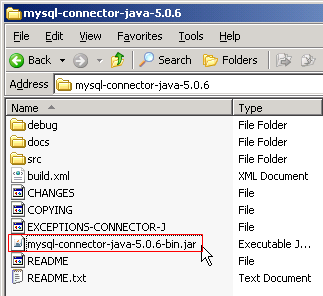
- Extract the zip file to a folder, you’ll see file ‘mysql-connector-java-5.0.6-bin.jar’ which is the library file that we want. Just copy the file to the library folder, for example to “C:\Program Files\Java\jdk1.6.0_02\lib” directory.
- Add JDBC Driver to the project on NetBeans (Add a library).
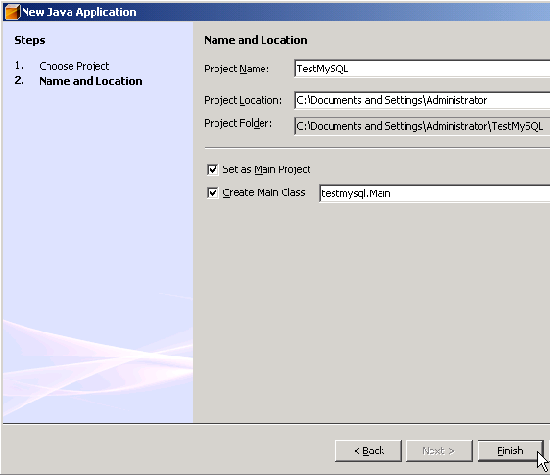
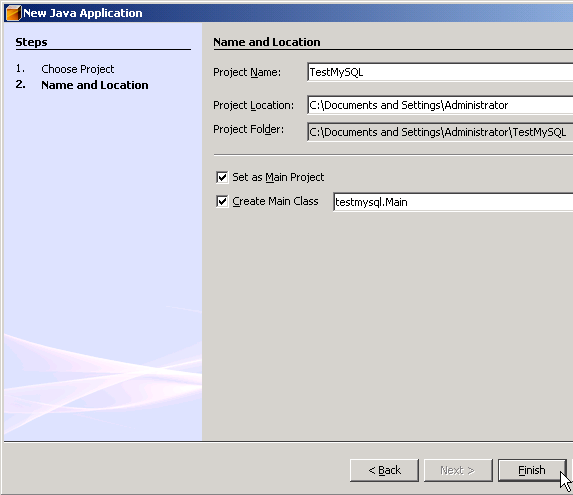
Next, I create a new Java project on NetBeans named ‘TestMySQL’ and add ‘mysql-connector-java-5.0.6-bin.jar’ that I’ve just extracted from previous step to the project’s library.- Create New Project called TestSQL.
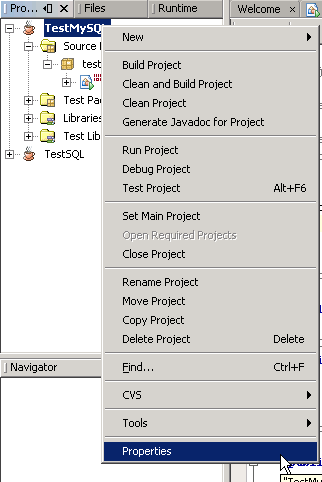
- In Projects window, right click the project name and select Properties.
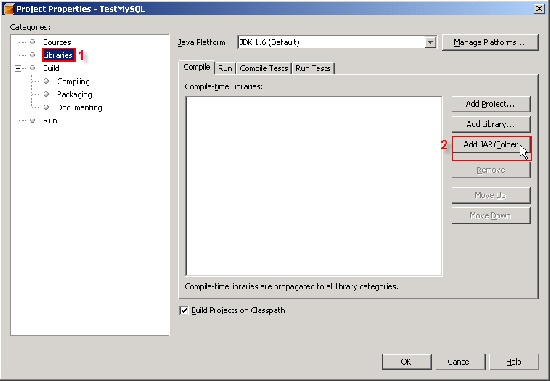
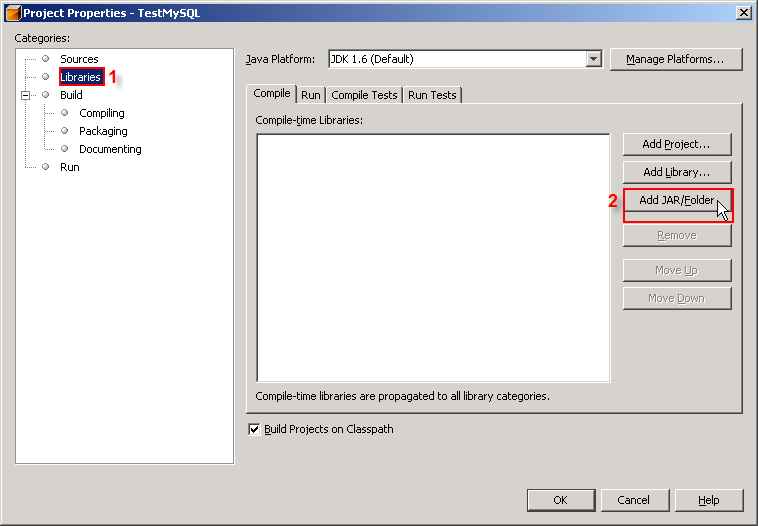
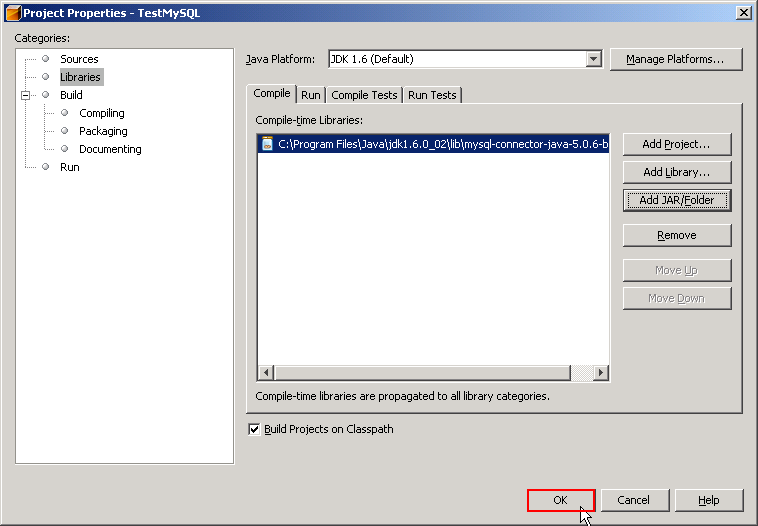
- Project Properties window appears. The Categories on left side, select Libraries. And on right side in Compile tab, click Add JAR/Folder.
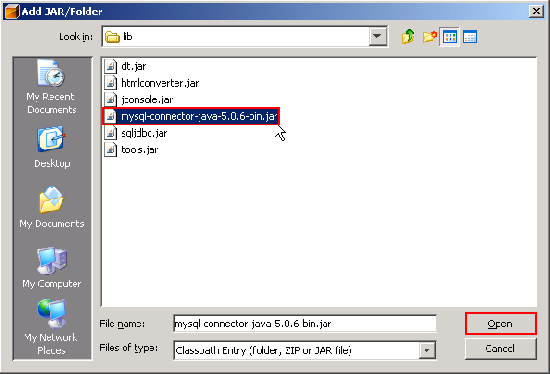
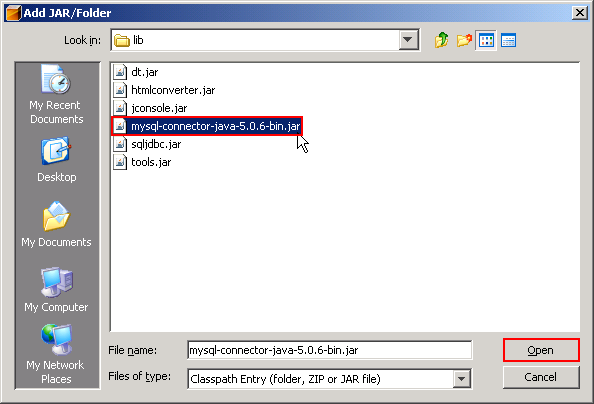
- New Window appears, browse to the file ‘mysql-connector-java-5.0.6-bin.jar’ and click Open.
- You’ll see the .jar file was added to the project. Click OK to finish.
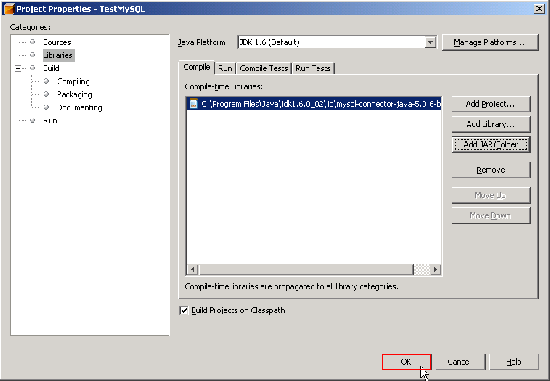
Note: You should keep mysql-connector-java-5.0.6-bin.jar in the directory that you won’t delete it (ex. not in temp folder). May be in the same directory that keep common library files. If you delete the file without delete a link from the project, the project will show error about missing library.
- Create New Project called TestSQL.
- Connect to the database.
Now I’m going to write some code to connect to MySQL database. I have configured MySQL service on localhost.- I’m going to use Connection and DriverMapper Classes so I need to import libraries.
import java.sql.*;
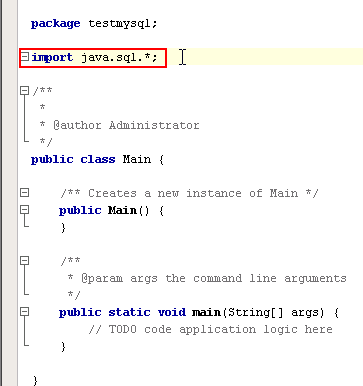
- I’ll connect to MySQL Server on local machine, the mysql database(a default database in MySQL). In main method, add the following code.
try {
            Class.forName("com.mysql.jdbc.Driver");
            String connectionUrl = "jdbc:mysql://localhost/mysql?" +
                                   "user=root&password=123456";
            Connection con = DriverManager.getConnection(connectionUrl);
        } catch (SQLException e) {
            System.out.println("SQL Exception: "+ e.toString());
        } catch (ClassNotFoundException cE) {
            System.out.println("Class Not Found Exception: "+ cE.toString());
        }
The code explanation:
- Class.forName(“com.mysql.jdbc.Driver”); means load the MySQL driver.
- “jdbc:mysql://localhost/mysql?” + “user=root&password=123456”; is a connection string that tells to connect MySQL on localhost, select database named ‘mysql’ and user/password for MySQL server.
If you would like to connecto to other database, simply change text ‘mysql’ after ‘localhost/’ to your database name.
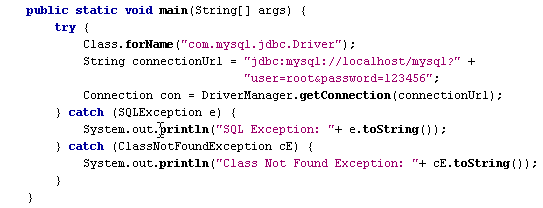
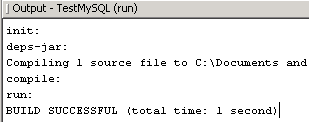
- Compile and run the project. If no error occurs, it means that the connection has established successfully.
- I’m going to use Connection and DriverMapper Classes so I need to import libraries.
Next part, I’ll show to how to perform some basic SQL operations to MySQL.
hi
i’m doiong a basketball scoreboard with it control panel on javabeans so any idea about how to connect a java application to mysql! not connecting netbeans to mysql . i’m facing some difficulties in solving this problem so would you please provide me help or send me a useful tutorial about the subject ..
thank you for your time
no idea dear!!!!
Hi,
You above mentioned article is very informative. Especially for learners it is very helpful. Keep up and I am waiting for 2nd part.
hey all thank for your help!!!! i did the link according 2 this article and itis working..
i have another question: Does anyone know how can i connect 2 different GUIs, i want 2 link a control panel with it corresponding basketball scoreboard, i want the data to change on scoreboard each time i change it from the soreboard..
Thank you
sorry i want the data to change on the scoreboard each time i change it from the control panel.. :):):)
I’m not sure that I understand your question correctly. If you have data displayed on more than 1 output, I suggest using Timer to periodically update your data on each output.
Thank u Linglom!! the thing is i want to update the scoreboard each time i have an action performed on the control panel. I’m connecting the control to a database implemented on MySQL and i want the scoreboard to retieve data from the database each time i modify them from the control. this project is what we call an MVC model( Model View Controller)any IDEAs??????
Thank u again for ur help..
Thanks for the example. For some reason I received the message: “SQL Exception: java.sql.SQLException: Access denied for user…”. I then reformatted the getConnection to be in the form of 3 arguments like this:
String connectionUrl = “jdbc:mysql://localhost/”;
Connection con = DriverManager.getConnection(connectionUrl, “User”, “Password”);
where “User” and “Password” were registered in the MySQL server, and it connected fine. Also, I don’t have a db yet, so I left out the db name.
Thanks again for taking the time to post your example.
To Soleil Farah,
Sorry for late answer. You can implement Timer class to refresh your data on scoreboard on every x seconds.
// create a timer, xxxx is time in millisecond
Timer timer = new Timer(xxxx, new ActionListener( {
public void actionPerformed(ActionEvent evt) {
//refresh your scoreboard
}
}
// start the timer
timer.start();
To Alan,
Thank you for sharing.
hi, that was great. thanks for the steps
iam working on it
hi, thx that’s what i need 🙂
Thanks a lot for this great blog. Simplified access to Mysql.
I went to Driver NetBeans for MS Access
How can we hide the database username and password in the source code.
If you’are using SQL Authentication method as in my example, you have to store username and password somewhere in the program maybe in code or external configuration file.
Another way, you can use Windows Authentication method which authenticate by using the current user’s credential (user that execute the application) so no need to specify username and password in application.
Hello, I’m a completely new to Java and netbeans, I downloaded the MySQL Connector J 5.1.6 and added the address of the file in my CLASSPATH `enviroment variables`(I’m using Windows XP) , but Netbeans wasn’t able to load the drivers to connect to MySQL.
Any idea why?
I have followed your example and it works very well. So just would like to know why this is not working with the CLASSPATH method out of curiosity!
Thank you
Arnaud
Quote from NetBeans 5.5 Doc,
“You have to set an explicit classpath in your build scripts because the IDE ignores your environment’s CLASSPATH variable whenever it runs Ant”
Reference: http://www.netbeans.org/kb/55/using-netbeans/project_setup.html
on Managing the Classpath in Free-form Projects -> Specifying the Classpath for Project Sources
Thank you so much linglom 🙂
Thanks for info linglom
I had done it already using jdk directly but could not accomplish this without this tutorial. Thanks a lot.
Thanks a lot PRO for this cool, tutorial.
I have wasted a full day to know how to connect to an MySQL database using Linux UBUNTU, but I didn’t know how. But by reading your tutorial it made things very simple.
Thanks.
Hello people, just to inform you all, what is in this tutoriel are the basics…because to use a database in java you must includes the jdbc driver for the corresponding database server in the application classpath.
I’m facing a problem which can’t let me remotely connect to MySQL i-e:I have an application installed on different employee computers and the database installed on a server. So i have to enable remote connection for all IP addresses to my mysql instance…any idea please?
how would connect a MS ACCESS database using the Desktop Application route in Netbeans.
hi ,it is really useful ,,thanks a lot,,
Thanks a lot mate,
A super tutorial 🙂
I have waisted my time using the other tut (http://www.netbeans.org/kb/55/mysql.html) it works locally, but didn’t work when I tried to publish it.
cheers, sam
Same as Yasir’s comment.Have done it through JDK but creat problem, when I run it through Netbeans. Now resolved.
Thanks
DK
Hey…Thanx Very mch..this is so helpful!!
I am using RedHat Enterprise Linux 4, netbeans ide 6.0 and mysql 4.1.7. I have done all the abpve steps to connect my java application with mysql. Although the drvier is loaded successfully but the login process is unsuccessful but from the erminal it is possible to login into mysql with that username and password
It is OK if i used jdbc:mysql://localhost:port/dbname but it always fails when I used jdbc:mysql://ip_address:port/dbname
Why ? It almost 1 week i’m searching for solution, but I can’t get one.
Budhi you have only 3 solutions:
1) use SSL
2) enable remote connections on your host (phpadmin, cpanel)
3) use different environment (eg. php+mysql)
great, thanks a million. Just started using netbeans, and the tip about importing the library for postgres was a life saver.
thanks 🙂
hey it worked..u r a genius
Best explanation I’ve read so far…thanx!
Netbeans 6.5 provides a very simple way for connecting to a database. Though I can’t seem to locate the connection object to execute queries on :/
Have you tried it?
Hi, T
I have tried that but I can’t remember much. I think it’s not flexible as coding by self.
thanx it worked for me
need help with ms access – binding table , radio button , etc.
Hi, Rani
There is a tutorial for connect ms access at netbeans.org (http://wiki.netbeans.org/ConnectingToMsAccessDB).
hi ya,
cheers for writing this tutorial. it’s very useful and it works just fine. if only i found this blog sooner, spent an entire weekend trying to connect to my mysql database without success…
cheers again and keep up the good work mate
Thanks!
many thanks. after 1 hour you saved my life 😀
THANK YOU! It was very helpful.
I tried it and it’s still not working for me =( What should I do next? I’ve tried to copy the .jar file to each lib folder, both in jdk and jre.
OK it was my fault. I typed the driver name “com.jdbc.mysql.Driver” when the right one is “com.mysql.jdbc.Driver”. So your suggestion works. Thank you very much. =D
thanks alot, it was killing me
THANK YOU SO MUCH! I have been missing the “properties add JAR” step and this is the first time I have seen it after 2 days of looking online for a solution!
Hi I am working with MS Access & Netbeans 6.5.1- how do you
a) display all records from the DB to a jTable – and to show changes made to records on the table.
b) how do you add music to a program (Netbeans GUI and java code)
c) how do program a print button – to print records from a MS DB.
Your assistance will be greatly appreciated.
Thanx
thanx , it is very helpful for beginners
im trying to connect using no password. can you please tell me the correct connection url??
String connectionUrl = “jdbc:mysql://localhost/database_name?” +
“user=root&password=”;
i m using same without using ny password.
Hi, I’m trying to connect but failed. I am working with Netbeans 6.7.1 and I’ve get Message: “java.net.ConnectException: Connection refused : connect”
Please tell me what is my problem
Hi, Patrick
What SQL Server edition you are trying to connect to? If it is SQL Server Express, have you enable remote connection?
It was the security problem, now I get SQL Exception
Hello…linglom,
Using the snippet provided above I’m trying to retreive the contents of the Database table Person. I’ve already created the table using mysql.
But as soon as I execute this I’m getting the following exception.
” SQL Exception: java.sql.SQLException: Operation not allowed after ResultSet closed ”
The table created
mysql> select *from Person;
+———+—-+
| name | id |
+———+—-+
| xyz | 5 |
+———+—-+
package testapp;
import java.sql.*;
public class Main {
public static void main(String[] args) {
Statement stmt;
ResultSet Results;
String FirstName = null,Id = null,printrow;
try {
Class.forName(“com.mysql.jdbc.Driver”);
String connectionUrl = “jdbc:mysql://localhost/mysql?” + “user=root&password=pwdpwd”;
Connection con = DriverManager.getConnection(“jdbc:mysql://localhost/Customer”,”root”,”pwd”);
String query=”Select *from Person”;
stmt=con.createStatement();
Results=stmt.executeQuery(query);
stmt.close();
boolean Records=Results.next();
if(!Records)
{
System.out.println(“No Data returned”);
return;
}
else
{
do{
FirstName=Results.getString(1);
Id=Results.getString(2);
printrow=FirstName+” “+Id;
System.out.println(printrow);
}while(Results.next());
}
} catch (SQLException e) {
System.out.println(“SQL Exception: “+ e.toString());
} catch (ClassNotFoundException cE) {
System.out.println(“Class Not Found Exception: “+ cE.toString());
}
}
}
hey thats really helpful
Hi, Hareesh
If you are still referencing to the ResultSet object, do not close the Statement object yet. For this example, move the code “stmt.close();” to the bottom after the do-while loop should fix the problem.
Hi Guys,
I have NetBeans 6.5 IDE on ubuntu 9.04.
Please tell me where to copy-paste jar file.
Thanks in advance!
Thank you, Thank you, Thank you.
God bless you.
Hi, pkmnambiar
You don’t need to place the jar file on java folder. You can place any folder you want because you will browse to the file later by yourself.
For Linux, the default java path should be /usr/bin/java.
hi please let me know how to configure the mysql service pls help me
i create tables of my mysql database using netbeans, but i cant find from where in netbeans can i set autoincrement or autonum property of a coloumn of my table? further that i couldnt find it so i created the tables and i would like to modify the tables to set autonum in them instead of making them again so plz help in both matters
i got it..
@linglom
Thanks dude….. 🙂
thnx a looot…
finally i get the answer how to use jdbc…
This information really helped me out.
But as I compile, it says
init:
deps-module-jar:
deps-ear-jar:
deps-jar:
compile-single:
run-main:
SQL Exception: java.sql.SQLException: Communication failure during handshake. Is there a server running on localhost:3306?
BUILD SUCCESSFUL (total time: 4 seconds)
It says Build is sccuessful but also says failure handshake. Can you please let me know if the connection is successful or not?
Thanks
Ankit
Hi, Ankit
Try to change the authentication method at the MySQL server.
set password for@ = old_password(‘‘);
Hey man!
Thanks for this tutorial at last i have found a good one, a step by step one, not a “check the documentation” one.
how do i create and connect a mobile application to mysql database
hi, I face some problems. Hope can get a solution. Thanks in advance.
package my.test;
import java.sql.*;
import java.util.*;
public class NewClass
{
public static void main(String[] args)
{
int a = 5;
a= a^3;
System.out.println(Math.pow(2, 4));
DB db = new DB();
Connection conn=db.dbConnect(
“jdbc:mysql://localhost:3306/applet”, “root”, “password”);
try{
Statement query= conn.createStatement();
query.executeQuery(“select * from tabletest where ID=\’3\'”);
ResultSet rs = query.getResultSet();
System.out.println(rs.next());
int count = 0;
while (rs.next ())
{
int idVal = rs.getInt (“ID”);
int recordX = rs.getInt (“RecordX”);
int recordY = rs.getInt (“RecordY”);
System.out.println (
“id = ” + idVal
+ “, name = ” + recordX
+ “, category = ” + recordY);
++count;
}
rs.close ();
query.close ();
System.out.println (count + ” rows were retrieved”);
List list = new LinkedList();
list.add(1);
list.add(3);
list.add(5);
System.out.println(list.size());
}
catch(Exception e)
{
}
}
}
class DB
{
public DB() {}
public Connection dbConnect(String db_connect_string,
String db_userid, String db_password)
{
try
{
Class.forName(“com.mysql.jdbc.Driver”).newInstance();
Connection conn = DriverManager.getConnection(
db_connect_string, db_userid, db_password);
System.out.println(“connected”);
return conn;
}
catch (Exception e)
{
e.printStackTrace();
return null;
}
}
};
output shown at below:
com.mysql.jdbc.CommunicationsException: Communications link failure due to underlying exception:
** BEGIN NESTED EXCEPTION **
java.net.ConnectException
MESSAGE: Connection refused: connect
STACKTRACE:
java.net.ConnectException: Connection refused: connect
at java.net.PlainSocketImpl.socketConnect(Native Method)
at java.net.PlainSocketImpl.doConnect(PlainSocketImpl.java:333)
at java.net.PlainSocketImpl.connectToAddress(PlainSocketImpl.java:195)
at java.net.PlainSocketImpl.connect(PlainSocketImpl.java:182)
at java.net.SocksSocketImpl.connect(SocksSocketImpl.java:366)
at java.net.Socket.connect(Socket.java:519)
at java.net.Socket.connect(Socket.java:469)
at java.net.Socket.(Socket.java:366)
at java.net.Socket.(Socket.java:209)
at com.mysql.jdbc.StandardSocketFactory.connect(StandardSocketFactory.java:256)
at com.mysql.jdbc.MysqlIO.(MysqlIO.java:271)
at com.mysql.jdbc.Connection.createNewIO(Connection.java:2771)
at com.mysql.jdbc.Connection.(Connection.java:1555)
at com.mysql.jdbc.NonRegisteringDriver.connect(NonRegisteringDriver.java:285)
at java.sql.DriverManager.getConnection(DriverManager.java:582)
at java.sql.DriverManager.getConnection(DriverManager.java:185)
at my.test.DB.dbConnect(NewClass.java:63)
at my.test.NewClass.main(NewClass.java:17)
** END NESTED EXCEPTION **
Last packet sent to the server was 0 ms ago.
at com.mysql.jdbc.Connection.createNewIO(Connection.java:2847)
at com.mysql.jdbc.Connection.(Connection.java:1555)
at com.mysql.jdbc.NonRegisteringDriver.connect(NonRegisteringDriver.java:285)
at java.sql.DriverManager.getConnection(DriverManager.java:582)
at java.sql.DriverManager.getConnection(DriverManager.java:185)
at my.test.DB.dbConnect(NewClass.java:63)
at my.test.NewClass.main(NewClass.java:17)
BUILD SUCCESSFUL (total time: 2 seconds)
I need step-by-step tutorial on how to create a mobile application using netbeans-mobility and mysql
Hi, Alvin
It seems that you have 2 problems:
For the first problem, I suggest you follow this thread:
CORRECT SOLUTION: Communications link failure due to underlying exception
For the second problem, try to change the hostname in the connection string to ip address, try both 127.0.0.1 and your network ip address.
Hi, Nissy
I’m not have experience with mobile application. But I think the code for mobile application should be simialr with this example.
Hi, linglom
My problem seems hard to be solved.
Anyway, thanks for your help!!!
bro, my problem has been solved already..
Thank you
i got my prob solved through this tutorial….thanx to u
Thanks a lot, this is very explanatory and straight forward. It solved my problem. Thank again…
Thank you very much. I could not connect programmaticly to MySQL even though I could connect through the Services tab. The solution is to add the JAR file that contains the MySQL Connector. You describes how to do that step. Once I added the JAR file, everything worked.
Once again, thank you.
Thnx alot! it works perfect and solved my problem
thanks as in 4 real
Thanks Sir,It was of great help for me …….
Thanks dude …it was a great help
i got this exception while compiling can any one say wat problem !!! java.net.SocketException
MESSAGE: java.net.ConnectException: Connection refused: connect
pls help me in this exception Have no FileObject for C:\Program Files\Java\jdk1.6.0_13\jre\lib\sunrsasign.jar
Have no FileObject for C:\Program Files\Java\jdk1.6.0_13\jre\classes
SQl EXCEPTIONcom.mysql.jdbc.CommunicationsException: Communications link failure due to underlying exception:
** BEGIN NESTED EXCEPTION **
java.net.SocketException
MESSAGE: java.net.ConnectException: Connection refused: connect
STACKTRACE:
java.net.SocketException: java.net.ConnectException: Connection refused: connect
at com.mysql.jdbc.StandardSocketFactory.connect(StandardSocketFactory.java:156)
at com.mysql.jdbc.MysqlIO.(MysqlIO.java:284)
at com.mysql.jdbc.Connection.createNewIO(Connection.java:2569)
at com.mysql.jdbc.Connection.(Connection.java:1485)
at com.mysql.jdbc.NonRegisteringDriver.connect(NonRegisteringDriver.java:266)
at java.sql.DriverManager.getConnection(DriverManager.java:582)
at java.sql.DriverManager.getConnection(DriverManager.java:207)
at testmysql.Main.main(Main.java:23)
** END NESTED EXCEPTION **
Last packet sent to the server was 32 ms ago.
BUILD SUCCESSFUL (total time: 2 seconds)
Hi, Steven
I suggest you see the comment 73.
it was very helpful………
THanks a lot
goood and thank you
hi.. i follow the instructions above but I arrive at this output.. What does it mean. help.!Thnx
run:
SQL Exception: java.sql.SQLException: Access denied for user ‘root’@’localhost’ (using password: YES)
BUILD SUCCESSFUL (total time: 0 seconds)
Hi, Terrence
The error message stated that you had provided with the wrong password for user ‘root’. You need to change user name and password to the correct one in the connection string.
Hi,
Very Simple and Elegant.
Nice work.
Thanks!
hi,
thanks a lot
it was very helpful…
hey,
exclnt marvls superb
keep up..
tnx…
Thanks a lot dude.
I am a new user to JDBC and really found this post useful…
Thanks. Perfect!!!
excellent, thank you very much.
good and excellent tutorial , i like it
Sir,
I was terrible upset for I was not able connect to Oracle DB using netbean. Your lesson part one and two has given me breather and I am so happy that I am able to connect to Oracle. Your style creating a class with a connection method, object creation to get connection is excellent.
Thank you very much Sir.
God bless you Sir.
S.Kumar
Thank you.
Sir.
A good lesson.
hey every1 cn u hlp me nd suggest a topic for my proj for the subj “INFORMATICS PRACTICES” m in 12th standard ryt nw…!! rply..!
Thnkx 4 ua concern
Thanks for your info! it’s helpfull.
Anyway may I have this tutorial in a pdf file. Thanks a lot
hey m not understanding dis..can u say how to add dat library on netbeans(jdbc driver)..please m new to dis..can u help me
hey i got how to connect dis..just wanna know where dis programs ll b stored…like in java software r netbeans software..nd where the exact location
Hi, Shalini
I showed how to add a library on this post on step 2 of this post. A project will be stored on the path that you define when you created it.
hi i just wanna know dat dis mysql need some password to access..i have given the password but after somedays i changed the password..now m not able to access the mysql…can u help me please……
@shalini: i think you have to un install the database and create new one
Nice, very useful, it works, Thanks a lot
Hi everyone, when i connect to mysql on Netbeans, it’s successful. But when i build to jar file, and i run :
java -jar test.jar
It’s not worked.
Here is my code :
String serverName = HeadNodeIp;
String mydatabase = “hpcosdb”;
String url = “jdbc:mysql://” + serverName + “/” + mydatabase; // a JDBC url
String username = “root”;
String password = “123456”;
try
{
// Load the JDBC driver
System.out.println(“org.gjt.mm.mysql.Driver”);
String driverName = “org.gjt.mm.mysql.Driver”; // MySQL MM JDBC driver
Class.forName(driverName);
System.out.println(“pass class.forName”);
// Create a connection to the database
Connection conn = DriverManager.getConnection(url, username, password);
System.out.println(“pass Connection”);
Error at :
DriverManager.getConnection(url, username, password);
Here is result when i run : java -jar test.jar
org.gjt.mm.mysql.Driver
pass class.forName
com.mysql.jdbc.exceptions.MySQLSyntaxErrorException: You have an error in your SQL syntax; check the manual that corresponds to your MySQL server version for the right syntax to use near ‘????????????????’ at line 1
at com.mysql.jdbc.SQLError.createSQLException(SQLError.java:1051)
at com.mysql.jdbc.MysqlIO.checkErrorPacket(MysqlIO.java:3566)
at com.mysql.jdbc.MysqlIO.checkErrorPacket(MysqlIO.java:3498)
at com.mysql.jdbc.MysqlIO.sendCommand(MysqlIO.java:1959)
at com.mysql.jdbc.MysqlIO.sqlQueryDirect(MysqlIO.java:2113)
at com.mysql.jdbc.ConnectionImpl.execSQL(ConnectionImpl.java:2562)
at com.mysql.jdbc.ConnectionImpl.configureClientCharacterSet(ConnectionImpl.java:1856)
at com.mysql.jdbc.ConnectionImpl.initializePropsFromServer(ConnectionImpl.java:3457)
at com.mysql.jdbc.ConnectionImpl.connectOneTryOnly(ConnectionImpl.java:2328)
at com.mysql.jdbc.ConnectionImpl.createNewIO(ConnectionImpl.java:2122)
at com.mysql.jdbc.ConnectionImpl.(ConnectionImpl.java:774)
at com.mysql.jdbc.ConnectionImpl.getInstance(ConnectionImpl.java:371)
at com.mysql.jdbc.NonRegisteringDriver.connect(NonRegisteringDriver.java:289)
at java.sql.DriverManager.getConnection(libgcj.so.90)
at java.sql.DriverManager.getConnection(libgcj.so.90)
at test.DBCommunication.ExecuteQuerry(DBCommunication.java:52)
at test.Main.main(Main.java:22)
SQLException: You have an error in your SQL syntax; check the manual that corresponds to your MySQL server version for the right syntax to use near ‘????????????????’ at line 1
SQLState: 42000
VendorError: 1064
Can anybody help me ?
Hi, i found the reason. When i installed Netbean, i set it link to jdk 1.6. But, jdk of my debian is the version 1.5. So, when i built to jar file and run , it’s not worked in jdk 1.5.
I updated jdk to version 1.6 and it’s worked !
thanks a lot……..
i was struggling with this………..
thank u so much
i m getting a error below dis line
s.updateQuery(“insert into introntb (Accessionid,Organism,Defintion) values (‘”+id+”””+org+”””+def+”‘”);
is dis query writing z correct.
my db is created in mysql when i want to insert d values dis problem arises
error is below dis id..in d query
heyy thanx a lot u saved my life 🙂
when I compile your code
I get following exception
com.mysql.jdbc.exceptions.jdbc4.CommunicationsException: Communications link failure
The last packet sent successfully to the server was 0 milliseconds ago. The driver has not received any packets from the server.
I solution friend
I have also used following code
Class.forName(“com.mysql.jdbc.Driver”);
String connectionUrl = “jdbc:mysql://localhost:3306/balsdb”;
Connection con = DriverManager.getConnection(connectionUrl,”Admin”,”admin”);
but i ‘ve got following exception
ava.sql.SQLException: Access denied for user ‘Admin’@’localhost’ (using password: YES)
can u explain what it means friend
Hi, Balamurugan
Verify if that username and password is correct and it has sufficient privilege to access the selected database.
I am new fool in Java world. I started learning JAva and servlet.
I used mysql using eclipse after installing connector J but the code from netBeans was not working.
I could not understand why I need to add the file in project lib when I have added that jar file in path.
Hey friends. Thanks for all this information. I am new in Java programming and this information helps me a lot. Thanks again.
Whoaa dude, you’ve saved me a lot of nerves and hours with this. Goes to bookmarks for me!
Cheers!
This was really helpful, straight to the point. Thank you.
Really helpful..too gd,thanx:)
buudy,this is imp. i need a project on on sql and netbeans connectivity all joined in one……
Thanks lunar.. It really worked…
thanks so much this one is really helpful to me otherwise i had to face lot of problem and thanks again !!
Hi,
my problem is that when i am connecting my to netbeans,there is an occurs in creating ReultSet objects.
code is showing that ResultSet method is not found,it belongs to java.beans.String.
I imported java.beans.*; but the problem is not getting solved.
Hi,
because of my problem all options available with ResultSet object such as executequery and executeupdate are not coming which are essential for fetching data from database.
pls solve my prblm.
how to store the data in mysqldb using netbeans n the data willbe given by the user
Hi,
I need help in connecting a database (mysql) to a java web application. Please help by giving me an idea on how to go about it. I don’t have an idea.
Thanks.
Hi,
Thanks for ur wonderful tutorial. Saved lot of my time.
Thanks again.
Hi,
M a newbie trying to connect existing MySQL sample databases through Netbeans 6.9.1. Connections are OK. It also shows the database (e.g. sakila) on the link:
jdbc:mysql://localhost:3306/sakila [root on default schema]
But the problem is that the Tables folder remains empty.
I have downloaded and re-installed sakila multiple times but problem is not solved. Please help. Thanx.
hi,i m developing a project on hostel management so i need ur help to how to integrate mysql to netbeans
Hi ,
i tried the above method,but i got
SQL Exception: com.mysql.jdbc.exceptions.jdbc4.CommunicationsException: Communications link failure
The last packet sent successfully to the server was 0 milliseconds ago. The driver has not received any packets from the server.
BUILD SUCCESSFUL (total time: 9 seconds)
can u please help me in getting through this problem..
Thank you very much for this simple and effective tutorial.
It just works when done step-by-step.
All clear.
run:
Class Not Found Exception: java.lang.ClassNotFoundException: com.mysql.jdbc.driver
that is my output… need help… am using Netbeans 6.9.1…
do I still need to download mysql connector.? can’t configure it though… 🙁 pls post or email me 😀 thanks
[email protected]
hey i am using Netbeans Ide 6.5 and can connect mysql database through services but finding problem in program it always shows the Exception statement i.e. Error in Conectivity
.can anyone help me out.?
hi thanks for the tutorial it really helped me,i was developing an application and got hooked up,but with your tutorial on mysqljdbc-connector 5.0,wow i feel so relieved thanks very much
Thanks buddy……..
Thanks 🙂
Thanks a lot 🙂 🙂 very easy to do connectivity.
can u send working procedures with struts 1&2
Hi, Byron
Have you add MySQL Connector/J library to your project and “import java.sql.*;” in your code?
Hi, Harshit
Can you show the full error message?
thank u sir… it helps me alot
thank u sir… it helps me alot …:)
Thanks Brother…
It helped me a lot. Thanks!
phew! thanks a lot!.. 🙂
Thanks a lot….
This tutorial was really life saving..
sir
thanks for this information this will definitely helps me a lot.
please send me about the second part
thanks
Wow…thats really helpful for beginners,i have been able to make my first connection…Thank you:-)
Awesome! This was just perfect!
hi sir,
what does this statement means?
run:
SQL Exception: java.sql.SQLException: Access denied for user ‘root’@’localhost’ (using password: YES)
BUILD SUCCESSFUL (total time: 0 seconds)
Thank Thank Thank you and Thank you sir….
Hi…
i m create a DB & connect with DB and Connection is Successfull.now i m create a project Java Desktop Application using NetBeans.when i select DB Connection it will show error…
Connected Database doesn’t containt Tables..
plz help
Thnx..
Hi, Polaris
Most likely, you did not set credentials for your MySQL server. By default, root account does not require a password when connecting from localhost.
You can either create a new account with a password and use that account instead root or set new password for root account.
Hi, Raj
Never seen this problem myself. Have you verify that your database that you’re connecting to has some table?
Hi,
I need a topic 4 my XII project.
Please help me find it .
hi all ,
im trying to develop a small desktop database application so in my final step i wanted to set a code that give me the ability to import data from an excel file to my Mysql DB using Java so
i downloaded the jexcelapi and load it into my lib and then i set this code :
—– 1st class named : DBConnection.java———
package javaapplication13;
/**
*
* @author DJO
*/
import java.sql.Connection;
import java.sql.DriverManager;
import java.sql.SQLException;
public class DBConnection {
public Connection con;
public static void main(String args[]) {
Connection con =null;
try {
Class.forName(“com.mysql.jdbc.Driver”).newInstance ();
con = DriverManager.getConnection(“jdbc:mysql://localhost:3306/DJO”,”root”,”root”);
} catch(Exception exe) {
System.err.println(“Exception: ” + exe.getMessage());
} finally {
try {
if(con != null)
con.close();
} catch(SQLException exe) {System.out.println(“fof ” + exe);}
}
}
}
———————————-
2scnd class : ExToMy.java
———————————-
import jxl.*;
import javax.swing.*;
import java.awt.*;
import java.sql.*;
import java.awt.event.*;
import java.io.*;
import java.util.*;
public class ExToMy extends JFrame implements ActionListener{
/*swing components*/
private JLabel l_xlfile,l_xlsheets,l_mytables;
private JTextField xlfile;
private JComboBox xlsheets,mytables;
private JButton browse,convert,reload_file;
private JFileChooser filechoose;
private GridBagLayout gbl;
private GridBagConstraints gbc;
/*swing components*/
java.util.List my_fields_type;
/*DB*/
DBConnection db;
Statement stat;
ResultSet rs;
/*DB*/
/*excel*/
Workbook workbook;
private String[] sheet_names;
/*excel*/
public ExToMy(){
initComponents();
/*DB*/
try{
db=new DBConnection();
stat=db.con.createStatement();
}
catch(Exception exe){}
initDB();
/*DB*/
/*Layout settings*/
gbl=new GridBagLayout();
gbc=new GridBagConstraints();
gbc.weighty=1;
gbc.weightx=1;
gbc.fill=GridBagConstraints.HORIZONTAL;
posComponent(l_xlfile,gbl,gbc,1,1);
posComponent(l_xlsheets,gbl,gbc,1,3);
posComponent(l_mytables,gbl,gbc,1,4);
posComponent(xlfile,gbl,gbc,2,1);
gbc.fill=GridBagConstraints.NONE;
gbc.anchor=GridBagConstraints.NORTHWEST;
posComponent(reload_file,gbl,gbc,1,2);
posComponent(browse,gbl,gbc,2,2);
gbc.anchor=GridBagConstraints.CENTER;
gbc.fill=GridBagConstraints.HORIZONTAL;
posComponent(xlsheets,gbl,gbc,2,3);
posComponent(mytables,gbl,gbc,2,4);
gbc.fill=GridBagConstraints.NONE;
posComponent(convert,gbl,gbc,2,5);
gbc.fill=GridBagConstraints.HORIZONTAL;
setLayout(gbl);
setTitle(“Excel to mysql Converter”);
setSize(500,500);
setVisible(true);
setDefaultCloseOperation(JFrame.EXIT_ON_CLOSE);
/*Layout settings*/
}
public void initComponents(){
l_xlfile=new JLabel(“Select a ms excel file to open”);
l_xlsheets=new JLabel(“Worksheets in workbook”);
l_mytables=new JLabel(“MySQL tables”);
xlfile=new JTextField();
xlsheets=new JComboBox();
mytables=new JComboBox();
browse=new JButton(“Browse”);
browse.addActionListener(this);
reload_file=new JButton(“Reload File”);
reload_file.addActionListener(this);
convert=new JButton(“Convert”);
convert.addActionListener(this);
filechoose=new JFileChooser();
my_fields_type=new ArrayList();
}
public void initDB(){
try{
mytables.removeAllItems();
rs=stat.executeQuery(“SHOW TABLES”);
while(rs.next()){
mytables.addItem(“”+rs.getString(1));
}
}
catch(Exception exe){System.out.println(“”+exe);}
}
public void posComponent(Component comp,GridBagLayout gbl,GridBagConstraints
gbc,int posx,int posy){
gbc.gridx=posx;
gbc.gridy=posy;
gbl.setConstraints(comp,gbc);
getContentPane().add(comp);
}
public void openXls(){
int val=filechoose.showOpenDialog(this);
if(val == JFileChooser.APPROVE_OPTION) {
/*excel*/
try{
workbook=
Workbook.getWorkbook(filechoose.getSelectedFile()) ;
xlfile.setText(filechoose.getSelectedFile().getPat h());
sheet_names=workbook.getSheetNames(); //A stringarray of sheet names is returned
xlsheets.removeAllItems();
for(int i=0;i<sheet_names.length;i++){
xlsheets.addItem(""+sheet_names[i]);
}
}
catch(Exception
exe){JOptionPane.showMessageDialog(this,(String)"S elect a valid excel(.xls)file");}
}
}
public void actionPerformed(ActionEvent ev){
Object source=ev.getSource();
if(source==browse){
openXls();
}
if(source==reload_file){
try{
workbook=
Workbook.getWorkbook(filechoose.getSelectedFile()) ;
sheet_names=workbook.getSheetNames(); //A string array ofsheet names is returned
xlsheets.removeAllItems();
for(int i=0;i<sheet_names.length;i++){
xlsheets.addItem(""+sheet_names[i]);
}
}
catch(Exception exe){}
}
if(source==convert){
if(xlsheets.getItemCount()<=0){
JOptionPane.showMessageDialog(this,(String)"Select a validexcel(.xls) file to select a worksheet");
}
else{
try{
int xl_fields=0,my_fields=0,xl_row_count=0;
String insert_query="";
String
sel_sheet_name=""+xlsheets.getSelectedItem();
String
sel_table_name=""+mytables.getSelectedItem();
if(sel_sheet_name.equals(sel_table_name)){
Sheet
sheet=workbook.getSheet(xlsheets.getSelectedIndex( ));
xl_fields=sheet.getColumns();
my_fields_type.clear();
rs=stat.executeQuery("DESCRIBE"+sel_table_name);
while(rs.next()){
my_fields++;
my_fields_type.add(rs.getString(2));
}
if(xl_fields==my_fields){
//JOptionPane.showMessageDialog(this,(String)"Number of Fields are equal");
xl_row_count=sheet.getRows();
System.out.println(xl_row_count);//
for(int j=0;j<xl_row_count;j++){
insert_query="INSERT INTO"+sel_table_name+" VALUES(";
for(int i=0;i=0||field_type.indexO f(“float”)>=0||
field_type.indexOf(“double”)>=0){
insert_query+=sheet.getCell(i,j).getContents().toS tring()+”,”;
}
else{
insert_query+=”\'”+sheet.getCell(i,j).getContents( )+”\’,”;
}
}
insert_query=insert_query.substring(0,insert_query .length()-1)+”)”;
System.out.println(insert_query);
try{
stat.executeUpdate(insert_query);
}
catch(Exception
exe){JOptionPane.showMessageDialog(this,(String)”R ow No “+j+””+exe);System.out.println(“”+exe);}
}
JOptionPane.showMessageDialog(this,(String)”All rows Successfully copied”);
}
else
JOptionPane.showMessageDialog(this,(String)”Number of Fields are notequal”);
}
else
JOptionPane.showMessageDialog(this,(String)”Select same worksheet name asmysql table”);
}
catch(Exception exe){System.out.println(“”+exe);}
}
}
}
public static void main(String[] args){
ExToMy exm=new ExToMy();
}
}
—————-
the problem now is when i run ExToMy class it runs with success and im able to choose my excel file but i m not able to see the tables in the JLabel MySQL tables” , it’s empty and i have more than 3 tables but nothing is shown ;
so please if anyone found the error or have the solution i will be so much thankful !
I got the communication link failure error when i connect to my Linux,MySql environment,at last i found the problem.I disabled the Firewall from Firewall configuration. now its working fine.
this is good quiry but give more quiry of java.
nice
thanks a lot 4 this guide, i solved the problem i had with nullPointerException generated by Class.forName(“com.mysql.jdbc.Driver”) . I missed the jar connector file in my project!
help me..
i have
“jdbc:mysql://localhost:3306/inventory”,”root”,”123″
i want to open my jar file in another computer. how do i do it? should i change the localhost to my ip address? help pleasee
i need the procedure to execute the JSP with JDBC in netbeans 7.0
thanks a lot!!!
Thank’s pal
Hi,everyone:I need write code on botton delete for delete rowTable on accessDAtabase
Hi,everyone
HEY IS DIS MORE GUD FOR FUTURE
AND AND PLZ DON’T IGNORE DIS
Thanks lot…Dear….
I am running NetBeans 7.0 on Windows 7 and am trying to use a servlet to access a MySQL database. I have followed your instructions for the driver installation (mysql-connector-java-5.1.18-bin.jar) and that all seemed to work correctly. But now NetBeans say there are 10 different files in the driver software that have syntax errors. For example, in CallableStatement.Java in the first directory.
What did I do wrong?
Never mind, I found the problem.
hi,
i need the code for timer in java netbeans for my project.
I will be greatfull if u could help…
hi there, i managed to connect to database using the above code. looking forward to part 2. i am designing a help desk system using netbeans and mySQL
Hi I have been trying to connect to mySQL database for a long time in vain but today i tried this magnificent and simple code and it worked. Thanks alot and may God bless.
Regarding the Class.forname()… It should be noted from the Java docs.. “Any JDBC 4.0 drivers that are found in your class path are automatically loaded. (However, you must manually load any drivers prior to JDBC 4.0 with the method Class.forName.)”
giga of thz,
i forget to add the jar file in the properties. 🙂
How to install JDBCMysqlDriver Library on Ubuntu. i tried following the way it is done in windows but nothing is happening. i use Mysql through the terminal of Ubuntu. is that the problem? could you please tell me how to resolve this bcoz i really need it to complete my school project due next week.
Unknown database ‘thread.sql’
I am using mysql file thread.sql in directory of project folder itself. and statement like this,
“jdbc:mysql://localhost/thread.sql?” but it gives above error..
kya baat hai
run:
SQL Exception: com.mysql.jdbc.exceptions.jdbc4.CommunicationsException: Communications link failure
The last packet sent successfully to the server was 0 milliseconds ago. The driver has not received any packets from the server.
BUILD SUCCESSFUL (total time: 9 seconds)
hello everyone, can you please help me determine what’s wrong.i follow the instructions, then when i run the code that is the output.
am developing a web based eshop on JEE platform. my application can not connect to the database the following is the code am using to connect
package org.grb.controller;
import java.io.*;
import javax.servlet.*;
import javax.servlet.http.*;
import java.sql.*;
//
public class loginServlet extends HttpServlet {
@Override
public void doGet(HttpServletRequest req,HttpServletResponse res) throws ServletException,IOException {
String username=req.getParameter(“username”);
String password=req.getParameter(“password”);
res.setContentType(“text/jsp”);
PrintWriter out = res.getWriter();
System.out.println(username);
System.out.println(password);
try {
Class.forName(“com.mysql.jdbc.Driver”);
Connection con=DriverManager.getConnection(“jdbc:mysql://localhost:3306/e_shop”,””,””);
Statement stmt=con.createStatement();
String sql=(“insert into loginTable(username,password) values(‘username’,’password’)”);
stmt.executeUpdate(sql);
out.println(“Message successfully added!”);
con.close();
}
catch(Exception e){
System.out.println(e);
}
}
}
thankxxx alot man !!!!!!
@jakoyoski
Change the first line in try Block To
‘Class.forName(“com.mysql.jdbc.Driver”).newInstance();’
Also check the mysql connector jar file in your Class Path
need help,,
i added jar file,bt still not working..error as no driver found..what to do?????
as per step 3 i clicked to the button add jar file but it cant open the new window so i can add the jar file…..
I have an error like this please help me……..
“Class Not Found Exception: java.lang.ClassNotFoundException: com.mysql.jdbc.Driver”………….
i have a big problem can someone help me please,
i’m using netbeans7.1 and mysql5.5 i want to connect the BD with the interface jframe.but i always have this exception:
“SQL Exception: java.sql.SQLException: Access denied for user ‘root’@’localhost’ (using password: YES)”
also i created 4 jframe in the same package when i click the button in the first one the second must show up but it doesn’t.so what i must do???please help me because this application is for the stage!!!!
Write a java program that will provide the functionality. When the program starts, it should ask Transaction size as input (it will be tested with max value of 5). After entering the value of transaction size, A menu providing following options should be displayed
a. Display all records
b. inserting records
get the data from stdin
record will contain USN, Name, address, phone, date of birth
c. deleting records
get the USN and delete the records
d. Display individual records
get the ISN and display the record
f. Exit
If number of operations less than as input in a), then commit
Anytime number of operations exceeds the transaction size as asked in the beginning, commit then and continue.
Note:
. At exit, commit the transaction even if number of operations carried as per menu is less than the transaction size chosen at the start.
. If working in team, ensure that both the USN numbers are mentioned as the comment in java code. Ideally, it would be better to run the program from one account, and use DB of other USN.
. No fancy GUI required. Simple standard console input/output would work.
. The DB table should have primary key on USN, and other fields should at least include
– name (alphanumeric)
– address (alphanumeric)
– date of birth (as a Date field)
– phone (as a numeric field)
Plz help me out !!
Thanx this article was so simplified and straight forward ,im impressed thank you.
Thank you sooo much.. 🙂
thanks friend for help
Thankx for Help
thanx buddy u made it quite simple!!!!!!!
Sir,
I am completely new to netbeans and mysql database.I have done all this still it is not working. Do i have to do ODBC jdbc CONNECTION in ctrl panel? and SHOULD I start mysql server? If so how to do it?
I am trying to connect MySQL5.1 in Netbeans7.0.1 RC1 build in Windows 7.
But there connection refused error has been occured.
In Services –> Database –> RegisterMySQLServer i have given this details.
Basic Prop
HostName : localhost port : 3306 uname : root pwd : root
admin prop
Path/url admin tool : C:\Program Files\MySQL\MySQL Server 5.1\bin\mysql.exe
arg :
Path to start cmd : C:\Program Files\MySQL\MySQL Server 5.1\bin\mysqld.exe
arg :
path to stop cmd : C:\Program Files\MySQL\MySQL Server 5.1\bin\mysqladmin.exe
arg : -u root -proot stop
But connection refused error is coming. I checked jar file placed in correct place. And using mysql-connector-java-5.1.13-bin.jar.
Anybody knows solution, kindly help me
M.Muthu Ananth Haiahtum Software [email protected]
im on cloud nine! thanks a lot fr dis page! 🙂
where are the gui for the above coes??????????????????????????????????????
Itz very helpful. I think my problem is getting solved. 🙂 Waiting for the 2nd part. Thanks a lot.
Thanx a lot… It really helped solve my problem of communication failure…
Hie,
I am making a project on payroll management system ,myself, for college project..
i am facing a problem..
the method
dispose();
Does n’t work(when i type it show error) in NetBeans IDE 6:5:1 verson..
Why??
in login.java when i click login button it open wellcome.java but i want to close login when welcome open..
Can any one help me?? For database m using MySQl,…
please help mail me solution
[email protected]
I have a problem during connection to jdbc. it is showing this–java.sql.SQLException: No suitable driver found for mysql://localhost:3306/company. I am totaly confused what to do.
I have NetBeans- 7.3.1;
MySql- Xampp 3.2.1;
connector–.mysql-connector-java-3.1.14-bin.jar
Please reply.
Hi Priya,
Can you post your code snippet (the connection part)? This error message could be that the JDBC driver is loaded properly, or the JDBC URL is wrong. Try to add this code before the connection.
Class.forName(“com.mysql.jdbc.Driver”);
If it doesn’t help, try the recent version of the MySQL connector, http://dev.mysql.com/downloads/connector/j/
hello
i wrote the code below and everything went normal !
the database was connected successfully but i’m having this error
SQL Exception: com.mysql.jdbc.exceptions.jdbc4.MySQLSyntaxErrorException: Access denied for user
please any kind of help ? almost don’t know what to do
it’s a college project
Hi,
The error message tells that the user that you’re using doesn’t has permission to access database. Make sure that you have grant permission for the user on MySQL server. See this post as example.
Hello all. I am completely new to netbeans but I am developing an school management systen APP that can get strings from the user and then send it to the database but my challenge now is how can I retrieve from the database and which of the tools in the netbeans can I use to load passport into the registration form
A special thanks to you guys to post I made on the 17th June. I could connect to the database but the picture (passport is not displaying only the name of the passport is displaying in the form). Please anyone help on how go about this.
Awesome working for me after long time of struggle