Backup and restore router configuration via TFTP
Backup hardware’s configuration is the one important routine for network engineers so that when the hardware break down you can recover the failed system within an acceptable time. To backup the configuration, one effective way is to use TFTP to backup and restore configuration between remote hosts.
In the example below, I’ll show how to backup and restore configurations between TFTP Server and Cisco’s router. The TFTP Server will use Cisco TFTP Server software.
Configure TFTP Server
- Download Cisco TFTP Server from cisco.com or old version at here. Run setup file to install the software on the computer that will be a TFTP Server (the computer that connected to Cisco router on Ethernet port).

- After installed, you’ll see Cisco TFTP Server shortcut on desktop.

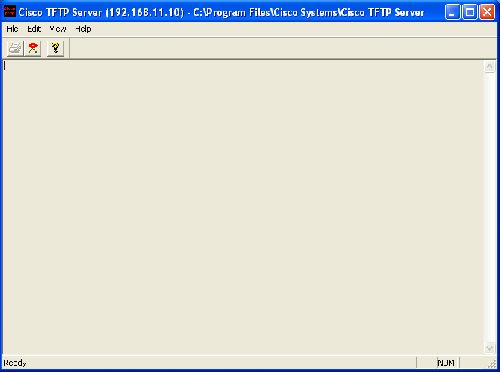
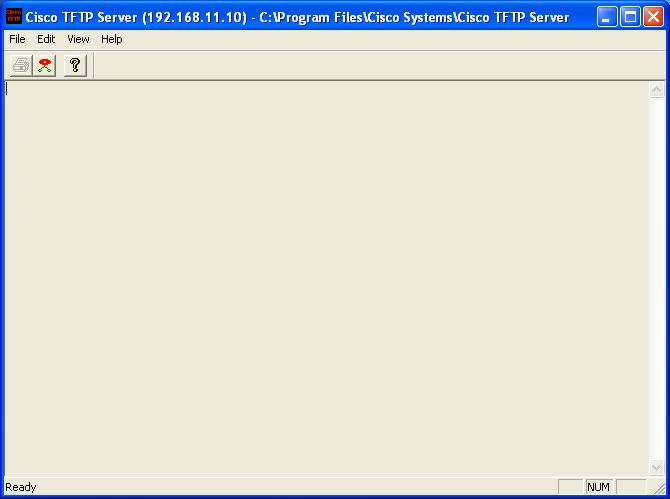
- Open Cisco TFTP Server. You’ll see the window as below that means you have finished setup TFTP Server. You must leave this window open to send/receive configuration with Router.
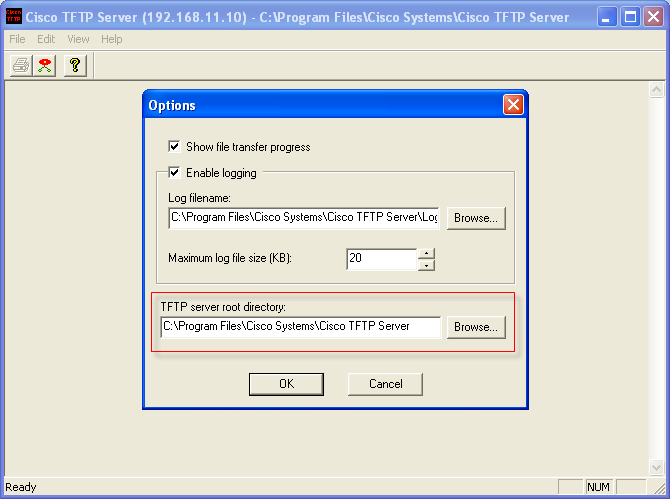
- You can customize TFTP Server root directory (the directory to keep configuration files) by click View -> Options on menu bar.

Backup running configuration from a router to the TFTP Server
- Connect cable from the router to the TFTP Server. Assign IP on both and ensure that you can ping each other. In this example, the TFTP Server has IP address 192.168.11.10 and the router is 192.168.11.1
- Connect to the router.
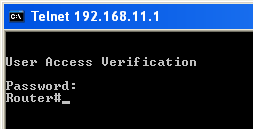
- Type ‘copy running-config tftp:’ (without quote).
- Enter the IP address of the remote host (the TFTP Server). In this example, it is 192.168.11.10
- Enter the destination filename to save the configuration to. Or you can enter to accept the value in the bracket[].
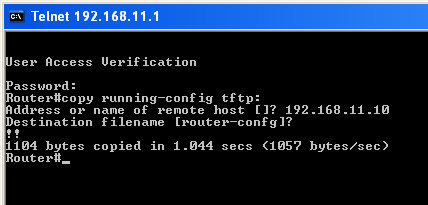
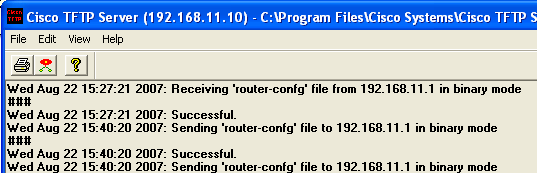
- You’ll see the file that has been created and the status on TFTP Server is updated.

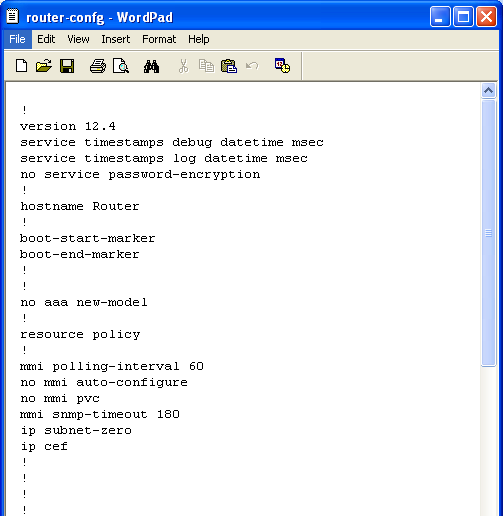
- The file contain the running configuration of the router.
Restore startup configuration from a file on TFTP Server
- Connect cable from the router to the TFTP Server. Assign IP on both and ensure that you can ping each other. In this example, the TFTP Server has IP address 192.168.11.10 and the router is 192.168.11.1
- Connect to the router.
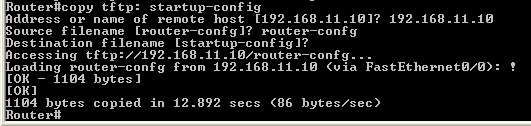
- Enter the IP address of the remote host (the TFTP Server)
- Enter the source filename for restore to startup configuration.
- The destination is startup-config.
- Now the configuration file has been restored to startup-configuration.
Summary
The example above shows only one common way to backup and restore the configurations but there are other ways like FTP, HTTP, etc so that you can try which way will suit you best.
dear sir its good knowlege given website
i want know about router configuration
can you provide me notes how we can recover if IOS of router is correpted
What do you mean corrupted? Did you mean that you want to reset a Router to factory default settings?
If that the case and your router is Cisco, try to visit this Reset a Cisco Router to Factory Default Settings. You should ask support at Cisco.com if you don’t have any experience about this or you can try by yourself but I’ll not responsible in any damage on your data or device.
its great knowledge , am really thankfull to this team work
really It is very useful website
Thank you for all the help. This is an easy way of getting acquainted with things
i liked too much this website
sir correpted router ka ios backup & restore
Use console and wen botting use ctrl+break to skip boting ios .. the upload again ios .
Nice post, but that wouldn’t seem to work together with my router ip address, any helpful hints?
I HAVE NO COM ANTE.
@anil singh ran, you should backup your ios always to do that
copy flash:FILE.BIN tftp:
//where FILE.BIN is the filename of your ios if your do not know your ios simply run the show version command.
to restore your startup configuration you should setup your router in the rommon environment and execute this command:
tftpdnld
IP_ADDRESS=10.10.10.1
IP_SUBNET_MASK=255.0.0.0
DEFAULT_GATEWAY=10.10.10.1
TFTP_SERVER=10.10.10.2
TFTP_FILE=IOS.BIN
set
//after doing this reload then restore your startup-config from the tftp server
[frost queen]
Thanks and this is useful and very easy to understand.
Thanks and regards
veeregowda
Helpffull document
how to break the wifi password