- Developing Windows Service on VB.NET, Part 1: Introduction
- Developing Windows Service on VB.NET, Part 2: Create Windows Service
- Developing Windows Service on VB.NET, Part 3: Create Setup Wizard
- Developing Windows Service on VB.NET, Part 4: Debug Service
In this part, I’ll show how to create a simple Windows Service project using VB.NET on Microsoft Visual Studio 2005. The example service will generate a message to application event log every 10 seconds.
Step-bystep to create Windows Service
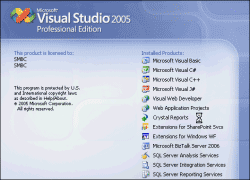
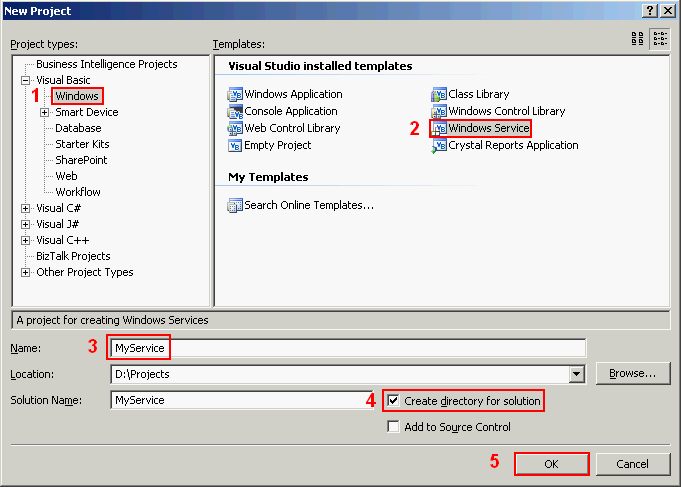
- Open Microsoft Visual Studio 2005
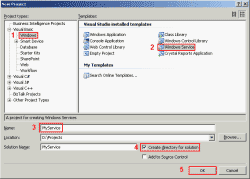
- Create new Project.
- On project type, select Visual Basic -> Windows.
- On templates, select Windows Service.
- Name the service. In this example, it is ‘MyService’.
- Check create directory for solution and click OK.
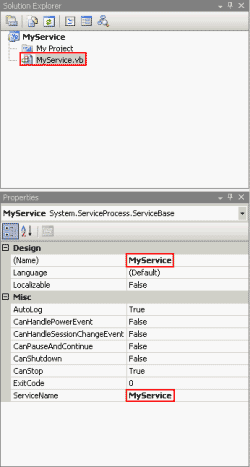
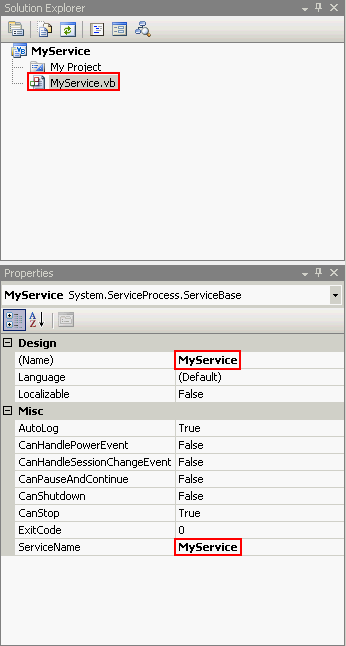
- When the Windows service’s project is created, change the default name (service1) to ‘MyService’ on filename in solution explorer, (Name) and ServiceName in properties. You can customize service to auto generate message log to eventlog (AutoLog = True), can stop this service (CanStop = True), etc on this properties.
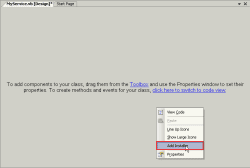
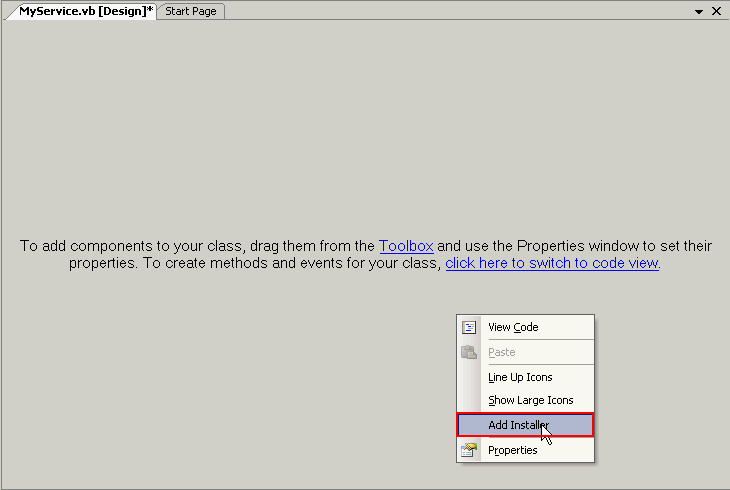
- On MyService.vb, right click on any empty space and select ‘Add Installer’.
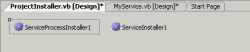
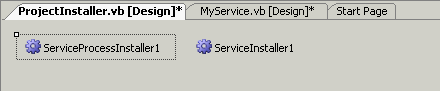
- The ProjectInstaller is created. This file is for install the service. There are 2 components: ServiceProcessInstaller1 and ServiceInstaller1.
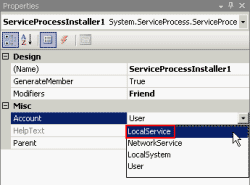
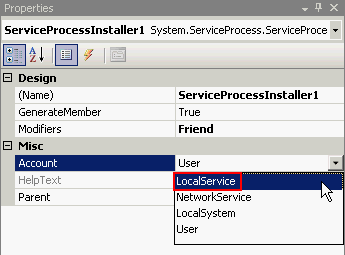
- Click on the first component (ServiceProcessInstaller1), you can customize account to run this service on the properties. The default account running this service is User. In this example, I change to LocalService.
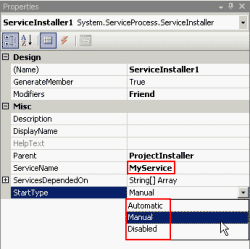
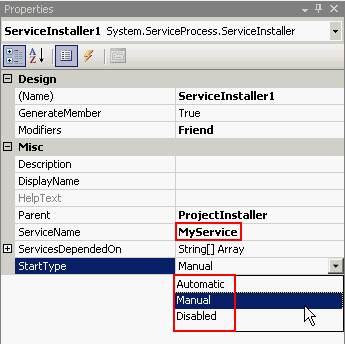
- Click on the second component (ServiceInstaller1), you can change serviceName which appears in services and startup type. In this example, I change ServiceName to ‘MyService’ and leave startup type to manual.
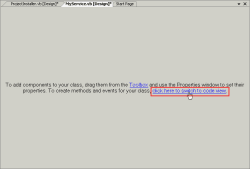
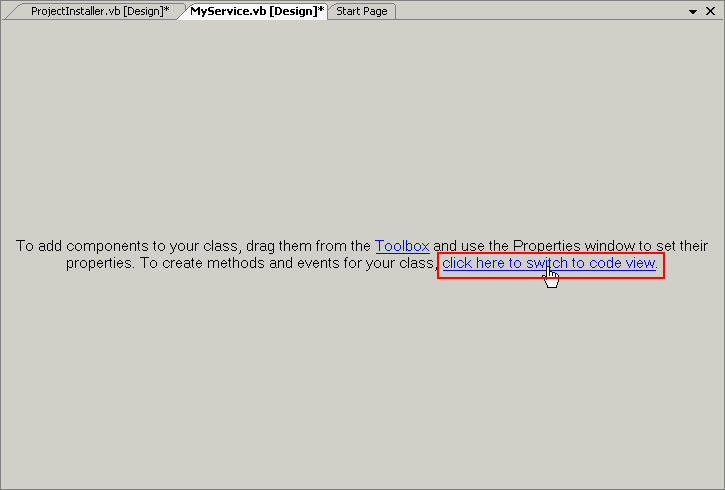
- Click on MyService.vb [Design], select ‘click here to switch to code view’ to edit code on this service.
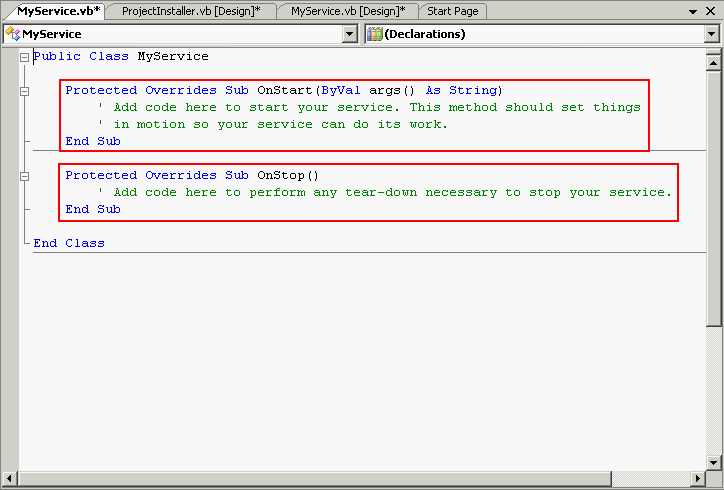
- On MyService.vb, there is a class called ‘MyService’ with 2 methods: OnStart and OnStop. OnStart method will be invoke when you start this service and OnStop method will be invoke when you stop this service.
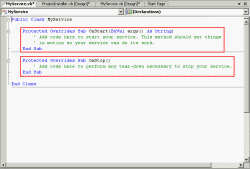
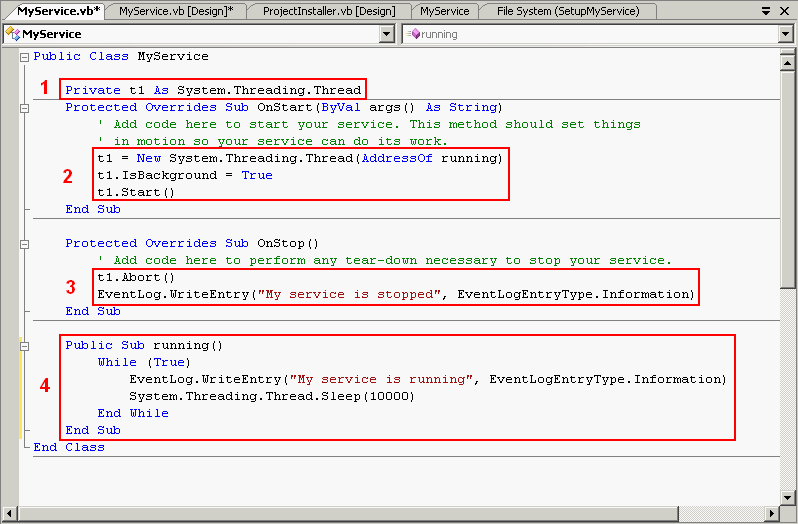
- Add some code to the project. I’ll create a thread to generate message every 10 seconds. This thread will be started when the service start.
- Add a global variable as a thread object.
Private t1 As System.Threading.Thread - OnStart method, set the thread object on running method to run on background and start it.
t1 = New System.Threading.Thread(AddressOf running)
t1.IsBackground = True
t1.Start() - OnStop method, abort the thread and write message to eventlog that the service is stopped.
t1.Abort()
EventLog.WriteEntry(“My service is stopped”, EventLogEntryType.Information) - Create new method running that looping generate message to event log every 10 seconds.
Public Sub running()
While (True)
EventLog.WriteEntry(“My service is running”, EventLogEntryType.Information)
System.Threading.Thread.Sleep(10000)
End While
End Sub
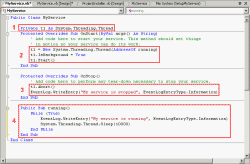
- Add a global variable as a thread object.
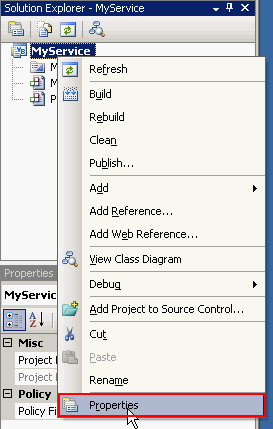
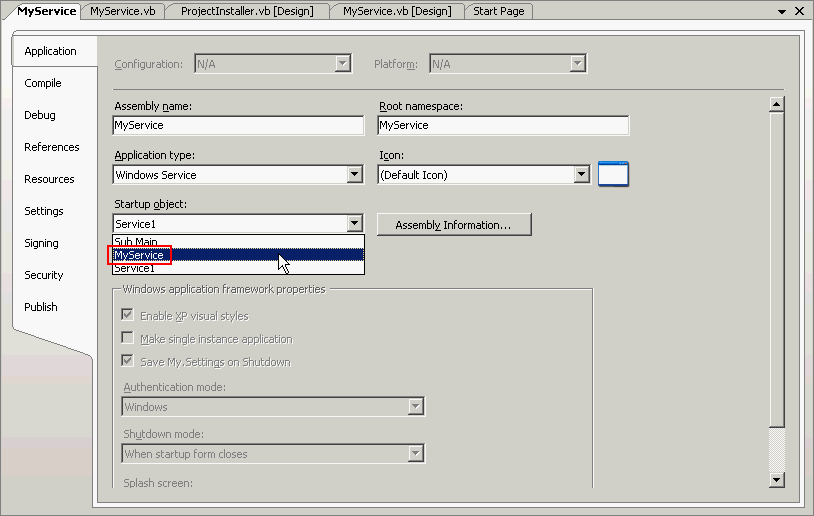
- Change the startup object to MyService since you have rename it by right click on the project’s name and select Properties.
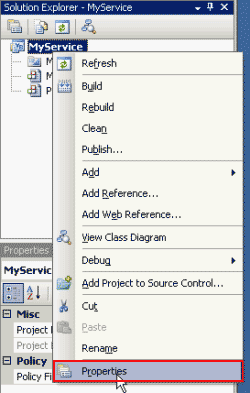
- Select ‘MyService’ on startup object.
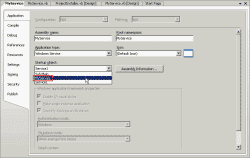
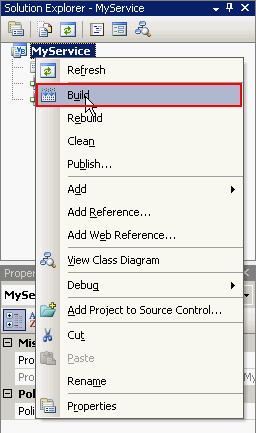
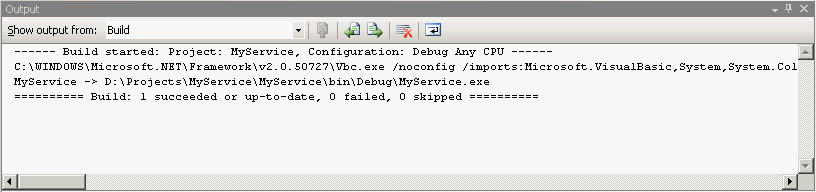
- Save the project and build this project by right click on the project’s name and select build.
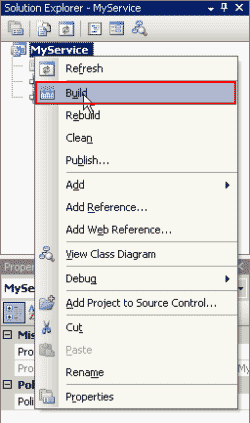
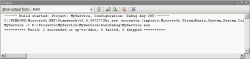
- If there are no errors, you have done creating a simple Windows Service now.
In the next part, I’ll show how to create a setup wizard (installer) for this service.
Is there a good ebook on this subject?
There should be. But if you search the internet about this topic, you’ll find lot of website talk about this which should be sufficient.
Briliant..Tnx a lot..
It’s great. Explain soo good such way that even a beginner can understand clearly.