- Developing Windows Service on VB.NET, Part 1: Introduction
- Developing Windows Service on VB.NET, Part 2: Create Windows Service
- Developing Windows Service on VB.NET, Part 3: Create Setup Wizard
- Developing Windows Service on VB.NET, Part 4: Debug Service
From previous part, you’ve learned to develop a simple windows service on Microsoft Visual Studio 2005 and how to create a setup wizard for install the service. But it wouldn’t be complete, if you don’t know how to debug a windows service while you’re developing a windows service. This part is about how to debug a windows service.
Debugging a windows service isn’t the same as debug application that you simply press F5 or select Debug -> Start Debugging in MS Visual Studio 2005 bacause a windows service must be run in the context of the Services Control Manager (services.msc) not in MS Visual Studio.
To debug a windows service, you have to start the service in Services Control Manager and then attach a debugger to that process. But doing this way has some drawbacks that you can’t debug code in OnStart() method and Main() method since you have to start the service before you can attach a debugger to the service. There may be other workarounds but I wouldn’t write about that. I think this solution is sufficient if you put most of the code in other method rather than OnStart() and Main().
Step-by-step to debug service
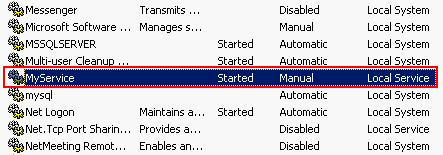
- I’ll continue from previous part that I have installed ‘MyService’ as a service and already started it.
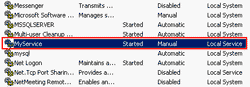
- Back to MS Visual Studio 2005. Open ‘MyService’ project.
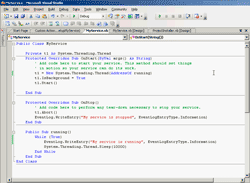
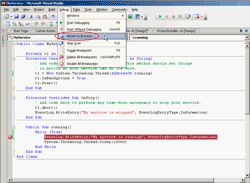
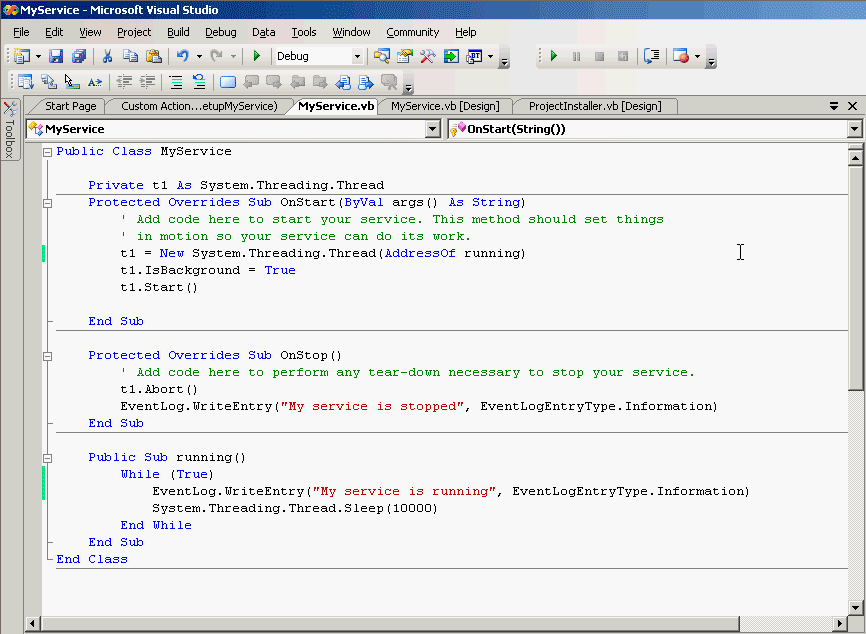
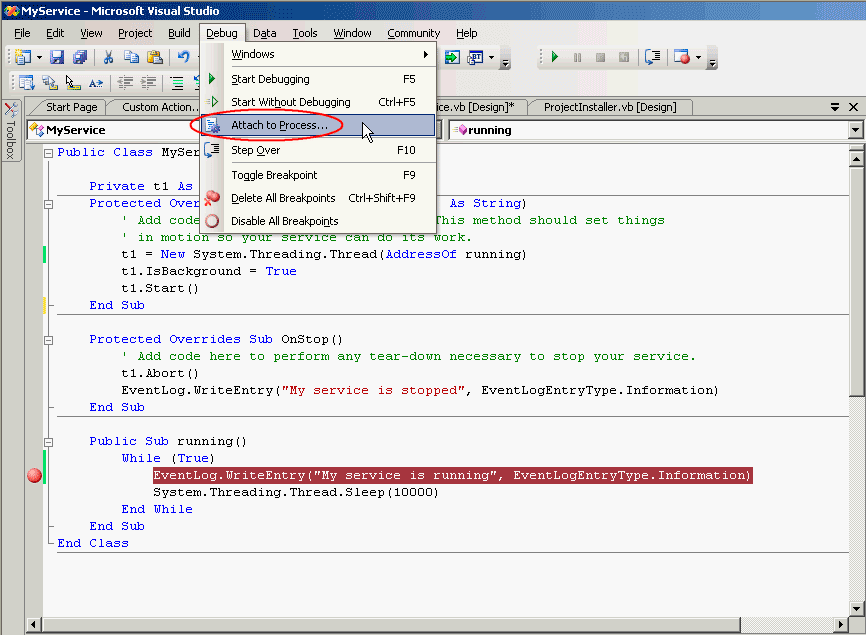
- Place a breakpoint to debug this line.

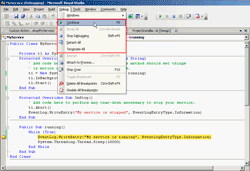
- Click Debug -> Attach to Process…
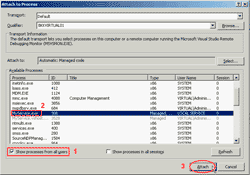
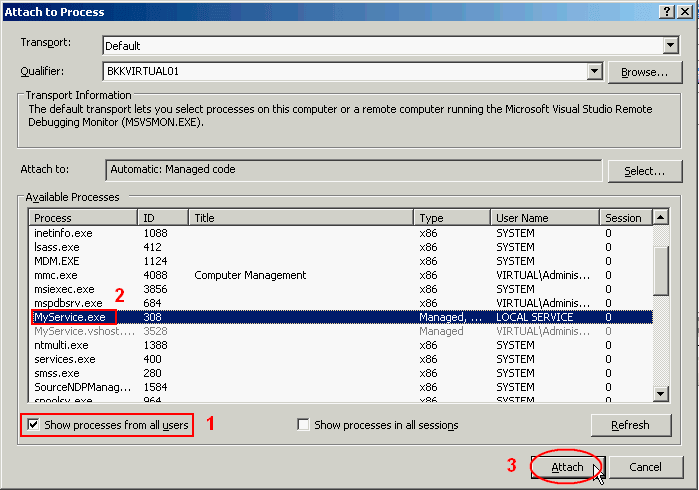
- Attach to Process window appears, you need to select the service to attach to.
- If you haven’t start the service with user account, you have to check ‘Show processes from all users’ to see the service.
- Select on the service ‘MyService’.
- Click Attach.
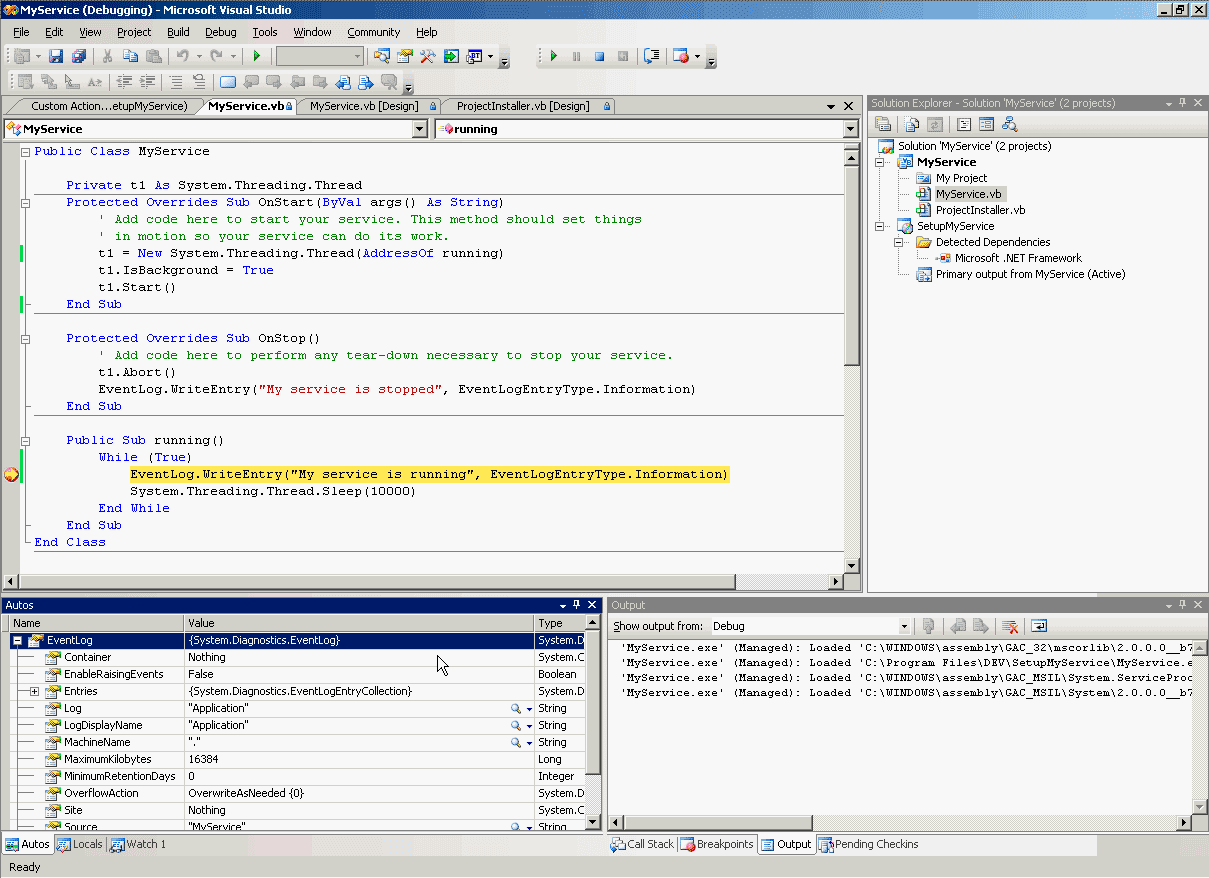
- Wait a while until the service has executed to the breakpoint line and the service will be suspended waiting for you to debug.
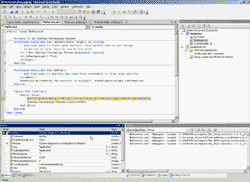
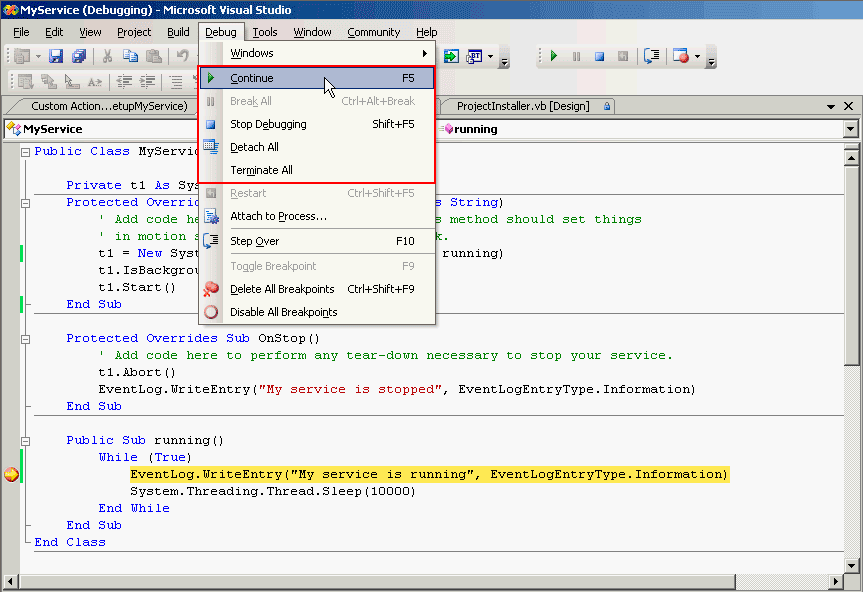
- Now you can decide to continue or stop debugging as the same in normal application.

Summary
This topic contains 4 parts about developing a windows service application on MS Visual Studio 2005 start from introduction to a windows service, code a windows service, install a windows service and debug a windows service. If you follow all of these parts, I’m surely that you can develop a windows service application on your own.
For more information, visit following links:
Great!!! nicely explained … though there are many … but I saw this one to be good too ..
http://support.microsoft.com/kb/317421/en-us
and this :
http://mycomponent.blogspot.com/2009/04/create-debug-install-windows-service-in.html