Have you ever rename lot of files or folders which have a same pattern? If there are a few files or folders, it would be easy to rename each one at the time. You can press F2 on a file or folder to rename it instead of right-click on it and select Rename. But what if you want to rename more than 10 files, it would be waste time to rename each one by yourself. For example, you have photo files from your digital camera and the files are in pattern DSCxxxx.jpg where xxxx is a number, you may want to rename it to Thailandxxxx.jpg to make your files more descriptive.There is a free utility called Bulk Rename Utility which allows you to do batch rename files or folders on Windows. The utility performs quite fast and easy even the interface looks complicate. See Bulk Rename Utility for more details.
In the section below, I’ll show 2 examples of how to do batch rename files which are:
Section
- Download & Run Bulk Rename Utility.
- Batch rename files by add .jpg extension.
- Batch rename files by replace old text with new text.
Step-by-step to batch rename files or folders using Bulk Rename Utility
Download & Run Bulk Rename Utility
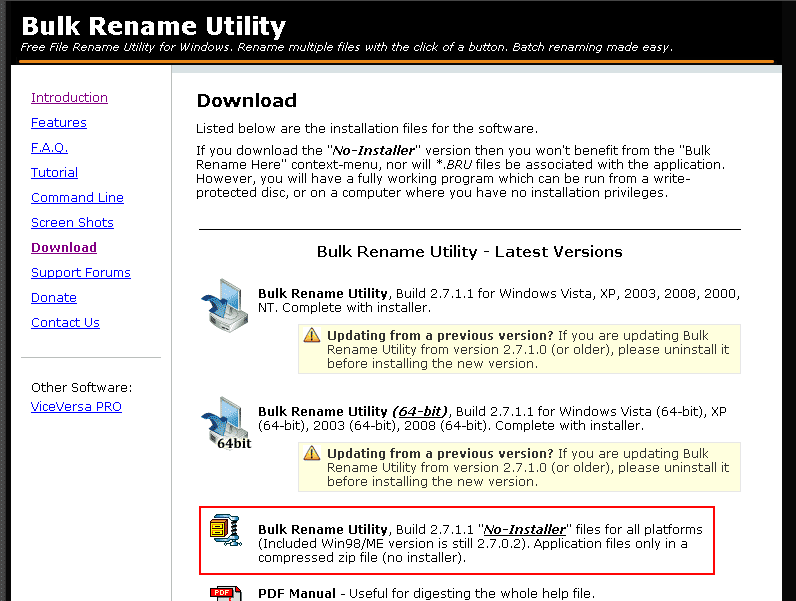
- Download Bulk Rename Utility on download section. In this example, I use “No-Installer” version so I can use the utility without install it.
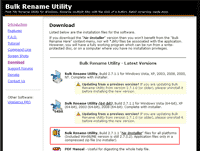
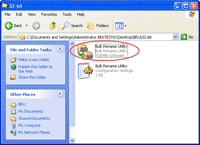
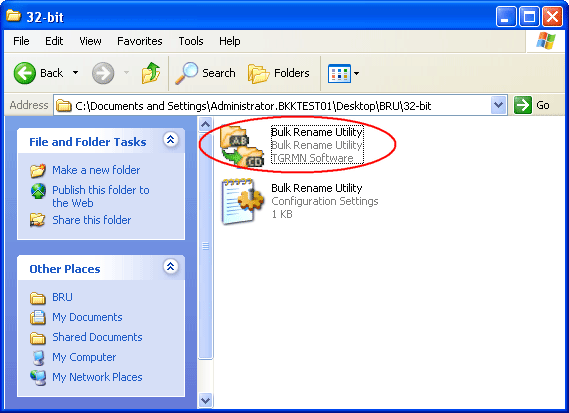
- Extract the downloaded file “BRU_NoInstall.zip” and open the folder 32-bit. Double-click on “Bulk Rename Utility.exe” to run the program.
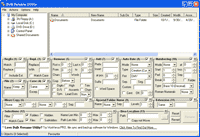
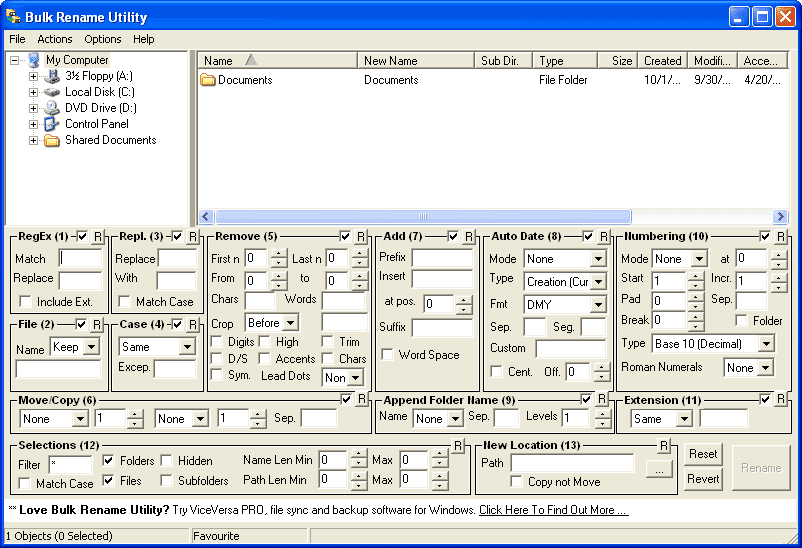
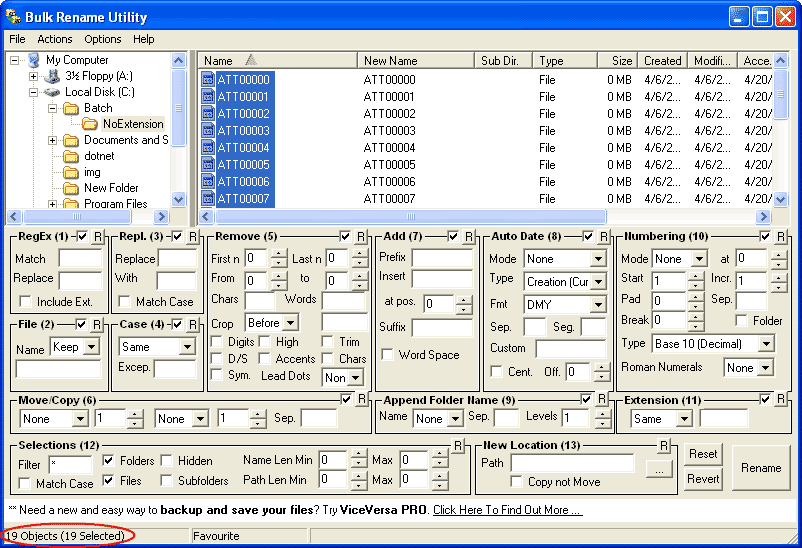
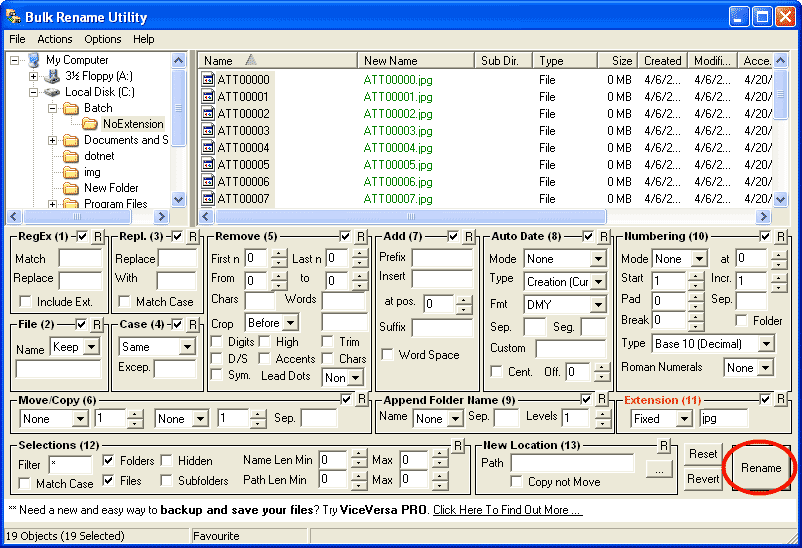
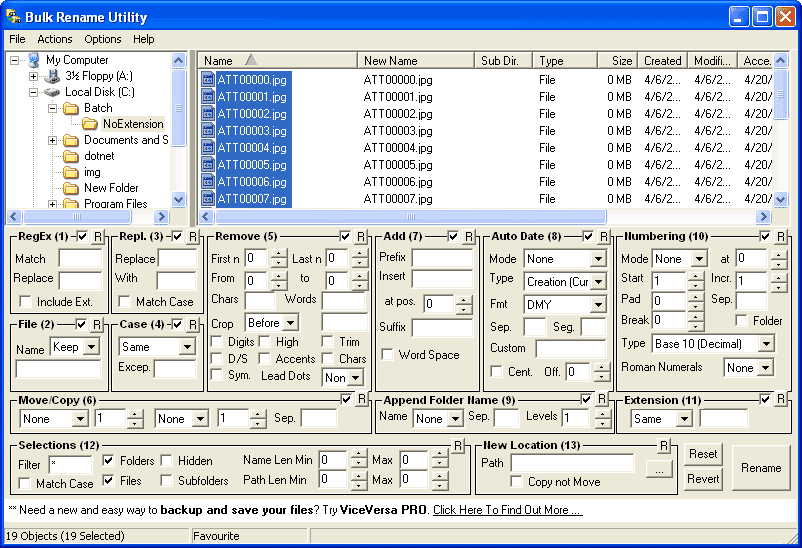
- The interface of the program is as the figure below. Don’t worry, it’s not complicate as its look.
Batch rename files by add .jpg extension
- I’m going to rename all the files on C:\Batch\NoExtension. Actually, the files are photos but they don’t have an extension so I’ll add .jpg extension for them.
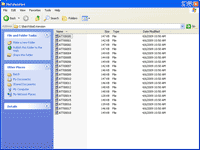
- Back to the program. Browse to the folder and select all files. Notice the number of selected files at the bottom left of the program.
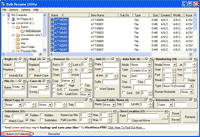
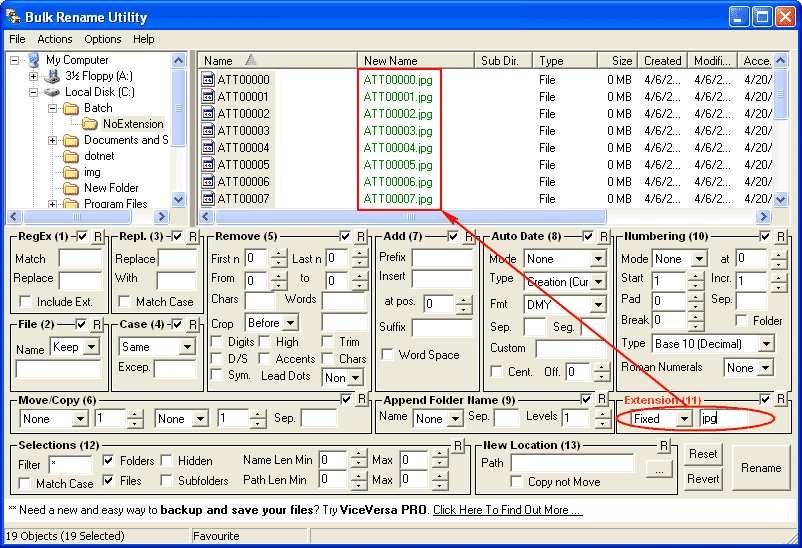
- On Extension (11), select Fixed from drop-down menu and type jpg on the box. You’ll see that the values on New Name column are changed.
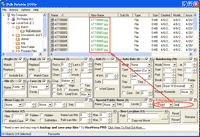
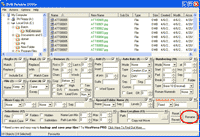
- Click Rename to start rename the files.
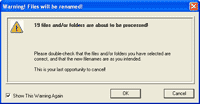
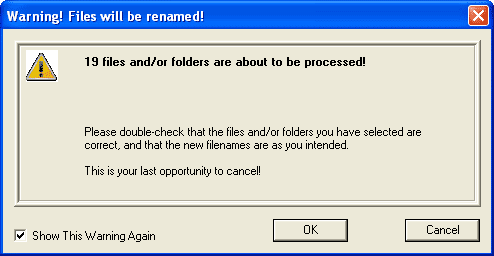
- The pop-up window appears, warn you that 19 files will be affected from this process. Click OK.
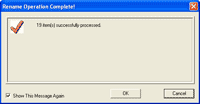
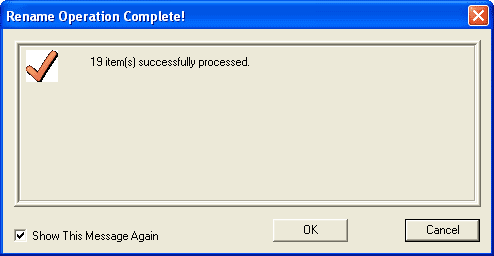
- The pop-up window appears, the process is successfully.
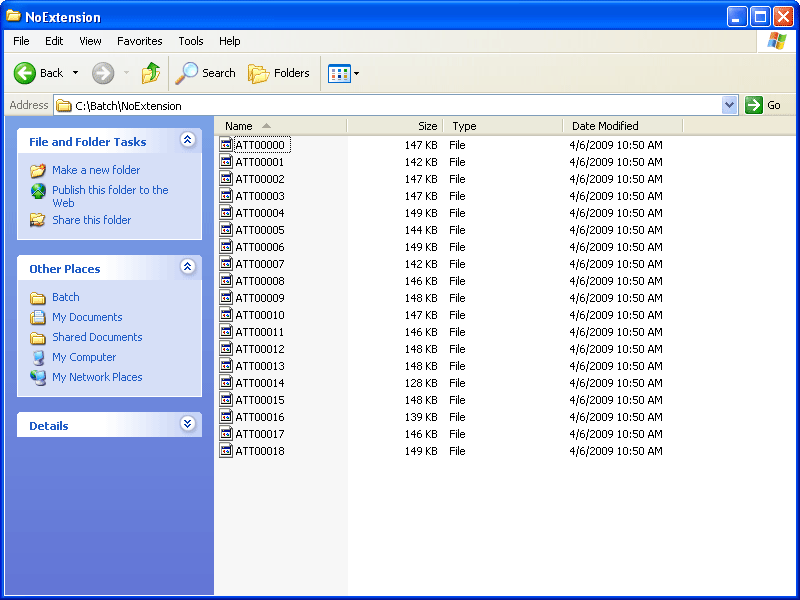
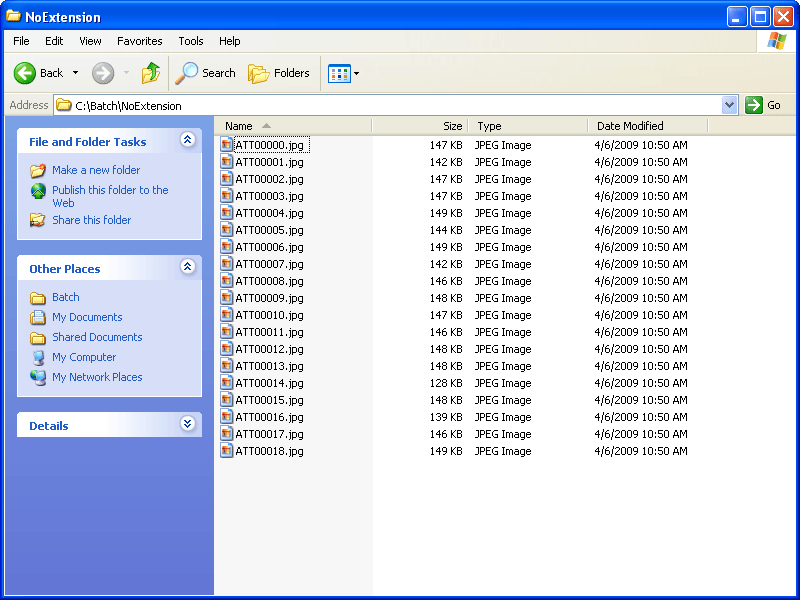
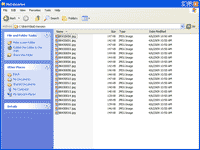
- Open the folder in Windows Explorer. Now the files are bulky renamed.
Batch rename files by replace old text with new text
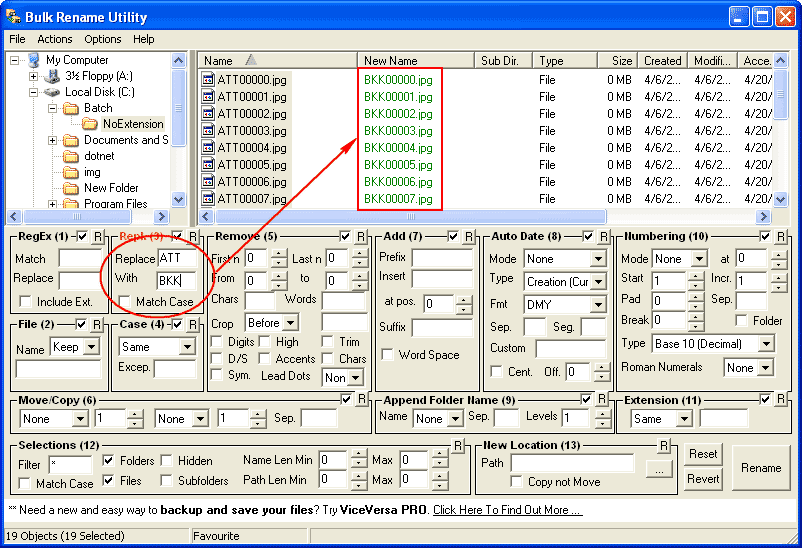
- From the previous example, I have batch add an jpg extension to files. Now I want to change name from ATTxxxxx.jpg to BKKxxxxx.jpg.
- Back to the program, select all files again in the folder again.
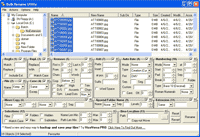
- On Repl. (3), type ATT in the Replace box and BKK in the With box. Notice that the values on New Name column are changed. Click Rename.
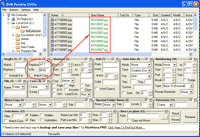
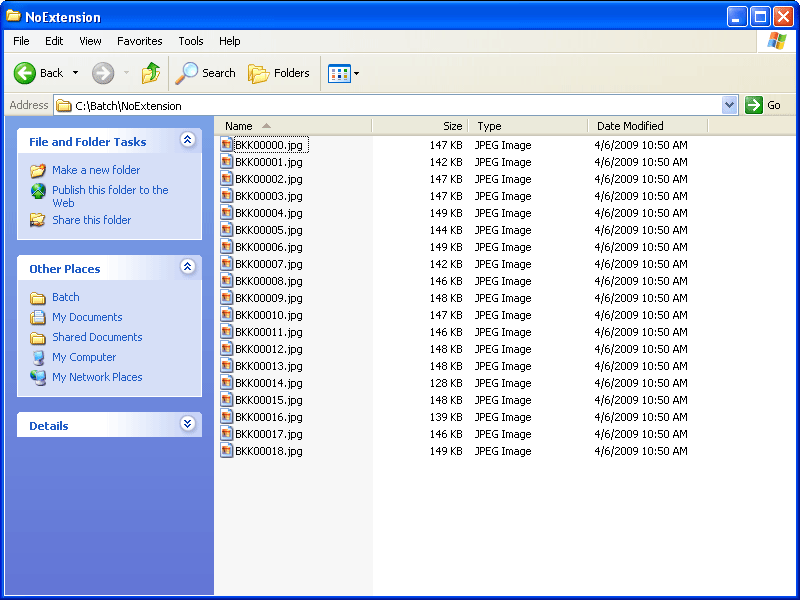
- Now the files are bulky renamed.
Summary
The Bulk Rename Utility can do batch rename files or folders different from examples above such as adding numbering on files, remove text on fixed position, add date to files, etc. It is free, fast and simple utility.
Hi,
Is there anyway i can use info from the file?
If a picture is taken 081224 like last christmas.
Filename today is DSC07930.JPG i want it too look like,
081224_1513_DSC07930.jpg
Date Time Picture#
MP3:
Artist
Songname
Track #
Pictures:
Picture taken date and time.
Hi, dRJ
You can add the date taken to an image file using this tool. This tool can extract EXIF meta information from an image file.
To add date taken to file name. First, enable EXIF data extraction by click Options -> Extract -> Exif data (Photos). Next, select files that you want. Then, modify settings on the box – Auto Date (8) as you want.
For MP3, you can extract information from ID3 tags but only V1 and V1.1 ID3 tags are supported. First, enable ID3 data extraction by click Options -> Extract -> ID3 Data (MP3). Next, select files that you want. Then, modify setting on the box – Add (7). The tags current available are:
Hello,
I am batch exporting filenames and I have no control over the ouput name of each file. I need to rename each filename to a specific standard. I have created a text file that has the exported filename in one column and what the filename should be renamed to in another column.
Is there a way to write a script that can use the text file to lookup the old name and rename it to the new name?
Hello,
Could you help me rename my photos.
I have them stored in my pictures by “year”, sub folder “month”, and subfolder “event title”. I was wanting to take the different jpeg file names from different cameras (some POO*** and some DSC***) and have the files renamed according to the year,month,event and numbered 001 through 999 (some of my folders contain over 100 photos). Would you be so kind as to describe how to perform this.
Thank you
Give a try to KrojamSoft BatchRename you can easily rename batch files.
The heading says Files or Folders but there are no examples of folder renames. The preview feature shows that the rename applies to files not the folders.
I want to change mm-dd-yyyy named folders to yyyy-mm-dd format. I can do that for files but folders are ignored.
Did you not realize folders are treated different by several rename utilities?
Bulk rename utility can rename files and folders.
The preview feature also works for folders.
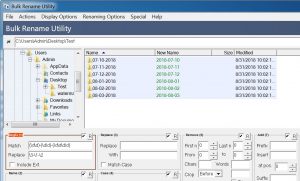
If you want to change folder name from ‘mm-dd-yyyy’ to ‘yyyy-mm-dd’, use this config:
RegEx(1)
Match: (\d\d)-(\d\d)-(\d\d\d\d)
Replace: \3-\1-\2