There is a built-in command on Windows XP and Windows 2003 which can gather system configuration information to display in command-line mode. This command works on Windows only. With this command, you can get System Information on both local or remote computer so you don’t have to login or remote desktop to the remote computer.The command displays these configurations:
- Host Name
- OS Name, OS Version, OS Manufacturer and OS Build Type
- Registered Owner, Registered Organization
- Product ID and Original Installed Date
- System Up Time, System Manufacturer, System Model, System Type
- Processor(s), BIOS version
- Windows Directory, System Directory
- Boot Device
- System Locale, Input Locale and Time Zone
- Total Physical Memory and Available Physical Memory
- Virtual Memory (Max Size, Available, In Use) and Page File Location(s)
- Domain, Logon Server
- Hotfix(s)
- Network Card(s)
To run this command, type this in command-line
systeminfo
This command also can query remote computer. Type the command below
systeminfo /s remote host /u username /p password
Where
- remote host is the IP Address or Hostname of the remote computer.
- username is the user on the remote computer.
- password is the password of the username.
Note: This command is not available in Windows 2000 but you can still query Windows 2000 computer by running this command on Windows XP or Windows 2003 computer and set remote computer to Windows 2000 computer. If the current user logon that execute this command already has privilege on remote machine (for instance, Domain Administrators), you don’t have to use /u and /p.
Example
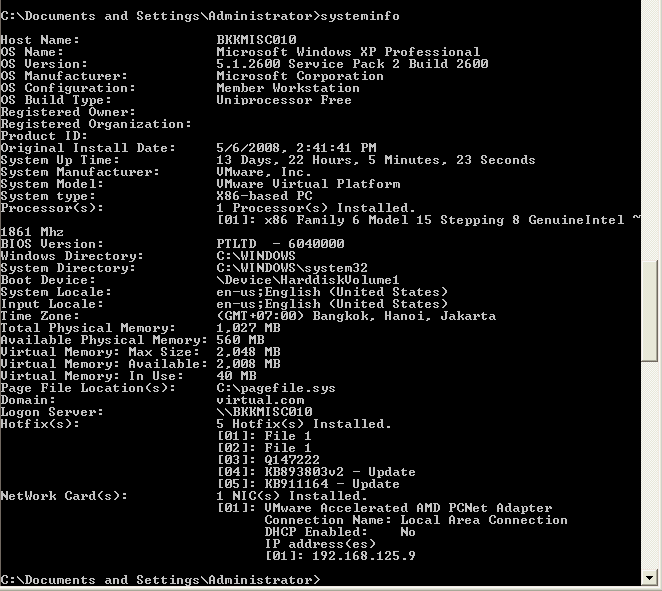
- Display System Information on local computer.
systeminfo
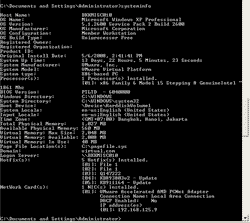
- Display System Information on remote computer without specify username and password.
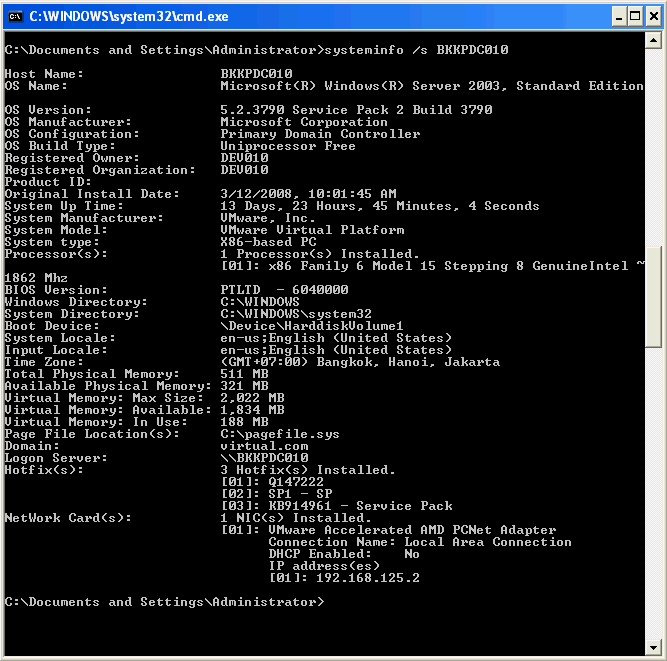
systeminfo /s BKKPDC010
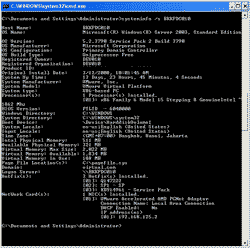
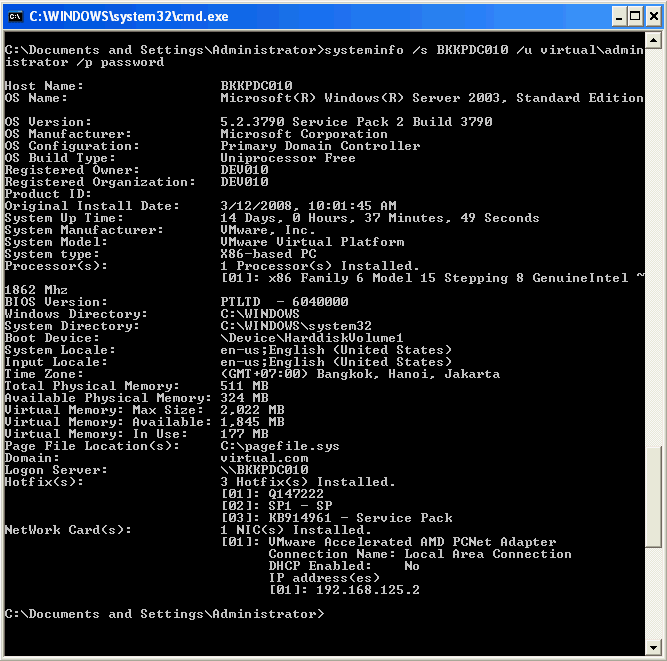
- Display System Information on remote computer specifying username is “virtualadministrator” and password is “password”.
systeminfo /s BKKPDC010 /u virtualadministrator /p password
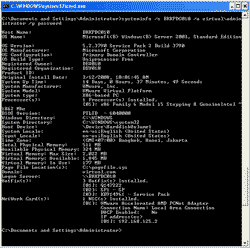
does anyone know how to hide the command line password for the remote access
ie:
systeminfo /s %computername% /u virtual\administrator /p Pass@word1 <- how to hide/encrypt this ?
leave off the /p and it will ask you for the password
#>systeminfo /s %computername% /u virtual\administrator
Type the password for virtual\administrator:
you rocks! thanks
The reading goes to fast. Is there a “/P” or other command to slow it down. I know there was when one listed a DOS a file list, but has been so long that I have done that that I have forgoten about it. Thank you so very much.
Hi, Maurice
If you use command prompt window, you can scroll up to see the result if it is too long to fit in a screen.
sir i want which command avalable i will know everything.
tn
hanks
ananda nayak
Any way to find the remote host details without using password ?
thanks for sharing a nice info…
Thanks,
Ganesan K
techhowknow.com
systeminfo /s %computername% /u virtual\administrator /p Pass@word1 <- how to hide/encrypt this ?
Hi benoit,
Use this command for hide password
systeminfo /s %computername% /u username /p *
Type the password for as: type ur password here.
Regards,
Mathankumar
[email protected]
I want to get the system information of all the computers and save into csv.
I know for single system and i use below command which is working fine for me but for single system.
systeminfo /s IPs.txt /u ibleposrv /fo CSV
/NH>>SystemInfo.CSV
Now I want the same multiple computers plesae help me.
thnaks in advance
prime,
You can write a batch-file with a line for each computer.
Or you make a list with all computernames, and read that file line by line, giving the computername as parameter when calling a function in you batch-file (asuming they all have the same username / password; like in a domain environment).
If you want to scan the entire network, getting system info for all machines you encounter, it’s gonna be a little more work (like first scan the network, create a list with present computers, use that list as input on getting information for this systems).
It can be done, but is gonna take some work.
Or just make a loop in your batch-file, trying to get the systems info by just querying all iP-addresses in your network (that’s 254 possibilities in a class C network).
The batchfile for that isn´t that hard to make.
What I’m more interested in, is is there a possibility to limit the output (like I don’t need the list of hotfixes).
I know I can just output everyting to a CSV and delete that column, but why collecting that info if you don´t gonna need it anyway…
Can you please provide me the command user and daetails of usages in Computer
S. Hari,
What exactly do you want to know?
Do anyone know what is the command for getting system information using command prompt…
how to get the below output from command prompt.
WinNT MAAD11107340 6.1 i386
please advice us.
I have made similar batch file but some machine the system uptime show is “N/A” on the windows 2003 but on windows 7 it works. what could be the problem why showing “N/A”?
how to find the remote desktop c and d …etc drives total space and free space
How to find remote desktop c and d…etc drives total space and free space in command prompt