- Getting Started on Virtualization with Microsoft Virtual PC 2007, Part 1: Introduction
- Getting Started on Virtualization with Microsoft Virtual PC 2007, Part 2: Installation
- Getting Started on Virtualization with Microsoft Virtual PC 2007, Part 3: New Virtual Machine
- Getting Started on Virtualization with Microsoft Virtual PC 2007, Part 4: Install Guest OS
- Getting Started on Virtualization with Microsoft Virtual PC 2007, Part 5: Install Virtual Machine Additions
- Getting Started on Virtualization with Microsoft Virtual PC 2007, Part 6: Configure Virtual Machine Settings
This post shows you how to install Microsoft Virtual PC 2007. The steps are easy, simply click next. But I decide to keep this post to make the series complete. By the time I writing this, the latest version is Microsoft Virtual PC 2007 SP1.
Note: The PC that is being installed the Virtual PC should has more than single core (Dual or Quad cores) and has enough memory for virtual machines. Otherwise, it may be slow when you run a virtual machine.
In this example, I’ve selected HP DX 7400 SFF as a sample PC for this series. The spec is Intel Dual Core E8400 (3.00 GHz) with customized RAM to 3.5 GB since Windows XP 32-bit can see maximum at 3.5 GB and hard disk 250 GB. With lot of RAM, I’ve tested that I can run up to 4 virtual machines on this PC simultaneously.
Step-by-step for the installation
- Download Microsoft Virtual PC 2007 SP1 from Microsoft website.

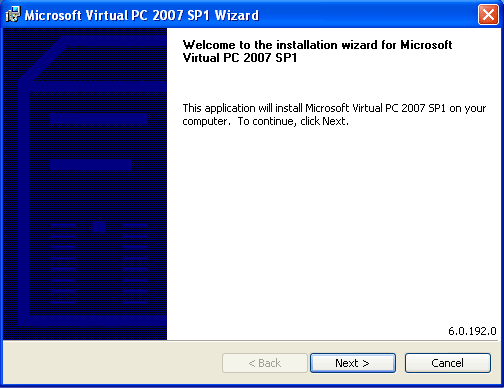
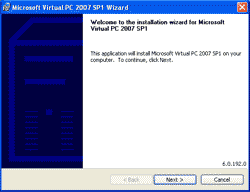
- Double-click on setup.exe to start the installation wizard. Click Next to continue.
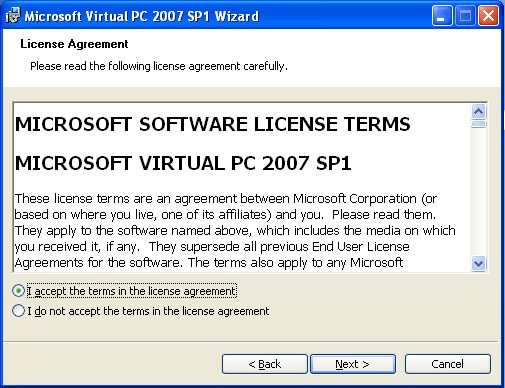
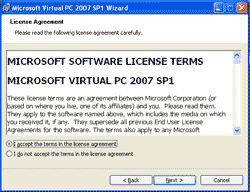
- Select I accept the terms in the license agreement. Click Next.
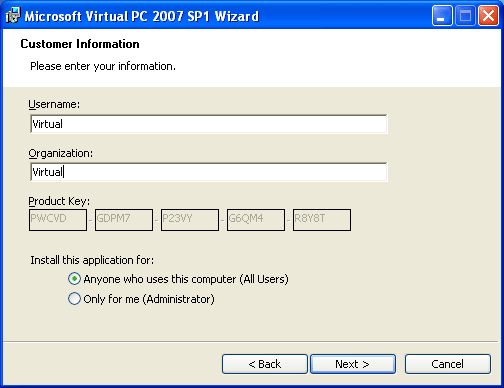
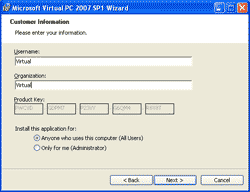
- Enter Customer Information and click Next.
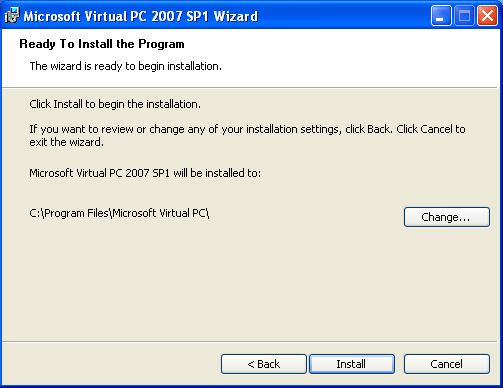
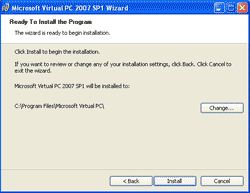
- Click Install to start the installation.
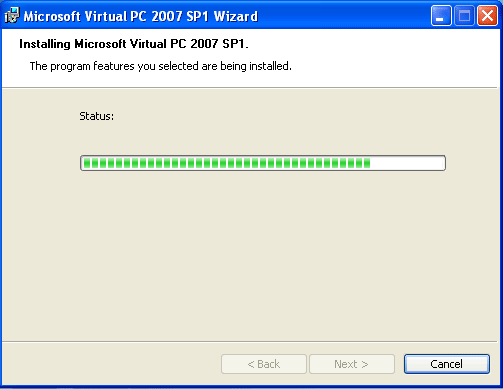
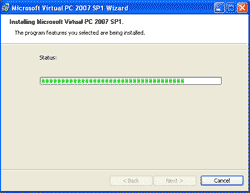
- Waiting the installation to finish.
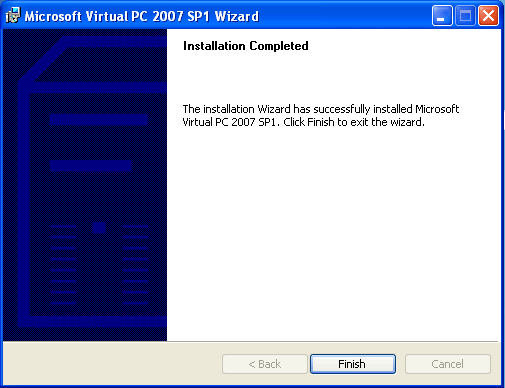
- Click Finish to complete the installation.
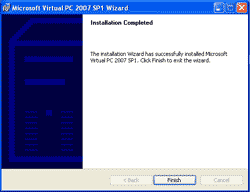
- Now you have installed Microsoft Virtual PC 2007 SP1.