- Getting Started on Virtualization with Microsoft Virtual PC 2007, Part 1: Introduction
- Getting Started on Virtualization with Microsoft Virtual PC 2007, Part 2: Installation
- Getting Started on Virtualization with Microsoft Virtual PC 2007, Part 3: New Virtual Machine
- Getting Started on Virtualization with Microsoft Virtual PC 2007, Part 4: Install Guest OS
- Getting Started on Virtualization with Microsoft Virtual PC 2007, Part 5: Install Virtual Machine Additions
- Getting Started on Virtualization with Microsoft Virtual PC 2007, Part 6: Configure Virtual Machine Settings
From first 2 parts, you have already installed Microsoft Virtual PC 2007 SP1 on your PC. Now you can create your own virtual machine which I’ll show in this part.
Step-by-step to create new virtual machine
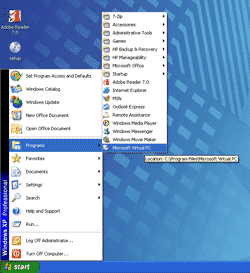
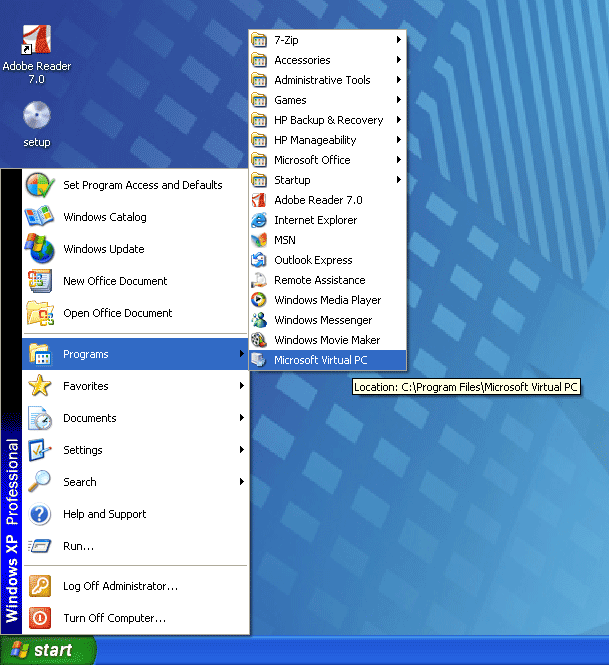
- Open Microsoft Virtual PC 2007. Click Start -> Programs -> Microsoft Virtual PC.
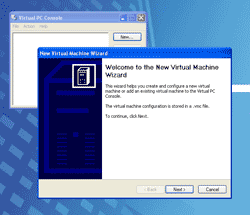
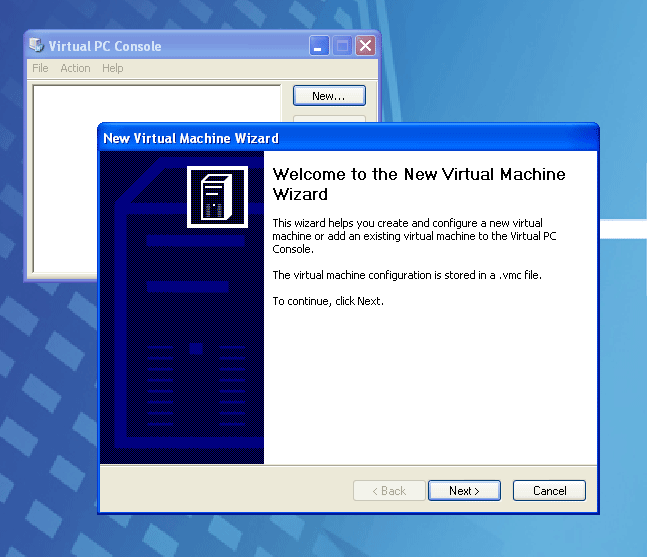
- When Microsoft Virtual PC is loading up for the first time, it hasn’t any virtual machine so it automatically runs a wizard for create a new virtual machine. Click Next to continue.
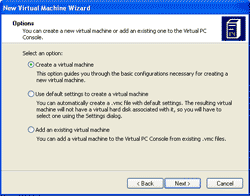
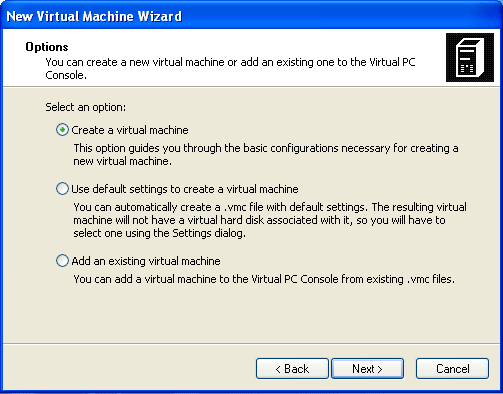
- On Options, you can one of these 3 options:
- Create a virtual machine which you can define basic configurations for a virtual machine.
- Use default settings to create a virtual machine.
- Add an existing virtual machine. If you duplicate a virtual machine or have an existing one, you can choose this option to import it.
In this example, I’ll create a new virtual machine so I select the first option. Select Create a virtual machine. Click Next.
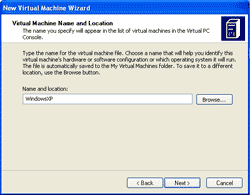
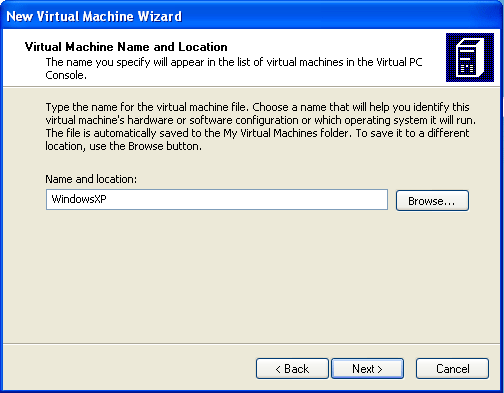
- On Virtual Machine Name and Location, you can name the virtual machine and its location to keep the virtual machine file. In this example, I only name it to WindowsXP so it will store the virtual machine file in a default location.
The default location is in My Virtual Machines folder (For example, C:\Documents and Settings\Administrator\My Documents\My Virtual Machines). You can click Browse if you would like to change the location. Then, click Next.
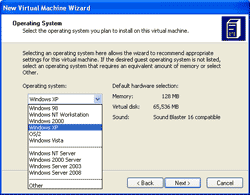
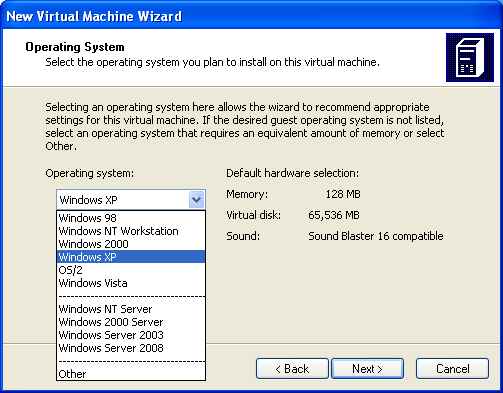
- On Operating System, you have to choose the operating system which you’re going to install on the virtual machine. I’ll install Windows XP so I choose Windows XP. Click Next.
Note: If you’re going to install other operating system besides Microsoft’s products for example, Ubuntu, Red Hat, Fedora, Solaris, FreeBSD, etc., you have to select Other. But Microsoft isn’t officially supports these operating system on Microsoft Virtual PC. Therefore, if you willing to install them in virtual machine, I would recommend you try VMWare. See www.vmware.com for more information.
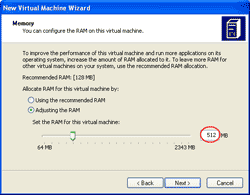
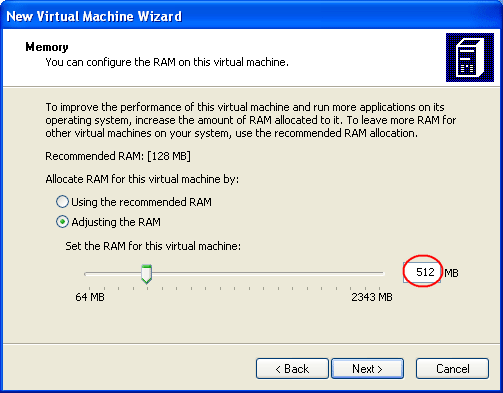
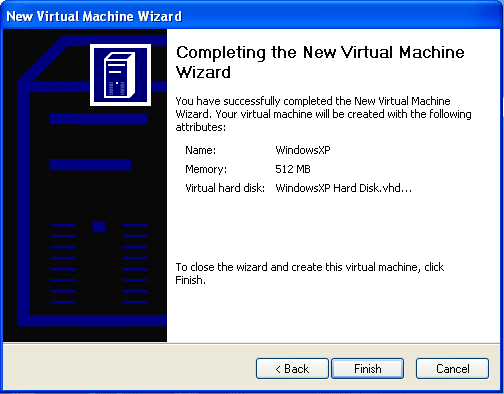
- On Memory, you can adjust memory (RAM) for the virtual machine. It’ll consume the memory (RAM) of the physical system so you should better have enough memory for both host and guest operating system. In this example, I have 2560 MB. of memory on my PC so I decide to give memory for the virtual machine 512 MB. Select Adjusting the RAM and type 512 in the text box and click Next.
Note: You shouldn’t assign memory to the maximum size for the virtual machine because the host operating system may lacks memory when you run this virtual machine.
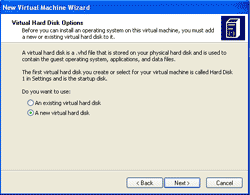
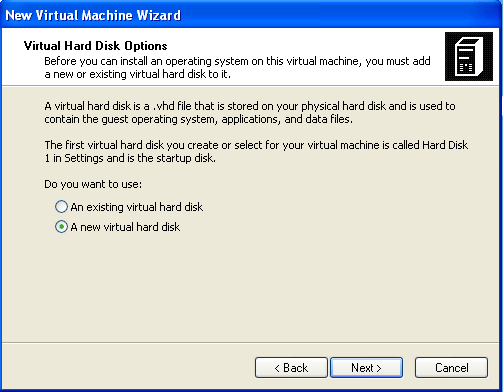
- On Virtual Harddisk Options, select A new virtual hard disk. Click Next.
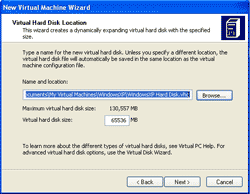
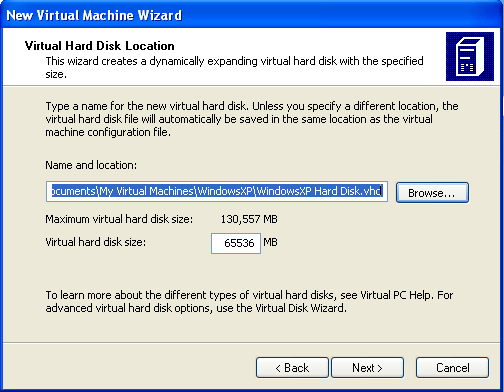
- On Virtual Hard Disk Location, you can specify where to keep this virtual hard disk file and virtual hard disk size. In this example, I leave these values to default. Click Next.
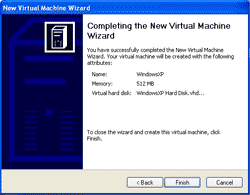
- Click Finish to complete creating a new virtual machine.
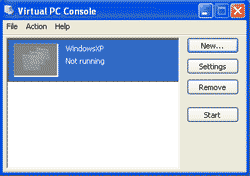
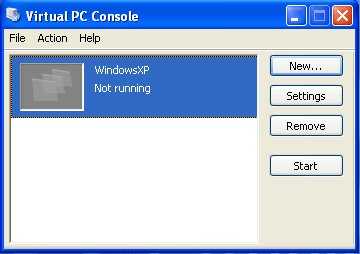
- Now, you’ll see a new virtual machine is shown up on Virtual PC Console. In this example, its name is WindowsXP and the status is Not running.
That is so simply put and easy to understand even for someone not so versed with computers.
And I thought I was the sensible one. Thanks for setting me strgiaht.