Getting Started with Virtual PC 2007

After you’ve installed an operating system on the virtual machine, you would want to install Virtual Machine Additions on the virtual machine to enhance functionality on a guest operating system.
The major capabilities are:
- Integrated use of the mouse. You don’t have to press right ALT to release mouse from guest operating system anymore.
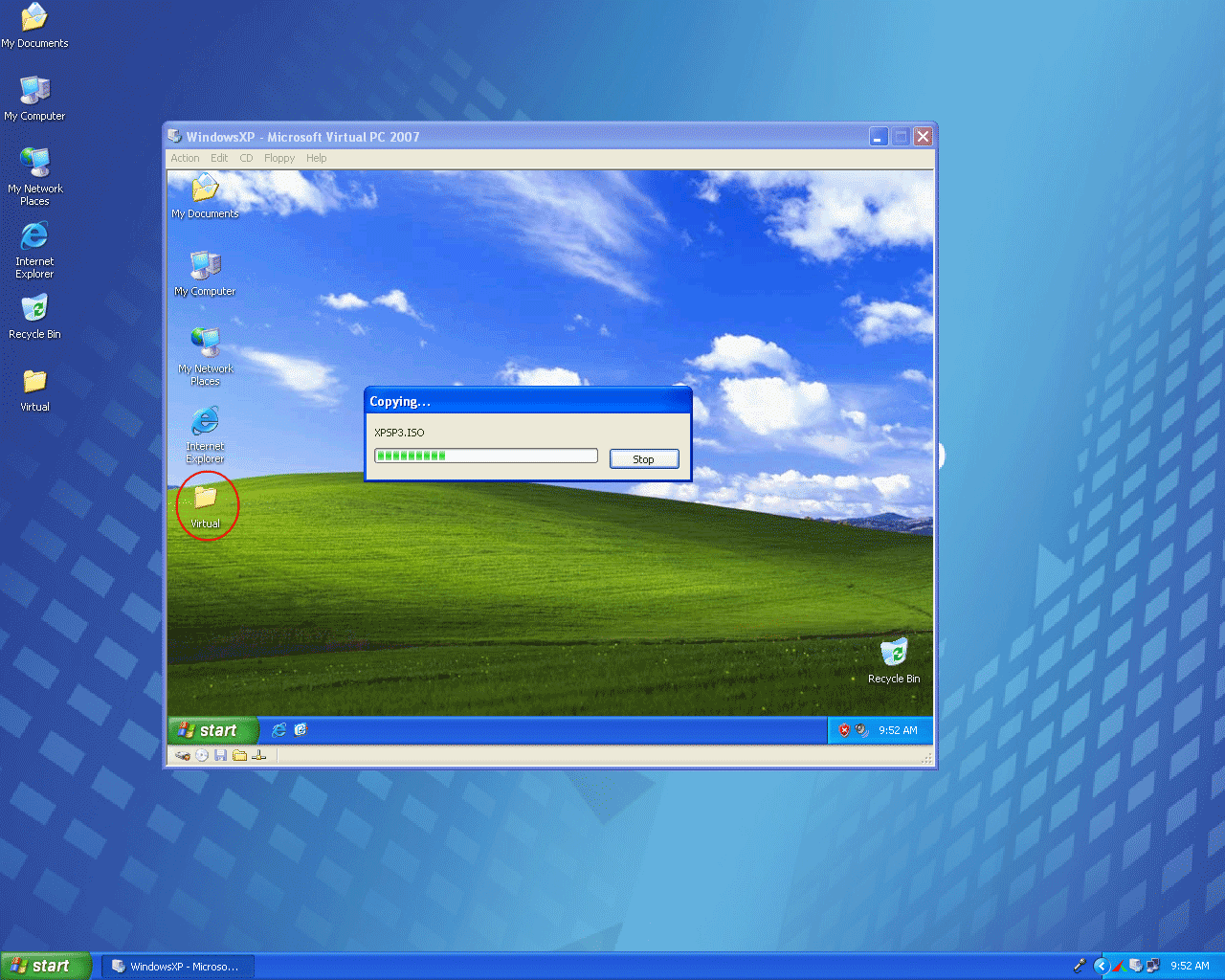
- Drag-and-drop capabilities. You can drag and drop files or folders between guest operating system and host operating system without setting up any networking.
- Clipboard sharing. You can copy and paste clipboards between guest operating system and host operating system.
You can view more detail of Virtual Machine Additions in part 1. In this part, I’ll show how to install Virtual Machine Additions on a virtual machine which has Windows XP as an operating system.
Note: The Virtual Machine Additions have to be installed on a guest operating system in virtual machines.
Step-by-step to install virtual machine additions
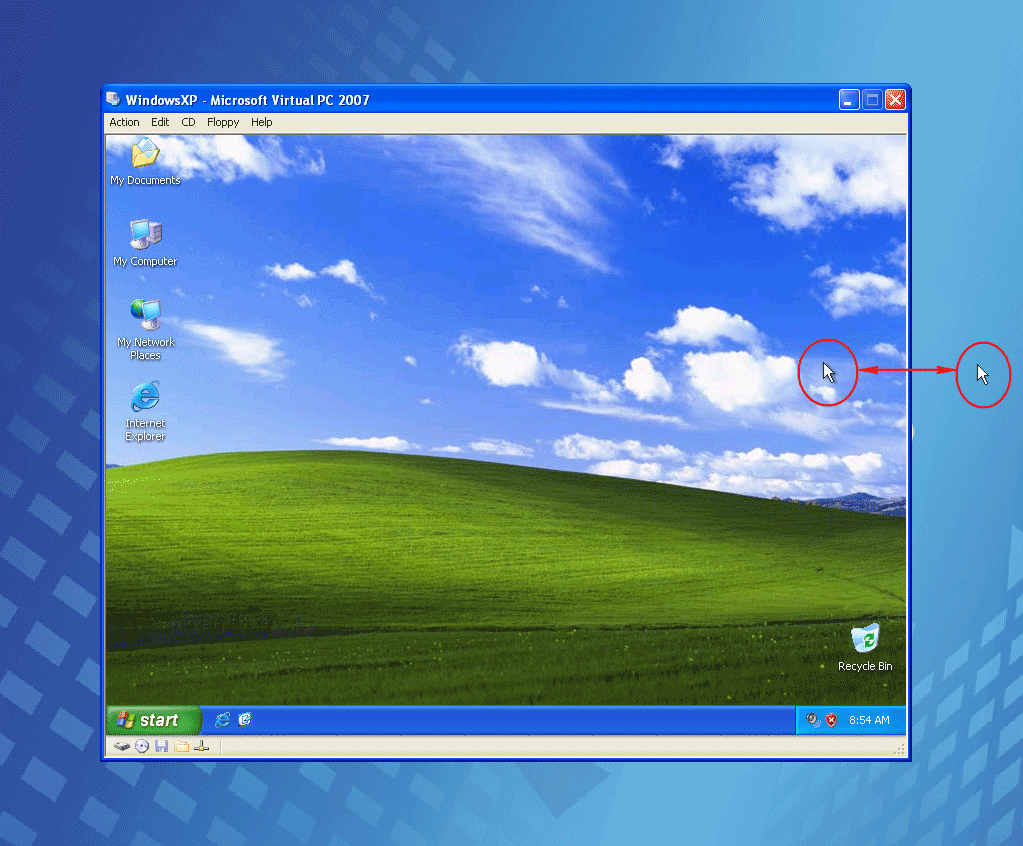
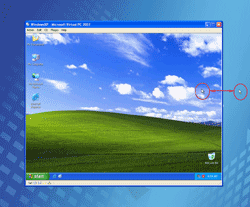
- Before installing Virtual Machine Additions on the virtual machine, first let see some major functionality which you can’t do before installing Virtual Machine Additions. You have to press right ALT every time to release mouse from guest operating system. You can’t move mouse pointer between host operating system and guest operating system.
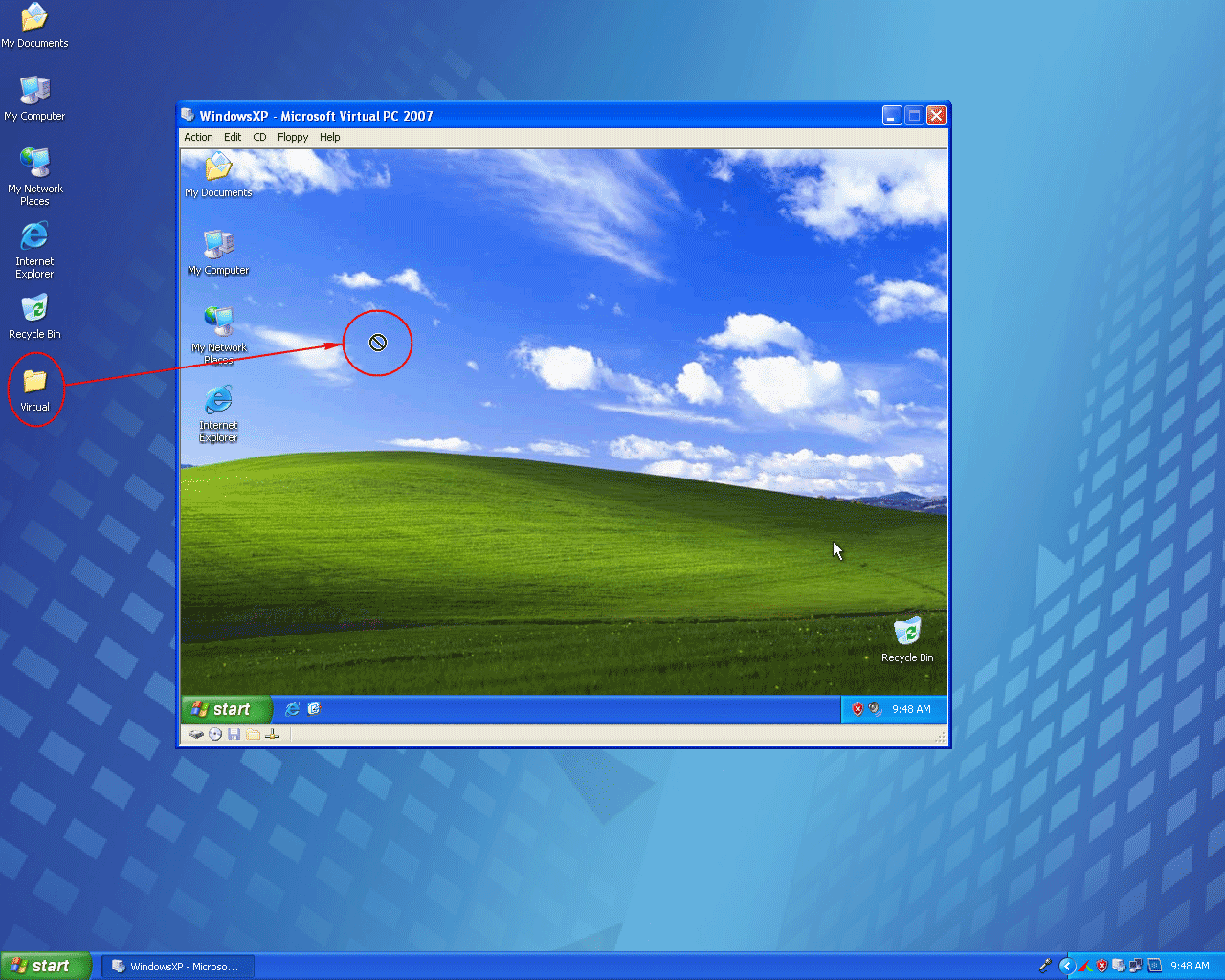
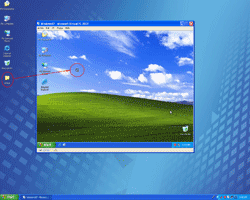
- You can’t drag and drop folder from host operating system to guest operating system.
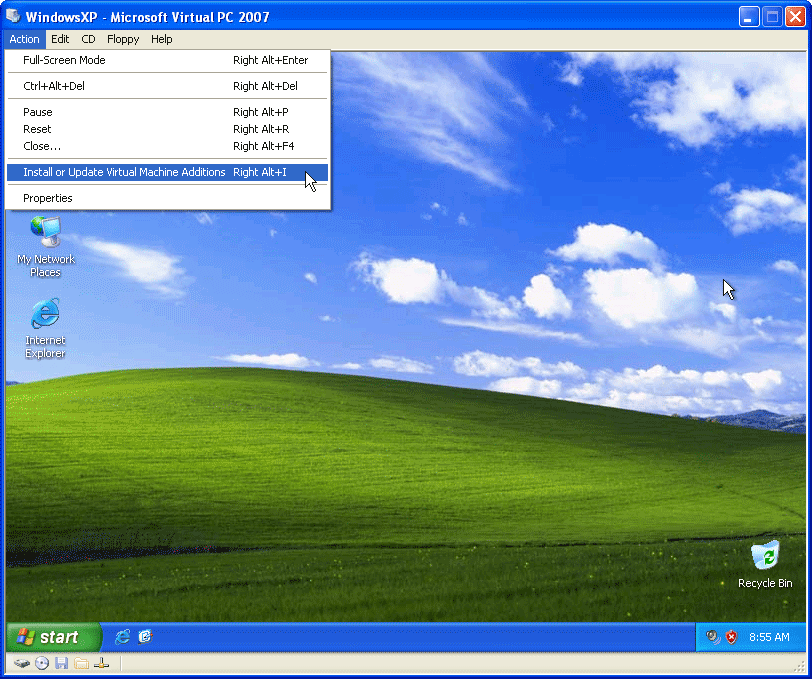
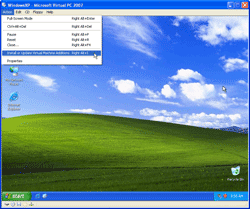
- Now let’s install Virtual Machine Additions. On the virtual machine, select Action -> Install or Update Virtual Machine Additions.
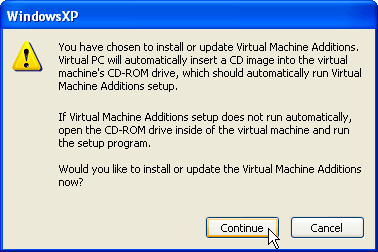
- It shows a warning message, click Continue.
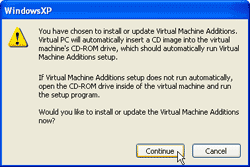
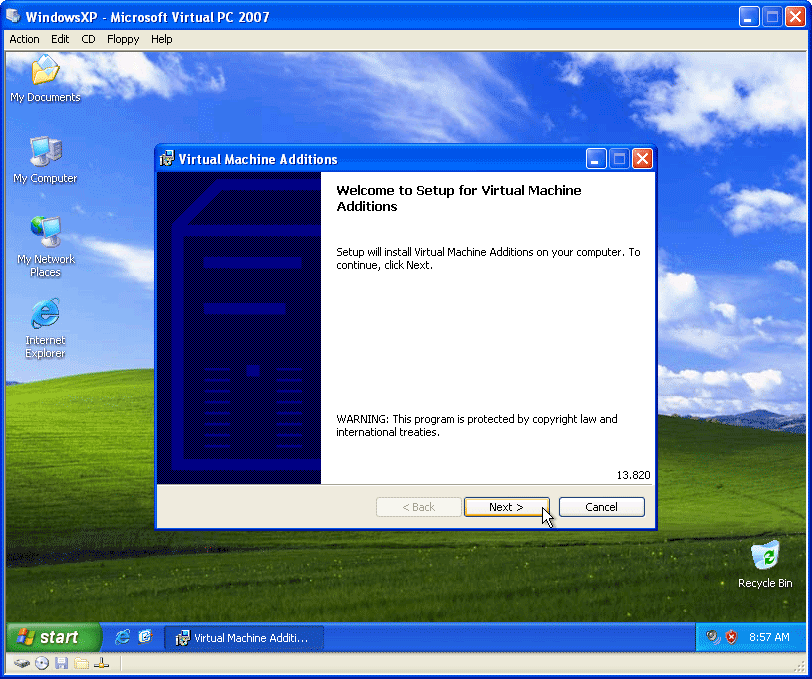
- The setup program will be launched on the guest operating system. On Virtual Machine Additions, click Next.
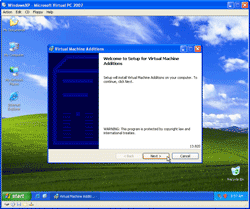
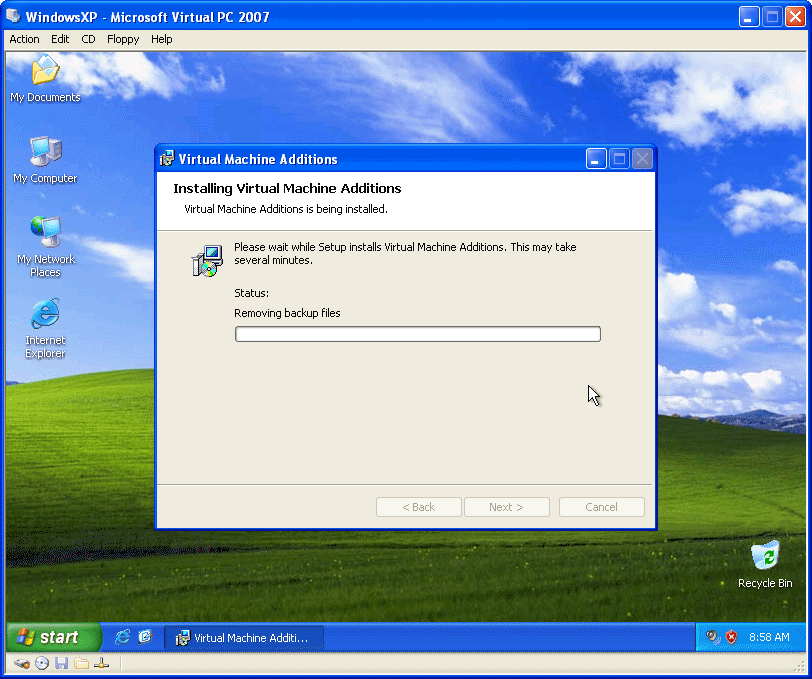
- It’s installing Virtual Machine Additions.
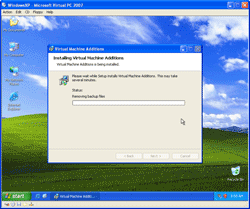
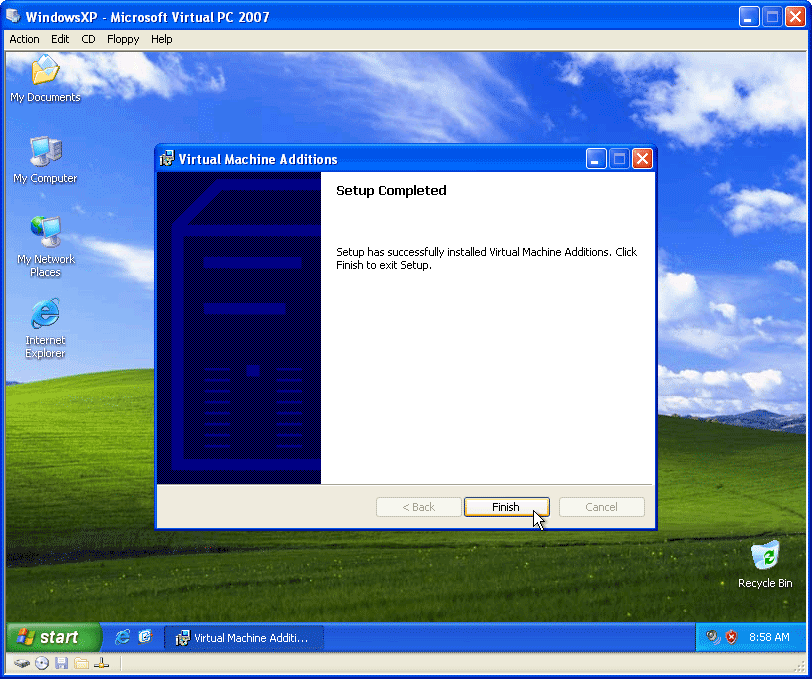
- When setup completed, click Finish.
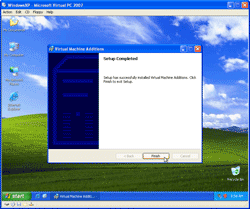
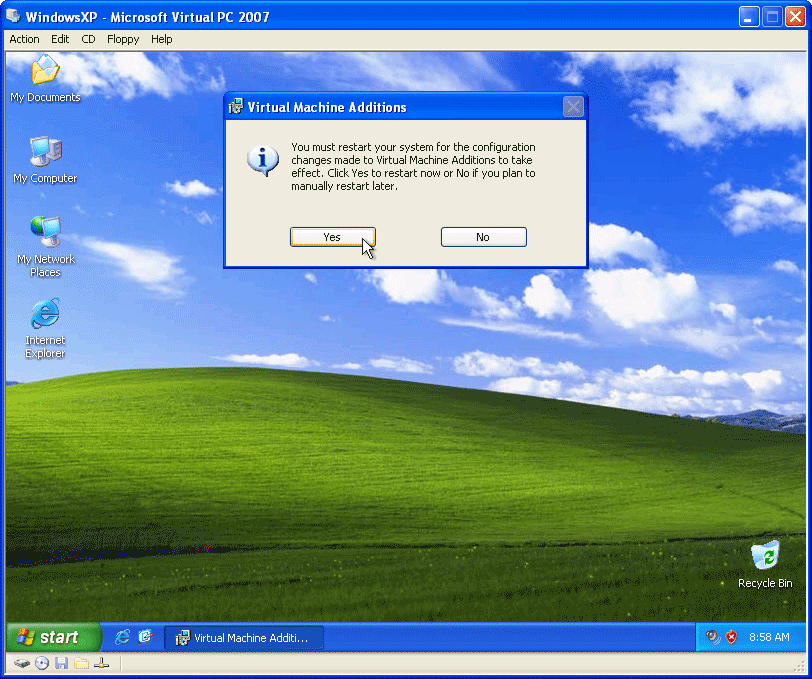
- Click Yes to restart the guest operating system to take effect of the Virtual Machine Additions.
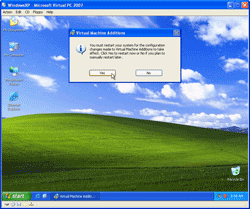
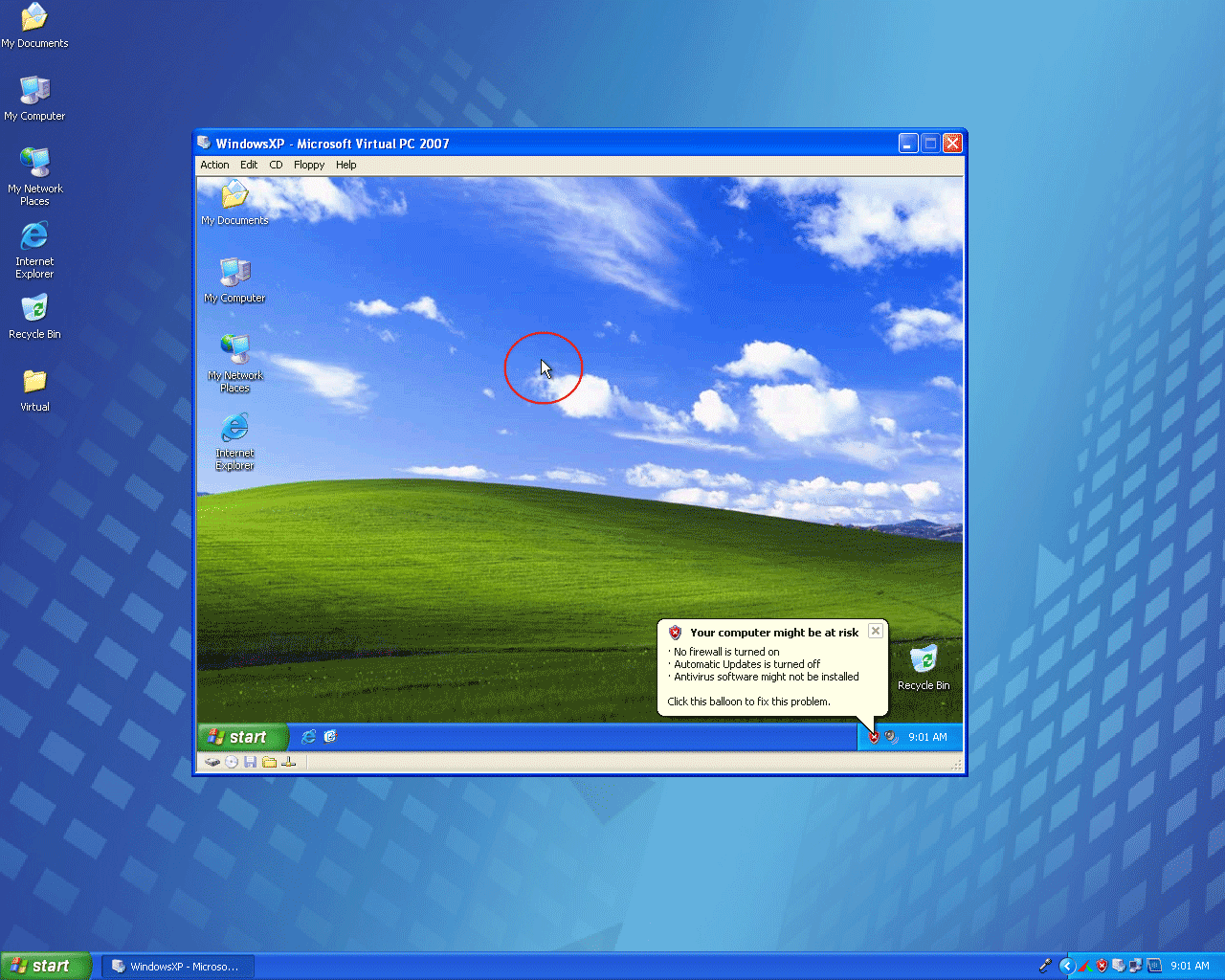
- Now you’ve finished install Virtual Machine Additions on the guest operating system. You can try to move your mouse between host operating system and guest operating system. This time, you don’t have to press right ALT to release mouse from guest operating system anymore.
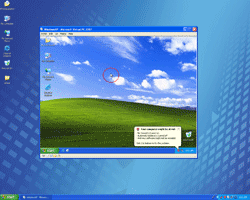
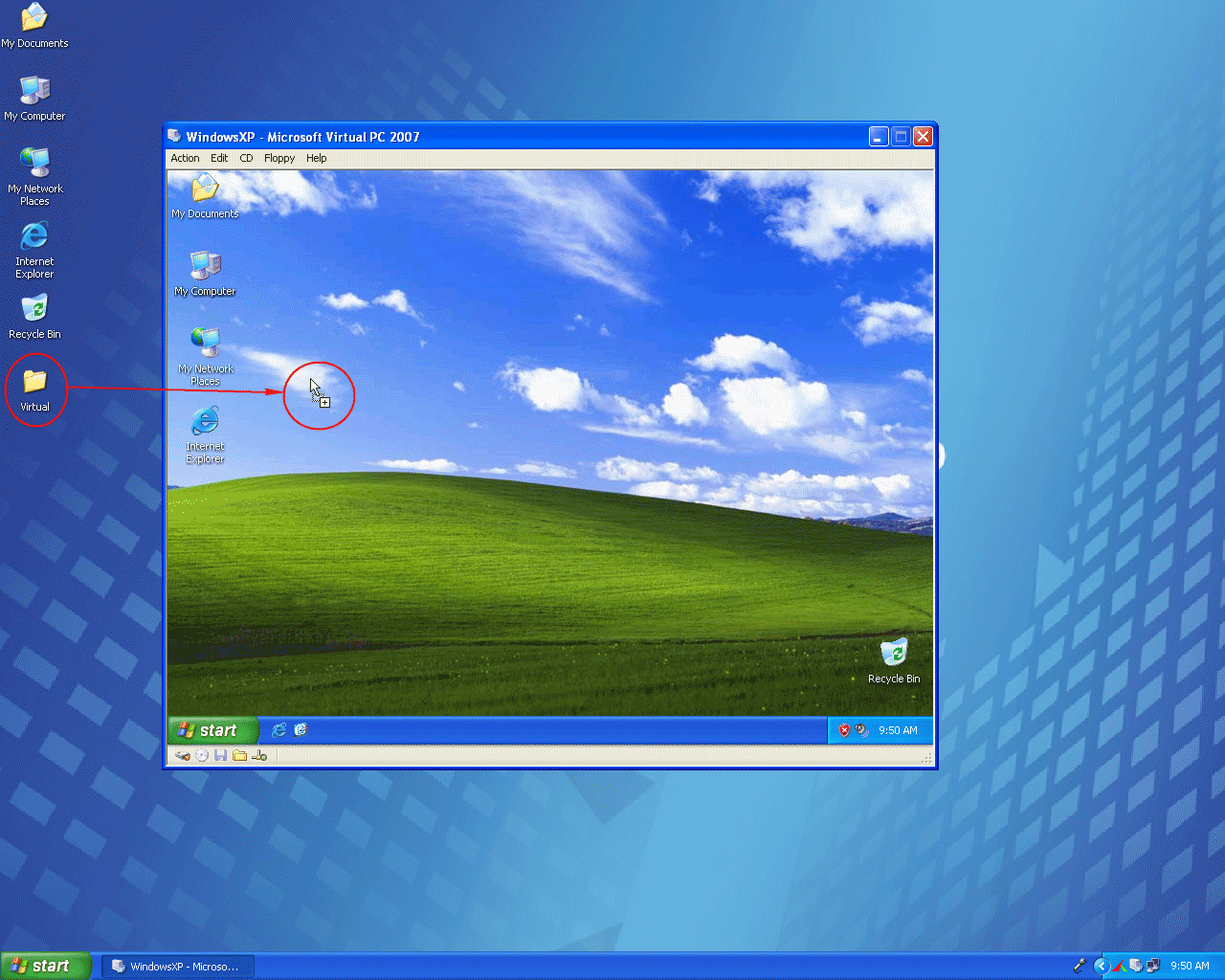
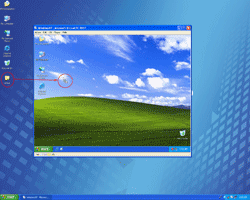
- Next, try to use drag and drop capability. Drag a folder from host operating system to guest operating system.
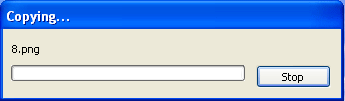
- There will be a new windows showing copying status.
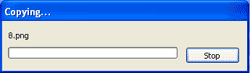
- The files and folders are copied to the guest operating system.