- Getting started with Microsoft ISA Server 2006, Part 1: Introduction
- Getting started with Microsoft ISA Server 2006, Part 2: Environment Setup
- Getting started with Microsoft ISA Server 2006, Part 3: Installation
- Getting started with Microsoft ISA Server 2006, Part 4: Service Pack 1
- Getting started with Microsoft ISA Server 2006, Part 5: Network Layout Concept
- Getting started with Microsoft ISA Server 2006, Part 6: Configure Network Layout
- Getting started with Microsoft ISA Server 2006, Part 7: Create DNS Lookup Rule
- Getting started with Microsoft ISA Server 2006, Part 8: Create Web Access Rule
- Getting started with Microsoft ISA Server 2006, Part 9: Client Configuration
- Getting started with Microsoft ISA Server 2006, Part 10: Logging
- Getting started with Microsoft ISA Server 2006, Part 11: HTTP Filtering
- Getting started with Microsoft ISA Server 2006, Part 12: Block Windows Live Messenger
Logging
From Part 9: Client Configuration, you learn how to configure a client computer. On this post, I will show how to use logging to observe usage which is a feature on ISA Server 2006 which keeps track any usage on ISA Server 2006. When there is a communication between networks (Internal, External, Localhost, etc.) on the ISA Server, it will generate log. The log shows the log time, source IP address, destination IP address and port, action, rule applied to, etc. You can configure what fields that you want to log. There are three log storage formats supported on ISA Server 2006: MSDE database, SQL database and file.
The benefits of logging:
- Track usage on certain users, groups.
- Troubleshoot issues on the ISA Server.
- Keep as Internet access log. In some countries, it is require to keep the Internet access log in order to comply with the law.
Step-by-step
Logging Configuration
Actually, there is no need to configure logging on ISA Server 2006 because the configuration works great on default settings already.
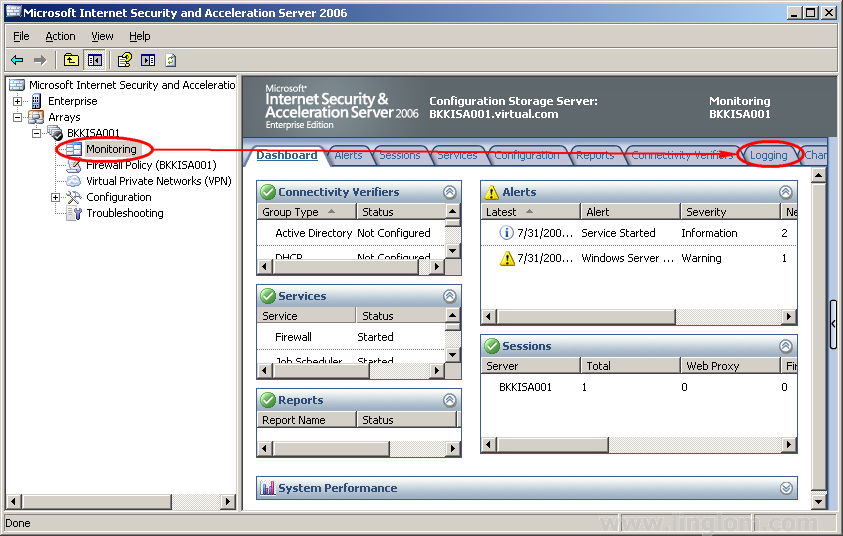
- Open Logging by expand Arrays -> BKKISA001 -> Monitoring. Click on Logging tab.
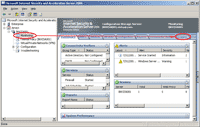
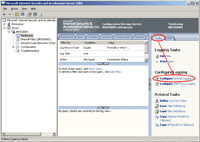
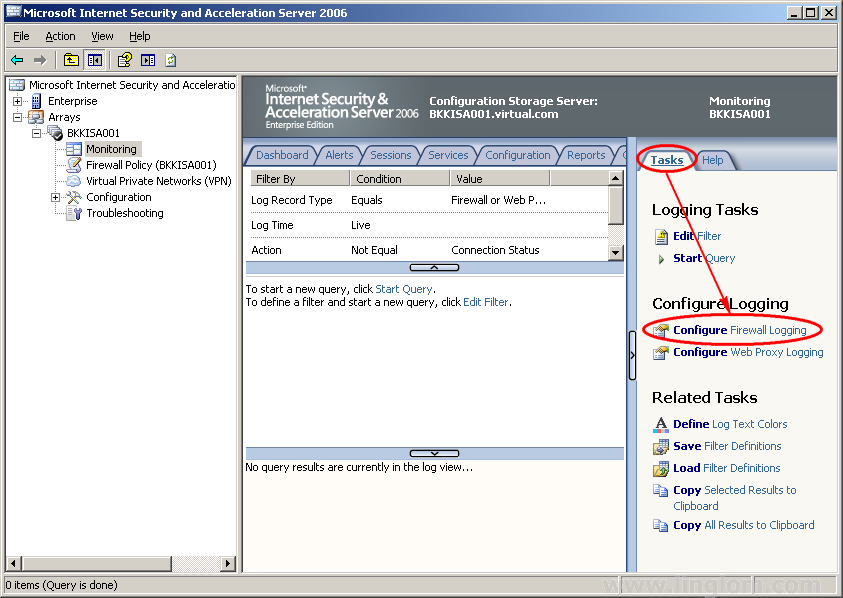
- To configure firewall logging, select Tasks -> Configure Firewall Logging.
Note: You also can configure web proxy logging by click on Configure Web Proxy Logging. The configuration is the same as firewall logging so I will not repeat it.
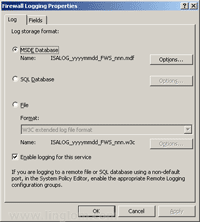
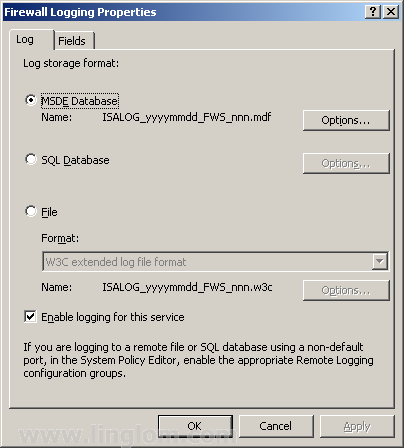
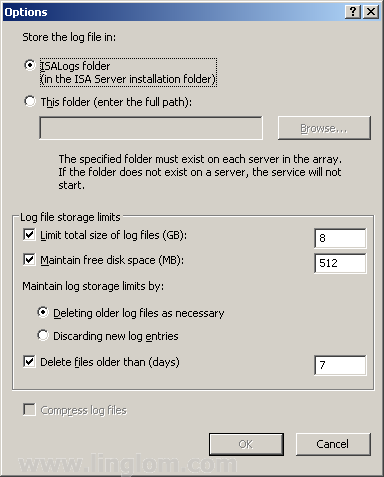
- On Firewall Logging Properties, you can choose to keep log on MSDE, SQL Server or a file. The default configuration is MSDE database and the default location is C:\Program Files\Microsoft ISA Server\ISALogs. Let’s click on Options next to MSDE database to see what can be configured for MSDE database.
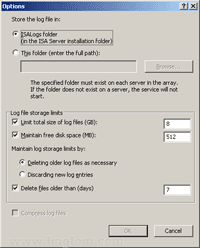
- On Options, you see that you can change location to store the log files and the log file storage limitation. You can limit the size of log files, maintain disk space by deleting the older log files or discard new entries and whether you want to delete log files after period of time.
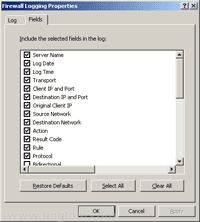
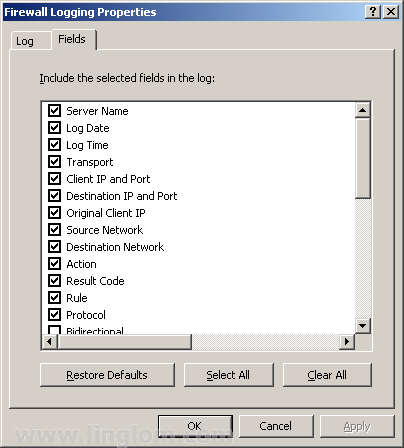
- Back to Firewall Logging Properties, there is another tab, Fields. Here you can customize which fields you want to keep or discard on log files. Normally, you don’t have to modify these configuration. It works perfect by default.
Observe Logging
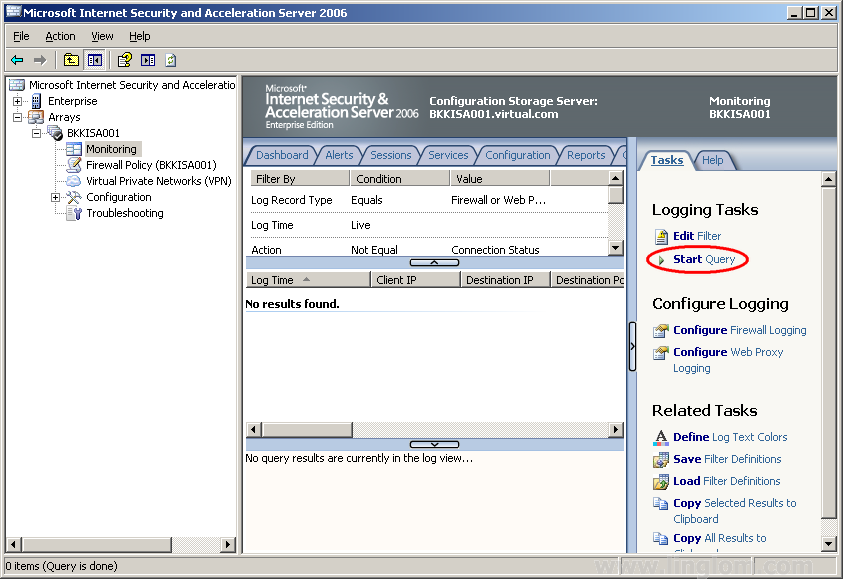
- On Logging, click on Start Query.
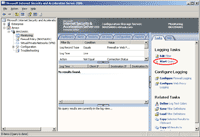
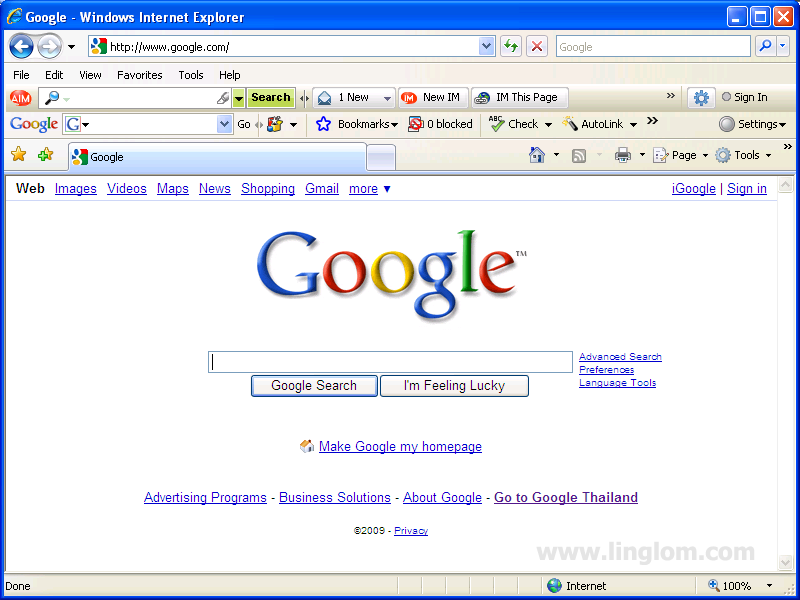
- Generate some traffic by access the Internet on the client computer. Open web browser and browse to www.google.com.
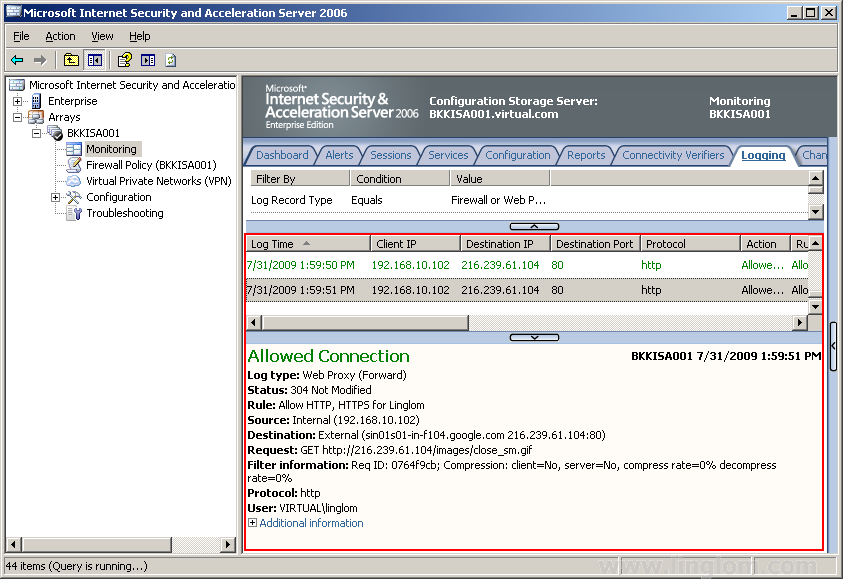
- Now you see some logs on the ISA Server 2006.
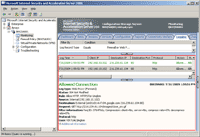
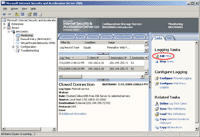
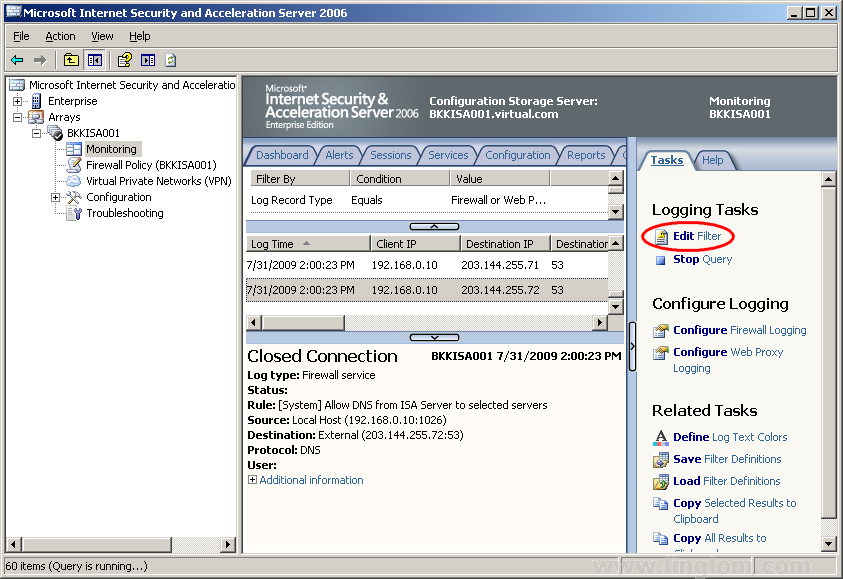
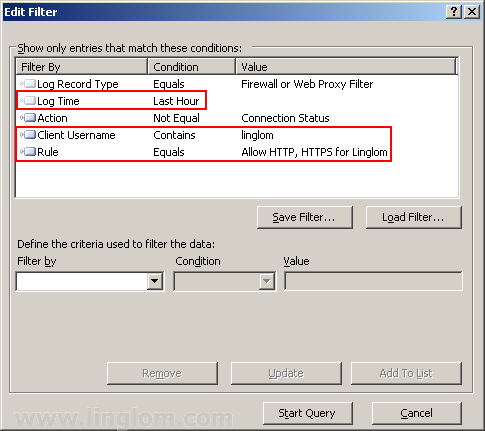
- You can filter logging on ISA Server 2006 by click on Edit Filter.
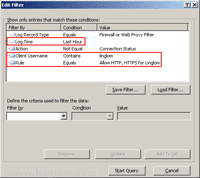
- On Edit Filter, modify columns and conditions as you want. Then, click Start Query.
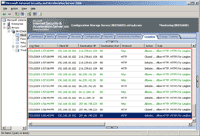
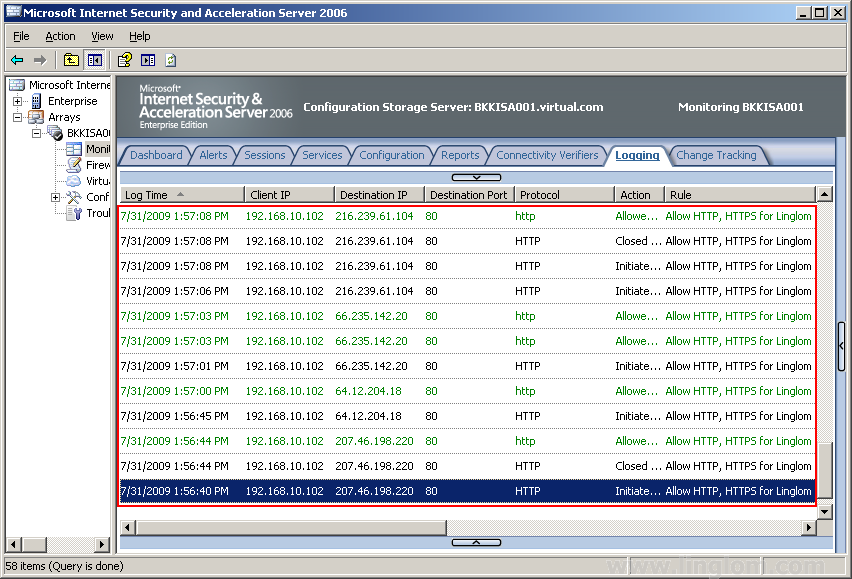
- This is an example of the filtered logs on ISA Server 2006.
What’s Next?
Now you learn how to observe logging on ISA Server 2006. It is a useful feature which allow you to troubleshoot issues most of the time. Next, I will show more advance topic, HTTP filtering.
Your tutorial have been most helpful. This is the simplest most informative I have found on the net. Make ISA 2006 look simple, yet provides the user with ammo to move further. Grat job!!!
plz information me i want to block IDM (internet Download Messanger) plz help urgent
Hi,
I have configured ISA 2006 as per the article published, and created all rules
but still not able to access the internet. please help me out to setup the ISA 2006.
(Running on 2003 server ent R2 in WORKGROUP Mode)
My network design as follows (Testing ISA2006)
DSL – Link from ISP (Public IP 66.XX.XX.XX)
||
||
Connected with One of the Nic card in the ISA server
||
||
Another Nic Card was connected with Switch (IP address : 192.168.8.1)
||
||
Now when i try to initiate the connection form the ISA server (eg: http://www.google.com)
i am getting error “INTERNET EXPLORER CANNOT DISPLAY THE PAGE”, i want to implement
this in my new network.
||
||
How can i solve the issue? Please help me out.
John.R
Disable web caching for a site
http://winplat.net/post/2011/05/25/Disable-Web-Caching-for-a-specific-website-in-Threat-Management-Gateway.aspx