Note: This article is applied on installing Microsoft SQL Server Management Studio Express which is used for manage Microsoft SQL Server 2005 Express only.
When you are installing Microsoft SQL Server Management Studio Express on Windows Vista or Windows 7, you may receive this error message:
The installer has encountered an unexpected error installing this package. This may indicate a problem with this package. The error code is 29506.
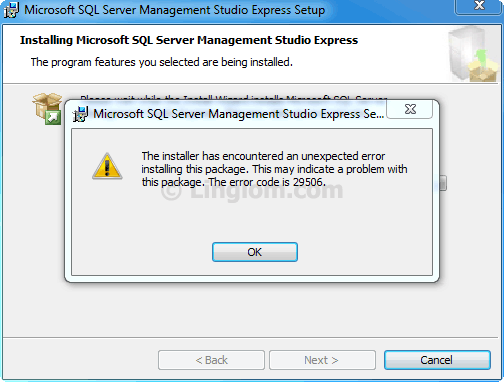
This error message relates with permission issue (UAC) on Windows Vista and Windows 7. To solve this problem, you have to re-run the installer again using elevated command prompt by run the command prompt as administrator and execute the installer in there. If you are using 64-bit Windows, you should use the command prompt at C:\Windows\SysWOW64\cmd.exe instead. Otherwise, you can use the command prompt at C:\Windows\System32\cmd.exe. You will see the step-by-step guide to use elevated command prompt to execute the installer file on the section below.
The other solution, you can disable UAC on Windows but I don’t recommend it since it will lower your security system.
Step-by-step to fix error 29506
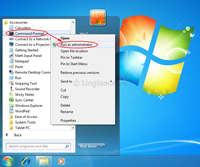
- Run elevated command prompt by right-click on Command Prompt in Start -> All Programs -> Accessories -> Command Prompt and select Run as administrator.
Note: This step is for 32-bit Windows. If you are using 64-bit Windows, see the next step.
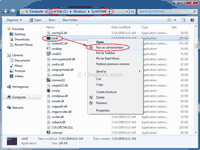
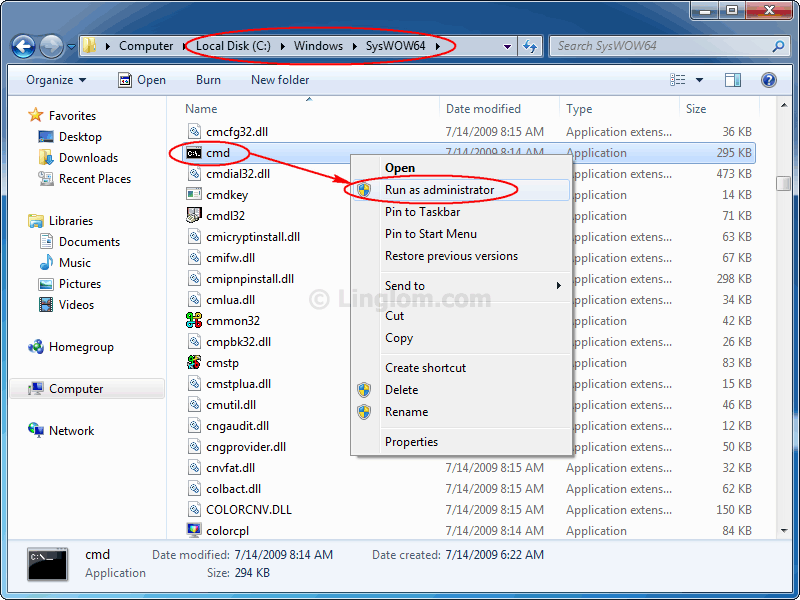
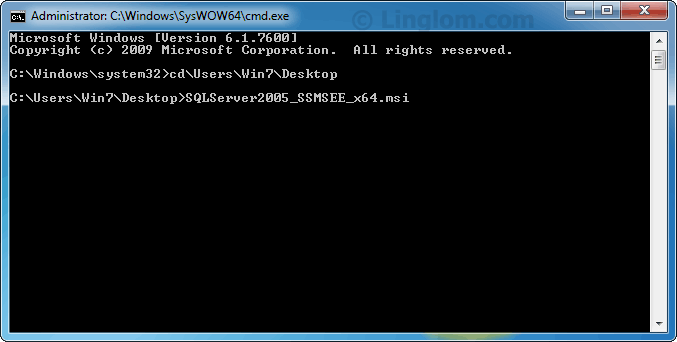
- If you are using 64-bit Windows, you have to run the command prompt in C:\Windows\SysWOW64. Right-click on cmd.exe and select Run as administrator.
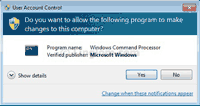
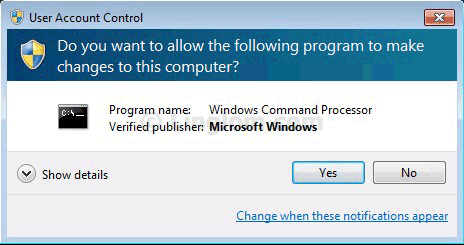
- On User Account Control, click Yes.
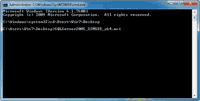
- On Command Prompt (both 32-bit and 64-bit Windows), change path to directory where the installer file is and execute the file. By default, the file name for 32-bit version is SQLServer2005_SSMSEE.msi and 64-bit version is SQLServer2005_SSMSEE_x64.msi.
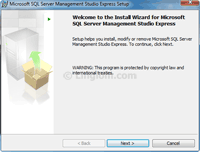
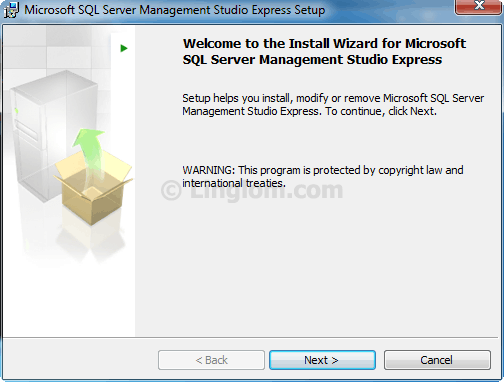
- On Setup Wizard, follow the instruction as usual. There won’t be the error message this time.

Thank you for this tip, it worked like charm!
Thz for this solution.It’s powerfull.
Very very thanks for this. Its work for me after a lot of fighting to install the SQLServer2005_SSMSEE.msi.
Thanks a ton for the post . It was helpful .solved
Excellent post. It worked for me 🙂
lovely! worked a treat – cheers
Thnks alot . Sir
Thanks for tutorial, Lol, I couldn’t find any that were decent or that made any sense.
Regards,
Brandon.
Thanks a lot. Came in handy.
Thans a lot…
thnks a lot man..its wrking
thanks alot alot alot
when i run it, it goes immediately to the end of the install, but does not give error, nor does it seem to install.. it is immediate. i was getting the error before. any idea why??? It seems when you run from the command prompt, the UI screens are not showing. i am on win7x64.. thanks
Thanks..its working
I followed the steps starting with step 2. I am running Windows7 Professional on a 64 bit operating system. I am getting the error message each time I try to run the installer. I was logged in as Administrator from the beginning.
Thanks,
Al
thanking you a lot
Thanks a million. that was really helpful.
error againnnnnnnnnn
Thanks a lot!
Was trying for 2 weeks!
i am using win 7 on 64 bit and i used start menu search for opening cmd as administrator and it worked
terima kasih (thank you).
it works.
hi this is chandra. i am using o.s. is windows 7 64 bit for installing Microsoft SQL Server Management Studio Express
i tried what you mention in above and install successfully. But when i trying to run that time server name is not showing(empty) then i put my system name and system name\sql express BUT NOT CONNECTING. 2 time i uninstall and install but same problem is showing pl z tell me solution Thank you!
Thanks. This works perfectly.
Muy buen tip amigo, muchisimas gracias.
Dios te bendiga
EcObO
Easy and fast!! THANKS
Wielkie dzięki! Great thanks. Second week oneself I from this tired.
Thanks
No meu caso dá um erro diferente 29508…
Many thanks
Thanks a lot. Your post saved me a lot of time.
I hate when Microsoft products don’t work or even install under Microsoft OS.
thanks a lot
Thanks its works fine… and solved my problem…
Thanks again……………
kadak solution
scolar……!!!!!!!!
Great! Thank you so much. Works fine
thank you so much!!!! its working 100%
thank youuuuuuuuuuuu!!!!
Thanks a lot. It worked.
Thanks! Saved a lot of frustration!
Excelent … well done !!!
You awesome big guy :)..Thanks..its work
thanks it helped me so much
hi I can’t install ms sqlserver 2005 express edition and it always end up with this error [“None of the selected features can be installed or upgraded. Setup cannot proceed since no effective change is being made to the machine. to continue, click BACK and then select features to install. To exit SQL Server Setup, click Cancel”]
but when I go back i can’t find the features that should be selected.
can you please help me 🙁
badly need for our thesis…
by the way I am using windows 7 ultimate 32-bit operating system.
hi I can’t install ms sqlserver 2005 express edition and it always end up with this error [“None of the selected features can be installed or upgraded. Setup cannot proceed since no effective change is being made to the machine. to continue, click BACK and then select features to install. To exit SQL Server Setup, click Cancel”]
but when I go back i can’t find the features that should be selected.
can you please help me 🙁
badly need for our thesis
buy the way Iam using windows ultimate 32-bit operating system.
thanks a lot it has worked
THANK YOU IT REALLY WORKS…
– it’s good fix, thank you.
sir…
sql server is opening and shortly closing immediately….
I reinstall that too..but till I have the problem… can u help me…
THANK YOUU!!!!!!!!!!!
it’s good fix Great thx
Thank you sir…it’s very helpfull..
thanks a ton bro!!
You saved my live, thanks!!!!!!!!!
Thanks, it worked …
Great, its working
você e zika cara VLLLLLW!
Thanks a lot!!!
It worked…
Thanks its works perfectly. I was just stuck at the problem. I am using win 7.
Once again thanks.
Thanks a lot sir !!! It works….
Thanks a lot! Worked great on my W7 x64 PC.
Thanks a lot
Thank you !!!! its working 100% on my W7 x64 PC.
thx alot.
Cam on nhieu
Thanx for who ever post it its works me alot…….
thanks it work perfectly………
Great man,,, thanks
Thanks, it works!!!
Thanks very much it worked fine…
I though it could be difficult, but not and it worked fine for me.. “thanks alot”
Thanks a lot!
It work thru the cmd.exe!
Work for me too !!
Thank you very much !!!
Worked like a charm..thanks man
great deed!!
Thank you Bro ! …
Thankz a lot,,,,,,,,,,,,,,,,,,,,,i’m do it #%@*
Worked for me in windows 8
Thanks alot
Thanks
worked like a charm. Thanks.
Thanks.its working
Thanks. Big LIKE
After hour of pain i finally find the answer. You are great. 10x
Thanks a lot… it worked for windows vista 🙂
how come it mentioned “SQLSever2005_SSMSEE_x64.msi ” is not recognized as an internal or external command, operable programme . or batch file ?? does it works to windows10
Hi Eugene,
It’s working fine for me. I can install and open it on Windows 10. I suggest you try to re-download the file again.
Beautiful..!!
got successfully installed. 🙂
It worked thanks brother
Very Nice Solution ….
Thanks a lot, Problem Solved
please help me too to solve this issue
please help me too to solve this error 29506
i am not able to execute through command prompt
please write to me the steps how you solved it
thanks in advance
Is there any error message? Which step did you have trouble?
i am not able to write the path of SQL file in command prompt
i opened cmd as administrator and then i opened SQL setup by writing start command in cmd
i followed above mentioned steps and opened cmd as administrator but i am not able to write the SQL setup file path in cmd so i opened it by writing start command and received the same error code 29506 again
Did you mean that you can’t change path to folder where the setup file is? What’s the error?
Can you try to move (or copy) the setup file to the path (c:\Windows\system32) so you don’t have to change path on cmd.exe?
Thanks a lot
It solved now 🙂
Very very thanks for this error solution. Its work for me after a lot of fighting to install the SQLServer2005_SSMSEE.msi.
Hello sir
my SQL server 2005 express not connecting with database engine
really I would like say to you thank you!!!!!!!!!!!!
Thanks a lot. It worked
Thanks a lot.. Its superb and directly to the point.
Thank you very much.
Thank you so much! It’s still working! 🙂
Thanks alot..worked for me
thanks its worked for me
this post is most helpfull. ty
Thank you old sport….
big thanks. ferry ferry thanks
thanks a lot!! works grt
Thanks a million… It worked….
thanks a lot…..its worked for me……
Thank you so much for the helped
Excellent !! It worked
step 1 : download revo uninstaller
if need restart your pc,restart your pc
step 2 : right click SQLServer2005_SSMSEE_x64.msi and instal with Revo Uninstaller.
thanks
IT WORKS!!!!!!!!!!!!!!!!!!!!!!!!!!!!11111
Thanks a lot. Worked for me!!
Thanks a lot. It is working fine now.
Thanks you so much.
can you please make the commands in the cmd clear
thanx a lot … worked for me
Thanks !!
Its working dude, big thanks.
It worked. Thanks man!
Yes “Run As Administrator” solved this issue.
For this msi, “Run As Administrator” is possible via command prompt, not right click menu on the msi file.
Thanks.
thanks! It worked