| Getting started with Microsoft ISA Server 2006, Part V: Configure HTTP Filter |
Have you ever need to block users using MSN or Yahoo Messenger? Or block them to using free email services? Or even block them to post anythings on web boards? Or block them to using bittorrent to download files? This topic can answer these questions by using Microsoft ISA Server 2006.
From Part I to IV, you have finished simple configurations on Microsoft ISA Server 2006 to work in your network. But ISA Server can do a lot more than that. Another benefit of ISA Server is that it can filter HTTP traffic. If you know attributes of each HTTP traffic, you can block MSN/Yahoo Messenger, Bittorrent, webmail, disallow post on webboards, etc by allow or block HTTP traffic using HTTP filter. I think most of the readers may not familiar what HTTP traffic look like so let’s see about HTTP traffic in the next section.
Note: This topic isn’t require in order to running ISA Server, only Part I to IV are sufficient. But this topic will be benefits in most organization to improve security.
HTTP Traffic
HTTP Traffic on ISA Server is a data that pass through ISA Server using HTTP protocol (by default is on port 80) which is the protocol that is used by most applications. On each HTTP connection, there will be a header information about client that send to server or server to client. These information are such as Request Methods (GET, POST ,etc.), HTTP Versions (1.0,1.1,1.2), User-Agent (Mozilla/4.0, Firefox, etc.), Content-Type (application/xml, image/jpeg, text/xml, etc.), etc. I will not go into deep detail about HTTP protocol if you want more information, you can find at Wikipedia - HTTP. With these header information, ISA Server can filter HTTP traffic to allow or block specific application or traffic.
To see some sample of HTTP traffic, you can use sniffer program to capture each data packet that pass in/out a computer. The popular one is Ethereal. I have installed Etheral on a computer which running a web server. Let see the different example of each HTTP header information below.
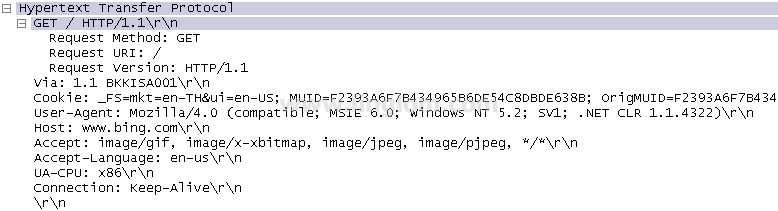
When client sends request to the web server by browser the Internet Explorer to http://bkkexternal (bkkexternal is the computer that runs a web server).
Detail: The request method is GET. URI is /. The User-Agent is Mozilla (compatible: MSIE 6.0).

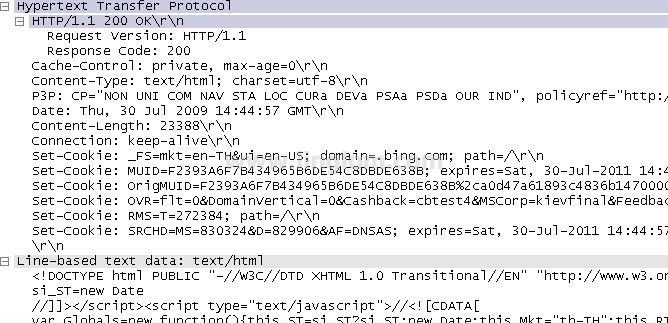
This the response header from the above request.
Detail: The response code is 200 (OK). The server is running by Apache 2.2.4. The Content-Type is text/xml

When you submit a form on the browser to the web server.
Detail: The request method is POST. The client host is bkkmisc01. The Content-Type is application/x-www-form-urlencoded.

Note: “/r/n” is
Configurations
To configure HTTP filter, you need to know what attribute and value need to be configured. On this post, I will show only the following:
- Block specific browser: Firefox.
- Block MSN Messenger, Windows Live Messenger.
- Block download file .torrent.
- Block AOL Messenger.
- Block Yahoo Messenger.
- Block Kazaa.
- Block free web mail. (e.g. hotmail.com, mail.yahoo.com, etc.)
- Block post on web boards.
Step-by-step
- Open Microsoft ISA Server Management Console.

- Right-click on the rule that being configured HTTP filter -> select Configure HTTP.

- Click on Signatures tab and click Add.

- Block specific browser: Firefox.
To block users to use Firefox browser by configure signature to “Firefox”, “User-Agent” in HTTP Header and Request headers in Search in.
- Block MSN Messenger, Windows Live Messenger.
To block users to use MSN Messenger and Windows Live Messenger. - Block download file .torrent.
To block download any .torrent files by configure signature to “application/x-bittorrent”, “Content-Type” in HTTP Header and Request headers in Search in.

- Block AOL Messenger.
To block users to use AOL Messenger by configure signature to “Gecko”, “User-Agent” in HTTP Header and Request headers in Search in.

- Block Yahoo Messenger.
To block users to use Yahoo Messenger by configure signature to “msg.yahoo.com”, “Host” in HTTP Header and Request headers in Search in.

- Block Kazaa.
To block users to use Kazaa by configure signature to “KazaaClient”, “User-Agent” in HTTP Header and Request headers in Search in.

- Block free web mail. (e.g. hotmail.com, mail.yahoo.com, etc.)
To block users to access free web mail, block any URL that contain string “mail” by configure on signature to mail.

- Block post on web boards.
Block users to sending any information to internet (e.g. post on web board) by configure to disallow HTTP method: POST. - If the users are blocked by HTTP filter, they will see page like the figure.
“Error Code: 500 Internal Server Error. The request was rejected by the HTTP filter.”

Summary
This is the end of this serie. After complete this serie, starting from install ISA Server, configure the network topology, configure basic rule, configure client types and configure HTTP filter, now you have basic knowledge and understanding how to operate ISA Server on your own. But there are some configurations, I don’t cover for instance how to configure cache on ISA Server, how to implement VPN, etc. If you need more information, try visit ISA Server.org
I think these tutorials may be useful for starter who want to implement Microsoft ISA Server 2006 or some administrators who want to reviews configurations. If you have any problems or any suggestion, feel free to leave some comment below.
Related post
- Getting started with Microsoft ISA Server 2006, Part I: Installation
- Home
- Getting started with Microsoft ISA Server 2006, Part II: Configure Network Topology
- Getting started with Microsoft ISA Server 2006, Part IV: Configure Client Type
- Getting started with Microsoft ISA Server 2006, Part III: Create Firewall Policy Rule


April 22nd, 2008 at 2:37 pm
It is a good document for the administrators for amall and mediun companies those who can’t use third party tools.
April 22nd, 2008 at 3:44 pm
Really appriciated this effort.
Very Helpfull
Thanks
April 25th, 2008 at 10:45 pm
To Whom it may concern;
I am looking to limit users to certain websites. Can you give me a detailed information on this matter. I have configured the server so I can access it to go to the internet but now I need to have only users go to certain website and I cannot figure out how to do this on an ISA 2006. FYI I am very new to ISA 2006 thanks for your help.
April 29th, 2008 at 3:07 pm
To Jim,
You can filter users by configure on a rule. On rule properties, there is a Users tab which you can add/remove a certain group or a user to use this rule.
April 29th, 2008 at 7:56 pm
Hello Linglom,
I do appreciate you sending the documentation on blocking websites, But I need to add a rule to limit users to go to certain sites only. How can I do this?
Thanks Jim
June 12th, 2008 at 8:36 pm
I need to allow yahoo’s voice chat and web cams through ISA 2006
2.is Content filtering possible in ISA 2006 ? if yes please tell me how to configure it ??
3. how can i allocate bandwidth to the users in ISA 2006
July 10th, 2008 at 3:11 am
Thanks, but i need to know how i can detect user who use or run sniffung and spoofing programes from isa server.
July 11th, 2008 at 6:24 pm
hi… Linglom
How to give mail access for outlook express in ISA 2006.
July 12th, 2008 at 11:44 pm
To Adel HIgazy,
I’m not sure that ISA Server can do that. It can be but I really don’t know how.
To detect that kind of traffics, try to setup IDS in your system. The free popular one is snort.
To niraj,
Depending what kind of mail server protocol you have used (HTTP, IMAP, POP3), then simply allow that protocol.
July 29th, 2008 at 1:43 pm
Anyone guide me:
I have installed ISa server 2006 in my system , it blocks my trend micro security agent, how can i allow this agent to run through isa server 2006.