Getting started with Microsoft Cluster Service

What’s cluster
A cluster is a group of servers, consists of 2 or more servers, running and sharing resource one another to working as a single system and provide high avaiability of service for clients. The advantages of clustering are:
- High Availability (HA)
When a failure occurs on applications, services and hardware device on one server, the cluster service will switch all the workload on that server to other server in the cluster so it can reduces downtime on applications or services that client is requesting. - Scalability
Adding new server to the existing cluster is easily. If applications or services support clustering, they can be distributed workload on servers in the cluster to improve the system efficiency. - Management
Administrator can move applications or services from one server to another server easily in case of disaster or maintenance the system.
Microsoft Cluster Service
Microsoft Cluster Service (MSCS) is a software on Windows 2003 server which manage servers to work together as a server cluster. With MSCS, applications and services on the server can be switch their workloads to another server in case of failure. In order to enable this feature, you need to have a shared storage connect to each server called quorum disk in the network. The quorum must be either SCSI, fiber channel or iSCSI interface. If you don’t have the quorum, you can only create a cluster as a Single Node Cluster type which purpose is for developer to test an application in clustering environment only. This type, you can’t switch applications and services to other nodes. Secode type is an Single Quorum Device Multiple Nodes Cluster. In this type, there is a shared storage (quorum disk) between nodes therefore you can switch applications and services to other nodes.
Note: There is another type of cluster which is Majority Node Set Cluster which is for enterprise solution so I would mention in this tutorial.
Setup environment
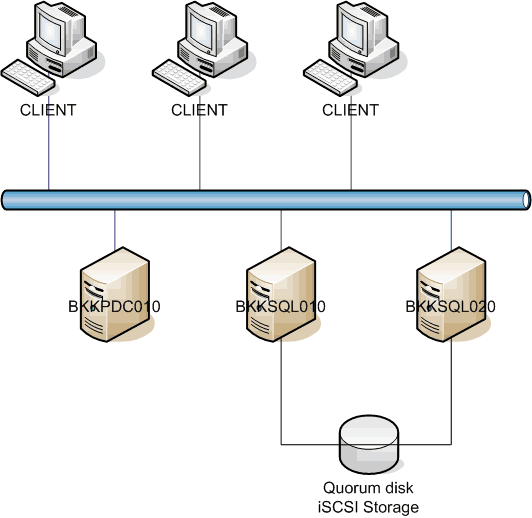
In this tutorial, I’ll demonstate how to setup a file cluster server and MS SQL cluster server which type is Single Quorum Device Multiple Nodes Cluster so that the services can be swtiched over between nodes. The network diagram is as the figure below:
Server
There are 3 servers in this environment. The first server is an active directory. The others are cluster nodes.
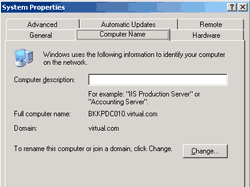
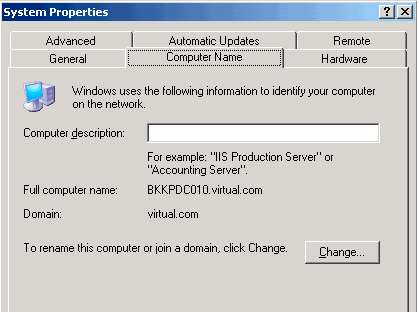
- BKKPDC010, Windows Server 2003 Enterprise x64 running active directory domain ‘virtual.com’. IP Address is 192.168.1.2
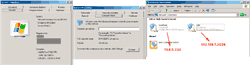
- BKKSQL010, Windows Server 2003 Enterprise x64. The server has two network interface cards:
- One is for LAN – client communication (192.168.1.21).
- The other for heartbeat (10.0.0.1).
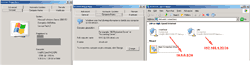
- BKKSQL020, Windows Server 2003 Enterprise x64. The server has two network interface cards:
- One is for LAN – client communication (192.168.1.22).
- The other for heartbeat (10.0.0.2).
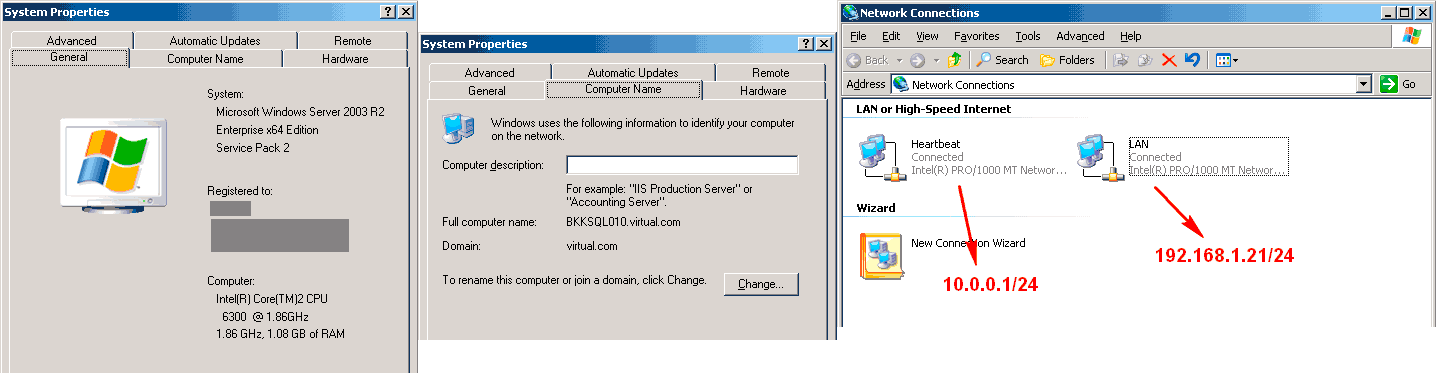
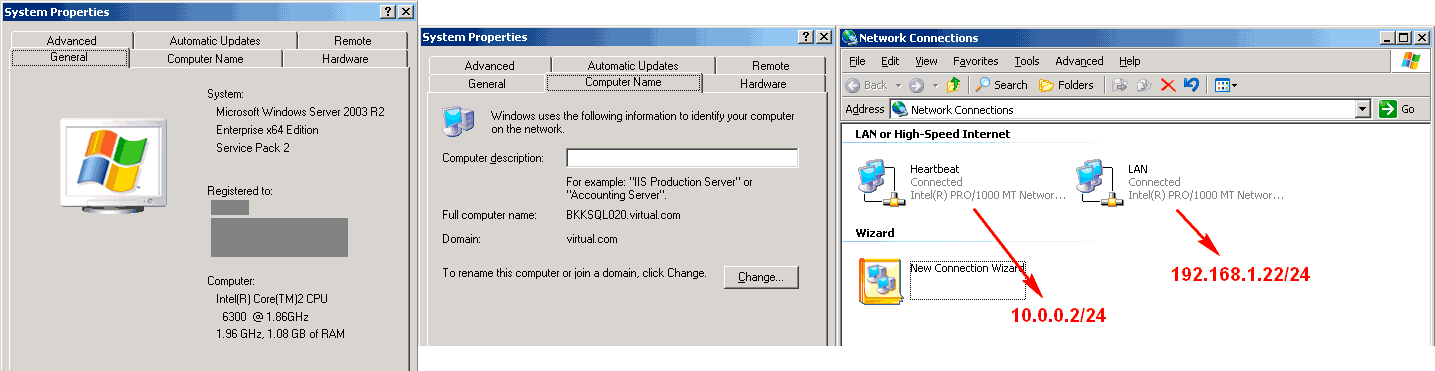
Note: The servers which will be configured as a cluster should have the same hardware configuration to avoid any conflicts. These servers have the same hardware configurations.
Quorum disk
- iSCSI 2 drives on 192.168.1.9:
- 512 MB for quorum
- 8 GB for keep data
In the next part, I’ll show how to setup iSCSI disks on the servers using Microsoft iSCSI Initiator.
Hi Linglom.
What`s wrong If i create the higher size of Quorum ? 512 MB for quorum is it a standard number ? please explain to help me.
Thank you so much.
Hi, Jonh_nathan
You can select any size as you want. But on there isn’t much data on the quorum disk so normally, I keep the size not too large.
Quorum disk keeps information about cluster’s configuration. It has information which node is active or stand-by.
Hi Linglom.
Can I see your IP configure of each computer (3 servers).
Hi, Pech Matine
IP Address of the servers are on this post. What’s exactly information you want?
Oh! I need the screen for configure IP address and DNS of each server.
Much Thanks
I think I have provided in the post:
BKKPDC010
– 192.168.1.2/24, DNS – 192.168.1.2/24
BKKSQL010
– 192.168.1.21/24, DNS – 192.168.1.2/24
– 10.0.0.1/24
BKKSQL020
– 192.168.1.22/24, DNS – 192.168.1.2/24
– 10.0.0.2/24
Thank you so much for this. This helped us a lot.
para el sam bajense el starwind
As my understanding in real life scene where i am using Linux server via zero clients, linux server shall be used as quoram disk
regards