- Getting started with Microsoft Cluster Service, Part 1: Introduction
- Getting started with Microsoft Cluster Service, Part 2: Configure iSCSI disk
- Getting started with Microsoft Cluster Service, Part 3: Create Server Cluster
- Getting started with Microsoft Cluster Service, Part 4: Add Node to Server Cluster
- Getting started with Microsoft Cluster Service, Part 5: Create File Server Cluster (1)
- Getting started with Microsoft Cluster Service, Part 6: Create File Server Cluster (2)
- Getting started with Microsoft Cluster Service, Part 7: Create MSSQL server cluster (1)
- Getting started with Microsoft Cluster Service, Part 8: Create MSSQL server cluster (2)
In this part, I’ll show how to add new disks on both servers (BKKSQL010 and BKKSQL020) as shared disks using Microsoft iSCSI Initiator. The first disk will be a quorum disk on Q: drive which has capacity 512 MB. The second disk will be a shared disk to keep applications and services on R: drive which has capacity 8 GB.
Section
Step-by-step to configure iSCSI disk
Install Microsoft iSCSI Initiator
- Download Microsoft iSCSI Initiator from Microsoft website.
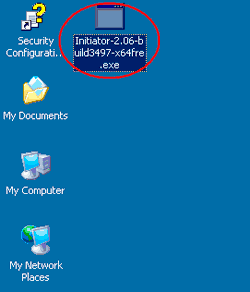
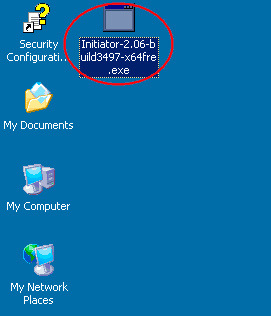
- On the first server (BKKSQL010), double-click the setup file (Initiator-2.06-build3497-x64fre.exe) to install.
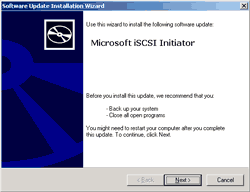
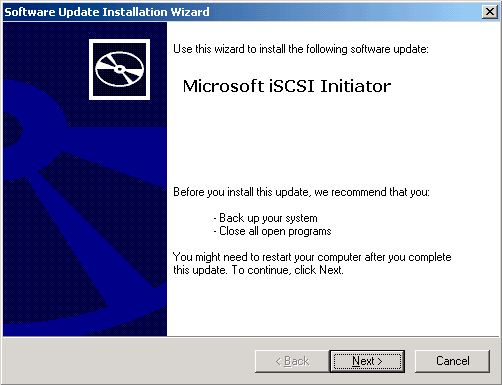
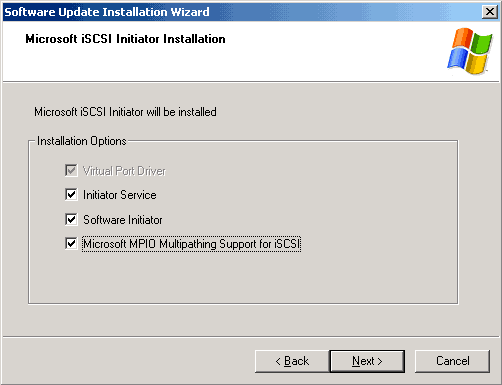
- On Software Update Installation Wizard, click Next.
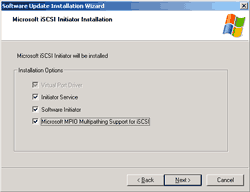
- Check Initiator Service and Software Initiator. If you need multipathing, click the last one, too. Click Next.
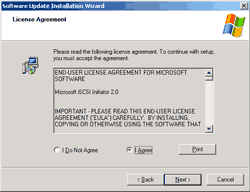
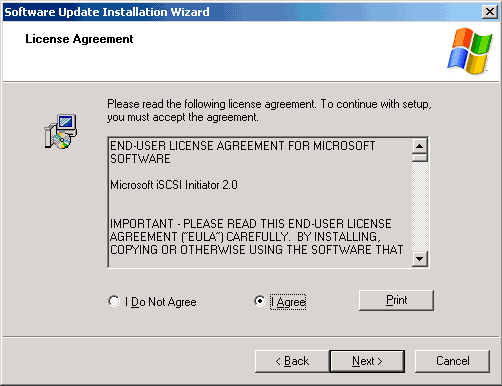
- Select ‘I Agree’. Click Next.
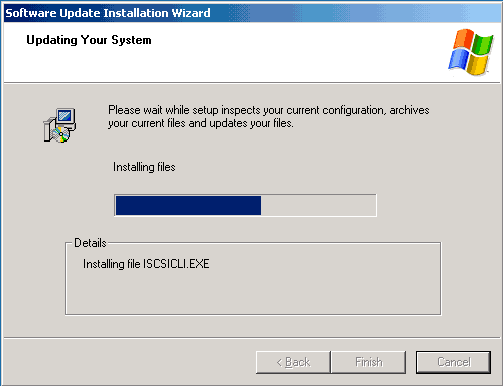
- Wait the setup installing.
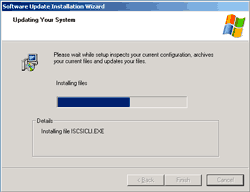
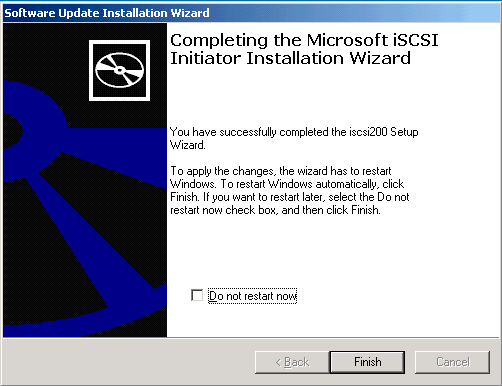
- Click Finish. The server may restarts after you click finish.
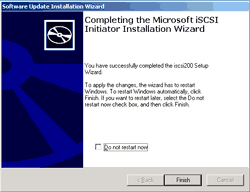
- Repeat the installation Microsoft iSCSI Initiator on the second server (BKKSQL020), too.
Configure Microsoft iSCSI Initiator
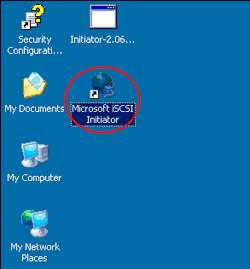
- On BKKSQL010, double click ‘Microsoft iSCSI Initiator’ on the desktop.
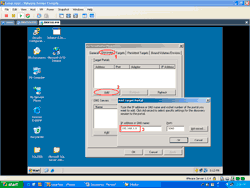
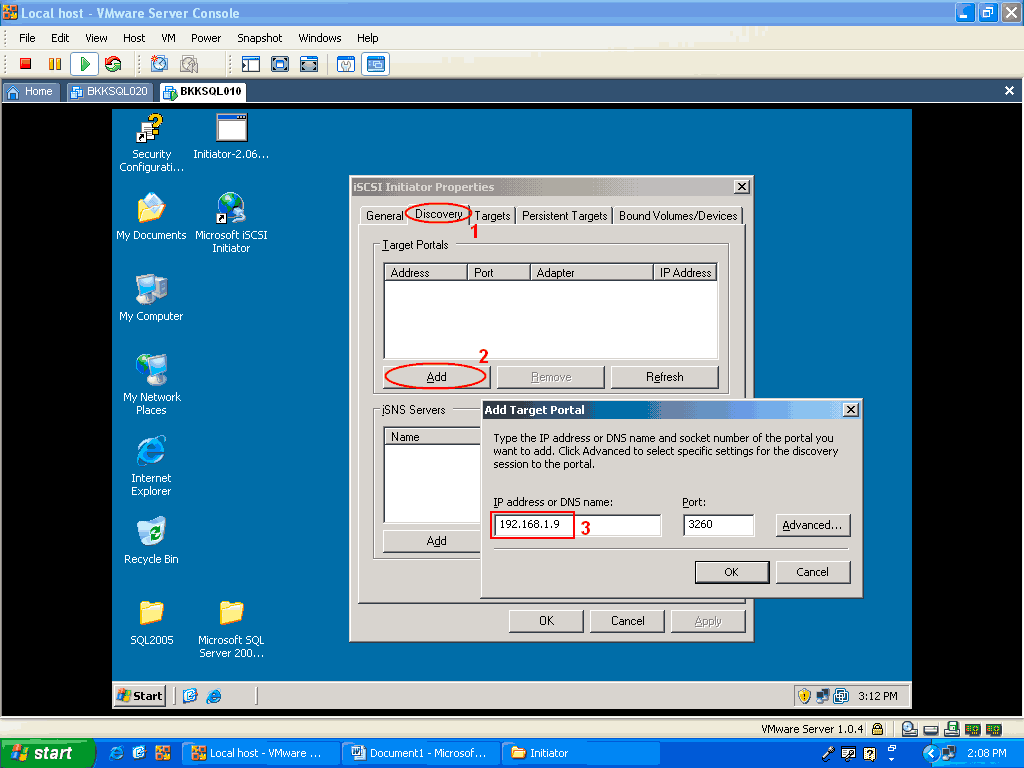
- Now I will connect to the iSCSI server. Click on ‘Discovery’ tab and click Add button. Then, insert IP Address of the server and click OK. You’ll see the server was added to Target Portals.
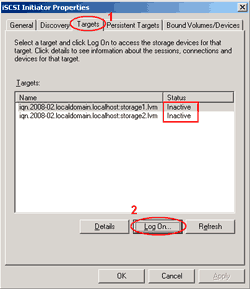
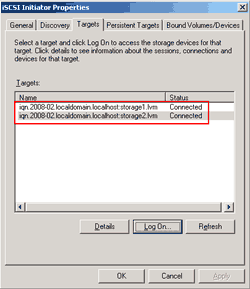
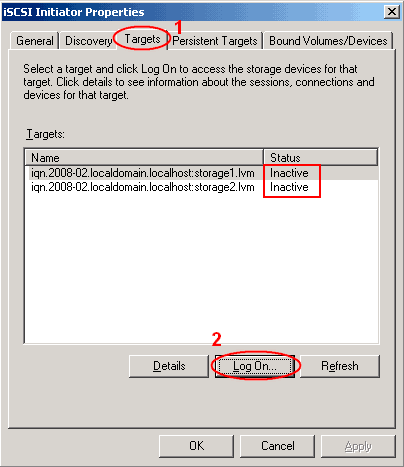
- Click on ‘Targets’ tab. You’ll see the storages are inactive. You need to logon them first. On each storage, click Logon button.
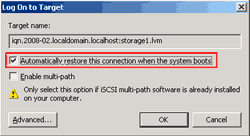
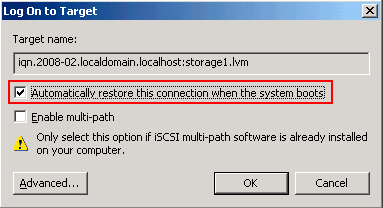
- Click on ‘Automatically restore this connection when the system boots’ and click OK. Don’t forget to logon on the second storage, too.
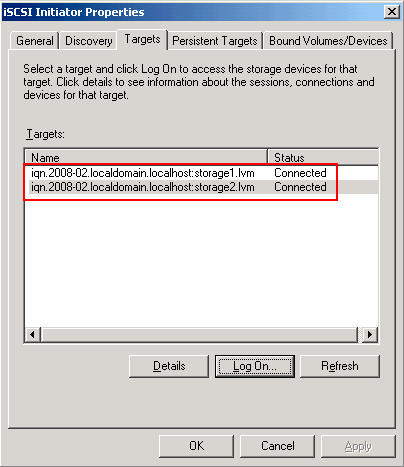
- When you logon on two storages, the status will be updated to connect.
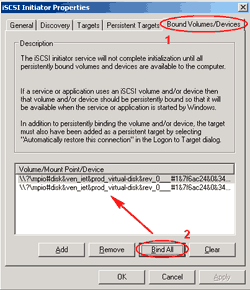
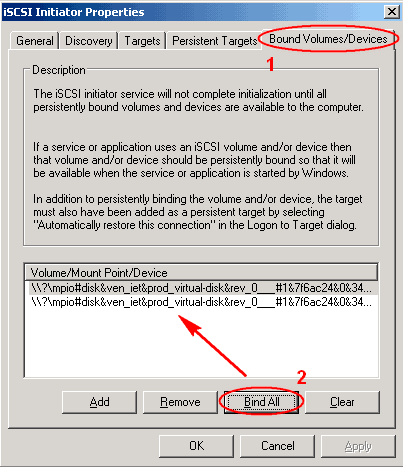
- Now click on ‘Bound Volumes/Devices’ tab and click ‘Bind All’ button. You’ll see two lines were added to ‘Volume/Mount Point/Device’. This is the storage drives which are already added to the system.
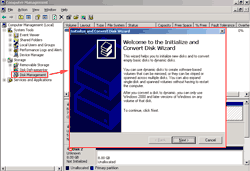
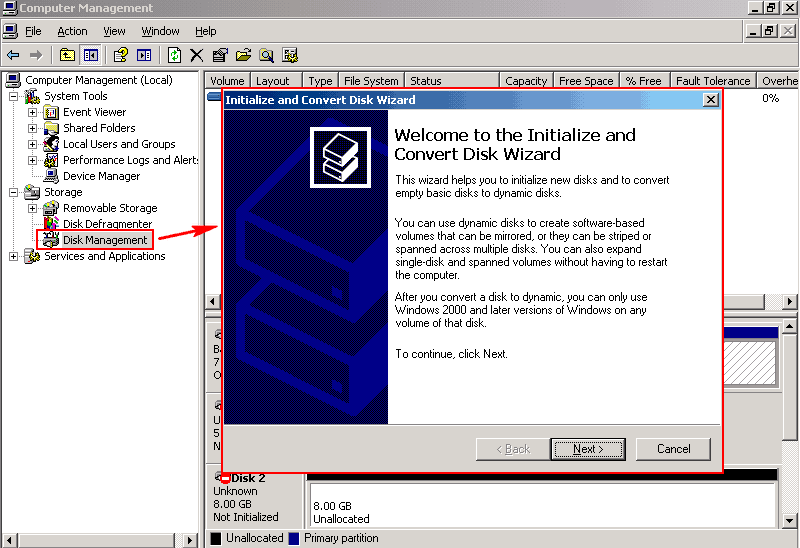
- Next, I’m going to prepare the drives that were added. Open Computer Management console by right click on My Computer and select Properties. Expand Storage and click on Disk Management. The wizard window appears. Click Next.
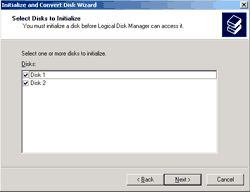
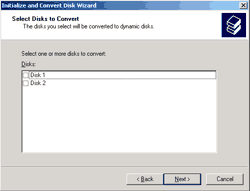
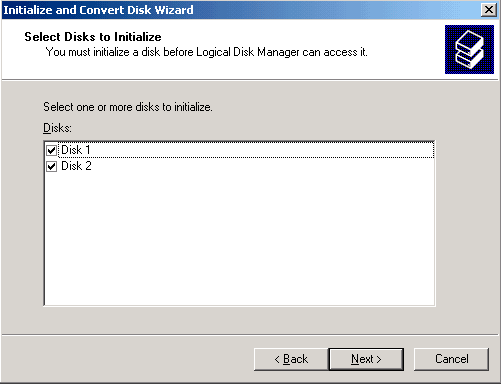
- Select disk to initialize. Check two boxes and click Next.
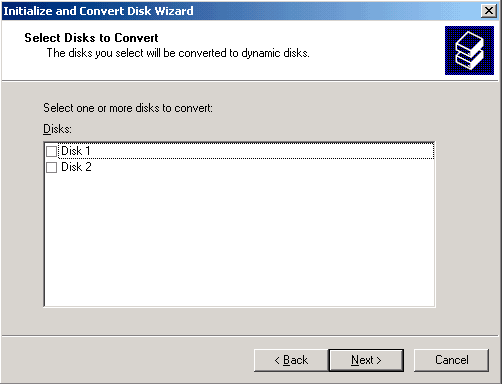
- No need to convert to dynamic disk. Click Next.
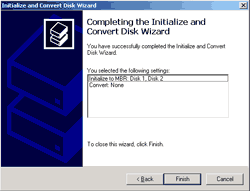
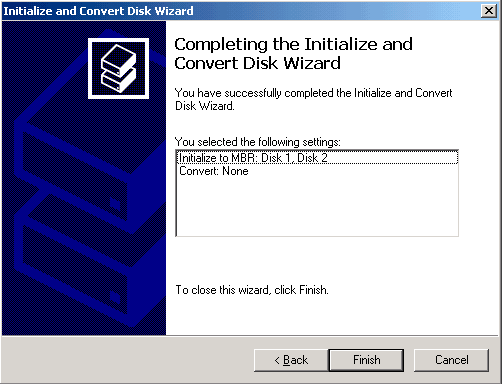
- Click Finish to complete the initialize disks.
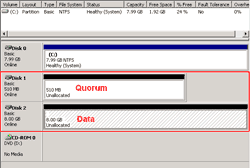
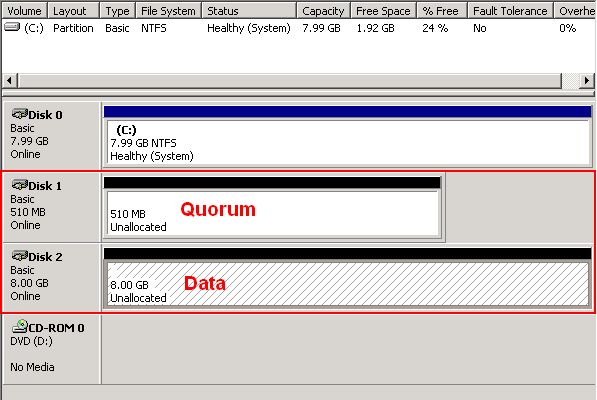
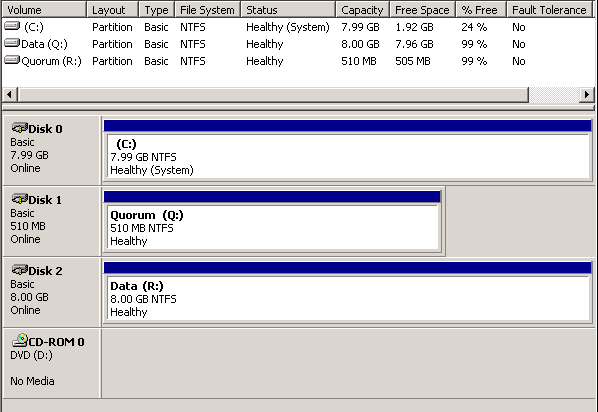
- Now you’ll see two disks were added and initialized already. Next I’ll format the disks and assign drive letter.
Note: The 510 MB will be the quorum disk and 8GB will be the data disk.
- For quorum disk, I assign as drive R: and data disk is Q: as the figure below.
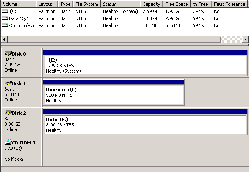
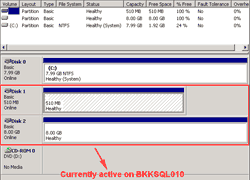
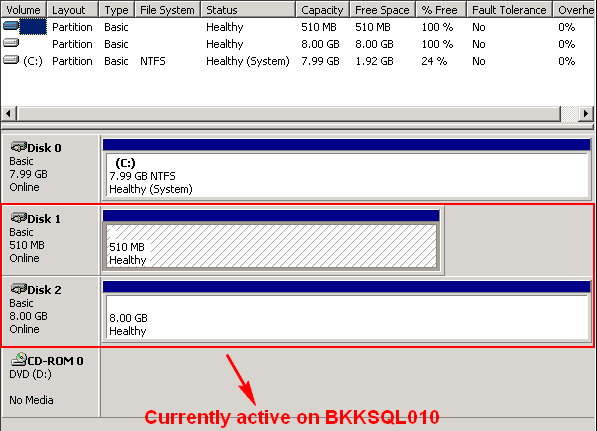
- On the second server, repeat step since 1) to 10). But do not to format and assign drive because you can’t, it’s currently active on the first server.
Now I have shared disks for cluster. Next part, I’ll create a new cluster server.
Hello Everyone,
I apologize for my stupidity, But am I missing something in step 2 above the writer says “Now I will connect to the iSCSI server” What iSCSI server is this? When and where are the instructions on creating this server? According to this there is only 3 servers, The iSCSI makes 4. Or am I missing something. Then he states “Then, insert IP Address of the server” Now where is this added? No is this per se server a virtual server or what? Like I said earlier I am still learning this technology, please excuse my lack of knowledge.
Thanks
Michael A Cooper
According to this there are only 3 servers …. Sorry for the bad grammar.
Hi, Michael A Cooper
Sorry, I would’ve stated more specific and clear than that. When I wrote this article, I assumed that you all have SAN storage. iSCSI server isn’t really a server, it’s a SAN storage. Refer to the diagram on Part 1, it is the quorum disk iSCSI storage object. What I try to do in this post is to connect to the SAN storage through iSCSI interface.
I’ll fix this post to be more clearly soon. If you still don’t get it, just ask again. 🙂
Linglom,
I have the query in step 2 figure of “Configure Microsoft iSCSI Initiator”, where you mention the sixth ip address 192.168.1.9( besides one for AD and 4 for cluster nodes). What does this IP mean? In the first part it was mentioned that there are only three servers needed. Doesnt that mean that five IPs for all three servers, that includes the heartbeat ips on the cluster nodes.
I am totally new to iscsi initiator stuff. Sorry, if i am asking something wierd.
Regards
Prashant Thakwani
Hey Liglom,
Thank you for the clarification as I stated I am new to this and want to learn it badly. Your article is awesome it really is the thing I didn’t understand was that there was suppose to be a NAS/SAN already in place. My bad please don’t change anything on my account like I said I am still very new to this so I will get up to speed very soon.
Thank you for your contribution it’s an awesome start for those who are in the lack of knowledge state for this technology.
Michael
Hi, Prashant Thakwani
The “192.168.1.9” is the quorum disk. It’s a iSCSI SAN storage. I have mentioned about quorum disk in the part 1. If you already have SAN storage configured on the servers, you can skip to the next part.
To Michael A Cooper,
You’re welcome.
Thanks Linglom for the reply.
I tried to create a cluster using the starwind as an iscsi target and iscsi initiator of windows, but got an error during the cluster validation:
List Potential Cluster Disks
—————————-
List disks visible to all nodes that will be validated for cluster compatibility. Online clustered disks will be excluded.
Checking that multi-path I/O (MPIO) works for disk with identifier fe26c528 on node WIN2K81.contoso.com
Checking that multi-path I/O (MPIO) works for disk with identifier fe26c528 on node WIN2K8NODE2.contoso.com
Checking that multi-path I/O (MPIO) works for disk with identifier f95fadee on node WIN2K81.contoso.com
Checking that multi-path I/O (MPIO) works for disk with identifier f95fadee on node WIN2K8NODE2.contoso.com
Checking that multi-path I/O (MPIO) works for disk with identifier f95faded on node WIN2K81.contoso.com
Checking that multi-path I/O (MPIO) works for disk with identifier f95faded on node WIN2K8NODE2.contoso.com
Writing to sector 11 on disk with identifier fe26c528 from node WIN2K81.contoso.com
Reading sector 11 on disk with identifier fe26c528 from node WIN2K81.contoso.com
Reading sector 11 on disk with identifier fe26c528 from node WIN2K8NODE2.contoso.com
There are multiple disks with identifier fe26c528
There are multiple disks with identifier fe26c528
Any pointers to this issue will be a great help.
One thing forgot to mention here is, when i tried to use DISKPART> detail disk, none of my disk ID is fe26c528.
Hi, Prashant Thakwani
This step seems to be new in Windows Server 2008 that it’ll validate configuration on your environment before create clustering.
“Validate” in Windows Server 2008 Failover Clustering is your friend
Since I’ve not tried on 2008 yet, I’m not sure about these messages.
Hi Linglom
I follow your instruction and i has stuck in step 2. Could you help me use another way if i don`t have SAN to train ? could i use the sharing folder from the DC ? i tried do that but it was fail. Could you help me ?
Thank you in advance , your website very helpful for all tech guys in the world , thanks again .
You can’t configure clustering without SAN if you want fail-over feature (High Availability). But you can create a cluster as a Single Node Cluster which you can’t switch applications and services to other nodes.
But there is a virtual SAN at vmware. see iSCSI Virtual SAN.
i have a problem.
Conection fail!!!! o shet!!! i was reserching and it is beaciuse i dont have a san storage administrator network ok!!…i intallled but i get the message “unable to find any virtual disk service or you dont have the hardware”…so-….(iam working in a virtual machine) i intalle the scsi disk in vitual box…but the sam not recognize the disk…..and i gave the same mesage”unable to find virtual disk service or any vds hardware provide……..”
somebody could help me pplease?