- Getting started with Microsoft Windows Server Update Services 3.0, Part 1: Introduction
- Getting started with Microsoft Windows Server Update Services 3.0, Part 2: Requirement
- Getting started with Microsoft Windows Server Update Services 3.0, Part 3: Installation
- Getting started with Microsoft Windows Server Update Services 3.0, Part 4: Configuration
- Getting started with Microsoft Windows Server Update Services 3.0, Part 5: Configure Client
- Getting started with Microsoft Windows Server Update Services 3.0, Part 6: Disconnected network (1)
- Getting started with Microsoft Windows Server Update Services 3.0, Part 7: Disconnected network (2)
Introduction
Microsoft Windows Server Update Services (WSUS) is a Windows service that helps in distribution Microsoft’s updates to clients in network. It downloads updates from Microsoft Update and installs the updates to client computers in network so that each computer doesn’t need access to the Internet and download updates from Microsoft website itself. Hence, if you have a lot of computers that running Windows that require updates in your network, you can save a lot of bandwidth of the Internet connection. Also, WSUS enables centralized management. It has an administrative console that summarizes current updates available on the server and updated status of each client computer that connect to the WSUS server.
In this article, I’ll cover about WSUS in a simple environment and disconnected network only and use Windows Internal Database as a database system. By the time that I wrote this article, the current version of WSUS is 3.0 SP1.
For a simple environment has a WSUS service on a firewall server that will downloads updates from Microsoft directly, stores updates on local disk and using Windows Internal Database to keep information for WSUS service as in the figure below.
Note: You’ll see that WSUS can export updates and metadata to file for use in disconnected network, too.
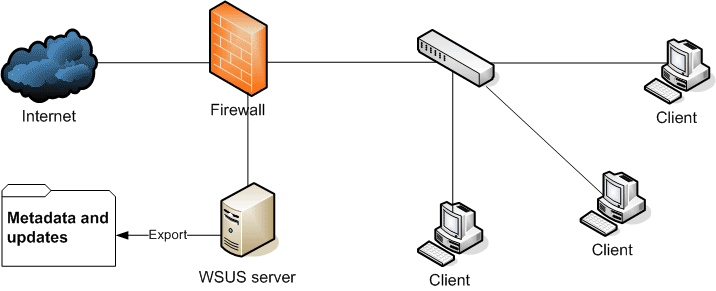
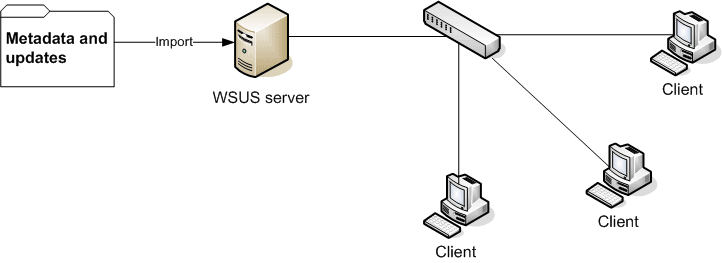
Another situation is that you have a network that is seperated from the Internet so that WSUS can’t get updates from Microsoft directly, you have to export updates and metadata from the existing WSUS that connected to the Internet and import updates and metadata to this WSUS server. Then, the WSUS server can distribute updates to client computers in this network.
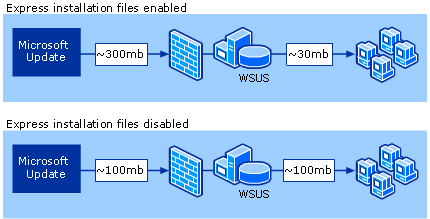
Before start installation, you should know about WSUS and decide how WSUS will be implemented in your system whether to use which database system for stores WSUS’s configuration, metadata of updates and information of client computers, local or remote storage, deferring the download of updates or not (enable by default for optimal use of network bandwidth and diskspace), using express installation files or not.
Quote from Microsoft’s WSUS document:
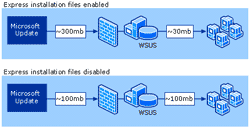
Express installation files are often larger than the updates they are meant to distribute. On the other hand, it is always less expensive to distribute updates within a network using express installation files than to distribute full update files.
If you don’t know what these terms mean, I suggest you read the document “Deploying Microsoft Windows Server Update Services 3.0 SP1” which can be found at Microsoft.com.
Next, I’ll show how to setup and install WSUS server on Microsoft Windows Server 2003 for distribute updates to client computers. Then, I’ll export the metadata and updates to files for importing on another WSUS server which is on disconnected network.