- Getting started with Microsoft Cluster Service, Part 1: Introduction
- Getting started with Microsoft Cluster Service, Part 2: Configure iSCSI disk
- Getting started with Microsoft Cluster Service, Part 3: Create Server Cluster
- Getting started with Microsoft Cluster Service, Part 4: Add Node to Server Cluster
- Getting started with Microsoft Cluster Service, Part 5: Create File Server Cluster (1)
- Getting started with Microsoft Cluster Service, Part 6: Create File Server Cluster (2)
- Getting started with Microsoft Cluster Service, Part 7: Create MSSQL server cluster (1)
- Getting started with Microsoft Cluster Service, Part 8: Create MSSQL server cluster (2)
This post is continued from Getting started with Microsoft Cluster Service, Part 7: Create MSSQL server cluster (1).
Step-by-step create MSSQL server cluster
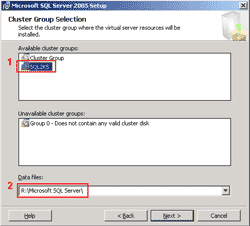
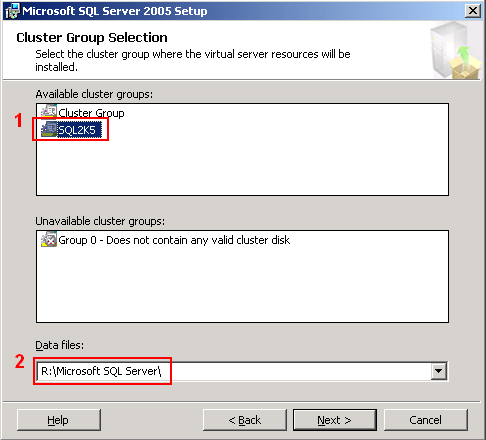
- On Cluster Group Selection, select group name on cluster that you want MS SQL Server 2005 to configure and also select folder to keep data files. Click next.
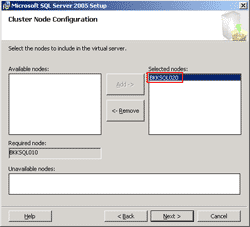
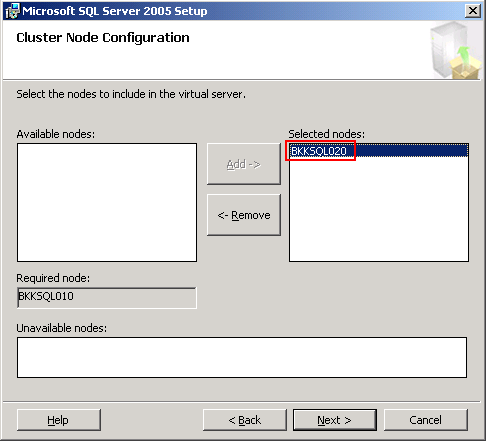
- On Cluster Node Configuration, add ‘BKKSQL020’ as another node to include to MS SQL Cluster server. Click next.
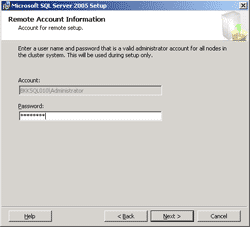
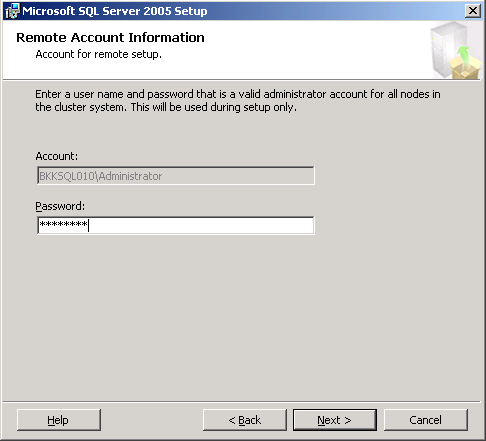
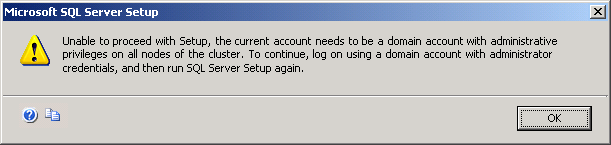
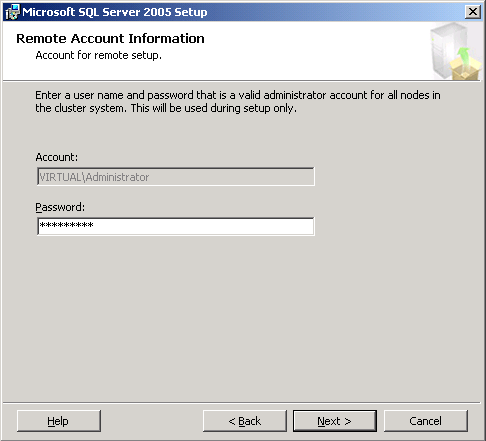
- On Remote Account Information, enter password of the current account for install MS SQL Server on each server (if you select more than a node). This account must be an administrator of each server. In this exmaple, you’ll see that I logged in as a local administrator which will throw an error on the next step.
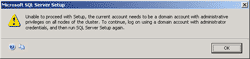
- The error message showing that you’re trying to use local account to install MS SQL Server. But the setup requires you to logged in as a domain account that has an administrative privilege (eg. Domain admin). If you see this error message, you need to login again with that account.
- Now, I re-login again and type the password. Click next.
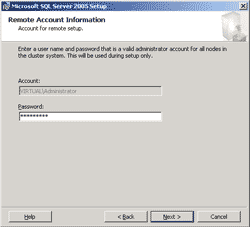
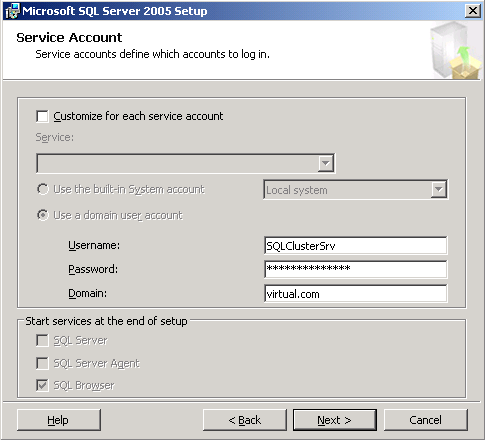
- Before proceed next step, the setup’ll require you to specify the service account and group for running MS SQL Server services. If you already have an domain account and group for running service, you can skip to step 9.
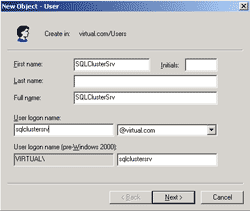
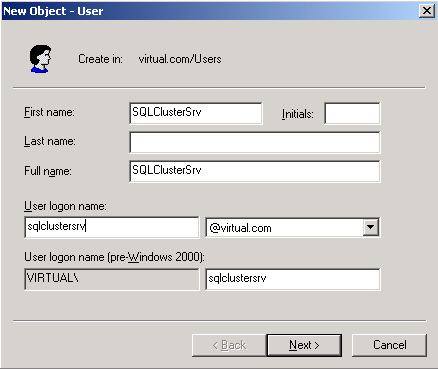
- Create a new domain account with default privilege (normal domain user). In this example, I create a domain user ‘SQLClusterSrv’.
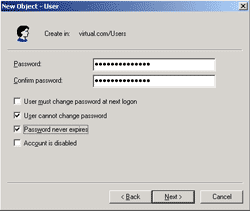
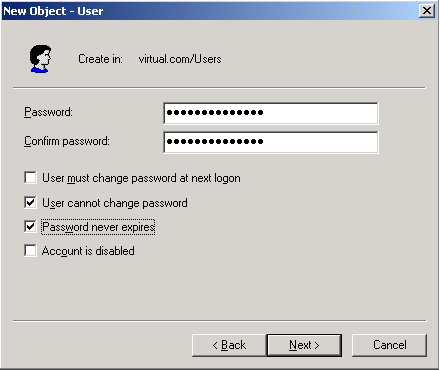
- Set password for the account and check password never expires and user cannot change password.
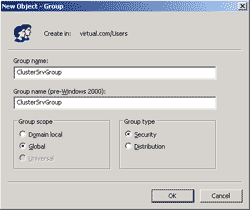
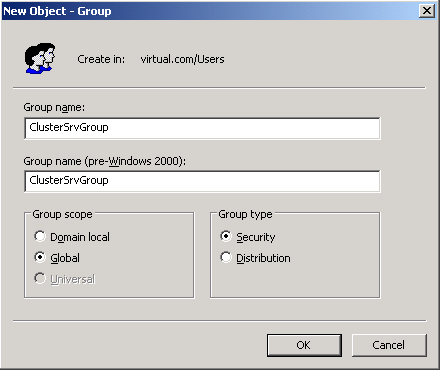
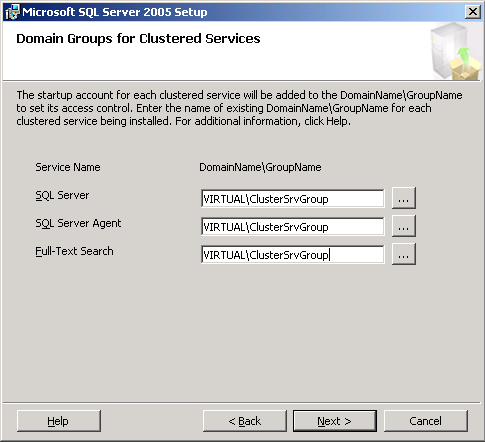
- Next, create a new Windows domain group for MS SQL Cluster services. I name a group as ‘ClusterSvrGroup’.
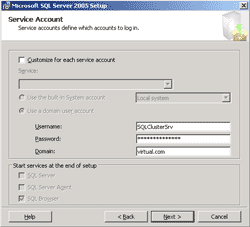
- Back to the setup wizard. On Service Account, type the user account that you have just created. Click next.
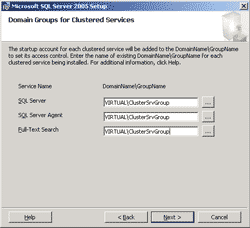
- On Domain Groups for Clustered Services, type the group that you’ve just created. The service account will be added to this group automatically. Click next.
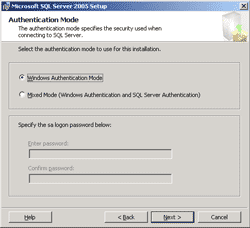
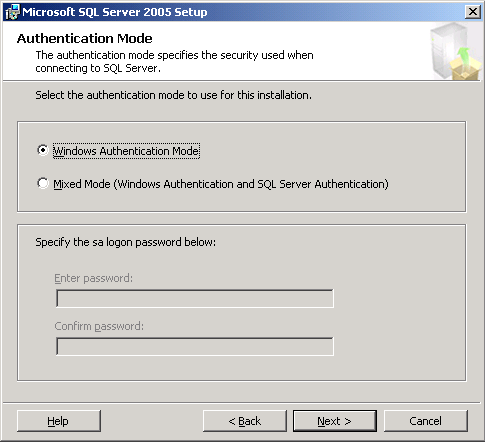
- On Authentication Mode, you can customized as you want. I’ll leave it as default. Click next.
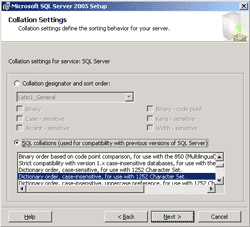
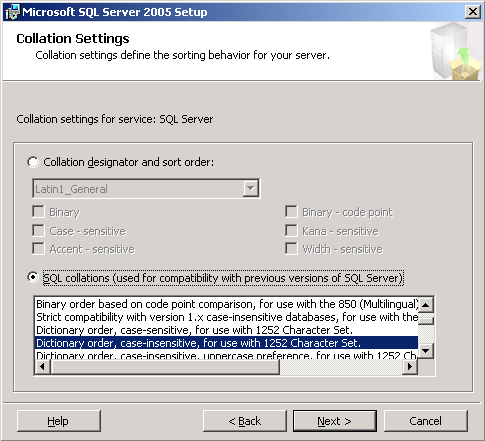
- On Cluster Settings, I’ll leave as default.
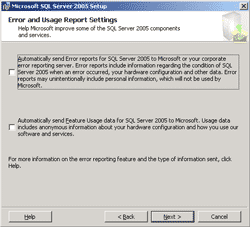
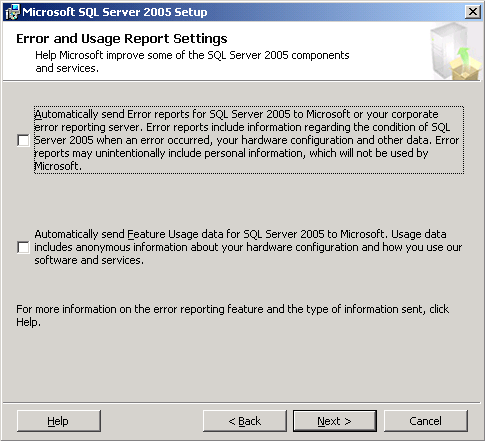
- On Error and Usage Report Settings, click next.
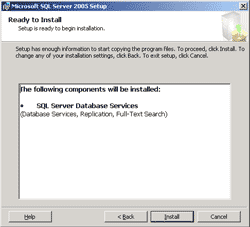
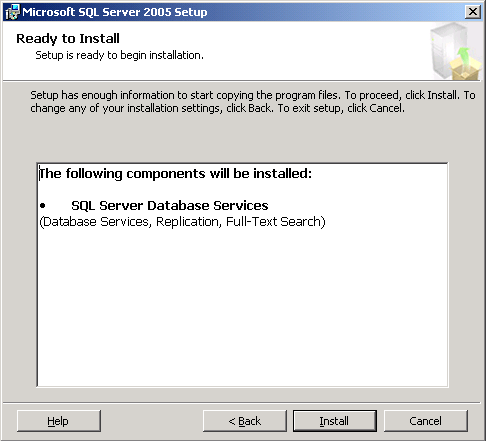
- On Ready to Install, click next to begin the installation.
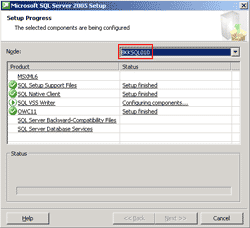
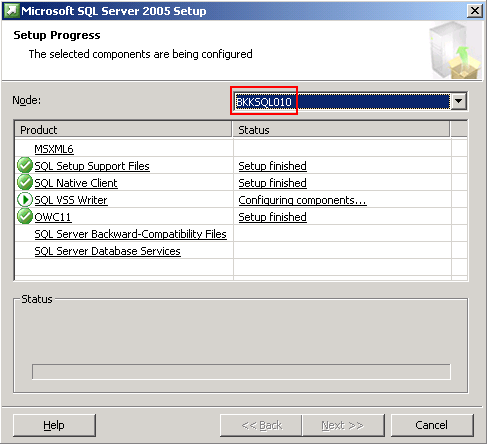
- On Setup Progress, the setup will install on each server simulteneous. Click on node to change to other node to see the installation progress. This is the installation progress on BKKSQL010.
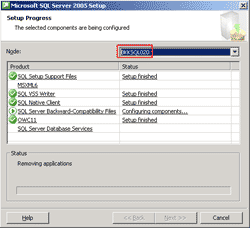
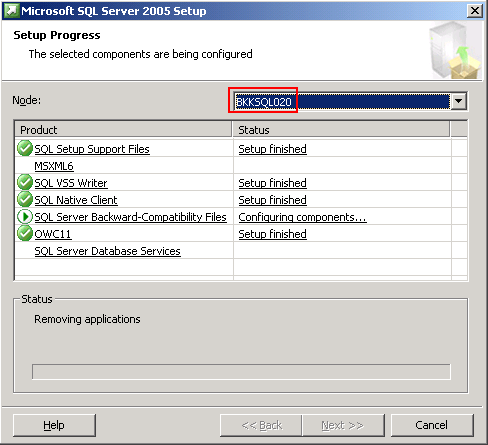
- On Setup Progress, this is the installation progress on BKKSQL020.
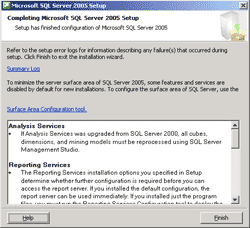
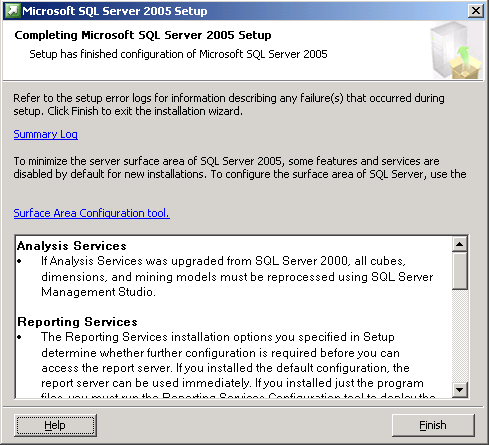
- On Completing Microsoft SQL Server 2005 Setup, click finish. The setup has finished.
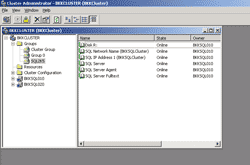
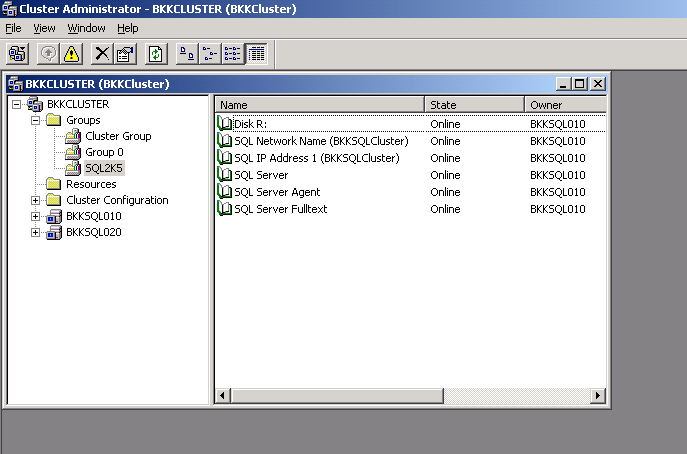
- Open Cluster Administrator and click on ‘SQL2K5’ group, you’ll see the resources have been configured already.
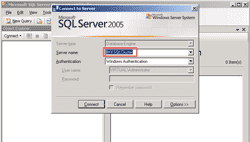
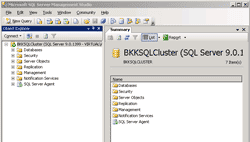
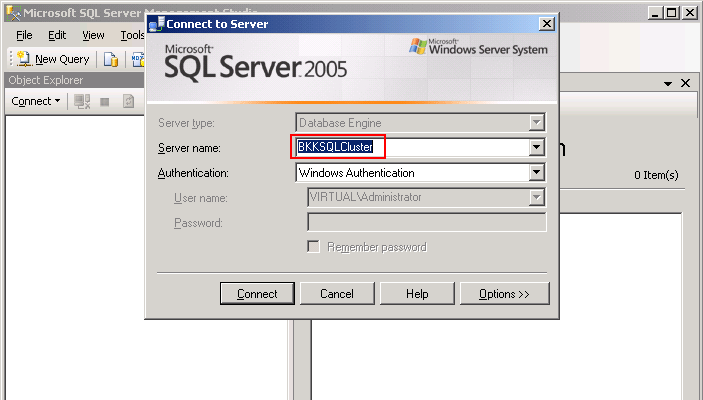
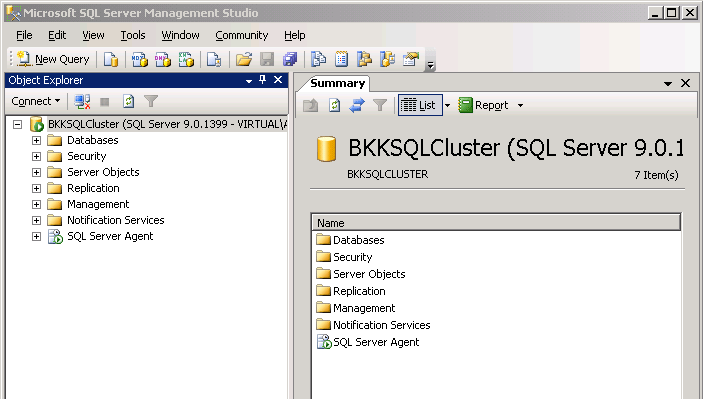
- Now try to test if the MS SQL Server is work properly. Open Microsoft SQL Server Management Studio and connect to the MS SQL Server cluster using the virtual name that you’ve specify when setup. In this example, it is ‘BKKSQLCluster’.
- That’s it. The server is working!.
Summary
After all 8 parts, you should get better understanding and familiar with Microsoft Cluster Service. There are many type of services that can implement as clustering, for instance, DHCP, WINS, Print Spooler, SMTP, etc. It shouldn’t be hard for you to implement one of these services on your own after you have followed this article.
this post is really cool
one other “add-on” to the SQL cluster could be to implement a mirroring strategy for the SQL2005 databases (just an idea )
I agreed with you
Mate, well impressed, excellent writing, easy to understand and works well.
THanks a million, well worth the read
The user or group must have administrative privileges in the nodes of the cluster.
The SQLClusterSrv user or group ClusterSvrGroup must have administrative privileges in the nodes of the cluster.
Hi LingLom
Thank for your so helpful website.
I follow your tut and setup success, it so wonderful but I still curious about that could people setup SQL clustering without domain controller ? as the file server on clustering system, the USer just need use the resource when they join to domain, it not so compatible.
Could you explain me ?
Thank you so much.
Active Directory is required for clustering. I think it’s reasonable. For example, you see that when you configure clustering, you need a shared service account. It also gives users to access resources with single sign on. Any many reasons, Central Manage Group Policy, Security, etc.
Great set of postings! Thank you very much!
I’m curious why you have to separate items under the Groups folder? Why wouldn’t you put all of the resources under SQL2k5 into the Cluster Group folder? If any of the resources in Cluster Group fail, I would assume SQL2k5 would fail and get moved as well.
thanks again…
Excellent series of articles. Thank you very much. You’ve made this subject much much easier to understand than most of the “standard” texts and materials on the topic.
Simple and elegant.
Muchas gracias
thanks to much
Hey, that post leaves me feeling folsioh. Kudos to you!