By default, SQL Server 2005 doesn’t allow remote connection so you have to enable it manually. If you try to connect to remote SQL Server without enable remote connection first, you’ll see one of these error messages.
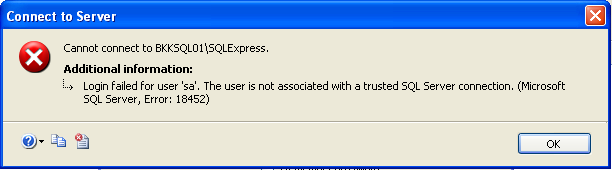
Login failed for user ‘sa’. The user is not associated with a trusted SQL Server connection. |
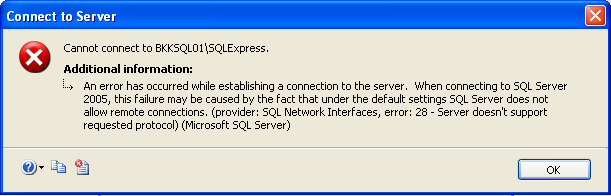
An error has occurred while establishing a connection to the server. When connecting to SQL Server 2005, this failure may be caused by the fact that under the default settings SQL Server does not allow remote connection. |
To resolve these problems, you have 2 majors task. One is to enable both SQL Server and Windows authentication mode on SQL Server and the other is to allow remote connection and SQL Server Browser.
Step-by-step enable remote connection to SQL Server 2005 Express
- Check that you have allowed both SQL Server and Windows Authentication mode (If you’re not use Windows Authentication mode). For instance, user “sa”.
- Login to SQL Server using SQL Server Management Studio Express on local SQL Server with Windows Authentication user. This will use Windows account to authenticate to SQL Server.
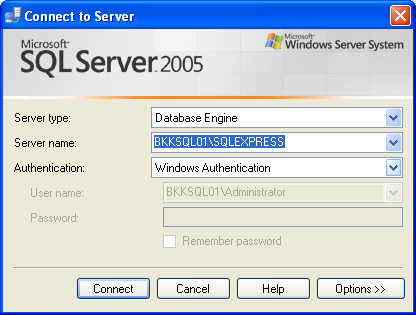
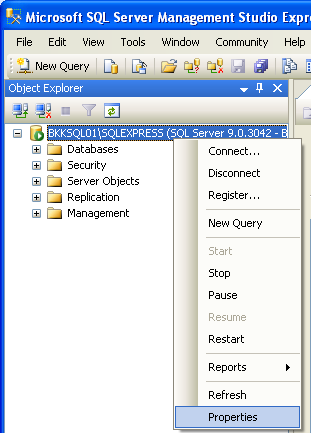
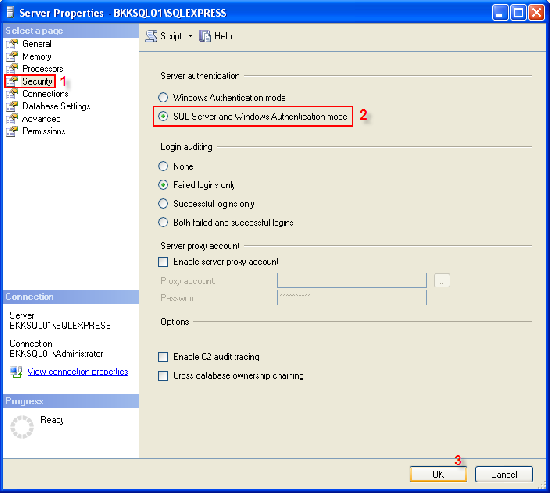
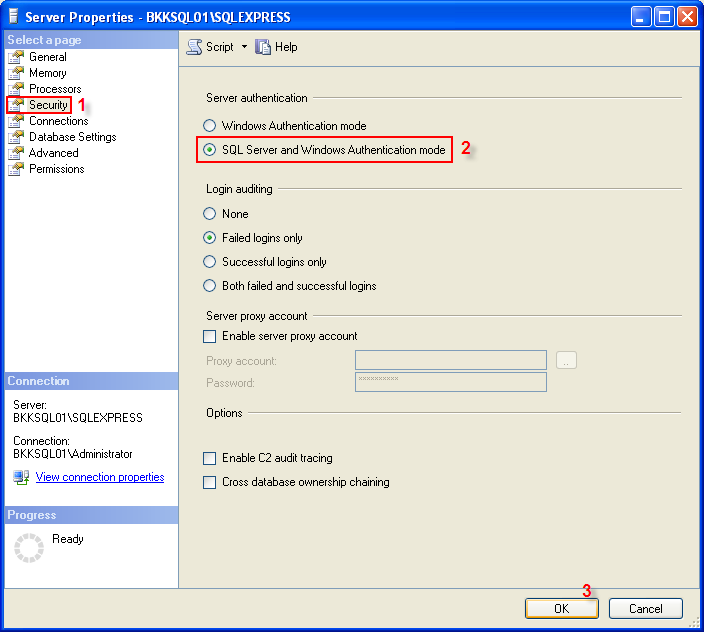
- In Object Explorer, right click on the instance name and select Properties.
- On the left, select Security and change Server authentication to SQL Server and Windows Authentication mode. If the choice is already selected, that means you have already allowed SQL Server authentication.
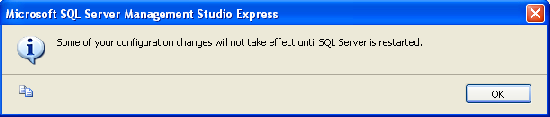
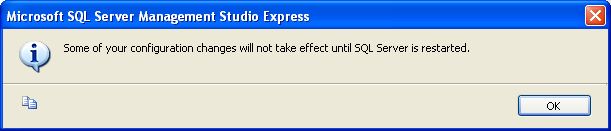
- There’ll be an information window shows that you need to restart SQL Server to takes effect of the changes.
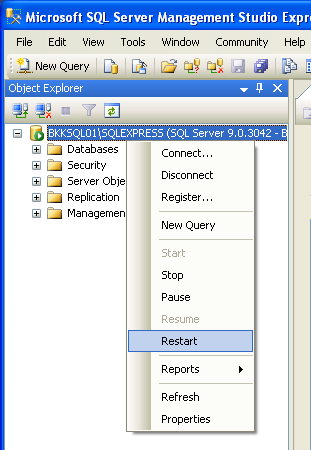
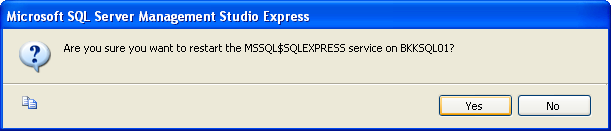
- Right-click on the instance name again, select Restart to restart SQL Server service.
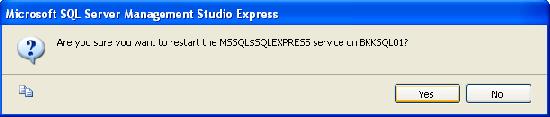
- Select Yes.
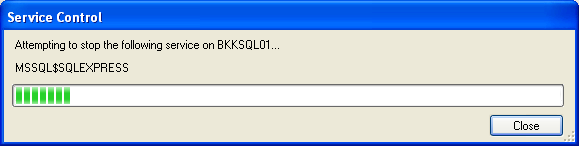
- Wait for service stop and start.
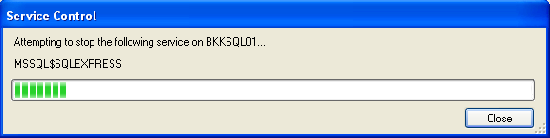
- That’s it. You have enabled both SQL Server and Windows authentication so now you can login to SQL Server with your current Windows account or your created account.
- Check that you have enabled remote connection on SQL Server Surface Area Configuration
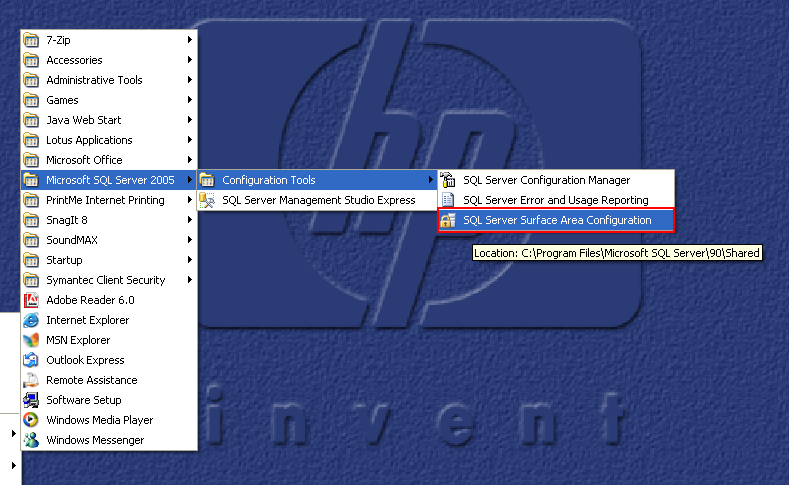
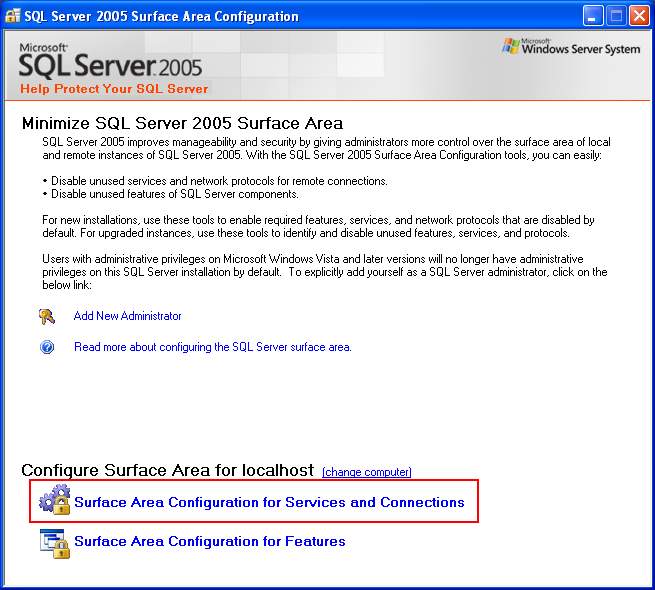
- Open SQL Server Surface Area Configuration.
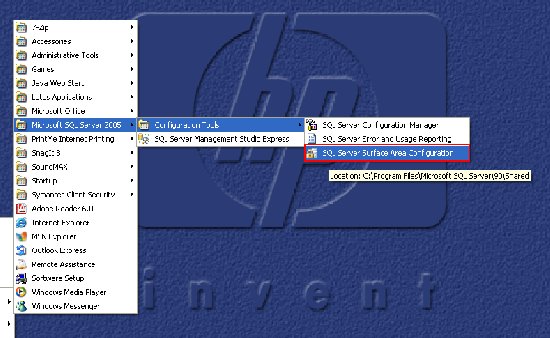
- Select Surface Area Configuration for Services and Connections.
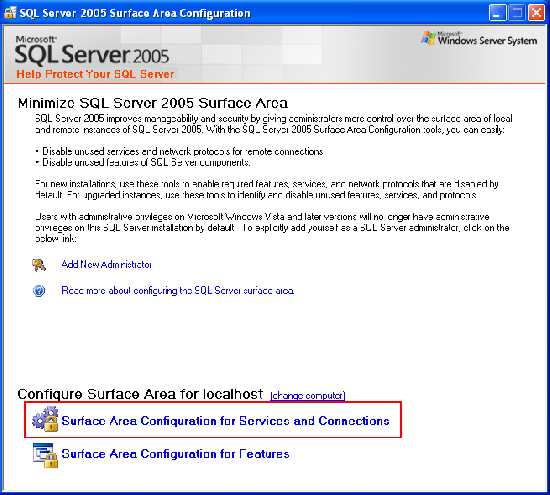
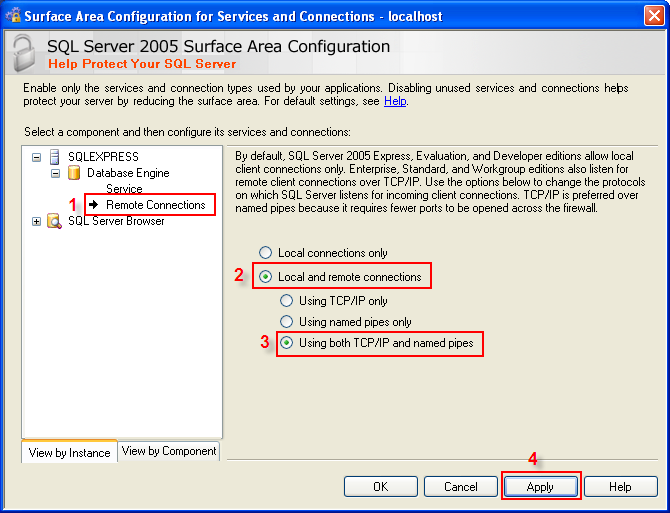
- On the left side, expand your SQL Server instance -> Database Engine -> Remote Connections. On the right side, select Local and remote connections -> using both TCP/IP and named pipes.
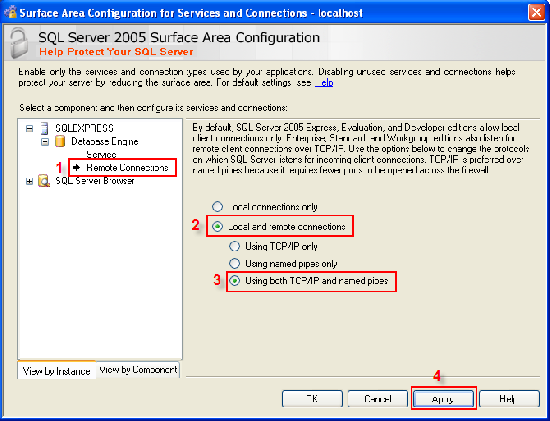
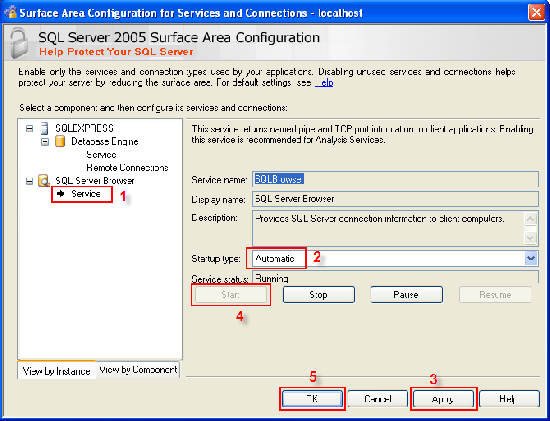
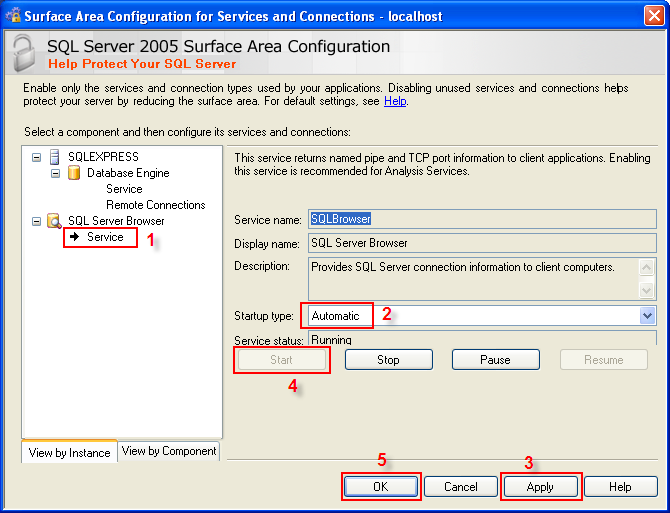
- On the left side, select SQL Server Browser -> Service.
On the right side, if the startup type is Disable, you need to change to Automatic and click Apply and click Start button to start the service. Then, click OK.
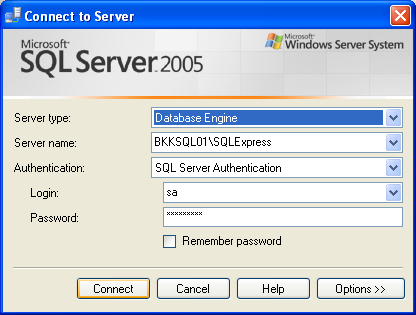
- You have finished configure. Now try to login to your SQL Server from remote computer using SQL Server authentication mode.
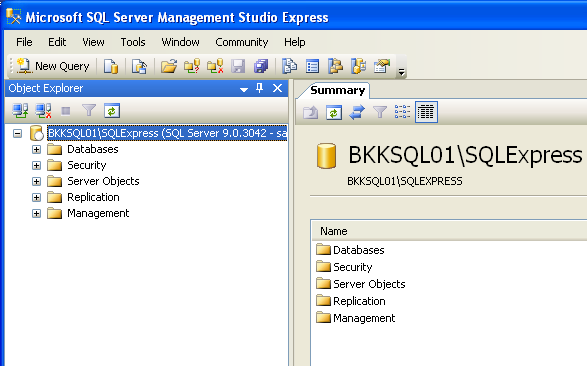
- Login to SQL Server succeeded.
Summary
This topic may be found on the Internet in many site or even Microsoft support but the purpose is to rearrange with easier to read and follow with graphic along with each step so it may help you reminder solution faster or even the person who have just start to use SQL Server 2005 Express Edition.
How can I set these configuration programmatically?
I’m not sure that you can do in that way because it may not safe. For instance, someone may try to reconfigure by execute script. Also, you need to restart SQL Server service which need right permission to do so.
You can set the login mode programatically – it’s just a registry key:
HKEY_LOCAL_MACHINE\SOFTWARE\Microsoft\Microsoft SQL Server\MSSQL.1\MSSQLServer\LoginMode
(MSSQL.1 relates to the instance you want to play with – it could be MSSQL.2, or .3 etc).
It’s default value is 1. I set it to 2 in my installer to allow both windows auth and sql logins.
You have to restart the service before the changes kick in of course.
Oh, you’re right. I completely forgot that way.
Thanks for the tip, James.
Does anyone know of an sql script to do all this for you? ie. To enable both SQL Server and Windows authentication mode on SQL Server and to allow remote connection and SQL Server Browser. This way I can set it up automatically by using a batch file.
This is my error when i try to login
TITLE: Connect to Server
——————————
Cannot connect to EASTSERVER\OFFICESERVERS.
——————————
ADDITIONAL INFORMATION:
An error has occurred while establishing a connection to the server. When connecting to SQL Server 2005, this failure may be caused by the fact that under the default settings SQL Server does not allow remote connections. (provider: SQL Network Interfaces, error: 26 – Error Locating Server/Instance Specified) (Microsoft SQL Server, Error: -1)
For help, click: http://go.microsoft.com/fwlink?ProdName=Microsoft+SQL+Server&EvtSrc=MSSQLServer&EvtID=-1&LinkId=20476
——————————
BUTTONS:
OK
——————————
Hi, sowens
If you follow the link of this error message, you’ll find the possible cause and solution. But most of the time that I’ve seen this error is because of mistyped of the SQL Server name and instance name (SQL Server nameInstance name). Try to check the server name. If not that case, check that SQL Browser service is already started (on this post).
thanks it was useful
I had installed the SQL server and it was accessed remotely using local network. Now it is possible to access from other machines using local network.
So is there a way to configure the sql express to allow remote connections programatically ?
Or at least from the install phase, but using ClickOnce and not unpacking the sqlexpr32.exe ?
Very Nice Information
Excellent representation of solution
My Work Done.
hi, how to restart the database engine service?
See figure on step 5.
Or you can stop/start from the command-line:
To stop the MS SQL Server service, type “NET STOP MSSQLSERVER”
To start the MS SQL Server service, type “NET START MSSQLSERVER”
I installed native client only on a machine and try to connect via windows authentication. It seems that the application can find the server but has no access to the database:
– unable to connect to database: Die von der Anmeldung angeforderte “HTWG”-Datenbank kann nicht geöffnet werden. Fehler bei der Anmeldung
– connection string: Provider=SQLNCLI.1;Integrated Security=SSPI;Persist Security Info=True;Initial Catalog=HTWG;Data Source=db01
If I change to SQL-authentification then it works fine!
Any ideas?
To Eherzel,
Have you check that you have create the correspond user which you used to authenticate on the SQL Server and give sufficient permission?
You can test the connection to SQL Server using SQL Server Management Studio from the client by using the same credential (user account) as when you run the code and try to connect to the SQL Server.
Server and client are in the same domain, users are logged in in this domain. Maybe the users need special rights? I tested too with Management Studio, I can connect to the server but have no right to access the database.
Check these issues:
1. Recheck your connection string again at here – http://www.connectionstrings.com/?carrier=sqlserver2005. You can copy and paste it to your code.
2. Try to give permission on the target user. If you’re testing, try to give full permission. But when finishes, don’t forget to change the permission to minimum privilege.
The way of presenting the explantion is fantastic.
Thank you so much.
Thanks…
Thanks for the SQL Server and Windows Authentication step by step. It was very useful.
Great post exactly what I was looking for!
I did a SQL 2005 instance installation but didn’t turn on the SQL Browser Service. It caused the application connection couldn’t resolve the named instance. After I turned on the SQL Browser Service. All are working fine. SOWENS’ link saved my day.
i m trying to connect .net with sql2005 but i m unable.
i hav created the object of sqlconnection as s and s.open() is showing error saying tat cant connect remotely with sql2005. i hav changed the setting still it is not working
I am trying, I hope this will help.
To Atul Rai,
Try to connect to SQL Server using Management Studio from remote PC to see if you can access it or not. Sometimes the problem doesn’t come from programming. For example, firewall is blocking the port.
Simple way, try to telnet to the SQL Server with port 1433 (default SQL Server service port) remotely can also verify the connection to the SQL Server.
I am preparing a website and first of all, I wish to express thanks for your kind advice about this contest of remote connexction that is a long headache to me.
Hi, just wanted to say these instructions are a great help. Only thing is I couldnt login as sa without first enabling logins, in SMSS, Security, Logins. Dont know if it is just my ignorance or if instructions above could benefit, but thanx so much for them.
It worked, thanks.
Hi, thanks for detailed explanation on this very common problem.
hi there
i tried connecting using ur format
but it is not taking it. it is still giving error:18452
i have create user with name aman in server and tried to connect to the same user from client machine. but error: 18452:-)
kindly help if possible…..
Hi, aman
-What’s the description of the error?
-Have you success to connect on locally?
hi Sir
I am sorry. I was on mistake earlier. Actually i have made the mixed mode on client only,not on the server, thats why i was facing this error. Now my issue is resolved. Thanks a lot for your kind help.
cheers…
You made my day. I was struggling with remote connection issues. Then landed on your site via google. Thanks for your tips with screenshots. Great illustration. I’m able to connect and work within a few mins.
Thanks so much for taking the effort in putting all this together.
hi, you are so cool, i was forgetting the initial step. thanks
hai…its worksss….thankzzzzzzzz man….
awesome job…..
Excellent !
How can I enable the SQL Remote Connections programmatically?
THis is all ok when it is in normal mode. My question is how to enable remote connection in cluster environments.
TITLE: Surface Area Configuration
——————————
You cannot configure surface area of clustered services by connecting to a computer name. Connect to the virtual server to configure clustered services.
——————————
BUTTONS:
OK
——————————
Tell me how to enable the same.
I already follow your step to remote sql server……but still cannot to access…..the failure massage is default setting does not allow to remote connection
Hi, Pearl
See comment 3 on this post.
Hi, Saraboji Jayaraman
It seems that you are trying to configure Surface Area Configuration on a node not the whole cluster. The solution is to connect to the cluster. On Surface Area Configuration, you will see an option “Change Computer”, select Remote Computer and type in the your cluster name (virtual server). Now you should be able to access it.
Hi, Safuan
Can you show the error message in detail? Eg. The error message and its ID.
Thanks for your topic 😉 It’s so useful !
I was struggling with remote connection setup, landed your site via google. Thanks for the wonderful flow with screenshots. Now, I could successfully connect and work with Remote connection without any issue. Great illustration.
thank you for info. I thoght the mssqlserver2005 for trial version was made with an intent to cause users hard enough to buy a real version as a mareting skim.
thanks. your tips really helps!
Here is my problem. I have 2 PC on Intranet and both have SQL SERVER Express installed. One PC(server) has mdf file in C:\data folder. I can browse to this file using Management studio from BOTH PC’s, using server PC name. I created Windows .NET program to access data. Works fine on server. When I compile and run on second PC(client) it gives me error:User does not have permission to perform this action. Both PC logged with same user id and password. Here is my connection string:
Data Source=MyServerPC\SQLEXPRESS;AttachDbFilename=c:\data\Teachers.mdf;Integrated Security=True;Connect Timeout=30;User Instance=True
Can anyone help?
Thanks
Hi, Al
Try this connection string instead.
Data Source=.\SQLExpress;AttachDbFilename=c:\mydbfile.mdf;Database=dbname; Trusted_Connection=Yes;
Thanks for your help Linglom, I have worked with a number of people and searched on this problem with no avail. Your site popped up my last search, and showed me everything I needed to log on to the SQL Server. Outstanding Job!!!!
I just found the solution, thanks for your useful information. Now i am playing around the ASP.NET and SQL server.
Regards,
Hi,
I am having different problem.
I can connect to my local sqlserver from one machines but not from other mahcine.
I did the setup for configuring server for remote access including allowing remote connection, having the sqlbrowser service setup and creating firewall exceptions for the sqlsrvr and sqlbrowser executables.
I am clueless why it is not able to connect from other machine.
Can someone help me.
Vishnu
Hi…
I doing the instruction,but it still not working…
“Microsoft SQL Server, Error:233”
i already check and repeat that instruction, but the error message still same…
can someone know my problem ?
This is causing me to pull my hair out.
I have SQL Server 2005 Express intalled on two different WHS servers.
I have two clients I am trying to access them from: a desktop and a laptop, both with Vista Ultimate.
From the desktop I have no problem access them both through the SQL Server 2005 Management Studio Express.
From the laptop I CANNOT access either of them through the SQL Server 2005 Management Studio Express. I keep getting the dreaded error 26.
I cannot find anything that would block access. HELP!!!!!
Hi, Rufus
Can you show detail of the error message?
Hi, Rctaubert
If you can access the servers from desktop, this means that the remote configuration is work fine. So the problem should be on the network between laptop and the servers or the laptop itself. Check these issues:
– Make sure the server name is typed correctly.
– Is the laptop on the same network as the desktop? Is there any additional firewall blocking the traffic?
– Is the firewall on laptop is blocking the connection? You can try to disable it and test.
Thank you for your response.
In both cases I am using SQLServer 2005 Server Management Studio Express to connect. In either instance the Management studio is able to detect both servers and SQLExpress instances.
I had already compared the Firewall settings between the laptop and desktop. I have a few more apps installed on the laptop so there are a few more exceptions, but other than that they are pretty much the same.
All my computers are on my local network and all nics are set up the same.
Already tried disabling the firewall on both WHS and the laptop. No joy!
I had pretty much poured over all the forums I could find and tried all the usual suggestions.
This is what is so frustrating. There does not appear to be a logical reason for this to happen. In fact, before I set up the second server I was able to access SQLExpress from my laptop.
Hi
I want to install client tools in clinet machine ?How to do?
Thanks.
Nicely presented and very helpful.
Hi Sir
I have sql server 2005 installed in my PC. Now i want to connect this sql server 2005 instance via client tool to other pc and my head office located in other region. How to connect?
Hi, rctaubert
Your problem is quite weird. You told that before setting the second server you can access SQL Server from the laptop. Then, why don’t you try to connect the laptop and the SQL Server directly (direct connection) to see if it is still connect-able?
Hi, Aruna
To install only client tool, run setup for SQL Server and when it is on feature select page, you choose to install only Client Components -> Management Tools.
For second question, if you want to connect the SQL Server from remote PC through the Internet, the server must have static IP. Or you can use the dynamic DNS service from http://www.no-ip.com/.
Thank you so much.
I have the same problem and have been trying for a long time, but haven’t found the solution yet.
Your work do help me a lot.
(Sorry for my bad English)
OLE DB provider â€SQLNCLI†for link server â€(null)†returned message â€Login timeout expiredâ€
Hi, Gaul
This could be useful, see How do I prevent linked server errors?
I am not able to connect to the server in same network, can any one please help me as soon as possible. i tried the above process
Hi, ABHI
Try to test connection from client to the SQL Server by using telnet command:
If you can connect, it will show a blank screen. Otherwise, the connection may be blocked by some firewall or router.
Hi,
I received same error which is in the second screenshot i tried to all modification which you have mention but the status of Tcp\IP port is not getting change in configuation manger and also i tried enable in surface area confiration also here also status is changing.
Hi, Amar
What do you mean “the status of Tcp\IP port is not getting change”? Can’t you enable TCP/IP?
Is there any error message?
i appreciate it was very helpful
thats great!, it worked for me
Thanks for the great work and narration, perfectly worked….Thanks once again…… Rajesh R
for allowing remote connections …i go through steps……my problem is [“restart database Engine”]
how do i finish it…….
Nice topic, it really work for me! after finished all settings just restart computer and try to connect again (don’t forget to turn off firewall).
nice furom man! it works! keep it up!
I am using local machine for sqlserver 2005 express. i have tried for connection but unable to do. Getting error “provider: SQL Network Interfaces, error: 25 – Connection string is not valid”. I am using connection string as
“Data Source=MYCOMP/SQLExpress, Integrated Security=True, database=Mydata”. Please help me…
Thanks
Hi, Prabhakar
I suggest you review your connection string again. See Connection strings for SQL Server 2005
Hi
I’m having the same problem as some other people on this site. I’m having a sql2005 express installation on one computer. I can access it remotly through management tool and through telnet. But when I try to connect an application to the database the error verify that you have remote connection enable is showing. And in the eventviewer logs for database does not exists shows. Why? it’s obviously there. By the way, the application is Backup Exec 2010.
Mike
hi,
I want to connect sql server via remote desktop connection.It is on the other server. Just now I don’t get connect with this server. I get a connection between my
computer and host computer. But I can not access sql server 2008. How should I do?
Thanks,
ToeToeAung
Hi Linglom,
I’m using sql2005. I’m facing the problem with remote server connection. I have changed the Server authentication to “SQL Server and Windows Authentication modeâ€. But in the case of Surface Area Configuration, I could not change Remote connections to “Using both TCP/IP and named pipesâ€. Please help me…
The error message showing :
Alter failed. (Microsoft.SqlServer.Smo)
ADDITIONAL INFORMATION:
SetEnable failed for ServerProtocol ‘Tcp’. (Microsoft.SqlServer.Smo)
Access denied (System.Management)
Great Work.. Thanks
Hi, Mike
If you can access SQL Server on remote PC, you should be able to use it with any application remotely. Check that you have type the server instance correctly when connecting. Or try to ask this question in Symantec forum.
Hi, ToeToeAung
I don’t quite understand your question. If you remote desktop to the server, you will be as local on that server.
Hi, Asif Kannattil
Did you have administrator permission on the server? It could be permission issue.
great information….
it solved my problems thanks 🙂
keep imparting good knowledge
Thnks a lot. It works for me.
Hi. I followed all the steps but it did not solve my problem. please help me.
I wrote an application in vb2008 which makes use of a database I created in sql server 2005.Each time I try to connect to the database using my application, it gives me the message “An error has occurred while establishing a connection to the server. When connecting to SQL Server 2005, this failure may be caused by the fact that under the default settings SQL Server does not allow remote connection……”. This happens even though I have applied the necessary settings as described in this posting.
Hi, Ahmet
Can you show your error message?
Hi, George Iyke
What the error id or error code did you get?
Hi Linglom
I have a SQL 2005 Express server where I can connect to the database with the ODBC tools in windows but when i try to connect using the Server Manager it says remote connections is disabled. When I open the SAC Remote access is enabled for SQL and Windows on TCP and Named connections. I checked that the name is correct and no firewall is enabled on the server. Any ideas.
HELLO, im having a problem with SQL Server 2005 surface area configuration. when i click on surface area configurations for services and connections, follwing error is shown-
===================================
No SQL Server 2005 components were found on the specified computer. Either no components are installed, or you are not an administrator on this computer. (SQLSAC)
——————————
Program Location:
at Microsoft.SqlSac.MainPanel.FormServicesAndProtocols.ProcessClassConstructor()
pls help. im logged in as administrator.
Hi, PAYAS
Try this solution.
Some or all SQL Server 2005 services are not listed in SQL Server Configuration Manager, or you receive a “No SQL Server 2005 components were found” error message when you perform operations in SQL Server 2005 Surface Area Configuration.
HELLO SIR
I HAVE TRIAL THIS EXAMPLE AND DID NOT WORK ME PLEASE I NEED YOUR HELP. THIS IS HE PROBLEM I AM FACING
A network-related or instance-specific error occurred while establishing a connection to SQL Server. The server was not found or was not accessible. Verify that the instance name is correct and that SQL Server is configured to allow remote connections. (provider: Named Pipes Provider, error: 40 – Could not open a connection to SQL Server) (.Net SqlClient Data Provider)
PLEASE I NEED A SOLUTION. I WILL BE GRATEFUL. THANKS
Hello sir,
I complete network related project sir. Frond: ASP.net,C#. Back end: SQL server 2000. But my college system installed sql server 2005. So my project is could not run that platform, some error message was occured (Error:Could not open a connection to SQL Server)pls sent me SQL Server 2005 database coding sir. pls solve this problem sir. Thanking You
I m not able to enter into database engine, not even in windows authentication mode. it showing msg as req. remote connection. i tried through surface connection area. it enabled remote connection in in pipe and tcp/ip mode. but when i tried for activating services it didnt worked. when pressing start it reflects “you need administrator privelage to strt/stop.
Hi, Jide
This could be firewall problem, try to disable Windows Firewall on the SQL Server computer. But for production, you should add exception rule on firewall for TCP port 1433 which is default port use by SQL Server instead of disable firewall.
Hi, Shobharani
See this tutorial, there are 2 parts. – Accessing SQL Server on ASP.NET Web Application using SqlDataSource Web Control, Part 1: SELECT Data. Or this tutorial – Accessing SQL Server on ASP.NET Web Application using ADO.NET.
Hi, Tarunesh
As the message tells, you need administrator privilege on the computer. Try to log on as Administrator and configure again.
I am from iran.
i have an application with C#.net and i want to connect to a sql server express 2005 instance in a loacal area network such as a bank lan i wish i were usefull.
i will see your site again.
thanks alot
Gud post,
this has helped me a lot
Dear,
I have same problem i.e. unable to connect server (using win authentication) but as you suggested also can’t work b’coz it doesn’t have option for configuration (i.e. configuration tool) . Is this pb of setup file (43.2 MB) …?
Video is still private? Too bad, I can’t figure it out myself and this would be very useful.
Hey there , I am forming a new website almost the same as ehow and your articles would fit the context good. Would I be able to copy and paste your website?
BLESS YOU….!!! YOU SAVED ME LIFE… YOU ROCK…. THANK YOU, THANK YOU, THANK YOU, THANK YOU!!!!!
I have already done the procedures but whenever i connect to my Sql database, the same error occurs. I hope you can give me a solution because i really need to finish some project. thank you
I followed all these steps..but still the same error message is comming 🙁 now what to do?
Thanks a lot . you solved my problem
what is the connection string to use in web config file & the sqlconnection cmd in aspx page
I had to enable Named Pipes on the Express instance to get it to work. I am talking to it via a WiFi router and the TCP/IP connection type did not work. [back in the day before WiFi, TCP/IP was the only way to talk to the remote]. On this side of the router TCP/IP works as preferred connection. Perhaps it’s the port number or something. Anyway, I just thought I’d add that tidbit to the conversation as so many of us have notebooks attached via WiFi routers.
I have followed all the instructions on this and another blog to open remote access and I still can’t log into my database at work from home. I really need some help. I am not an IT kind of guy but I can follow directions very well. Please help.
An error has occurred while establishing a connection to the server. When connecting to SQL Server 2005, this failure may be caused by the fact that under the default settings SQL Server does not allow remote connections. (provider: SQL Network Interfaces, error: 26 – Error Locating Server/Instance Specified) (Microsoft SQL Server, Error: -1
Hi, fawad ali
The error message indicates that client can’t reach to the SQL Server so you should check the following:
– Check if you type the SQL Server name and instance correctly.
– Make sure that you have enabled SQL Browser service, see step-by-step guide above.
– Check if there is any firewall (Windows Firewall, or others) that might block the request.