- Accessing SQL Server on NetBeans using JDBC, Part 1: Create a connection
- Accessing SQL Server on NetBeans using JDBC, Part 2: Perform SQL Operations
- Accessing SQL Server on NetBeans using JDBC, Part 3: Troubleshooting
Accessing SQL Server on NetBeans using JDBC, Part 3: Troubleshooting
This post is the last part which gathers common problems along with solutions about accessing SQL Server using JDBC on NetBeans. By defer posting this a few months, I found many problems that may occur from many people and also solutions. So this post will benefit people who want to develop application to connect a SQL Server using JDBC and have problem with it.
There are 3 parts:
- Part I : Create a connection
This part which you’re reading shows about how to establish a connection between NetBeans and SQL Server. In this example, I use SQL Server 2000 SP4 and NetBeans IDE 5.5 - Part II : Perform SQL Operations
This part show how to perform some basic operations from NetBeans with SQL Server. For instance, send querys as SELECT, INSERT, UPDATE to the database. - Part III: Troubleshooting
The last part is about problems and how to fix them.
Troubleshooting index
- Missing the JDBC library
- Mistype the connection string
- The TCP/IP connection to the host has failed
- Login failed for user ‘sa’
- This driver is not configured for integrated authentication
-
Missing the JDBC library
Problem
You received this error message while compile code in part I.
Class Not Found Exception: java.lang.ClassNotFoundException: com.microsoft.sqlserver.jdbc.SQLServerDriver |

Cause
This problem may have many causes as the following:
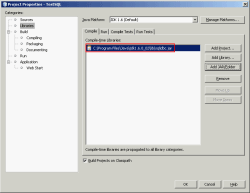
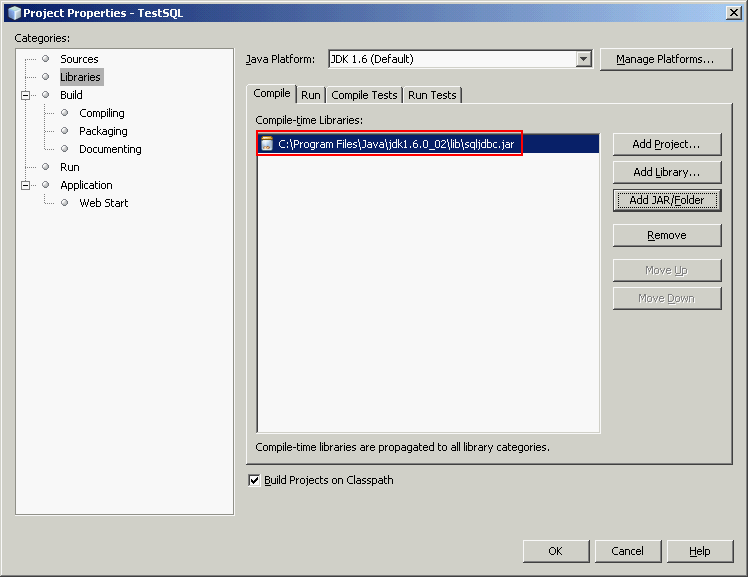
- The JDBC library file is not loaded properly. You may not have add the library file “sqljdbc.jar” to the project.
- You haven’t import the needed library to the project
Solution
- Add the appropriate library to the project. Refer to part I: create a connection.
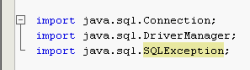
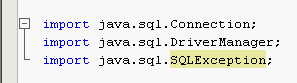
- You need to add following code at the top of thesource code:
import java.sql.Connection;
import java.sql.DriverManager;
import java.sql.SQLException;
Or you canimport java.sql.*;
Mistype the connection string
Problem
You received this error message while compile code in part I.
SQL Exception: java.sql.SQLException: No suitable driver found for jdbc:sqlserver:\\bkksql2005:1433;databaseName=AdventureWorks;user=sa;password=password; |

Cause
You may have typed your connection string incorrectly so the JDBC driver couldn’t understand.
Solution
Recheck your connection string format. The format for SQL authentication mode should be
“jdbc:sqlserver://serverName:portNumber;databaseName=DatabaseName;user=UserName;password=Password;” where
- serverName is the name of the SQL Server
- (Optional) portNumber is the TCP port of SQL Server. Default port is 1433.
- (Optional) DatabaseName is the database name on SQL Server.
- UserName and Password are username and password for login to SQL Server. This user must be SQL Server authentication mode.
The format for Windows authentication mode should be
“jdbc:sqlserver://serverName:portNumber;databaseName=DatabaseName;integratedSecurity=true;” where
- serverName is the name of the SQL Server
- (Optional) portNumber is the TCP port of SQL Server. Default port is 1433.
- (Optional) DatabaseName is the database name on SQL Server.
Note: Database name is an optional. For more complex connection string, refer to MSDN – Building the Connection URL at Microsoft.
In this example, I mistype “jdbc:sqlserver://…” to “jdbc:sqlserver:\\…“.
The TCP/IP connection to the host has failed
Problem
You received this error message while compile code in part I.
SQL Exception: com.microsoft.sqlserver.jdbc.SQLServerException: The TCP/IP connection to the host has failed. java.net.ConnectException: Connection refused: connect |

Cause
You try to connect to a SQL Server which has not SQL Server service running or the service refuse to accept remote connections.
Solution
- Recheck your connection string that you have type server name and port correctly or not.
- Check that SQL Server is running.
- If SQL Server is on remote host, try to check that you have allow remote connections on the server. To enable remote connections on SQL Server, try visit Enable remote connection to SQL Server 2005 Express.
- Check firewall which may block the connection from client to server.
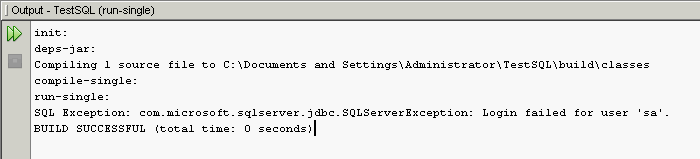
Login failed for user ‘sa’
Problem
You received this error message while compile code in part I.
SQL Exception: com.microsoft.sqlserver.jdbc.SQLServerException: Login failed for user 'sa'. |
Cause
This error message states clearly that you have provide wrong username or password that connect to SQL Server.
Solution
Recheck username and password again.
This driver is not configured for integrated authentication
Problem
You need to use Windows authentication mode by using ‘integratedSecurity=true’ instead of specify username and password in the connection string but receive this error message:
SQL Exception: com.microsoft.sqlserver.jdbc.SQLServerException: This driver is not configured for integrated authentication. Feb 8, 2008 11:28:55 AM com.microsoft.sqlserver.jdbc.AuthenticationJNI <clinit> WARNING: Failed to load the sqljdbc_auth.dll</clinit> |

Cause
You need to add ‘sqljdbc_auth.dll’ to the system path. This file can be found in Microsoft SQL Server JDBC Driver. It resides in sqljdbc_1.1\enu\auth\x86 depends on your JDBC driver and system platform (x86 or x64).
Solution
Copy ‘sqljdbc_auth.dll’ to C:\Windows\System32
or
You can set the java.library.path to the directory where ‘sqljdbc_auth.dll’ is.
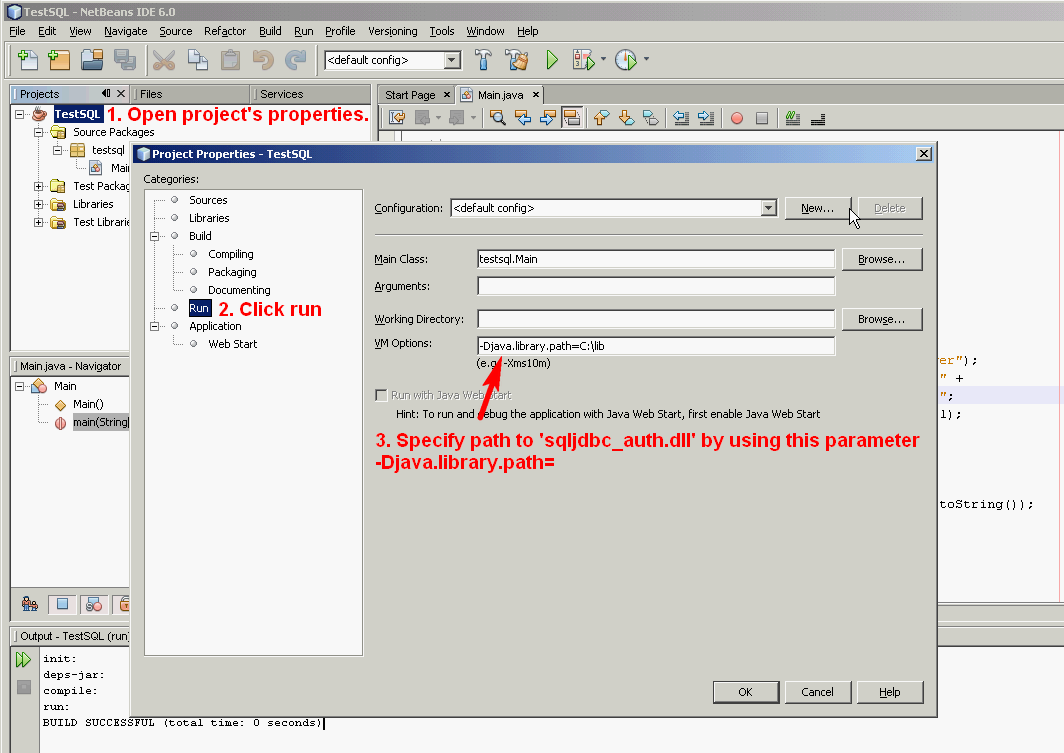
Note: If the path contains any spaces or special characters, you have to use double quotes “” around the value (ex. “your directory”).
it proved to be realy healpful, my problem is that im working in netbeans Desktop Application, i hav made a form, and behind the actionListener of it, i wana create connection as wel as perform operations ie; Save, Delete etc…
now wat things i hav to do more, how to map the textfields to database?
plzzz kindly let mekno ASAP…
Have you read Accessing SQL Server on NetBeans using JDBC, Part II: Perform SQL Operations?
I think it can be applied to what you want.
i’m using sql server 2000, OS winXP, Netbeans 6.1,
n try the code above to connect Netbeans to Sql n get error :
SQL Exception: com.microsoft.sqlserver.jdbc.SQLServerException: The TCP/IP connection to the host has failed. java.net.ConnectException: Connection refused: connect
BUILD SUCCESSFUL (total time: 1 second)
i try to telnet port 1433, but result connection failed, although my Sql Service is running… can any one help my problem? i already turn off my Firewall.. n i already check thats my sql active port is 1433.. why i can;t telnet port 1433?
Thanks
If you can’t telnet to SQL Server on certain port. It may cause from these issues:
– The firewall between your computer and SQL Server has blocked telnet protocol.
– The SQL Server is running on this port.
– The SQL Server service is not running.
So you need to check if the firewall on SQL Server or on your network are blocking the telnet protocol or not. You can try to telnet on SQL Server itself to avoid firewall on the network.
Next, if you can telnet but still unable to connect in java. Try to remove the port number in the connection string (You can omit the default port).
Thank you
i am finding soluction this problem your meterial is very nice that is help full me
thank you..
my problems are still unsolved, or assuming that it works in your PC, can i have the spesification of the PC such as what is the OS, what is the version of SQL Server (2000 or 2005), and other requirements. So i can try from zero. Thanks alot.
Hi, Alex
About environment in the tutorial: Windows XP SP2 with NetBeans 5.5 and SQL Server 2000 SP4 on the same computer.
I suggest the best way is to develop on the same computer first (connect to SQL Server on the local machine).
Hi,
Thanks for the nice post. My issue is I can create connection to MS SQL Server 2005 through the runtime window in netbeans 6.5,1, but it doesn’t show any tables nor does running queries help. I need to use hibernate in my project and that requires this connection to work properly. Am I missing something? Thanks
Hi, Vikash
Is there any error message when you established a connection to the SQL Server?
I am getting the following error:
The TCP/IP connection to the host has failed.
java.net.SocketException: Malformed reply from SOCKS server
My connection string is:
(0.0.0.0 = is the fake ip address to the server for this post)
(***** = is the fake password for this post)
jdbc:sqlserver://0.0.0.0:1433;databaseName=ITAssetsDB;user=sa;password=*****;
Ok, in Netbeans I have a proxy configured and it could not connect through that proxy. Once I turned the proxy off, it connected just fine.
thank you for this very useful content. everything worked fine after doing excatly the way you meant.
Kind regards,
Serhat from TRNC
hi Linglom,
i’m using this driver “Microsoft SQL Server JDBC Driver 2.0” to connect to SQL Server 2000 from Netbean 6.7.1
i got this error
“Unable to add connection. Cannot establish a connection to
jdbc:sqlserver://localhost:1433;databaseName=Northwind using
com.microsoft.sqlserver.jdbc.SQLServerDriver (The TCP/IP connection
to the host localhost, port 1433 has failed. Error: “connect timed out.
Verify the connaction propoerties, check that an instance of SQL
Server is running on the host and accepting TCP/IP connections
at the port, and that no firewall is blocking TCP connections to the port.”.).”
though that i’ve verifed from Server Network Utility that the TCP/IP protocol is enabled and is listening on port 1433.
i can connect to the server through query analyzer though. i wonder what’s wrong?
Thank you.
Hi, Thesti
The error message states that it couldn’t connect to the SQL Server so there must be something wrong. I suggest you try to telnet to port 1433 to re-verify if the SQL Server is accepting request or not.
If telnet can connect, then try to change hostname on the connection string to an ip address of your computer.
If it still doesn’t solve the problem, can you show your source code?
Hi thesti,
I had the same problem, that made me waste an entire day looking for a solution.
The problem, in my case, was the instance name, using a named instance, like this
jdbc:sqlserver://SERVERNAME\INSTANCE:1433;databaseName=TESTDB
I changed my instalation, so the server isn’t named, and just accept a connection in the form:
jdbc:sqlserver://SERVERNAME:1433;databaseName=TESTDB
and I got the connection working.
it is really good to see problems and solutions . Really it helps us too much and i m very thankfull to u for providing us such news
SQL Exception: com.microsoft.sqlserver.jdbc.SQLServerException: Login failed for user ‘THANKGOD-PC/THANKGOD’ This exactly the problem i have
SQL Exception: com.microsoft.sqlserver.jdbc.SQLServerException
Can someone please hellp me,
This is my connection string.
String connectionUrl = “jdbc:sqlserver://” + IP + “; databaseName=” + Database + “; User=” + user + “; Password=” + password + “;”;
the IP,Database,user and password are strings.
when i run the class i got this error
com.microsoft.sqlserver.jdbc.SQLServerException: The TCP/IP connection to the host has failed. java.net.SocketException: Malformed reply from SOCKS server
Can someone PLEASE HELP ME.
Hello Sir,
I had made a project in netbeans with DB SQL server2005 . My problem is that when i m running the project through netbeans it is running successfully and also it is successfully connected with the DB. But ,when i run the jar file trough cmd it is showing the following error:
com.microsoft.sqlserver.jdbc.SQLServerException: The TCP/IP connection to the host has failed.
Please help me out , so i can deliver my project to the client.
Thanks.
Nice. Very useful!
Hello All,
My problem is solved. The above error comes due to the package problem. Just i had to move one image from one package to another.
i am getting the error as communication link failure. will u pls tell me how to solve this??
Hi,
I’m using Netbeans 6.8 and SQL server 2005, sqljdbc driver.
I’m trying to insert form elements into databae using javascript as well as php. My problem is that whenever i try to run the program it opens up a jsp page. Can someone help me solve this??
Really helpfull. At least I was able to connect to SQL Express 2008.
Thank you for posting these information.
I was able to configure even I am using SQL 2005.
More power.
Thanx it helped!!
I have following error when user connection with sql server 2005
init:
deps-jar:
Compiling 1 source file to C:\Users\Archana\Documents\NetBeansProjects\TestSQL\build\classes
compile:
run:
SQL Exception: com.microsoft.sqlserver.jdbc.SQLServerException: The connection string contains a badly formed name or value.
BUILD SUCCESSFUL (total time: 0 seconds)
i have following error
Jul 29, 2011 1:03:43 AM com.microsoft.sqlserver.jdbc.SQLServerConnection
SEVERE: Java Runtime Environment (JRE) version 1.6 is not supported by this driver. Use the sqljdbc4.jar class library, which provides support for JDBC 4.0.
Exception in thread “main” java.lang.UnsupportedOperationException: Java Runtime Environment (JRE) version 1.6 is not supported by this driver. Use the sqljdbc4.jar class library, which provides support for JDBC 4.0.
at com.microsoft.sqlserver.jdbc.SQLServerConnection.(SQLServerConnection.java:238)
at com.microsoft.sqlserver.jdbc.SQLServerDriver.connect(SQLServerDriver.java:841)
at java.sql.DriverManager.getConnection(DriverManager.java:582)
at java.sql.DriverManager.getConnection(DriverManager.java:207)
at database.Database.main(Database.java:36)
Java Result: 1
BUILD SUCCESSFUL (total time: 0 seconds)
its really helpful
now i connected my application with sql server 2008 but when i checked the database there is no any what will be the problem when i run the following is displayed
init:
deps-jar:
compile-single:
run-single:
so what is the prob
i am trying to connect sql and netbeans but geting error.. plz help me linglom..
🙁
Eric.. ca u plz breifly descirbe how to connect sql server and net beans using java…
sir i m using netbeans ide5.5 and tomact server 5.0 and ms sql server 2005. there is no error in my coding but still cant insert data into database. is there any settings in netbeans and ms sql server after installation or if any error in coding just plzzz help me its my project.
import java.io.*;
import java.net.*;
import javax.servlet.*;
import javax.servlet.http.*;
import java.sql.*;
public class NewUserRegister extends HttpServlet
{
// Dbconnect objCon;
Connection con=null;
String strName1=null;
String strMiddleName=null;
String strLastName=null;
String strNo=null;
String strDob=null;
String strAddr=null;
String strId=null;
String strSex=null;
String qury=”INSERT INTO UserRegisteration(FirstName,LastName,MiddleName,PhoneNo,Dob,Sex,Address,EmployeeId) VALUES( ?,?,?,?,?,?,?,? )”;
//Read more: http://kickjava.com/285.htm#ixzz1EU9EcHJo
protected void processRequest(HttpServletRequest request, HttpServletResponse response)
throws ServletException, IOException
{
try
{
response.setContentType(“text/html;charset=UTF-8”);
///======================================================================================
///=========================================================================================
// objCon=new Dbconnect();
Class.forName(“sun.jdbc.odbc.JdbcOdbcDriver”);
String url=”jdbc:odbc:clss”;
con= DriverManager.getConnection(url,””,””);
// con=objCon.Connects();
System.out.println(“Connected”);
strName1=request.getParameter(“uname1”);
strMiddleName=request.getParameter(“uname2”);
strLastName=request.getParameter(“uname3”);
strNo=request.getParameter(“phoneNo”);
strDob=request.getParameter(“Dob”);
strSex=request.getParameter(“sx”);
strAddr=request.getParameter(“sx1”);
strId=request.getParameter(“sx2”);
HttpSession session = request.getSession(true);
session.setAttribute(“nam”,strName1);
System.out.println(strName1);System.out.println(strMiddleName);
PreparedStatement prest = con.prepareStatement(qury);
prest.setString(1,strName1);
prest.setString(2,strLastName);
prest.setString(3,strMiddleName);
prest.setString(4, strNo);
prest.setString(5,strDob);
prest.setString(6,strSex);
prest.setString(7,strAddr);
prest.setString(8,strId);
int n = prest.executeUpdate();
// getServletConfig().getServletContext().getRequestDispatcher(“/Login.jsp”).forward(request,response);
}
catch(Exception e)
{
System.out.println(e);
}
getServletConfig().getServletContext().getRequestDispatcher(“/pictureViewer.jsp”).forward(request,response);
}
public void ParamData(HttpServletRequest request, HttpServletResponse response)
{
try
{
// objCon=new Dbconnect();
// con=objCon.Connects();
strName1=request.getParameter(“uname1”);
strMiddleName=request.getParameter(“uname2”);
strLastName=request.getParameter(“uname3”);
strNo=request.getParameter(“phoneNo”);
strDob=request.getParameter(“Dob”);
strSex=request.getParameter(“sx”);
strAddr=request.getParameter(“sx1”);
strId=request.getParameter(“sx2”);
PreparedStatement prest = con.prepareStatement(qury);
prest.setString(1,strName1);
prest.setString(2,strLastName);
prest.setString(3,strMiddleName);
prest.setString(4, strNo);
prest.setString(5,strDob);
prest.setString(6,strSex);
prest.setString(7,strAddr);
prest.setString(8,strId);
int n = prest.executeUpdate();
getServletConfig().getServletContext().getRequestDispatcher(“Login.jsp”).forward(request,response);
}
catch(Exception e)
{
System.out.println(e.getMessage());
}
}
protected void doGet(HttpServletRequest request, HttpServletResponse response)
throws ServletException, IOException {
processRequest(request, response);
}
protected void doPost(HttpServletRequest request, HttpServletResponse response)
throws ServletException, IOException {
processRequest(request, response);
}
public String getServletInfo() {
return “Short description”;
}
}this si one of ma code plz check it out sir
Hi…
I got the same problem that user “Modh Farham” with my NetBeans 7.2 trying to connect MsSqlServer 2000, so I tried via ODBC but I got a new error: length of String or buffer invalid.
Could anyone help me, please? Thanks!
sir i am using net beans 7.4 and ms sql server 2008. i am trying to connect my netbeans with sql server.
but it gives error like this…
Cannot establish a connection to jdbc:sqlserver://localhost\mysql:1433;databaseName=phonebook using com.microsoft.sqlserver.jdbc.SQLServerDriver (Login failed for user ‘sa’. ClientConnectionId:b2895fd2-4228-48af-93f4-6be4ecfd1a8f)
please tell me what will be error there?
when i login from management studio by providing user name and password , i successfully login , but facing problem when i try to login via netbeans.
i have three server one is default with instance name MSSQLSERVER, 2nd is MYSQL, and third is SQLEXPRESS… the port number for MSQLSERVER is 1433 ,,and for rest two not mention ..please guide me what i do ,,,