Suppose that you want to attach a file on an e-mail message but the file is too large for sending through your mail server. Or you want to copy a file to USB drive but the file size is exceed the limit of your USB drive can hold.
To solve these problems, you can split the large file into smaller files using Zip software. So, you can attach these smaller files to e-mail messages or copy to your USB drive as you want. To get the original file back, you can open these smaller files using any Zip software and you’ll get the original file.
In this post, I’ll show how to split a large file into smaller files using 7-Zip. 7-Zip is an open source software which can compressed/uncompressed file in various formats. Other Zip softwares such as WinZip, WinRar, etc. can do this, too. The steps are similar to 7-Zip.
Step-by-step split large file using 7-Zip
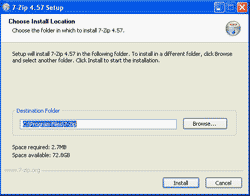
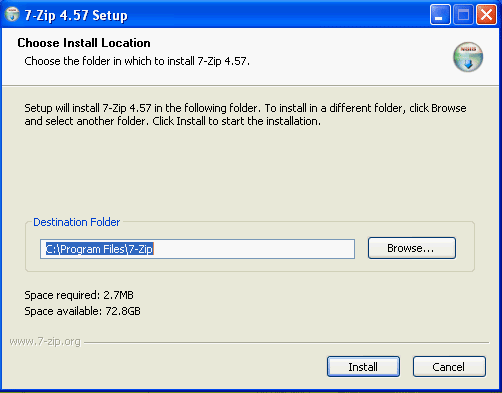
- Download and install 7-Zip on the PC. You can download it from http://www.7-zip.org.
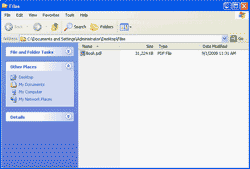
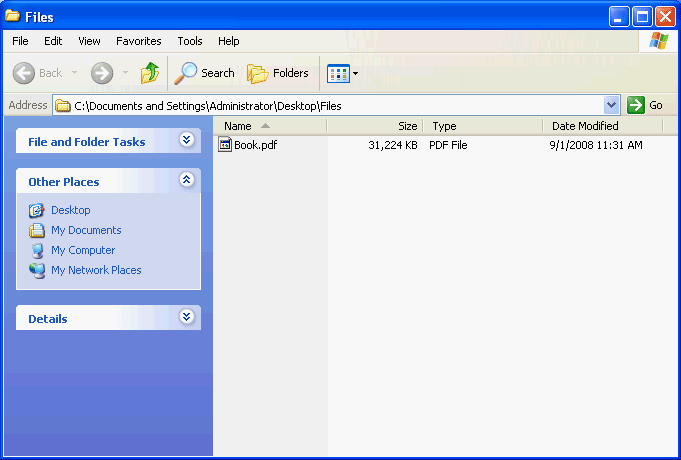
- In this example, I’ll split Book.pdf (~30 MB.) into smaller Zip files which the file size must not exceed 10 MB.
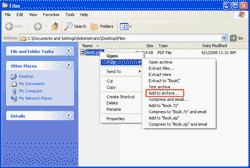
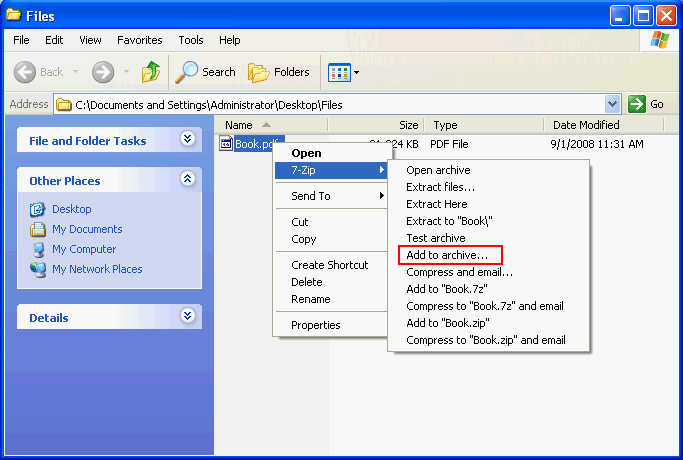
- Right-click on the file -> Select 7-Zip -> Add to archive.
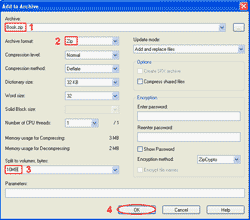
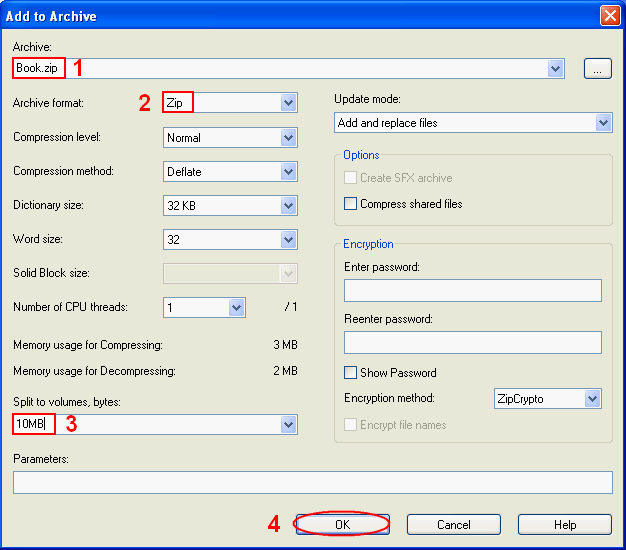
- On Add to Archive,
- Name the archive file.
- Select archive format.
- Define file size limit you want. In this example, I’ll limit to 10MB.
- Click OK.
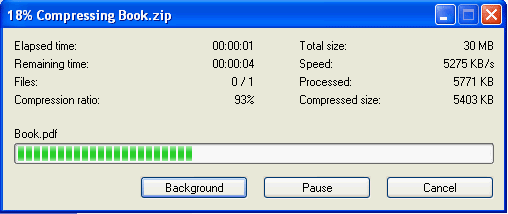
- The program is compressing the file.
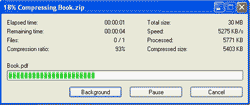
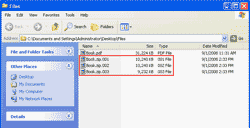
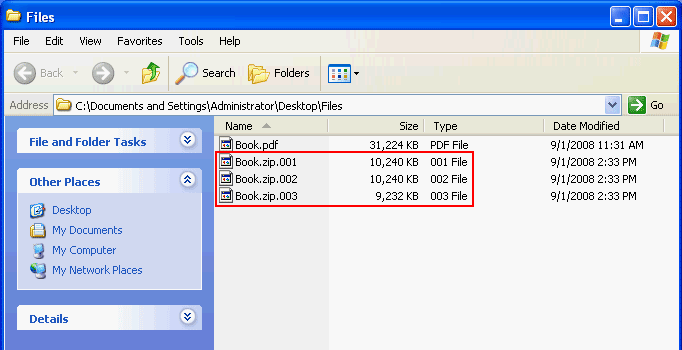
- When finishes, you’ll see that a large file is split into new smaller Zip files which size are limit as you defined. In this example, I get 3 file: Book.zip.001, Book.zip.002 and Book.zip.003.
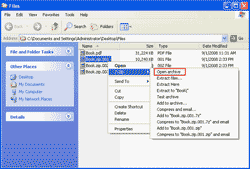
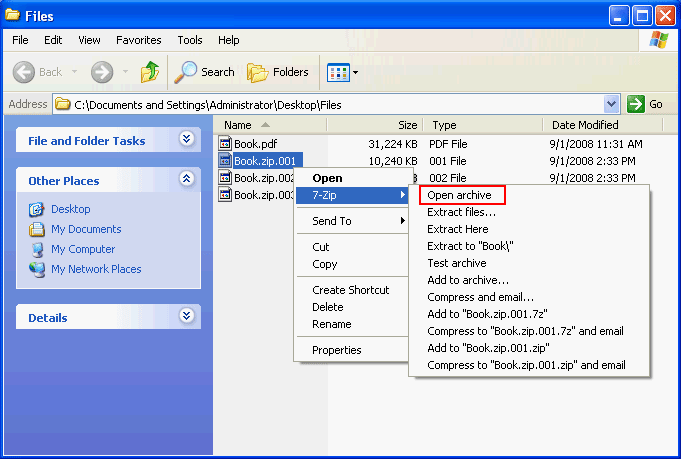
- To get the original file from these Zip files, right-click one of these Zip files -> select 7-Zip -> click Open archive.
Note: You can open these Zip files with other Zip software since they are .zip file now.
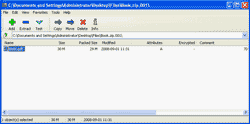
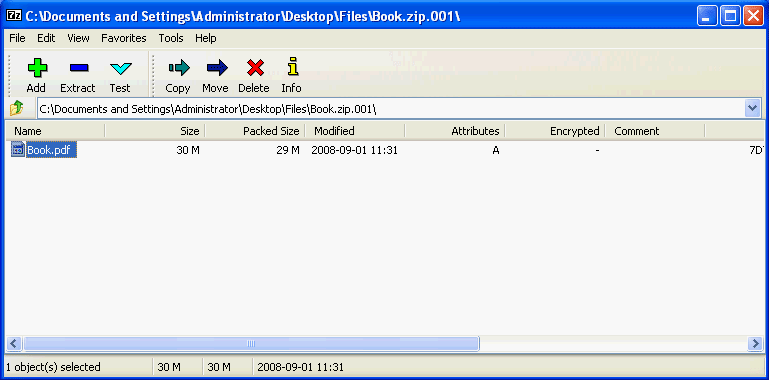
- The 7-Zip program will be opened and you’ll see the original file.
7-Zip
Just a stupid question,
Can you split a picture using 7-Zip ? if not is there a software one can use to perform such a task ?
Yes. You can split any file format using 7-Zip.
The only disadvantage is, that other than 7zip archivers, can’t open the 001 file, so the splited archive is completely inaccessible for users that haven’t 7zip installed.
If I send these files, to another user, he has to install 7zip at his system, in order to open the archive. 🙁
As much as I really like 7z (that I’m using for many years), I’m thinking seriously, to switch to another archiver, that can split archives, keeping the first file with the standard ZIP extension.
Probably ZipGenius or TUGZip.
SORRY!!! My mistake! 🙁
One can join the splited files, from command prompt, using the COPY/B command (or cat or chunk on Linux. I’m not sure), but its use is somewhat frustrating.
Hi, Giorgos
Yes, you can join splited-zipped files using other zip tool such as WinZip, WinRAR, etc.
Hi linglom! 🙂
THANKS for your help!!!
Sounds great, but how is it possible?
I have a major problem with it, since I don’t have (and I don’t want to install shareware programs), and WinRAR when trying to open a 001 file, is bringing an error message (something like “unknown or damaged archive”).
I read a related post at SF.NET (7z) help forum and says that writing manually a joining BAT file, is the only solution.
I even created an entry, on suggestion-wish tracker, but of course I don’t know if its a really serious demand for Igor. I suppose not! 🙂
OK, maybe writing a BAT file isn’t a big problem after all, but did you manage to open successfully with WinRAR a 001 file?
How is this possible?
Hi, Giorgos
I’m sorry, I forgot to tell you something. If you split a file using 7zip and you want to join them back using WinRAR, you have to use HJSplit (free) to join the files first. Then, you can extract the file using WinRAR. You can download and try at HJSplit
But if you split a file using WinRAR, 7Zip can join them without additional software.
Indeed! HJSplit has done the trick!
THANK YOU VERY MUCH linglom, for your help!!! 🙂
i have mac that is around 8 GB can i 7zip to burn it on two DVD and boot it for installation the Mac if is there any other software to do this
thanks
John
Hi, John
7Zip is on Windows only. So try this tool, HJ-Split. It’s free.
7Zip is windows only? i thought i saw a linux version somewhere.
Anyways, you could still use Wine to run 7Zip, it worked for me 😉
I think running it through Wine is the best option.
Just in case, you need a native Linux solution, there is project who ported 7z to Linux. Search the repositories (eg. with Synaptic or Kpackagekit) for “p7zip” (“p7zip full” at Ubuntu).
Keep in mind that p7zip is command line driven (eg. “7z a test.7z *.* -mx=9 -r”) and it hasn’t any kind of GUI.
Just a note!
7zip has a known problem (in some rare cases), with pwd protected RARs. In such a case the “unrar” (NOT the free version, (actually the freeware, not the open source version)), is a nice addition.
Command line driven too. You have to enter “unrar e *.rar” or unrar e *.*part1.rar” at console and then right click at console->paste the pwd.
* I think p7zip can reached through GUIs like Ark, but since GUI archiver shell are not giving the plenty of options, you have at console, I’m not using them and I’m not familiar with them. 🙂
Happy penguin computing!!! 🙂
Hi, Recreate and Giorgos Kostopoulos
Thanks for your sharing.
I split a 100 MB file using 7zip and uploaded into a website.Later I downloaded all files but unable to get the original file.Each file size is showing correctly but when I extract it extracts only one file of size 1 KB. I tried 7zip,winrar and HJsplit but no use.Please help
Thanks a lot buddy helped me with my humongous large file
Thanks a lot. This really helped.
Cheers. 🙂
Your screenshots are too small it’s no use!!!
At my system (I’m using firefox on ubuntu64), clicking on a screenshot, opens it on a new tab in big size.
I keep getting an access denied message whenever I try to do this.
Thanks for the damn useful guide. helped my technophile friend out.
hey thanks for this, i need to split my files on to dvd disks which are 4.7GB each.. but when i put in 4.7GB(i also tried typing the measurement in bytes aswell)it keeps saying ‘incorrect volume size’. Please help me out.
I find it much easier to just use winrar to split up file(s). You can even choose to disable compression and just use the archive to store the file(s).
Just used your instructions to divide and store a large .mkv file into a FAT32 file system volume, worked just fine. Thanks!
I have split a 200 MB video file into 4 50 MB files using 7-zip software and uploaded on to Skydrive. They now have extension*.zip.001 thru *.zip.004. However, I could not find any way to get back to the original single file so that I can view the video from skydrive. Is there any way to do this?
Thanks for the article. It’s *much* faster if you set the compression level to “store”.
I followed all of these steps and it works for the ZIP format but I can’t get it to work with the 7z format? I can split them but when it comes to extracting back into one file, it reports an error (can’t remember it but something about “broken”). Surely 7z if an option for a split or it would be grayed out during the creation of the archive yes?
while restoring the sql2005 data backup it gave an error
“the file is in compressed format ”
“or no sufficient memory”
and it is not showing the tales in the database files.
Pls help me try and call me at 9920155621.
Thank you!
I have the archive split but now how do i burn them to disks so I can install them later? (Win 7)
Thank you very much. The information was very helpful
I recommend iDealshare VideoGo which can split all kinds of video files like MKV, MP4, MOV, AVI, WMV, 3GP, MPG etc.
It can split video without re-encoding or split video as well as change the video format.
It even can split audio format.
Wonderful. I have been using 7zip since long, but never used this feature before. I used this thread for splitting a 10gb video in smaller files so that it can be transferred to a ntfs format disk. Superlike.
Very easy, just highlight the FIRST file then the Combines Files option will be available. Just press OK then it will automatically combine the files into original file. Make sure you put all the parts in the same folder.
I am trying to send a volume which is encrypted with VeraCrypt. Is it posible to 7zip that in the way described above, to chop it down into smaller files, and the recipient can rebuild by opening the first file in 7zip his end?
How can I open the split zip archive on Android?