- Working with ISO Image and MDF/MDS using Daemon Tools Lite, Part 1: Introduction
- Working with ISO Image and MDF/MDS using Daemon Tools Lite, Part 2: Install Daemon Tools Lite
- Working with ISO Image and MDF/MDS using Daemon Tools Lite, Part 3: Create ISO Image
- Working with ISO Image and MDF/MDS using Daemon Tools Lite, Part 4: Create MDF/MDS files
- Working with ISO Image and MDF/MDS using Daemon Tools Lite, Part 5: Mount Disk Image
In this post, I will show how to download and install Daemon Tools Lite v.4.30.4 on Windows XP.
Step-by-step to install Daemon Tools Lite
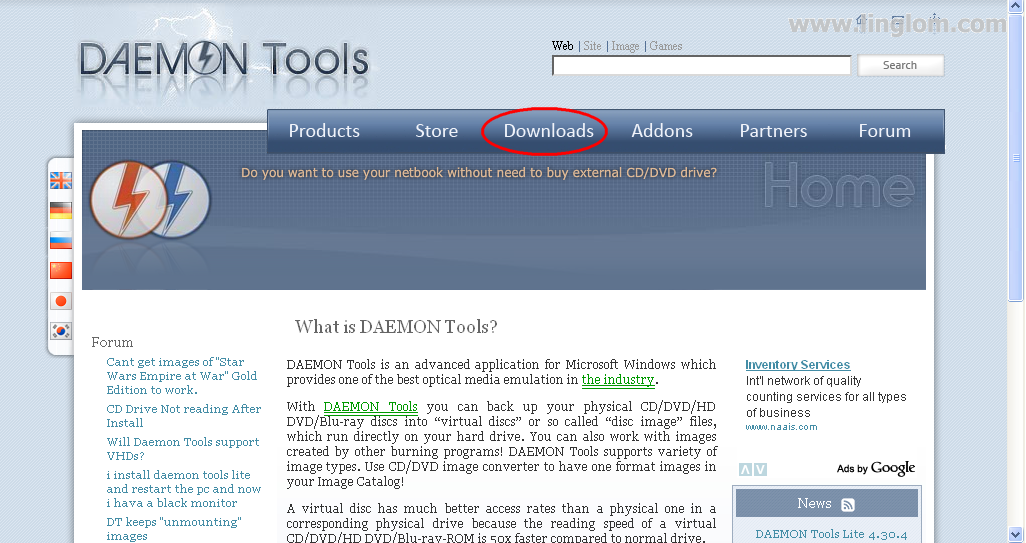
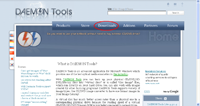
- Open your web browser to www.daemon-tools.cc and click on Downloads menu.
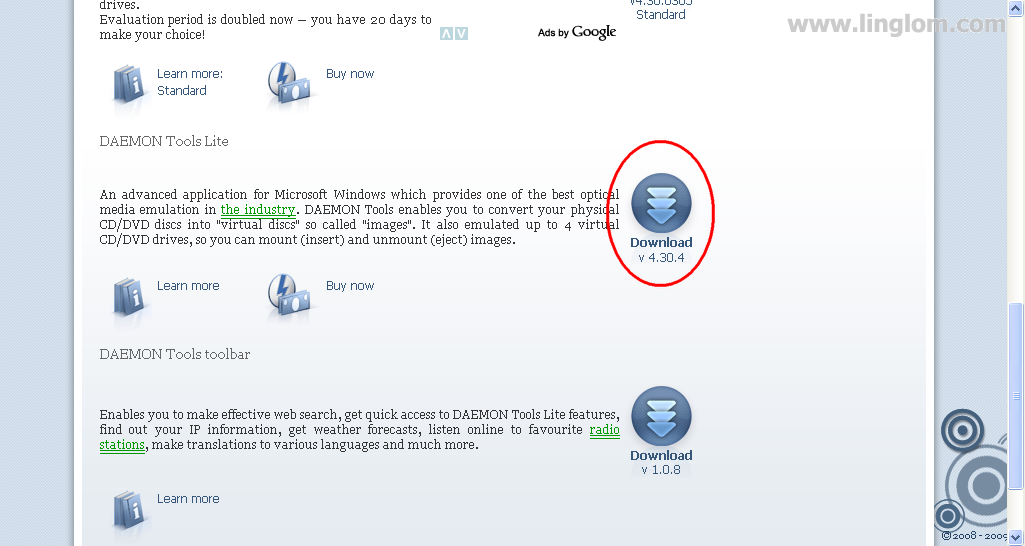
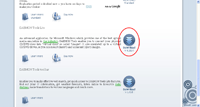
- Scroll down to Daemon Tools Lite and click on Download v.4.30.4.
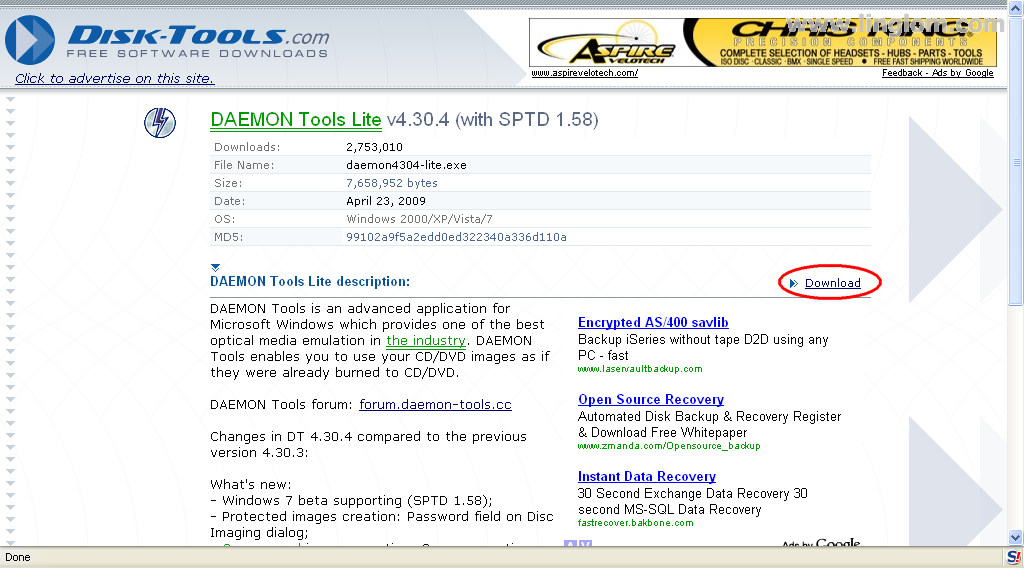
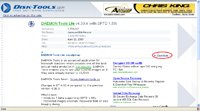
- Click Download to begin download the file.
- You will get the file – daemon4304-lite.exe. Double-click the file to begin setup wizard.

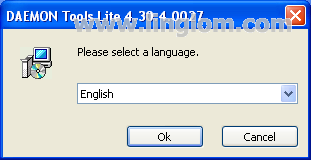
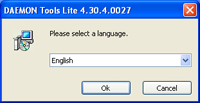
- Select a language. Click OK.
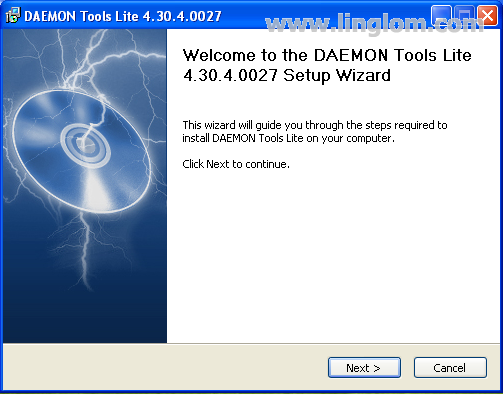
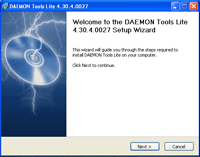
- On Welcome to DAEMON Tools Lite 4.30.4.0027 Setup Wizard, click Next.
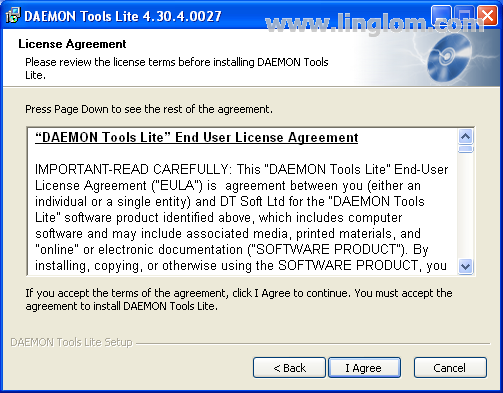
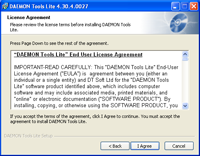
- On License Agreement, click I Agree to accept the license terms of Daemon Tools Lite.
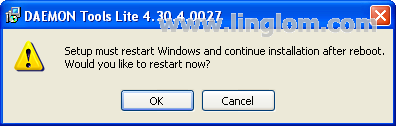
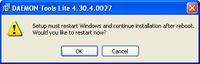
- If you see the message “Setup must restart Windows and continue installation after reboot. Would you like to restart now?”, click OK to restart Windows.
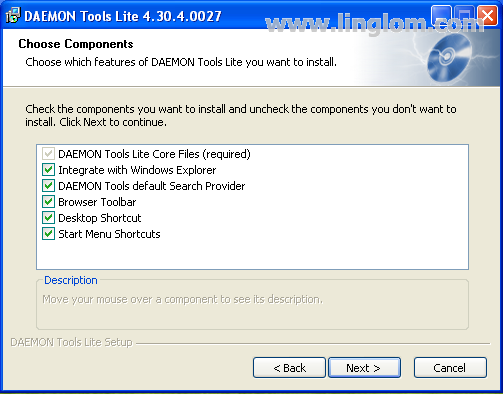
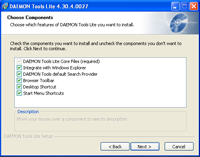
- On Choose Components, you can select components that you want to install. You can unchecked Browser Toolbar if you don’t want it on your browser. Click Next to continue.
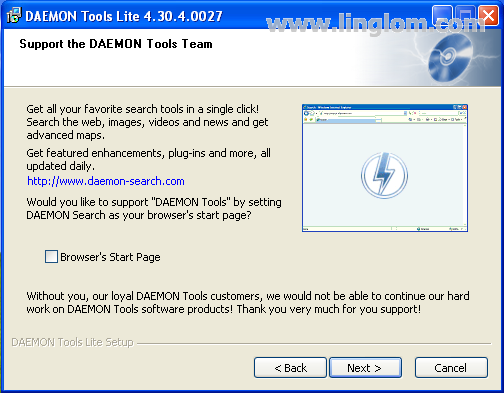
- On Support the DAEMON Tools Team, you can choose to set default start page of your browser to DAEMON Search. Unchecked Browser’s Start Page if you don’t want to. Then, click Next.
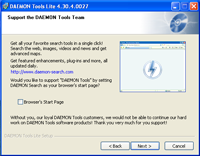
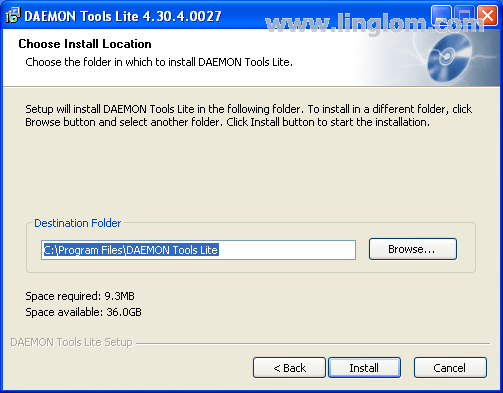
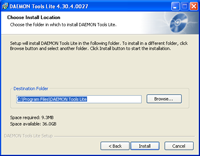
- On Choose Install Location, you can select which folder you want to install DAEMON Tools Lite. Click Install to begin the installation.
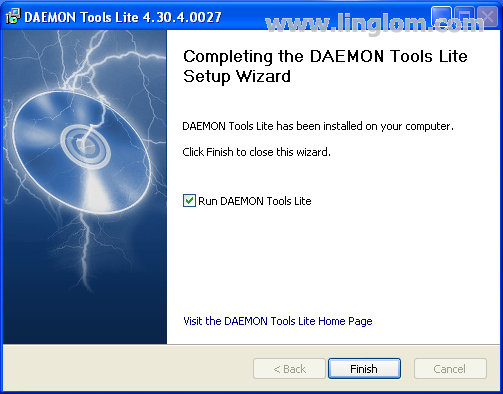
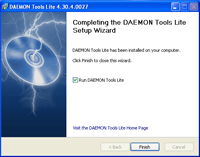
- On Completing the DAEMON Tools Lite Setup Wizard, keep the check box Run DAEMON Tools Lite and click Finish.
- Daemon Tools Lite is updating virtual devices on the computer.

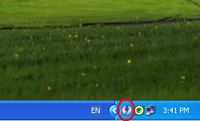
- Installation is finished, you will see the icon of Daemon Tools Lite on notification area.