- Working with ISO Image and MDF/MDS using Daemon Tools Lite, Part 1: Introduction
- Working with ISO Image and MDF/MDS using Daemon Tools Lite, Part 2: Install Daemon Tools Lite
- Working with ISO Image and MDF/MDS using Daemon Tools Lite, Part 3: Create ISO Image
- Working with ISO Image and MDF/MDS using Daemon Tools Lite, Part 4: Create MDF/MDS files
- Working with ISO Image and MDF/MDS using Daemon Tools Lite, Part 5: Mount Disk Image
Mount Disk Image
From the 2 previous posts – part 3: Create ISO Image and part 4: Create MDF/MDS files, you have create disk image files. Now it is time to use them. In this post, I will show you how to mount an MDS file which is an image file that was created on part 4 to a virtual drive.
Step-by-step
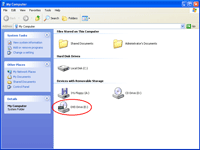
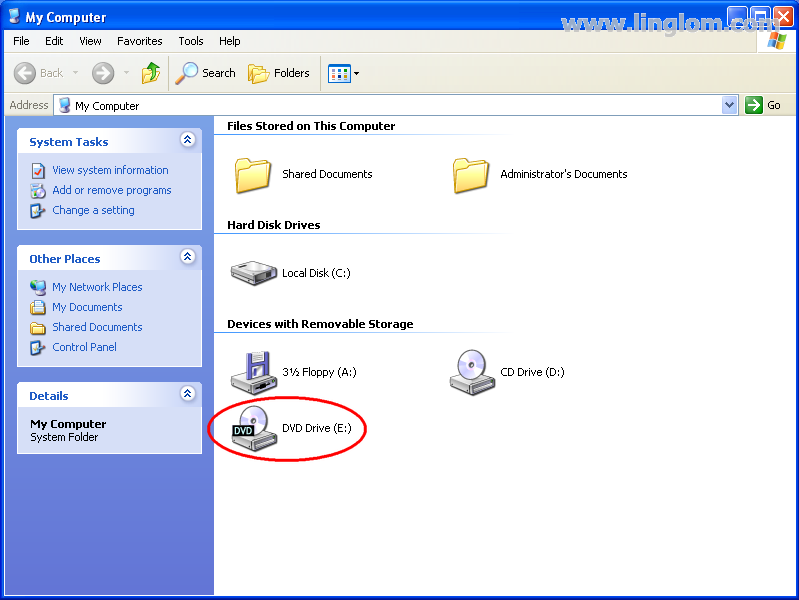
- I copy the disk image files to another computer which also has Daemon Tools Lite installed. It has drive E: as a virtual drive.
Note: A virtual drive is added automatically when you installed Daemon Tools.
- You can minimize the Daemon Tools Panel by click on down-ward triangle icon on the rightmost of the tray.

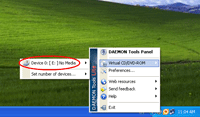
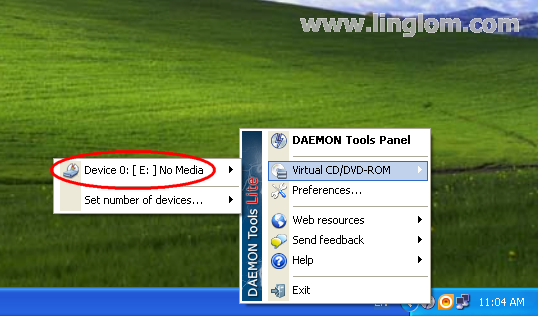
- Let’s begin to mount an image file to a virtual drive. Right-click on Daemon Tools Lite icon and highlight on Virtual CD/DVD-ROM. You will see Drive 0: [ E: ] No Media. This is a virtual drive that we can mount an image file to.
Note: You can highlight on Set number of devices and select a number of virtual drives that you want on your computer. On Lite version, you can have up to 4 virtual drives.
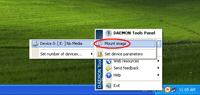
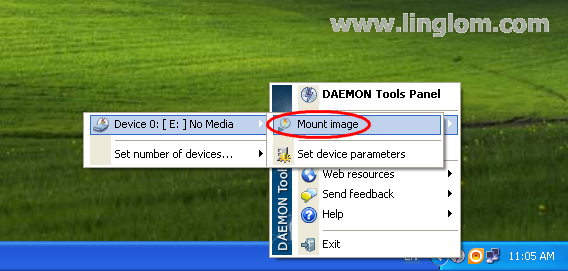
- Highlight on Drive 0: [ E: ] No Media and select Mount image.
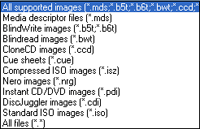
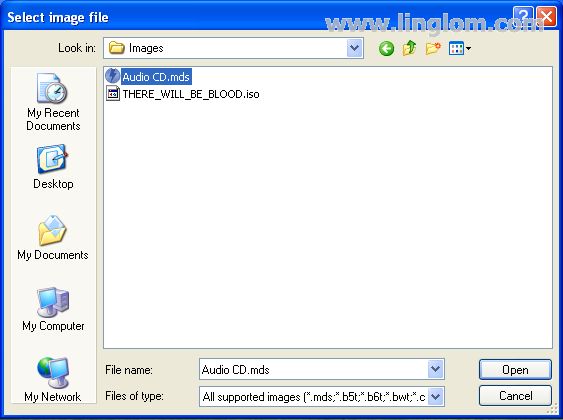
- Browse to an image file that you want to mount. In this example, it is Audio CD.mds. Click Open to continue.
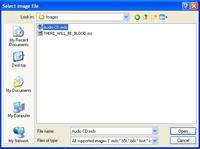
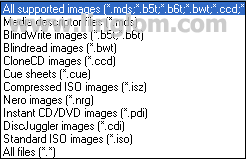
- Daemon Tools Lite supports mounting these disk image formats:
- Media descriptor files (.mds)
- BlindWrite images (*.b5t, *.b6t)
- Blindread images (*.bwt)
- CloneCD images (*.ccd)
- Cue sheets (*.cue)
- Compressed ISO images (*.isz)
- Nero images (*.nrg)
- Instance CD/DVD images (*.pdi)
- Disc Juggler images (*.cdi)
- Standard ISO images (*.iso)
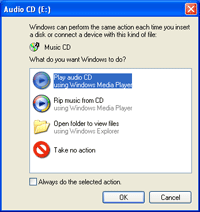
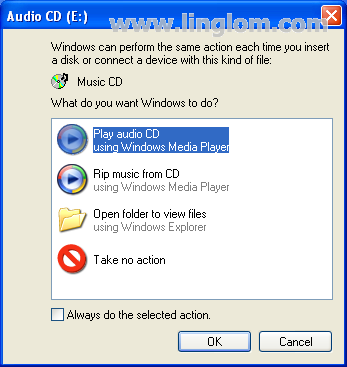
- Once you have mounted an image file to a virtual drive, you can access content of the image file. In this example, Windows has detected new disc has been inserted into a virtual drive and asks what do you want to do. So I select Play audio CD.
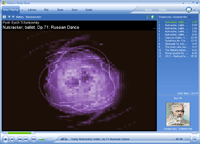
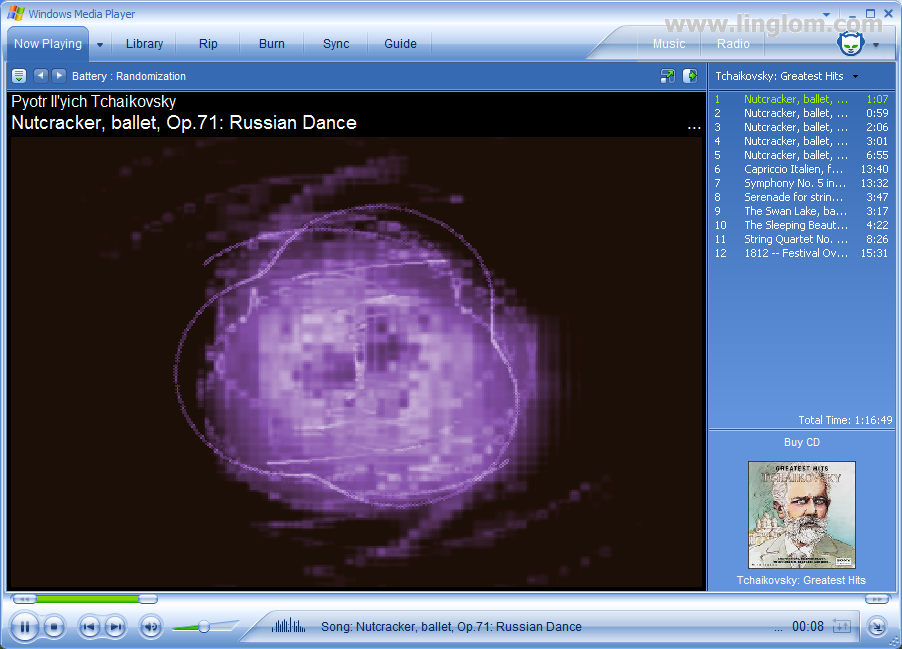
- Windows Media Player plays the image file which has been mounted to a virtual drive as if it is an original disc.
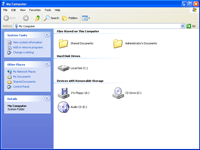
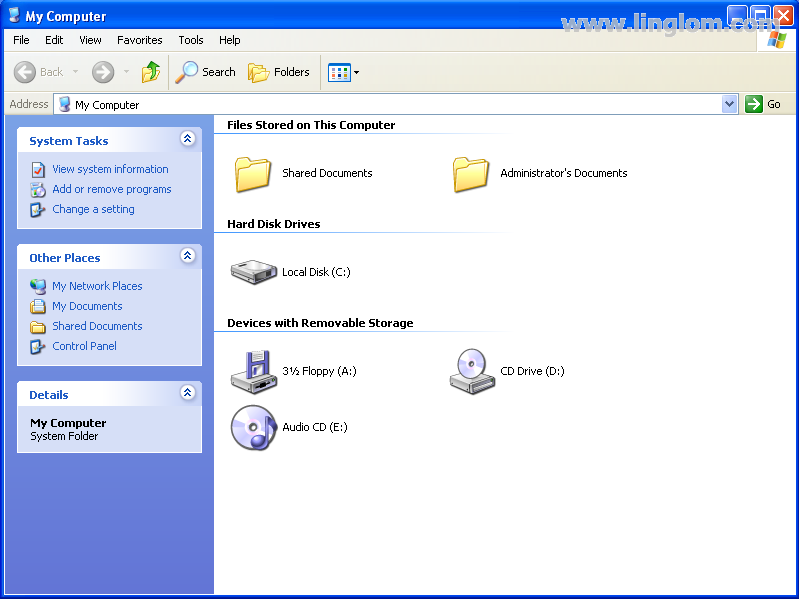
- Also, you can see that Drive E: is marked as Audio CD in My Computer.
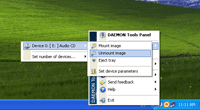
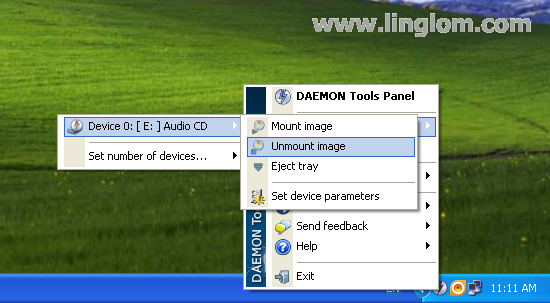
- You can unmount the image file by select a virtual drive and choose Unmount image.

Summary
This is the last part of the series of Working with ISO Image and MDF/MDS using Daemon Tools Lite. I hope you get better understanding about disk image files and how to work with them. If you have any suggestion or want to share your experience, feel free to post in forum.