Accessing SQL Server on ASP.NET using ADO.NET
ADO.NET is a set of components that can be used to access data and data services. The objects of ADO.NET that will be used in this post are:
- Connection: Provides a connection used to communicate with the data source.
- DataAdapter: A bridge used to transfer data between a Data source and a DataSet object.
- DataSet: Stores query result from DataAdapter.
On this post, you will see how to develop an ASP.NET web application that query data from SQL Server 2005 and display the result on a GridView object. I have provided both VB.NET and C# programming languages.
Step-by-step
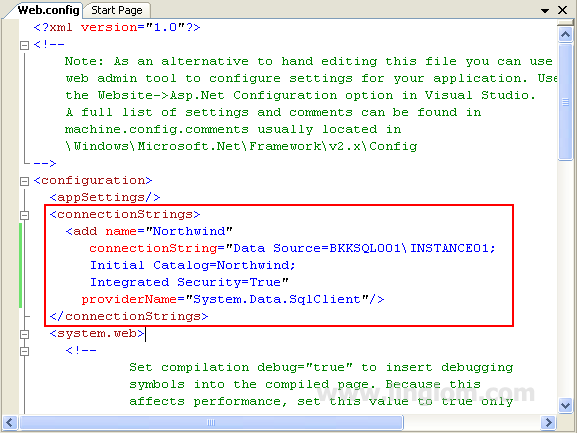
- Create a connection string in web.config. I decide to put the connection string in web.config so that I can re-use the connection string in other web form.
Attributes explanation:
- name: A connection string name.
- connectionString: A connection string which is used to connect to a database. On this example, it connects to Northwind database on BKKSQL001\INSTANCE01.
- providerName: A provider name that is used.
- On a Web Form, imports some namespaces which are required for working with SQL Server. System.Web.Configuration is use to read values from web.config.
'Visual Basic
Imports System.Data
Imports System.Data.SqlClient
Imports System.Web.Configuration
//C#
using System.Data;
using System.Data.SqlClient;
using System.Web.Configuration;
- Use a GridView object to display the query result. Set the name of GridView to “gridView1“. Copy and paste the code below to Page_Load method.
'Visual Basic
Protected Sub Page_Load(ByVal sender As Object, ByVal e As System.EventArgs) Handles Me.Load

        Dim connStr As String = WebConfigurationManager.ConnectionStrings("Northwind").ConnectionString
        Dim conn As New SqlConnection(connStr)
        conn.Open()

        Dim sqlProducts As String = "SELECT ProductID, ProductName, UnitPrice FROM Products"

        Dim da As New SqlDataAdapter(sqlProducts, conn)
        Dim ds As New DataSet()
        da.Fill(ds, "Products")

        gridView1.DataSource = ds.Tables("Products")
        gridView1.Databind()
End Sub
//C# protected void Page_Load(object sender, EventArgs e) { string connStr = WebConfigurationManager.ConnectionStrings["Northwind"].ConnectionString; SqlConnection conn = new SqlConnection(connStr); conn.Open(); string sqlProducts = "SELECT ProductID, ProductName, UnitPrice FROM Products"; SqlDataAdapter da = new SqlDataAdapter(sqlProducts, conn); DataSet ds = new DataSet(); da.Fill(ds, "Products"); gridView1.DataSource = ds.Tables["Products"]; gridView1.DataBind(); }Code Explanation:
- Line 4-6: Get a connection string value from web.config. Then, open a connection using the connection string to a SQL Server.
- Line 8: Create a variable “sqlProducts” which stores SQL query from Products table.
- Line 10-12: Create a SqlDataAdapter object “da” to execute the query. Then, create a DataSet object “ds” to hold the result from object “da” and set name to “Products“.
- Line 14-15: Display data from object “ds” on a GridView object “gridView1“.
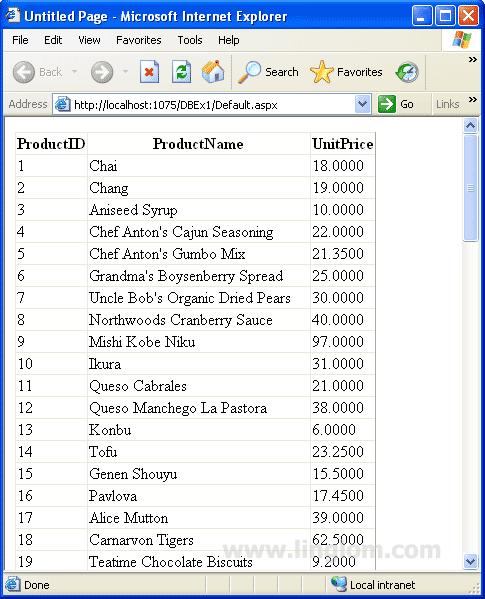
- Run the project. You will see the result as figure below.