Restore Database From SQL Server 2008 to SQL Server 2005

Generate SQL Server Scripts Wizard
On Part 1: Introduction, I mentioned about error messages when you try to restore a database from SQL Server 2008 to SQL Server 2005. Now let’s see a first solution to solve the problems.
On this post, you see how to backup ‘Northwind’ database by generate a SQL Server script on SQL Server 2008. Then, restore the ‘Northwind’ database by execute the SQL Server script on SQL Server 2005.
Step-by-step
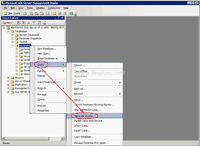
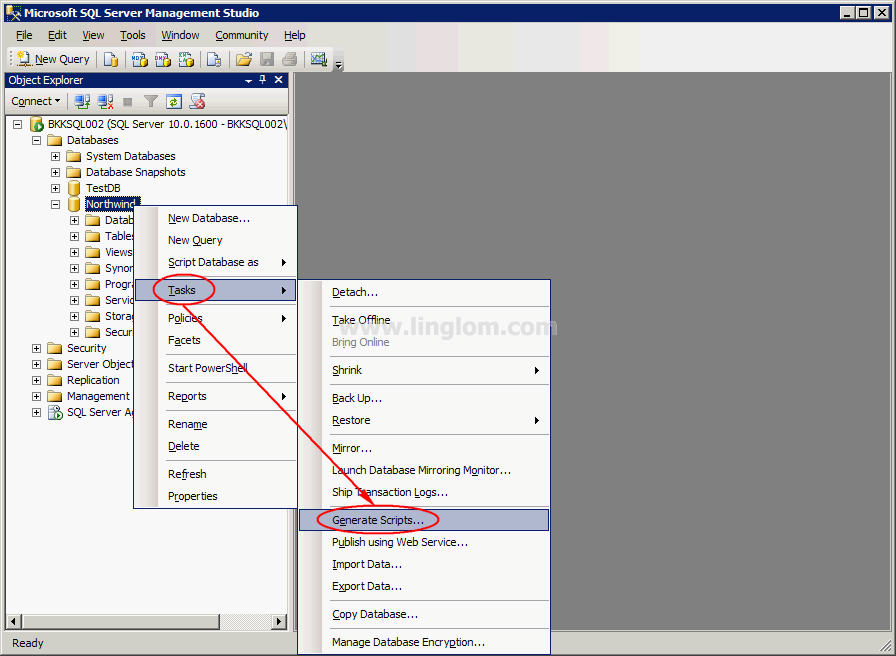
- On Microsoft SQL Server Management Studio, connects to the SQL Server 2008. Right-click on the database that you want to backup and select Tasks -> Generate Scripts.
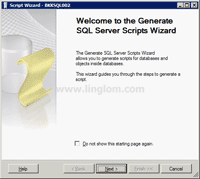
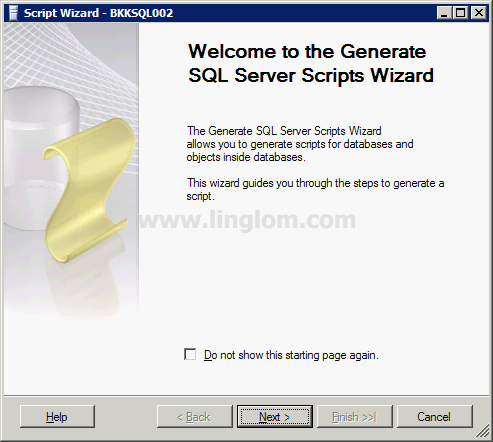
- On Welcome to the Generate SQL Server Scripts Wizard, click Next.
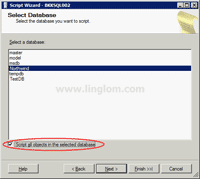
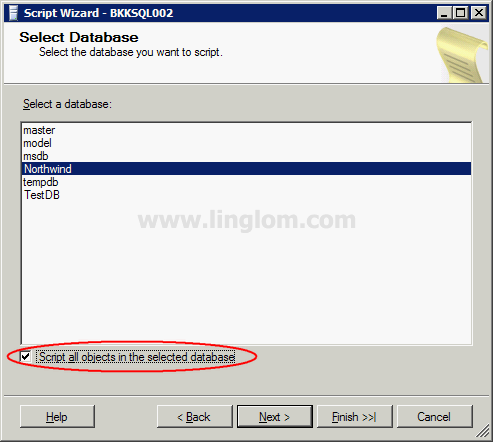
- On Select Database, select Northwind and check Script all objects in the selected database. Then, click Next.
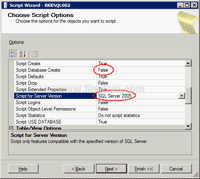
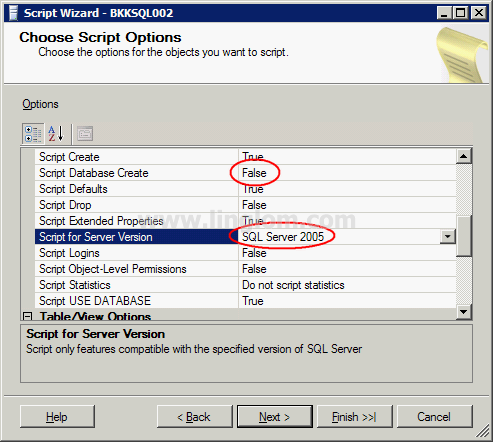
- On Choose Script Options, set Script Database Create to False and Script for Server Version to SQL Server 2005.
Note: You can set Script Database Create to True if your source and destination for store database files are the same location.
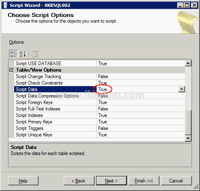
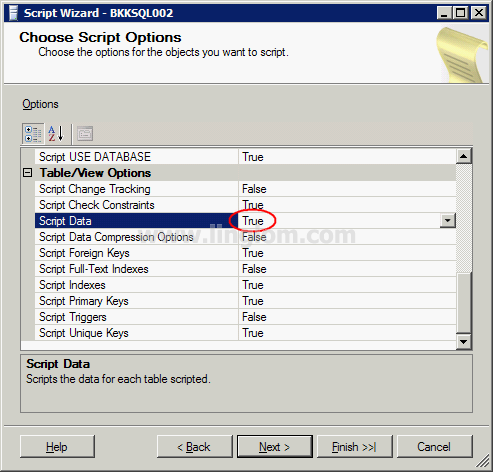
- Continue on Choose Script Options, scroll down and set Script Data to True. Click Next
Note: Set this option to true to include data on each table to a script.
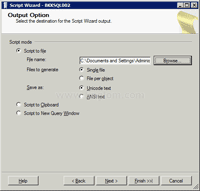
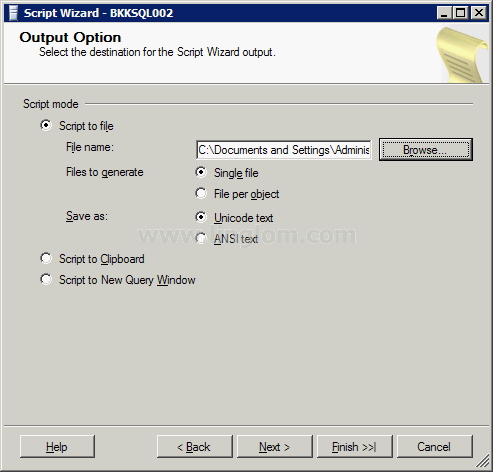
- On Output Option, select a destination for the output script. Select Script to file and browse to the location that you want. Click Next.
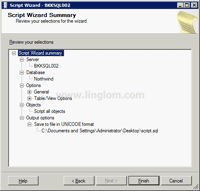
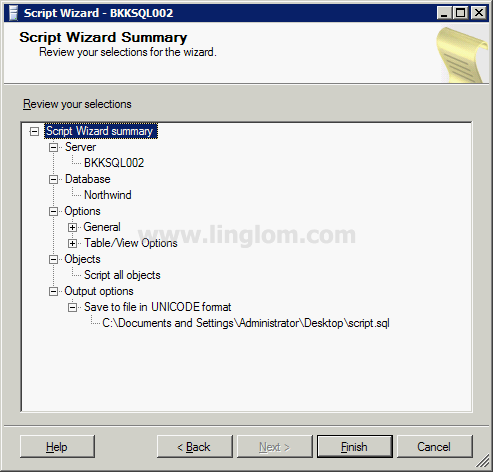
- On Script Wizard Summary, you can review your selections. Then, click Finish.
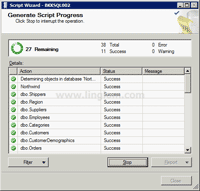
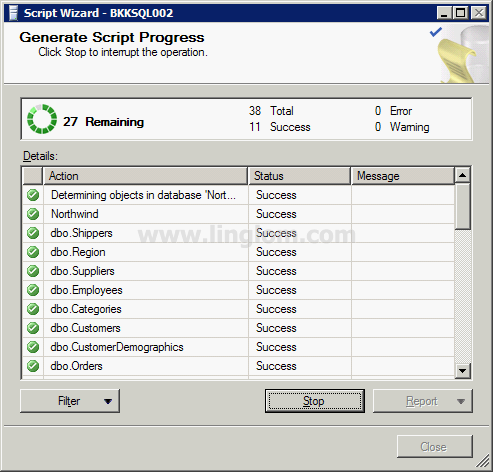
- On Generate Script Progress, the wizard is creating a SQL Server script.
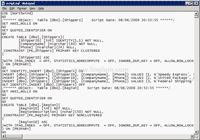
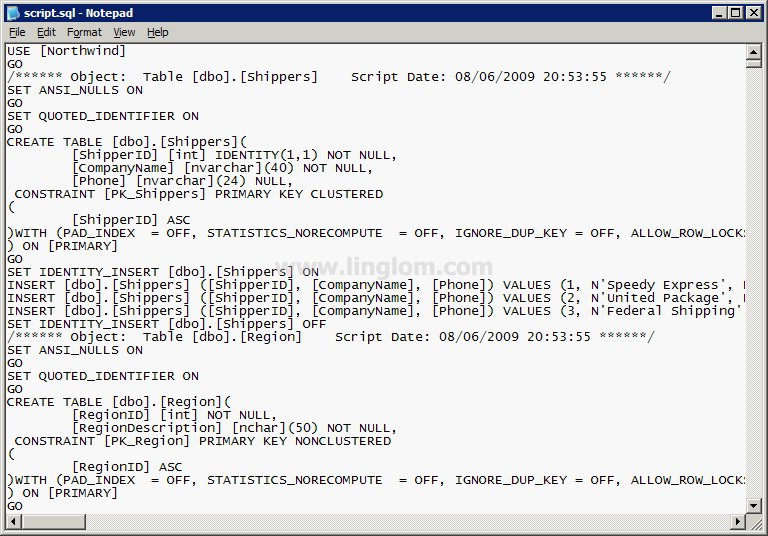
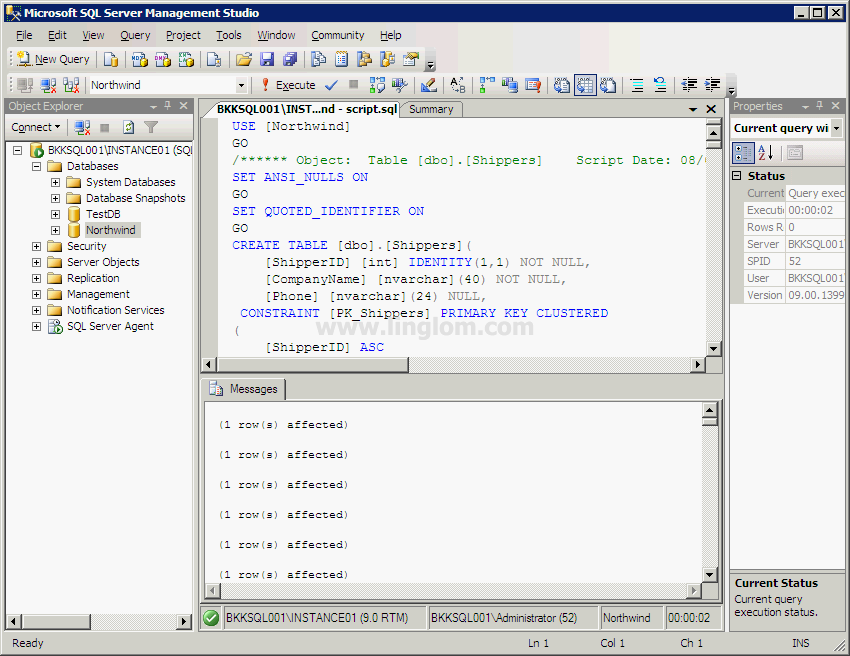
- When the script has been completed, you see the output file as similar the figure below.
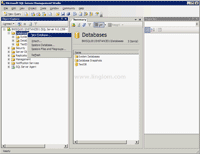
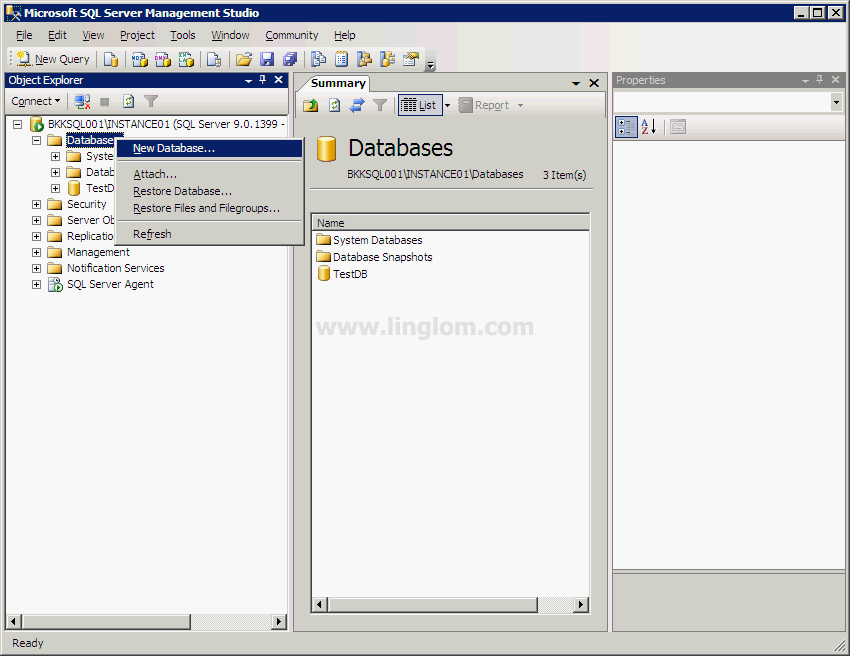
- Connect to SQL Server 2005, create a new database. Right-click Database -> New Database.
Note: If you have set Script Database Create to True on step 4, you don’t have to create a database manually.
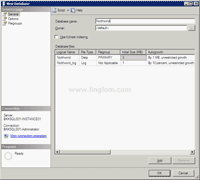
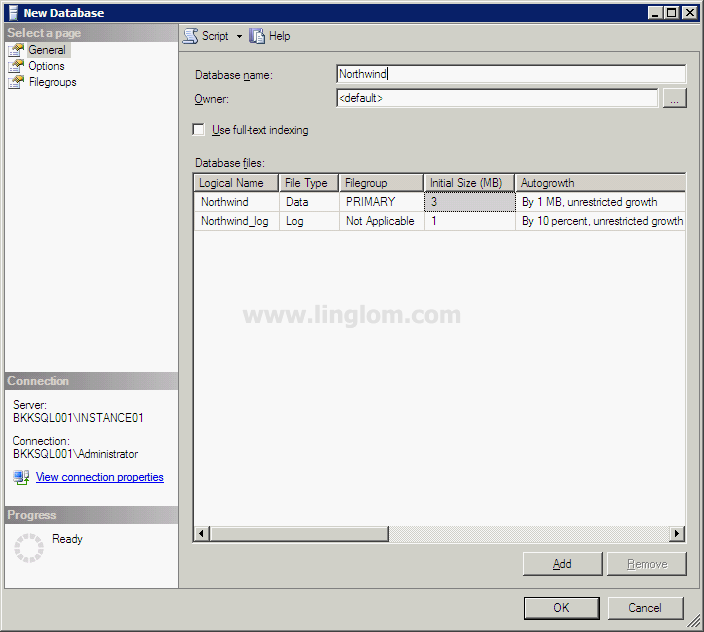
- Type ‘Northwind’ as database name. Click OK.
- Execute the SQL Server script file that you have created.
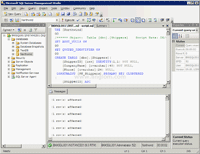
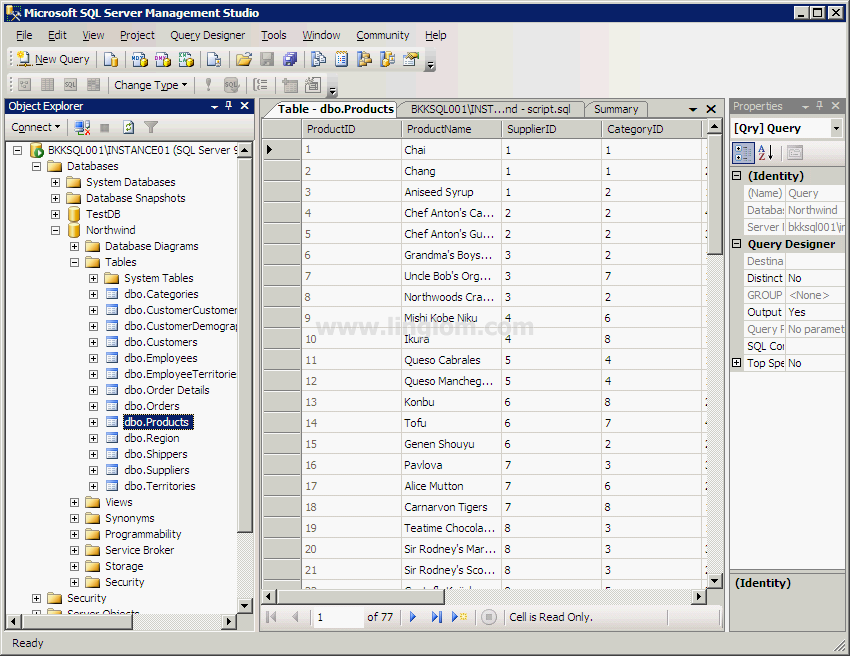
- Now the database ‘Northwind’ is restored on SQL Server 2005.
I tried it and upon execution of the sql in the 2005 server I got this error:
“…Not enough storage is available to process this command”. I still have enough HD space, does the error mean the RAM? Thanks.
Hi, iami
Do one of the following, then retry the command: (1) reduce the number of running programs; (2) remove unwanted files from the disk the paging file is on and restart the system; (3) check the paging file disk for an I/O error; or (4) install additional memory in your system.
Reference: Microsoft Technet
I followed this procedure but i keep getting this error message:
Column dDate in object table1 contains type Date, which is not supported in the target server version, SQL Server 2005. (Microsoft.SqlServer.Smo)
can someone help me about this error? what will i do?
thanks
Mark, the error you are getting this as 2005 doesn’t have the data type “date” These need to be changed to datetime or another data type of 2005
I got the same message as IAMI(message 1) got .So I just generated DDL Scripts and used export utility to export the data.
I followed the steps above but was unable to open and execute the script file – did I miss something?
If I try to open the script file in either SQL Server 2008 (on a networked Windows NT machine) or 2005 (on an un-networked laptop running Windows Vista) I get the same error message which reads:
The operation could not be completed
with no other advice.
Do you have any suggestions as to what I should try next?
Cheers, Ali
Hi, Ali
Have you check if your script was successfully created? Try to open it with notepad and compare with my example on the post.
Man pero yo no tengo el SQL-2008 y tbm tengo algun script! tan solo tengo la BD general !
Please note that this example is scripting data. So some generated scripts will not open (Not enough storage is available to process this command). If this is the case, you will need to use SQLCMD.
Thanks
Thanks. Saved my bacon!
MS has changed the options for scripting schema and/or data. The option now reads: Type of data to script.
Hi sir,
when i restoring my database data from sql server 2008 to sql server 2005 i got an error like dbo._TmSpAfterUpdateAppObjLineOINM give me urgent reply sir.It gives when creating script for 2005 process in generate and publish script page.
why i got that error.If any know the solution send to my mail [email protected].
Hi,
many many thanks for this great tutorial.
You helped me a lot !!!
Hi,
I got the same error(not enough storage) while opening the script. I have tried it by restarting the computer but still get the same error. please help me urgently.
Hai OneandAll,
Iam new to SqlServerDBA can anyone send me the How to take the backup from sqlserver2008 and resotre sqlserver2012.
Thanks
When data type is Date its not converting to version 2005
In my database there are too many tables having Date data type i cant change, while generating script from 2008 i am enable to execute it on 2005 its giving error.
What to do…
I am facing not enough storage problem too, my script file is 600MB. It takes around 30 seconds to open in notepad 🙂
Thank you soooo much.