- UML Modeling on NetBeans, Part 1: Installation
- UML Modeling on NetBeans, Part 2: Create a Use Case Diagram
- UML Modeling on NetBeans, Part 3: Generate code from UML Diagram
- UML Modeling on NetBeans, Part 4: Generate UML Diagram from Code
UML Modeling on NetBeans, Part 1: Installation
This article show how to create UML Model on NetBeans and infers that you have already install NetBeans 5.5 (IDE) already. It divided into 4 parts:
Note: If you’re using NetBeans IDE 6.0, you don’t have to do this part because UML module is already integrated with NetBeans IDE 6.0.
- Part I: Installation
- Part II: Create a Use Case diagram
- Part III: Generate code from diagram
- Part IV: Generate diagram from code (Reverse Engineer)
To create UML Model on Netbeans, you need
- NetBeansâ„¢ 5.5 integrated development environment (the IDE).
- NetBeans 5.5, UML Modeling Beta module.
Install UML Modeling Beta module (Manual)
- Download NetBeans 5.5, UML Modeling Beta module and unzip the file.
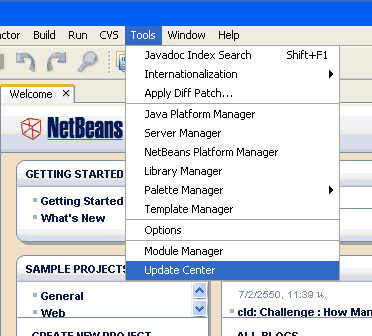
- In NetBeans IDE, click Tools -> Update Center
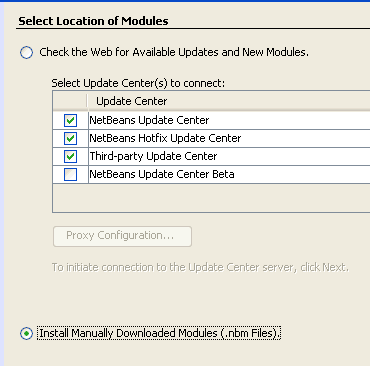
- Select “Install Manually Downloaded Modules (.nbm Files).” in the lower left portion of the panel. Click Next.
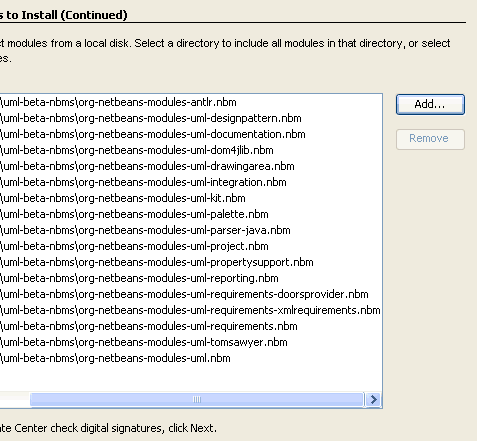
- In the Select Modules to Install page, click Add and select the folder containg the extracted contents of the zip you downloaded in the first step, click Open. Then, select all 17 UML .nbm files. Click OK and click Next.
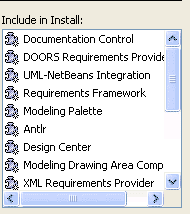
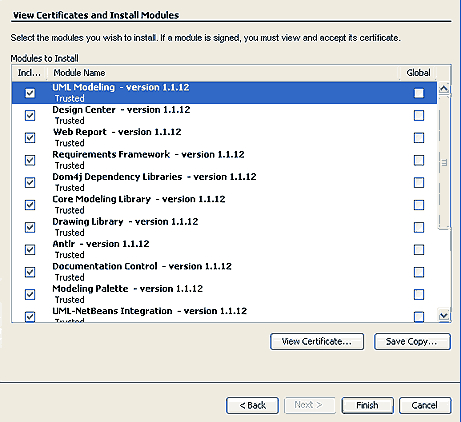
- All 17 UML .nbm files will appear in the Include in Install pane on the right. Click Next.
- Read and Accept the 4 UML licenses.
The Download Modules page appears and progress is shown as the modules are read from the local folder.
When progress is complete, click Next.
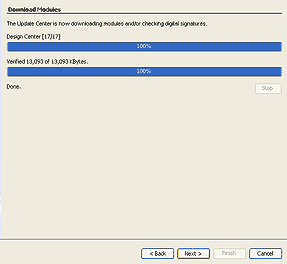
- Click Finish to continue with the installation of the module. This takes a few minutes after the Update Center wizard disappears.
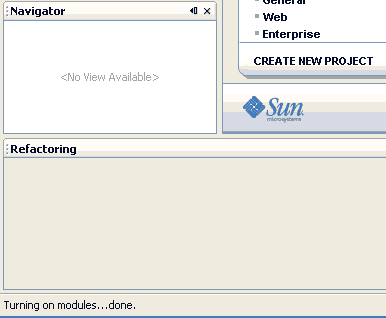
- When the installation is complete, you will see the message ‘Turning on modules…done’ displayed in the lower left corner of the IDE window.
It’s quite easy to install!
I am going to evaluate netbeans UML Modeling Module for my SCEA project.
Thanks a lot for the tutorial.
Thanks for the comment.
I’m going to release part II in a few days which about how to create a diagram.
When adding all the .nbm files I get the message:
The following module dependencies could not be satisfied
MODULE: org.netbeans.modules.uml.project/1 org.netbeans.modules.editor.lib/1 > 1.9.22.1module
Module can be downloaded, but cannot be enabled.
Include module in install list anyways?
I select Yes but there is no New->Project->UML option
What should I do? PANICK???
To Dar Var,
What version of NetBeans you’re using? I think you have the older version.
To use this module, you should have NetBeans 5.5.
Try download and install the latest one, you can find at my download page.
Most excellent intructions… Just perfect. Thanks! DTebar
Hello,
I’m the Community Docs Manager for NetBeans. Your blog entry would make a great NetBeans tutorial. If you are interested in writing a tutorial for the NetBeans Community, contact me and we can discuss details.
Thanks,
–James Branam
NetBeans Community Docs Manager
I installed netbeans 5.5 and enterprise pack separately , but can not see UML under File->New Project-> Category . Then I tried Netbeans Bundle also , but still can not see it. I can not create any UML project. Please advice.
Thanks
Arijit Pan
Did you install UML Modeling Beta module?
To verify that, Go Tools -> Module Manager.
If you can’t see UML module that means you have to installed it first as show in this post.
Thanks a lot.
The UML module download from Update Center didn’t resumed when download failed. u provided the download from outside. thus i did download n also thanks for the great tutorial.
This is not working with Netbeans 5.
Any ideas
Thanks.
I´m Using netbeans version 7.3.1 and can´t see uml modules, i follow step by step the isntallation instructions, but that not working, pls help me